Updated Generate tool for better AI diagrams

The Generate tool has been overhauled so that it is more flexible and more customisable via the draw.io configuration dialog.
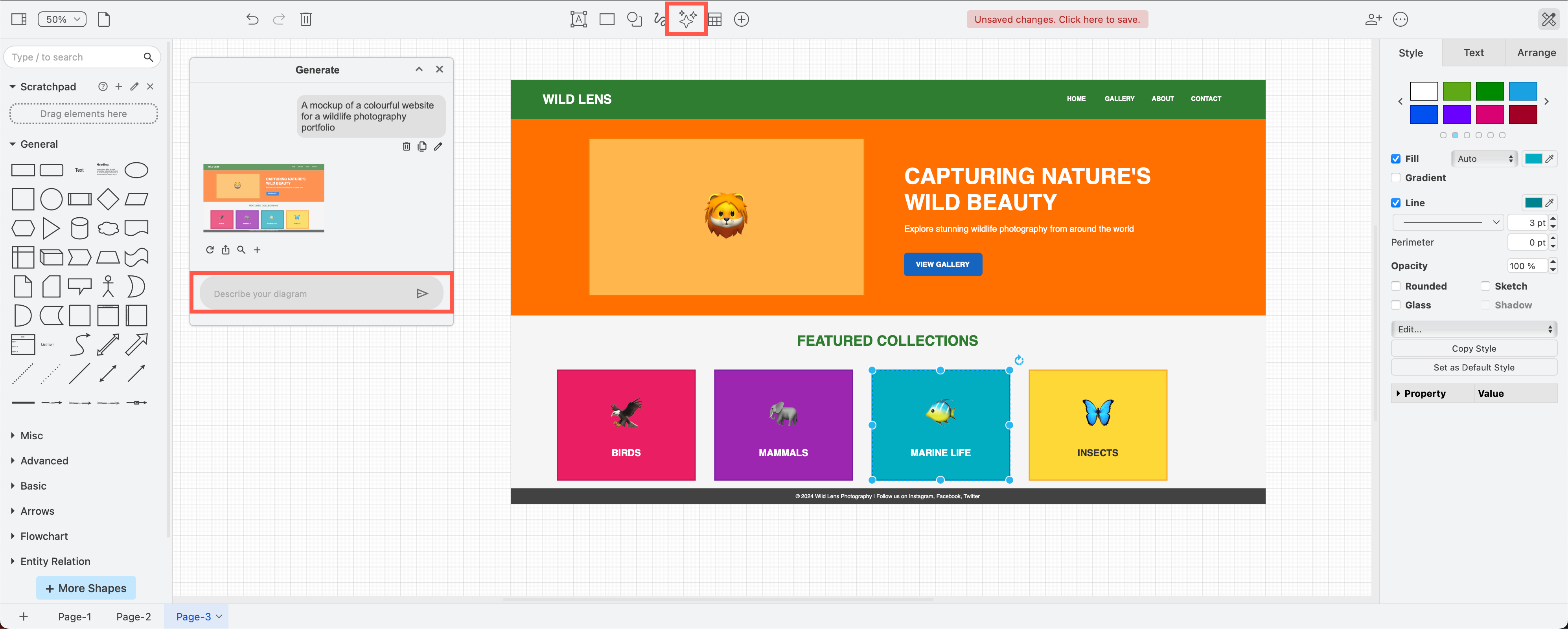
- Start a New Chat in the Generate dialog to generate a new or different diagram.
- Edit the query, or Send a clarification query to make changes to an already generated diagram. Apply those changes to the diagram you had already added to the drawing canvas.
- Change the default initial LLM instructions, set specific LLM models, and use your own LLM API keys via the draw.io configuration.
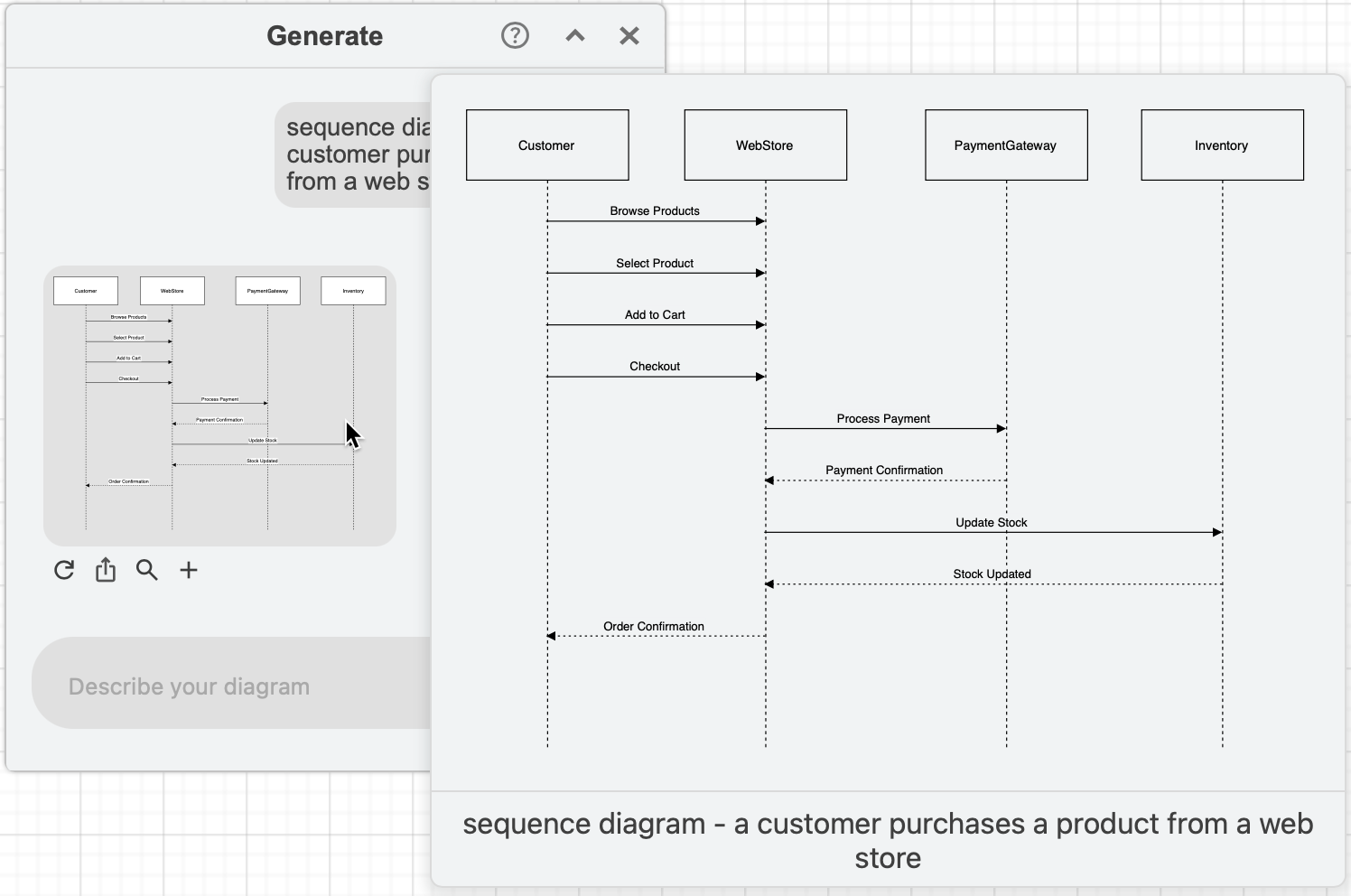
Which LLM models?
The most appropriate LLM model for the diagram type you specified in your query will be chosen automatically. The model list that draw.io uses changes frequently - currently, OpenAI, Claude and Gemini are used.
Using multiple AI generators supports a wide range of diagrams, including interface mock-ups, infrastructure diagrams, Mermaid diagrams and more.
You can also set specific instructions and configurations for each action and/or model in the draw.io editor configuration.
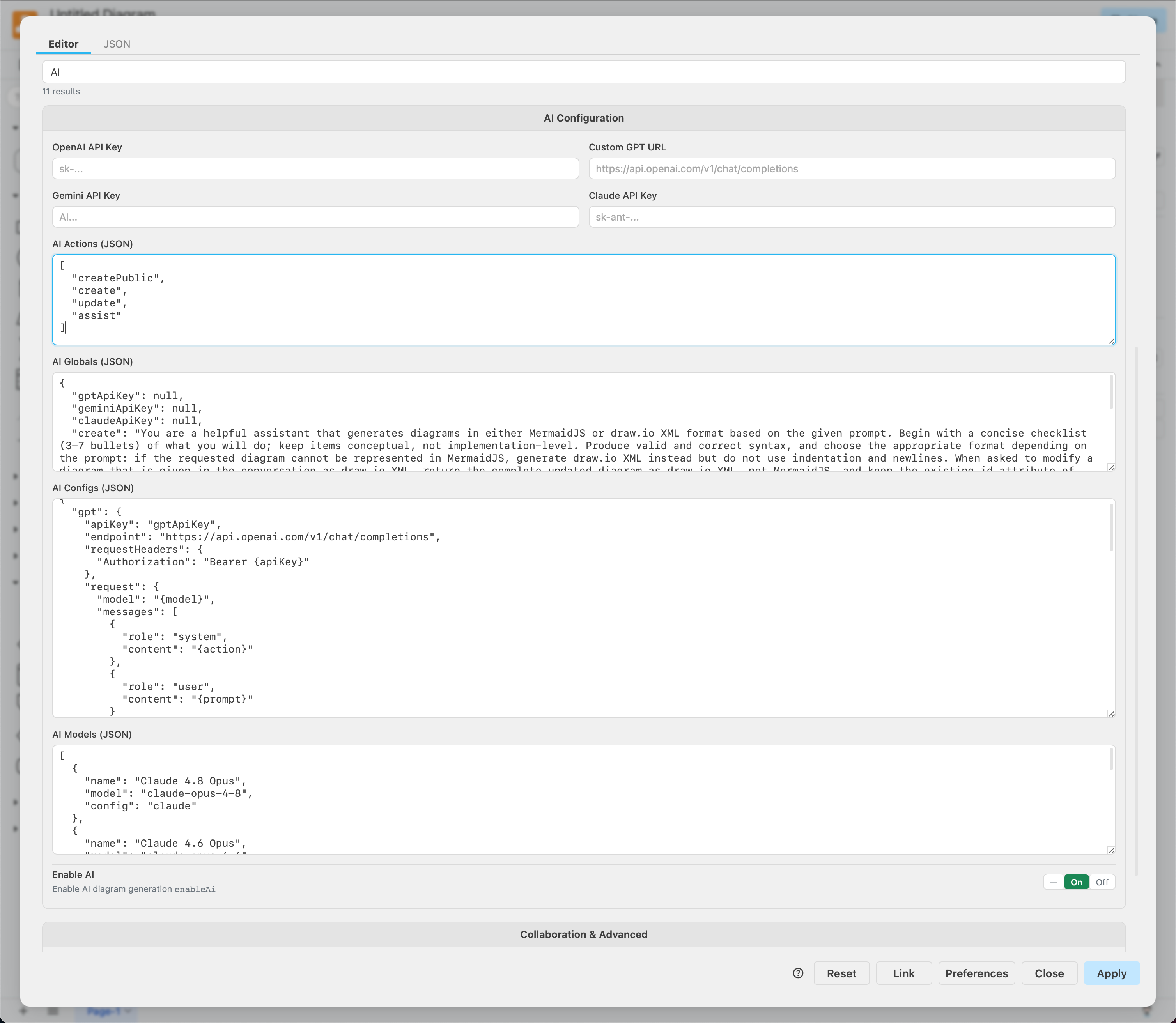
Set specific AI models
Add your own LLM API keys to choose specific models from the Claude, Gemini and GPT families in the Generate dialog, instead of using the free hosted draw.io backend.
- Select Extras > Configuration from the menu.
- Enter your API keys in the AI configuration section, then click Apply.
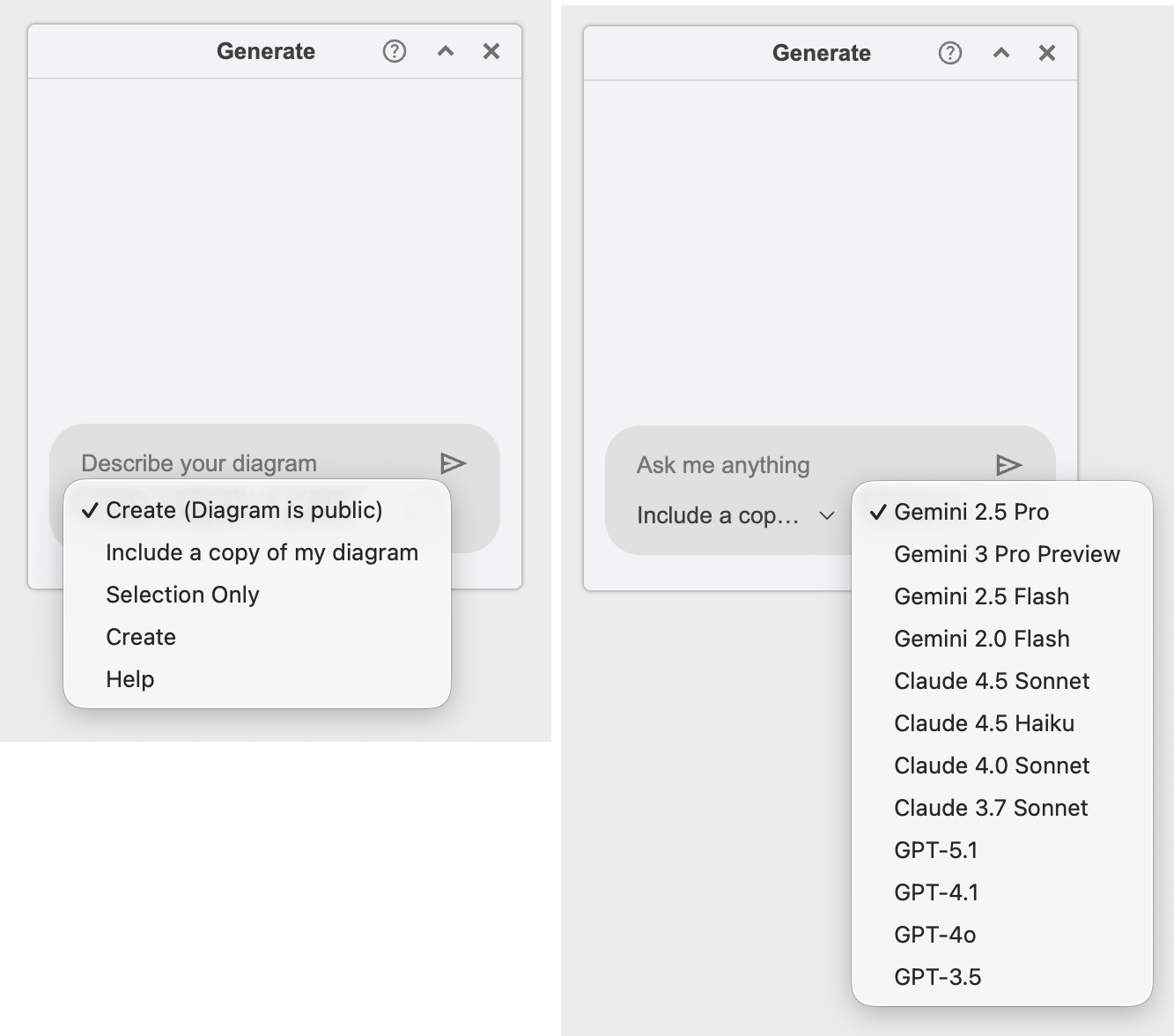
The model selector in the Generate dialog will list your configured models. Via the configuration options, you can also add new or self-hosted models with compatible APIs, customise the system prompts, or disable the AI features completely.
Tip: The Clipboard backend needs no API key - it copies your request to the clipboard so you can paste it into an external AI tool, then paste the response back into the Generate dialog.
Generate a diagram
- Click on the Generate tool (sparkle button) in the toolbar, or select Arrange > Insert > Generate from the menu.

- Describe your diagram, starting with the type of diagram you want, then press
Enteror click on Send. - Click + to add the generated diagram to the drawing canvas.
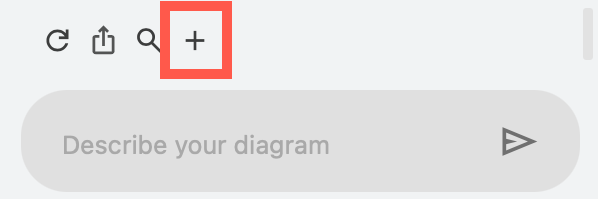
The diagram will be added to the drawing canvas, where you can edit its shapes, connectors, text and styles as in any other draw.io diagram.
Tips: Hover over a diagram in the dialog to see a larger preview, and click on the microphone to dictate your query instead of typing it. Click + Chat to start a new chat for each new diagram - see examples of generated diagrams.
Share your diagram data with the LLM
Do you want the Generate tool to make changes to an existing diagram, page, or selected shapes and connectors?
Click on the + in the lower left of the query text box and attach the diagram File, the current diagram Page, or just the Selection of shapes and connectors.
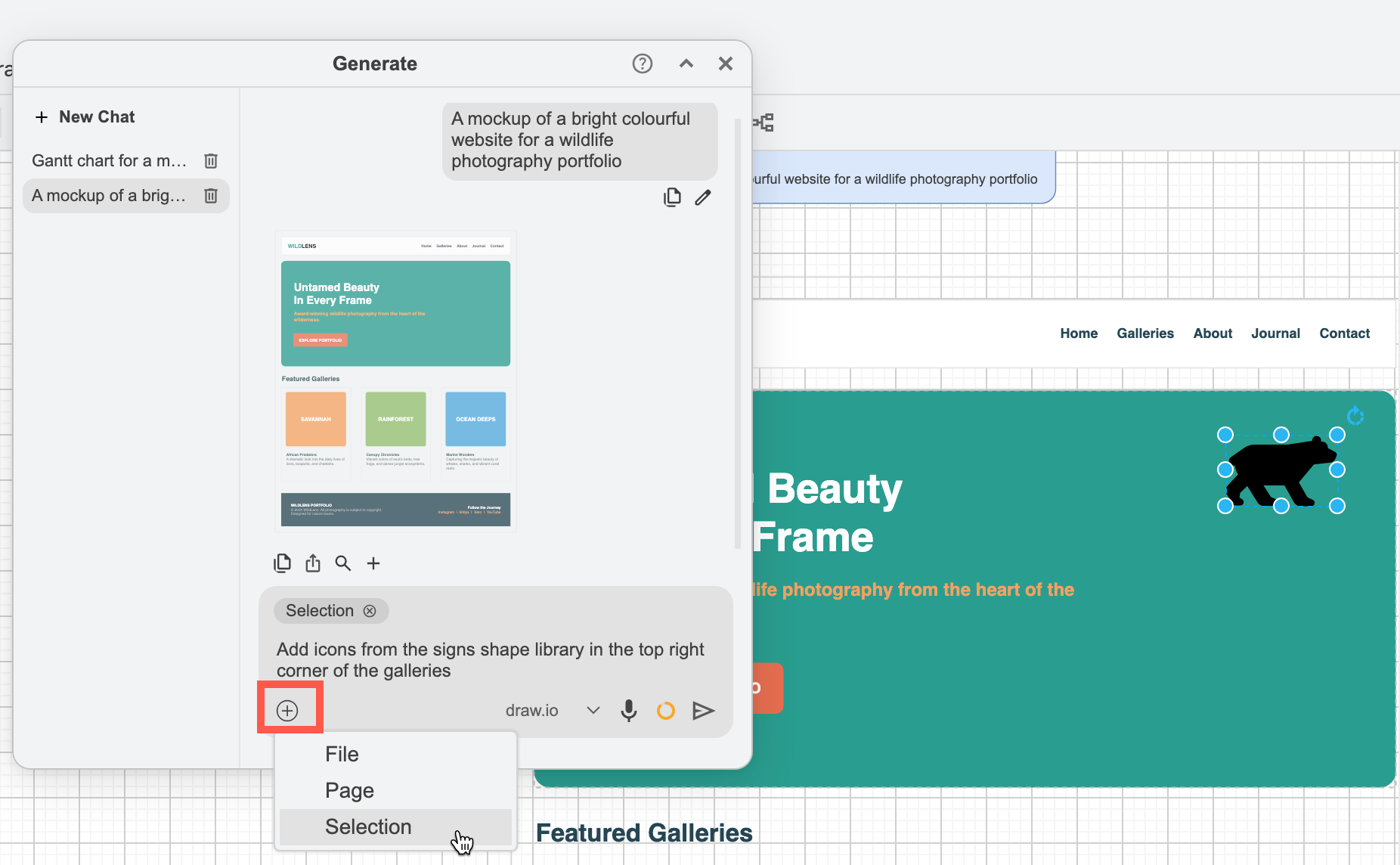
The Generate tool will return an updated version of your diagram.
- Click on the tick to Apply the changes to the diagram on the drawing canvas.
- Click on the + to Add the new version to the drawing canvas in addition to any existing shapes and connectors.
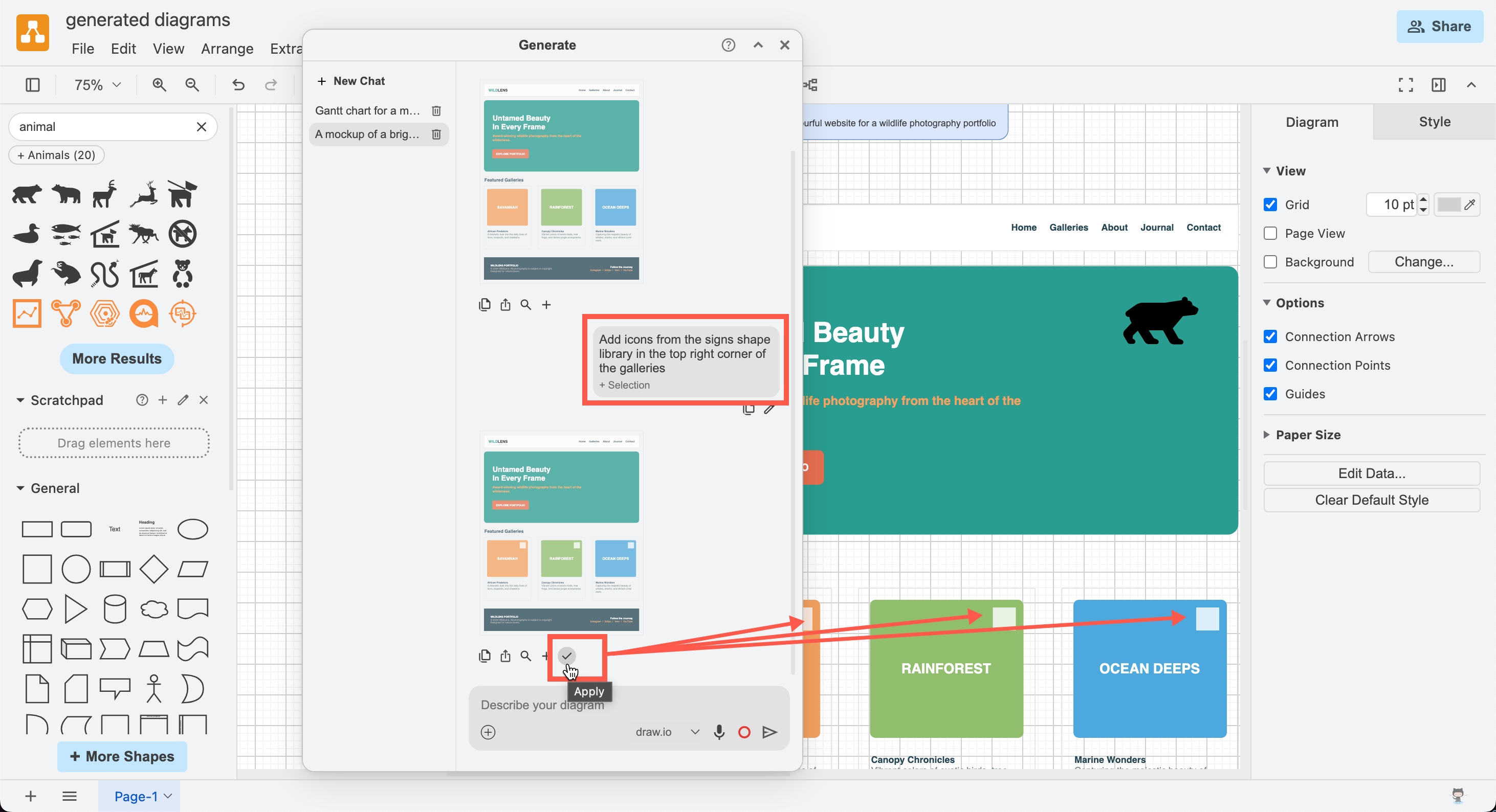
Note: The Generate tool only has access to the diagram data that it has generated in that chat and anything you have explicitly shared with it. Learn more about AI diagram generation.
Generate diagrams in your AI chats
If you prefer to work in your AI tool instead, use the draw.io MCP server. The MCP server lets LLMs create draw.io diagrams and open them in the draw.io editor. With AI services that support MCP Apps, such as Claude.ai and VSCode, diagram previews will appear inline in your AI chat.
Related
- Learn more about generating diagrams in draw.io.
- See how to write better queries for more accurate diagram generation.
- Learn when it makes sense to generate diagrams.
- Customise the LLM backends in the draw.io editor configuration.
- Enable diagram generation in draw.io for Confluence Cloud.