Use the diagram editor in dark mode
Dark mode lets you switch draw.io to match your operating system's dark mode or night mode. Dark mode works in all of the diagram editor themes:
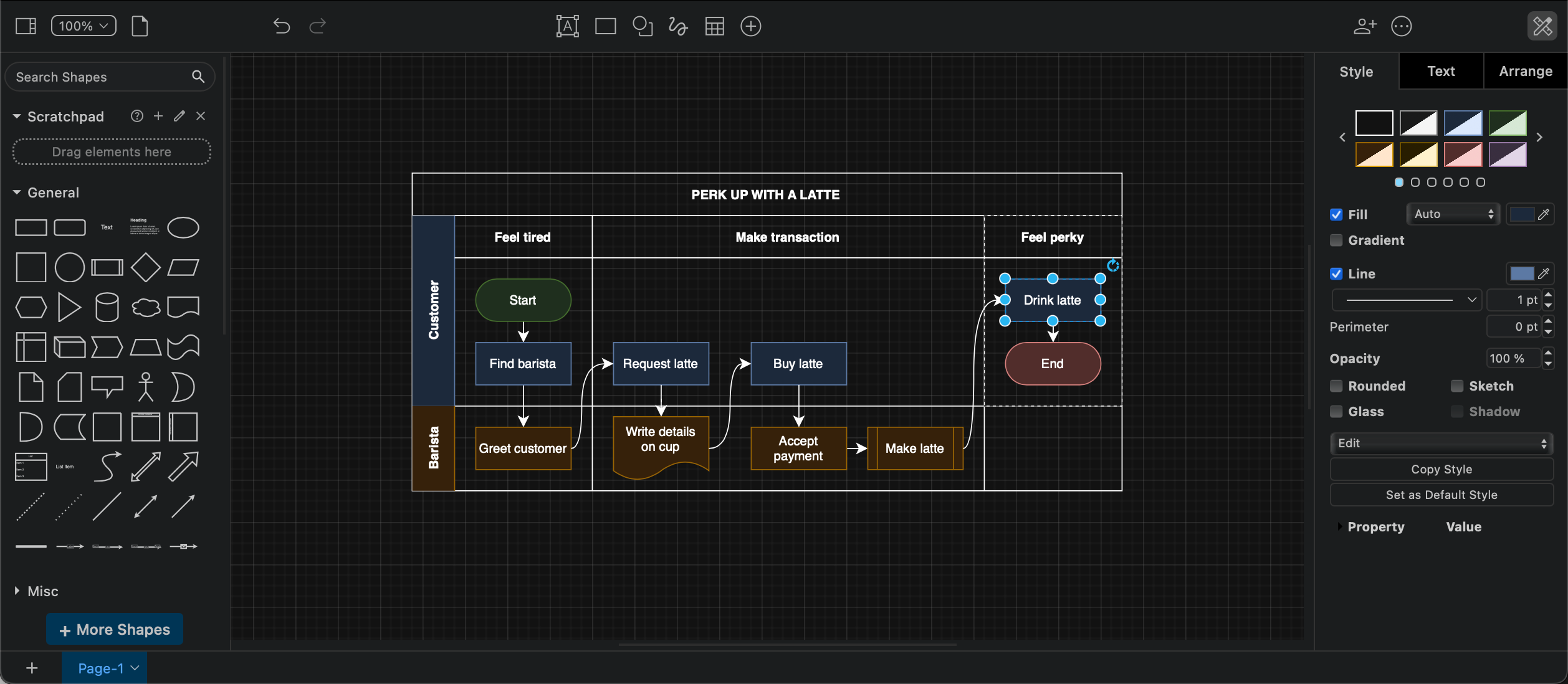
Go to our online diagram editor with the dark URL parameter at app.diagrams.net/?splash=0&ui=dark to open the editor in Dark mode.
Switch to dark mode
You can switch editor themes via the menu, and change between editor dark and light modes.
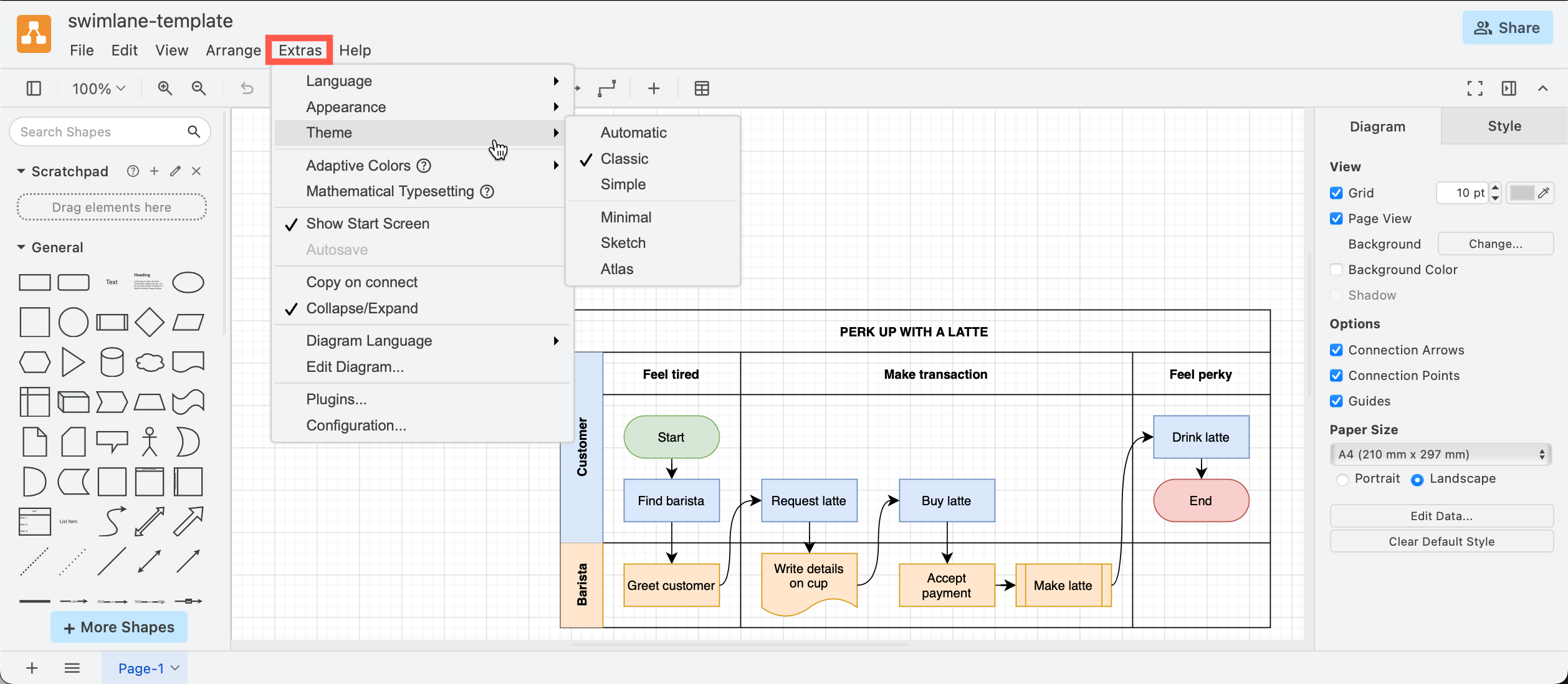
Open the draw.io menu
- In the Simple theme, click on the three dots in the toolbar to open the draw.io menu.
- In the Sketch theme, click on the three horizontal lines in the top left.
- In the Minimal theme, click on Diagram in the toolbar.
- In Atlas and Classic themes, look under the Extras menu.
Select Settings > Appearance and then Light or Dark to change between dark and light modes.
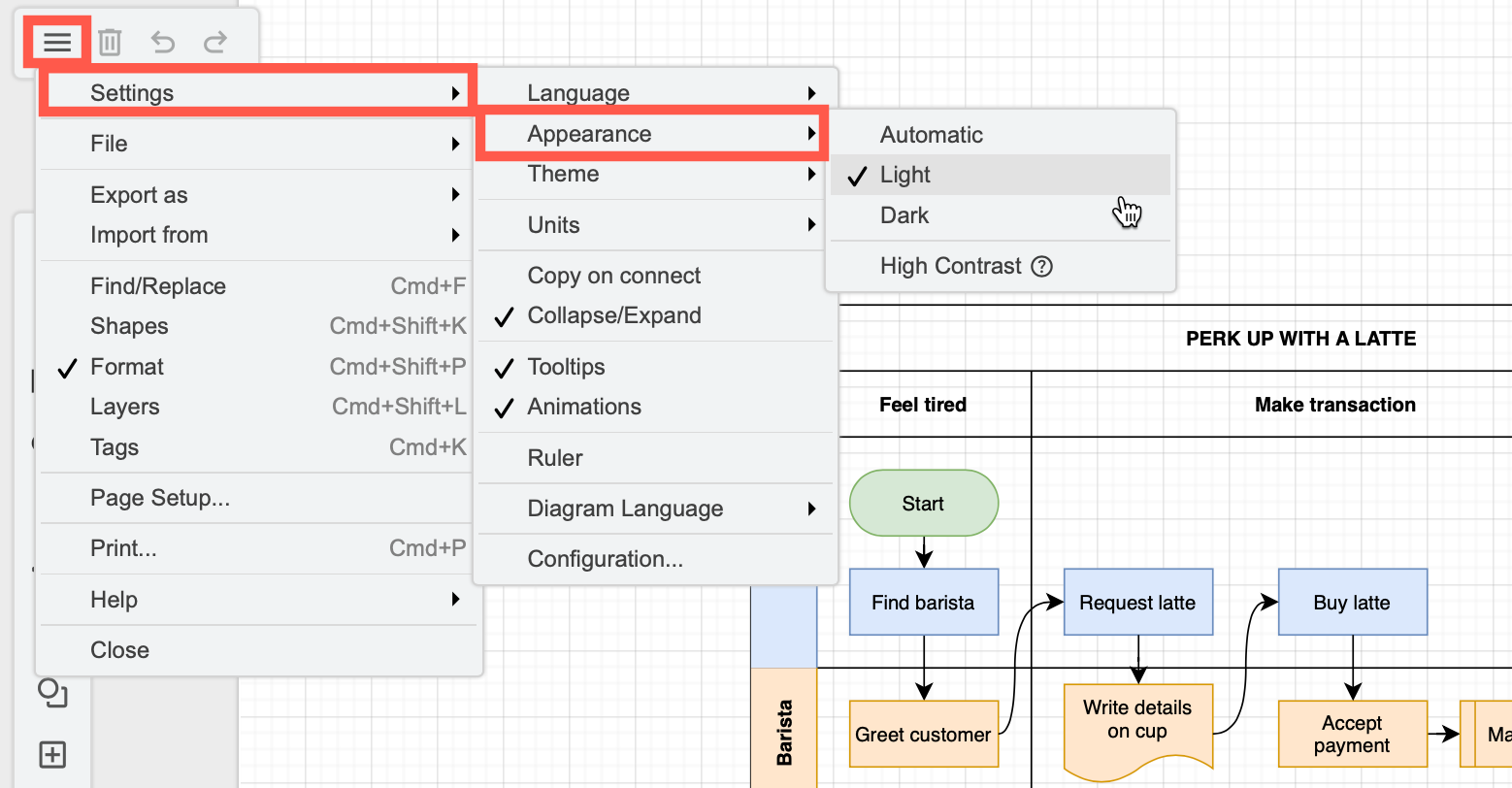
Tip: Automatic should reflect your operating system or browser settings automatically (when they are set to dark mode).
Diagramming in dark mode
Adaptive colours will keep your diagram readable by automatically switching when you change between light and dark modes. Colours automatically adapt to reflect light and dark mode by default, but only by their intensity. They don't change hue. This means that whatever colour you set on a shape, connector, text or as the diagram background will change depending on the mode you or a colleague uses the draw.io editor in.
Styles in dark mode
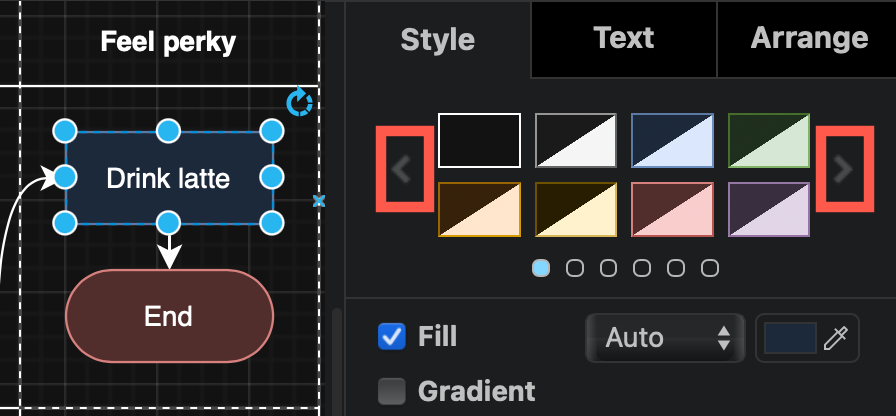
The Style palettes also automatically change to reflect dark or light mode.
- Step through the different palettes in the Style tab with the left/right arrows.
Templates in dark mode
Many (but not all) of the diagrams in the template library will switch to a colour palette that is better for dark backgrounds.
Exporting diagrams from dark mode
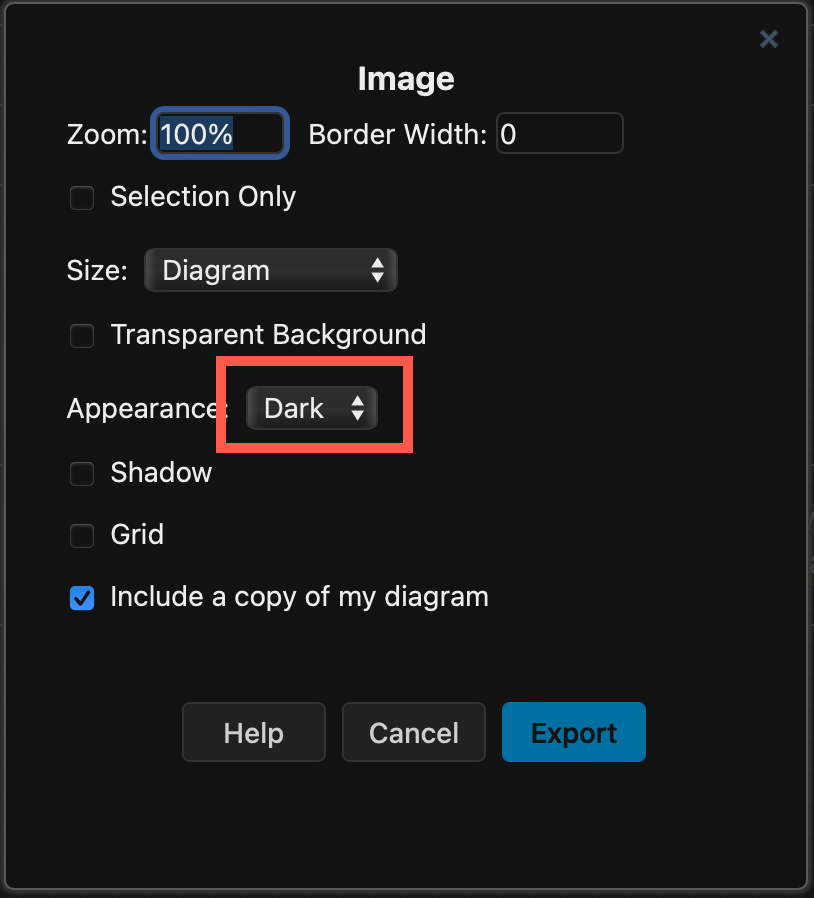
To export your diagram as an image (PNG, JPG or SVG) from the Dark theme and retain a dark background, make sure Dark is selected in the Appearance list.
Integrations that use dark mode
The unofficial draw.io extension for Visual Studio Code, developed by Henning Dieterichs, may automatically use dark mode in the diagram editor if your operating system/VSCode is set to dark mode.
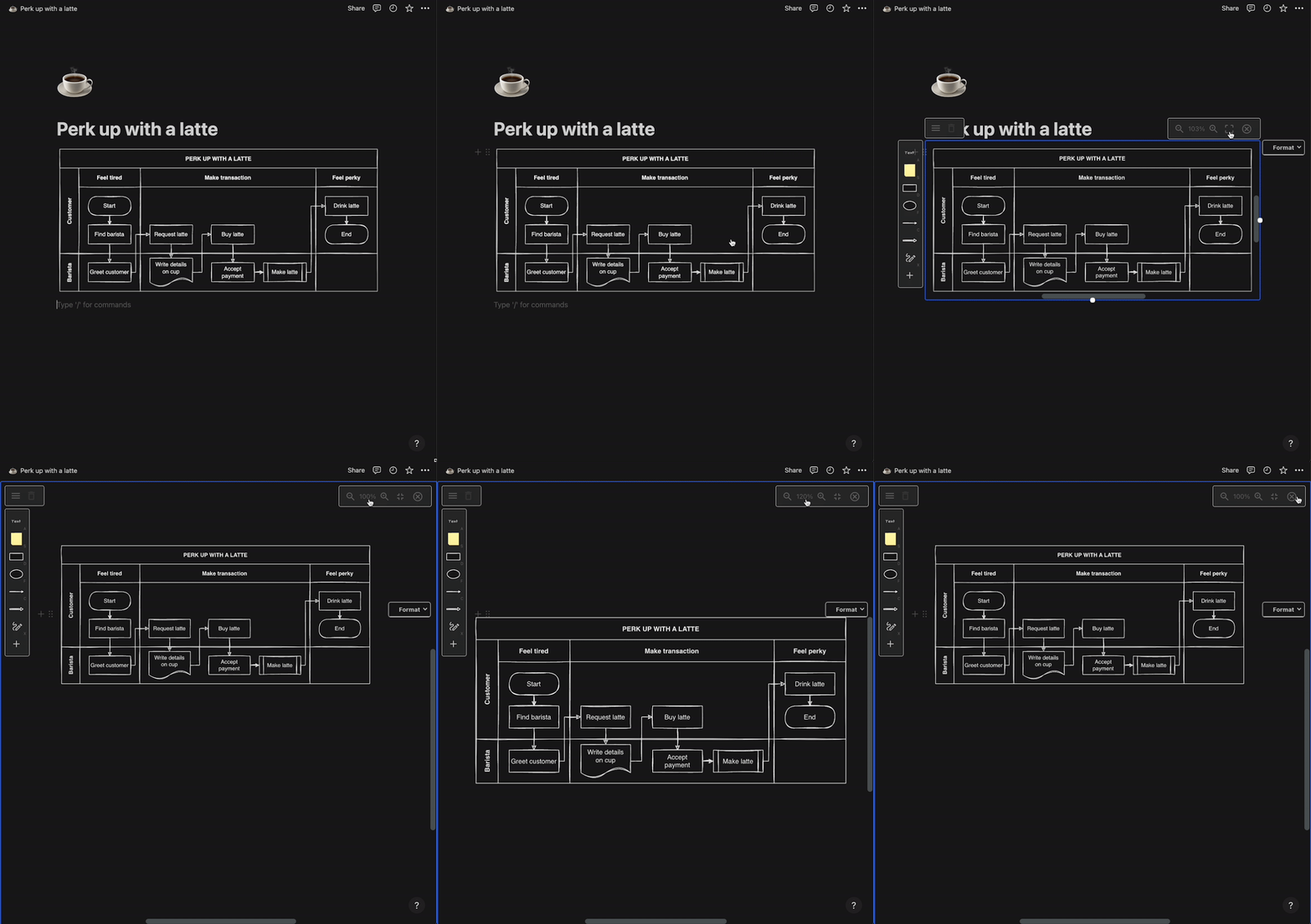
Our draw.io Chrome extension for Notion works in dark mode to match Notion's dark mode.
Problems with dark mode?
If you find a shape that has an unreadable label when switched to dark mode (with no default style set), please raise an issue in our JGraph/drawio GitHub repository after searching to see if there is an existing issue for that problem.