Add actions and animations to a page via Page Setup
Page animations play a sequence of effects that are attached to a page. They play automatically when the diagram is opened in the lightbox viewer, or when it is published to presentation mode.
Actions on custom links work in the same way as page animations, and as in the example below, you can copy custom link actions to page animations.
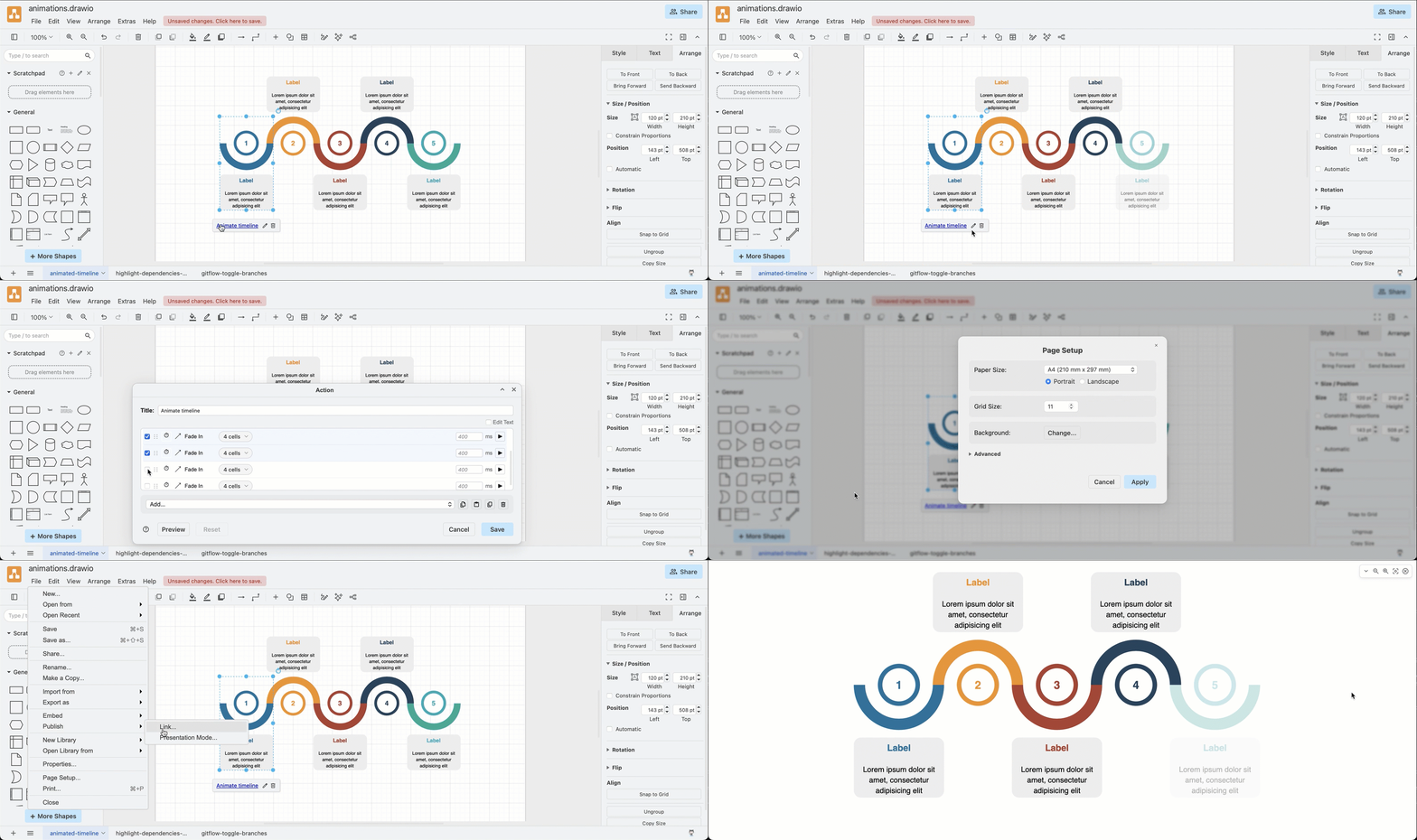
Each diagram page in a multi-page diagram can have its own set of animation actions that will display when you open that diagram in the lightbox or presentation mode. These are saved in the diagram's XML within the page cell.
Edit page animations
Select File > Page Setup from the draw.io menu, expand the Advanced section and click the Edit button in the Animation section.
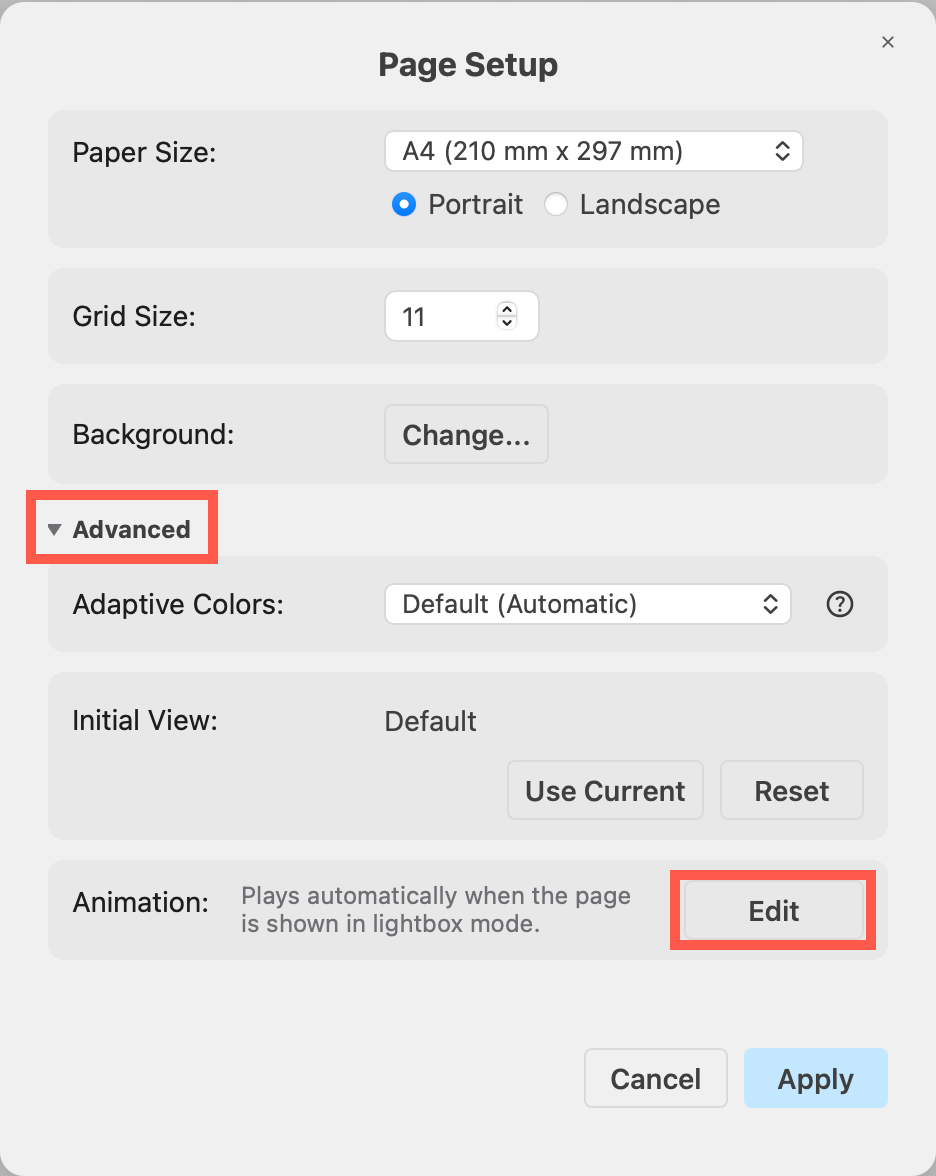
Both page animations and custom links use the same editor dialog and the same available actions. The Animation editor is a draggable, resizeable dialog where you can edit action settings at the same time as you select cells on the drawing canvas.
Drag the dialog near a corner of the browser window to snap it to the edge of the tab.
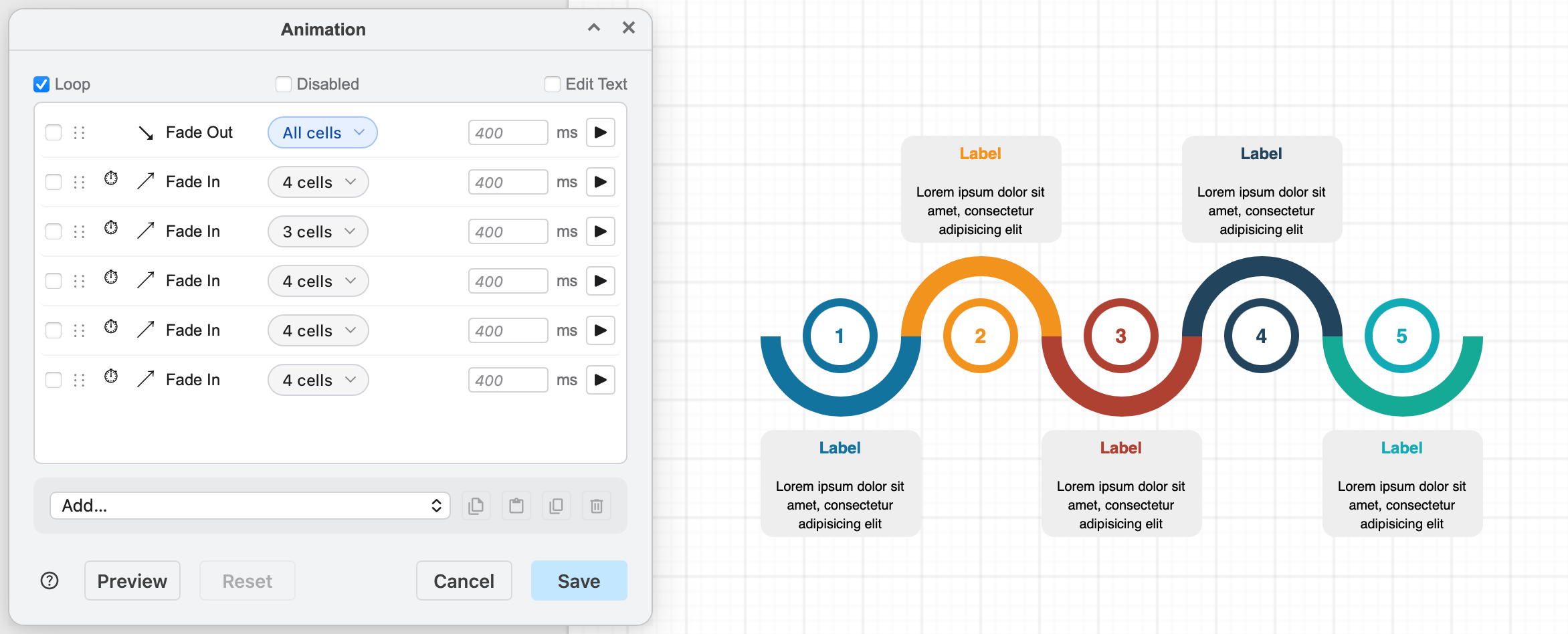
In the example above, the timeline will be animated in the lightbox viewer and presentation mode. First, all shapes are hidden (Fade Out), then each section of the timeline is faded in sequentially.
Add animation actions
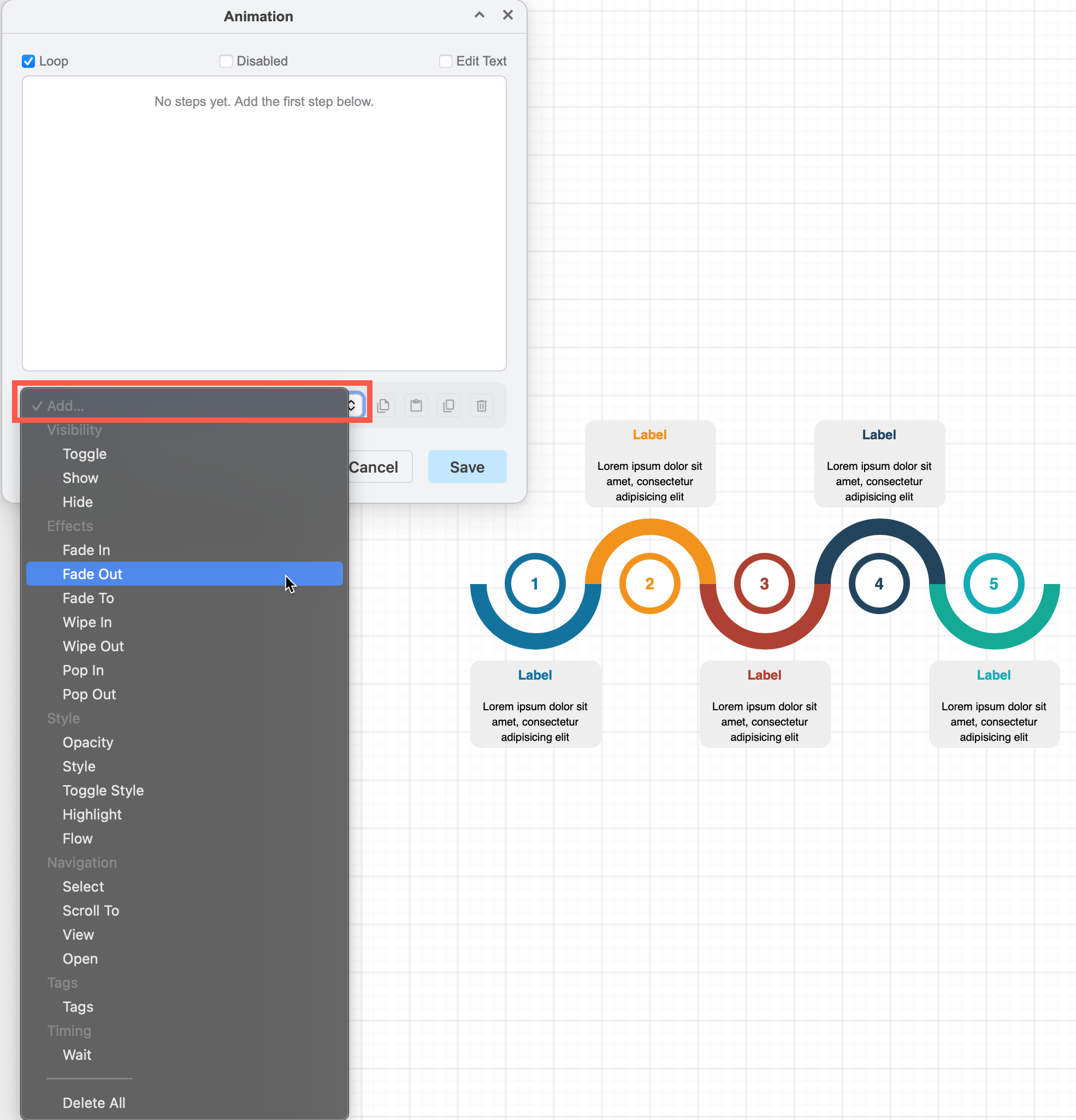
Select an action from the Add list at the bottom of the dialog. In this example, all shapes are faded out as the first step.
Add more steps to the animation. Here, a group of shapes has been selected and the Fade in action added. You need to explicitly include the group's Descendents to animate them with the group. All compound shapes such as swimlanes, layout shapes, tables and groups need to have Descendents selected for their children to be included in the action.
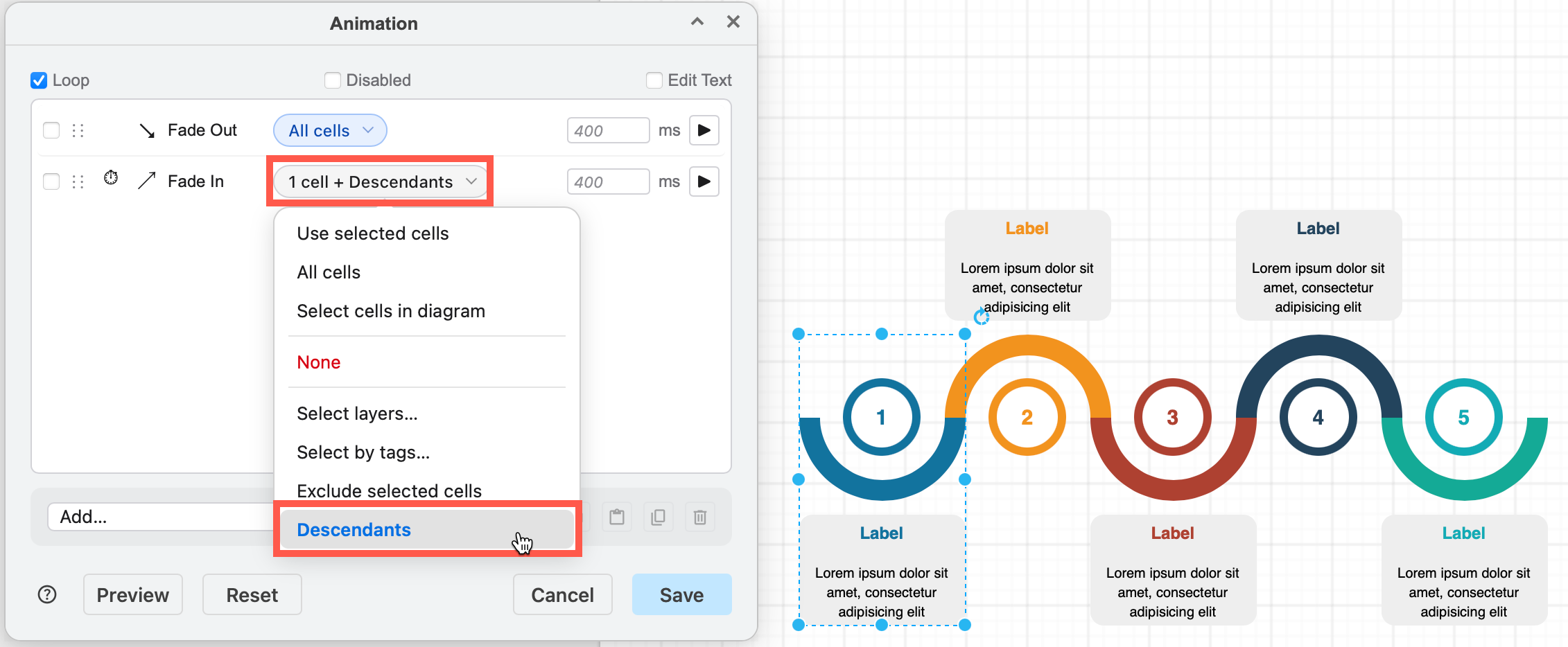
Select multiple shapes, and choose Use selected shapes from the Cells list of an action to apply that step to those shapes.
Apply animations to layers or tags: You can also apply actions to all the cells on selected Layers and Tags instead of individually including each shape, connector or group in the Cells list. For example, this animation will Highlight the cells on the Release and Release Fixes layer for 1000ms when the gitflow diagram is opened in the lightbox viewer or presentation mode.
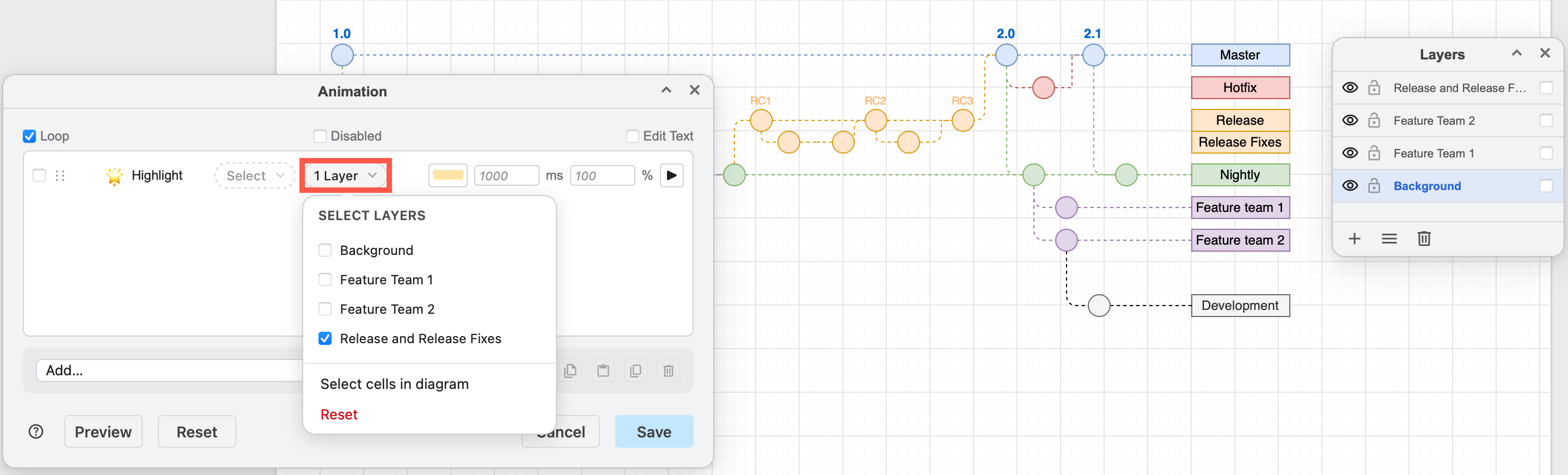
Tip: You can select cells to be Excluded from each action, even if they exist on the selected layers or with the selected tags that the action includes. This is explained in the Excluded section in the custom link documentation.
Refer to the full list of animation actions
Change animation timing
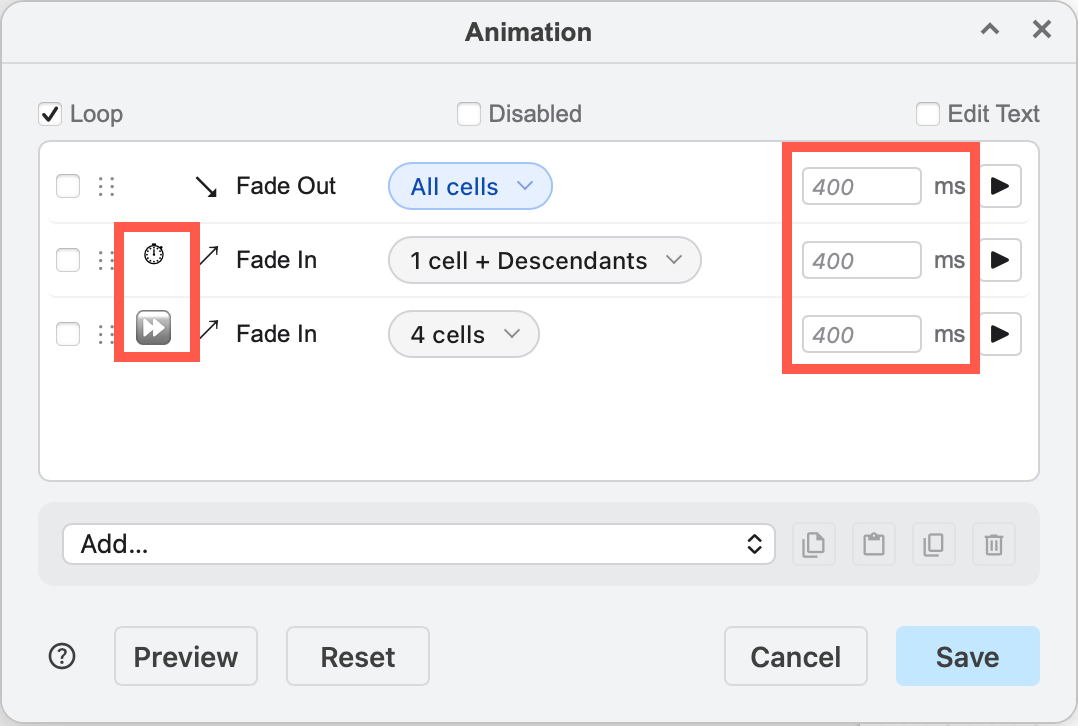
In the example below, the second step will wait for the default 400ms delay before it begins. When the the second step plays, the third step will play as it has been changed to Immediate.
- Enter your own custom delay by editing the right text field.
- Click the timer/double arrow icon to toggle between Wait or Immediate.
Preview animations
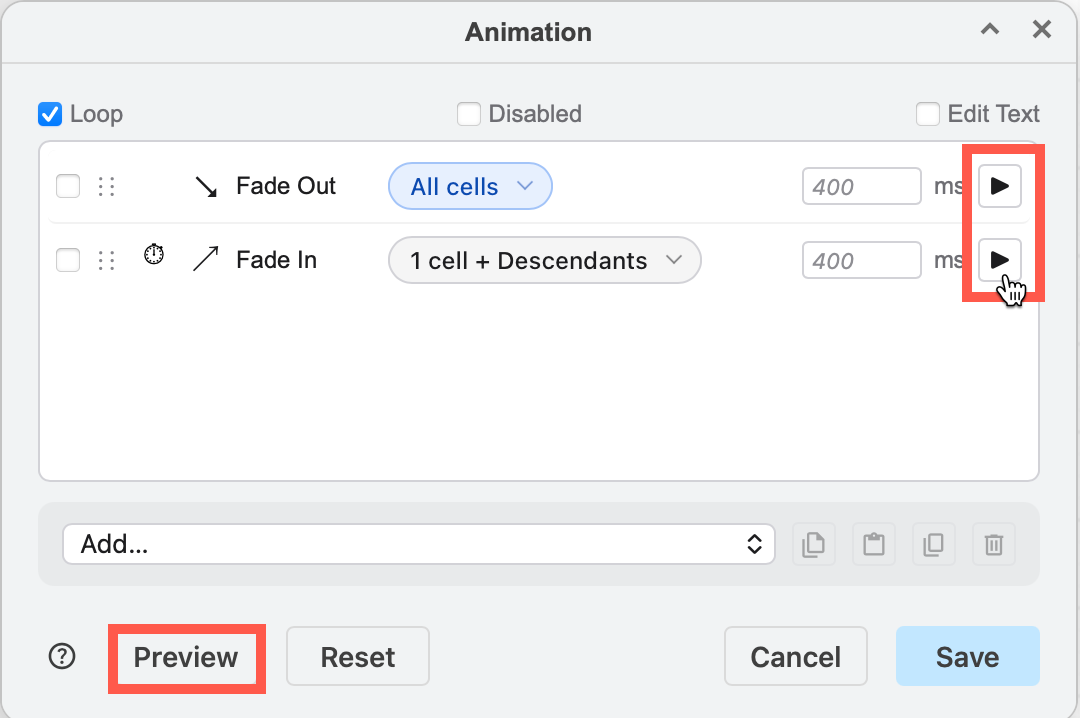
To preview the animation action (only that particular action), click on the Play icon to the right of the action. To preview the entire animation series, click Preview at the bottom of the dialog.
Reorder animations
Drag the animation with the grab region (six dots) to reorder them in the list.
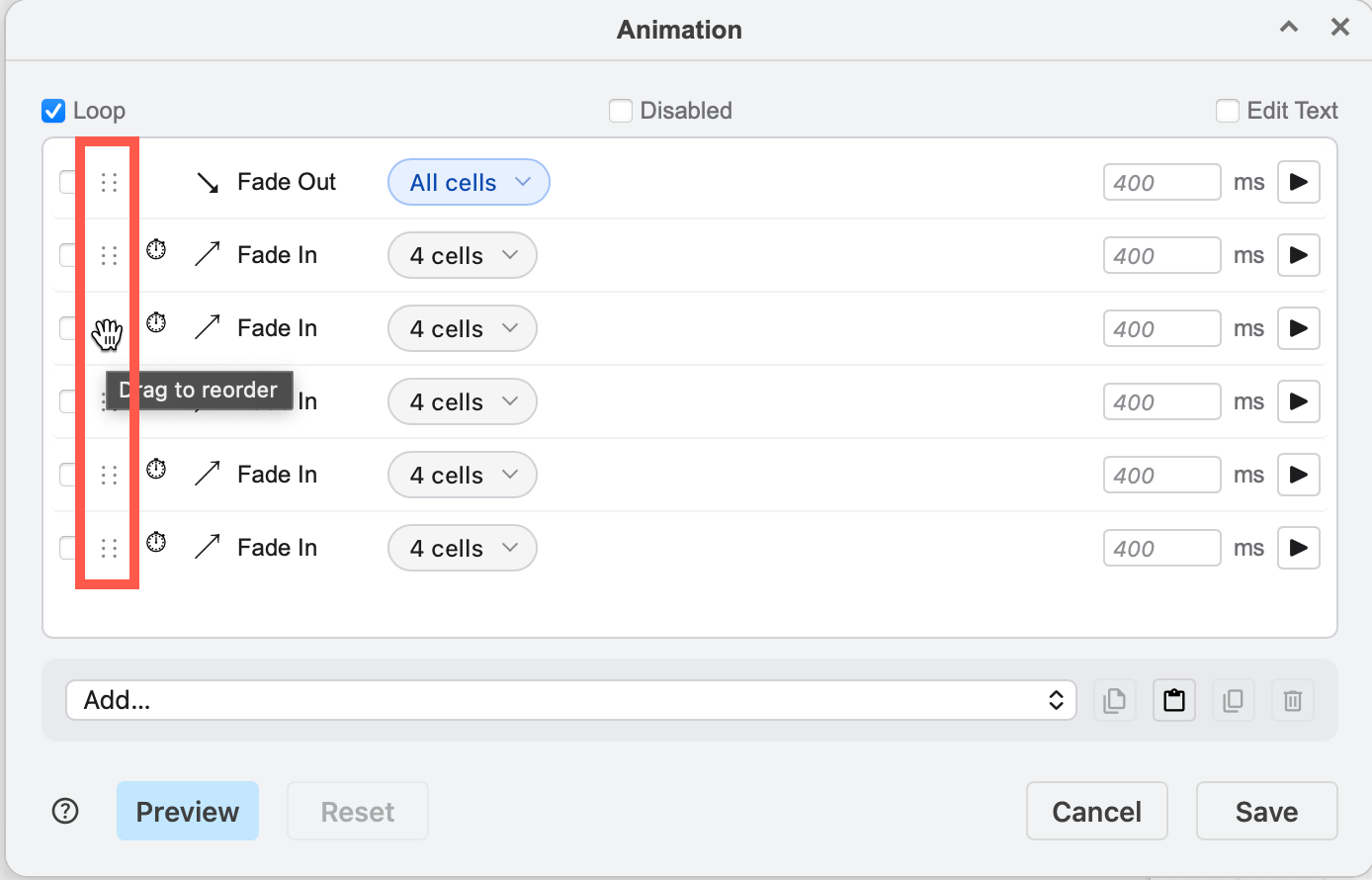
Delete an animation
Click on the checkbox on the left to select the animation action you want to delete, then click on the Delete (rubbish bin) in the bottom right. To delete all animations, select all of the steps, then click on Delete.
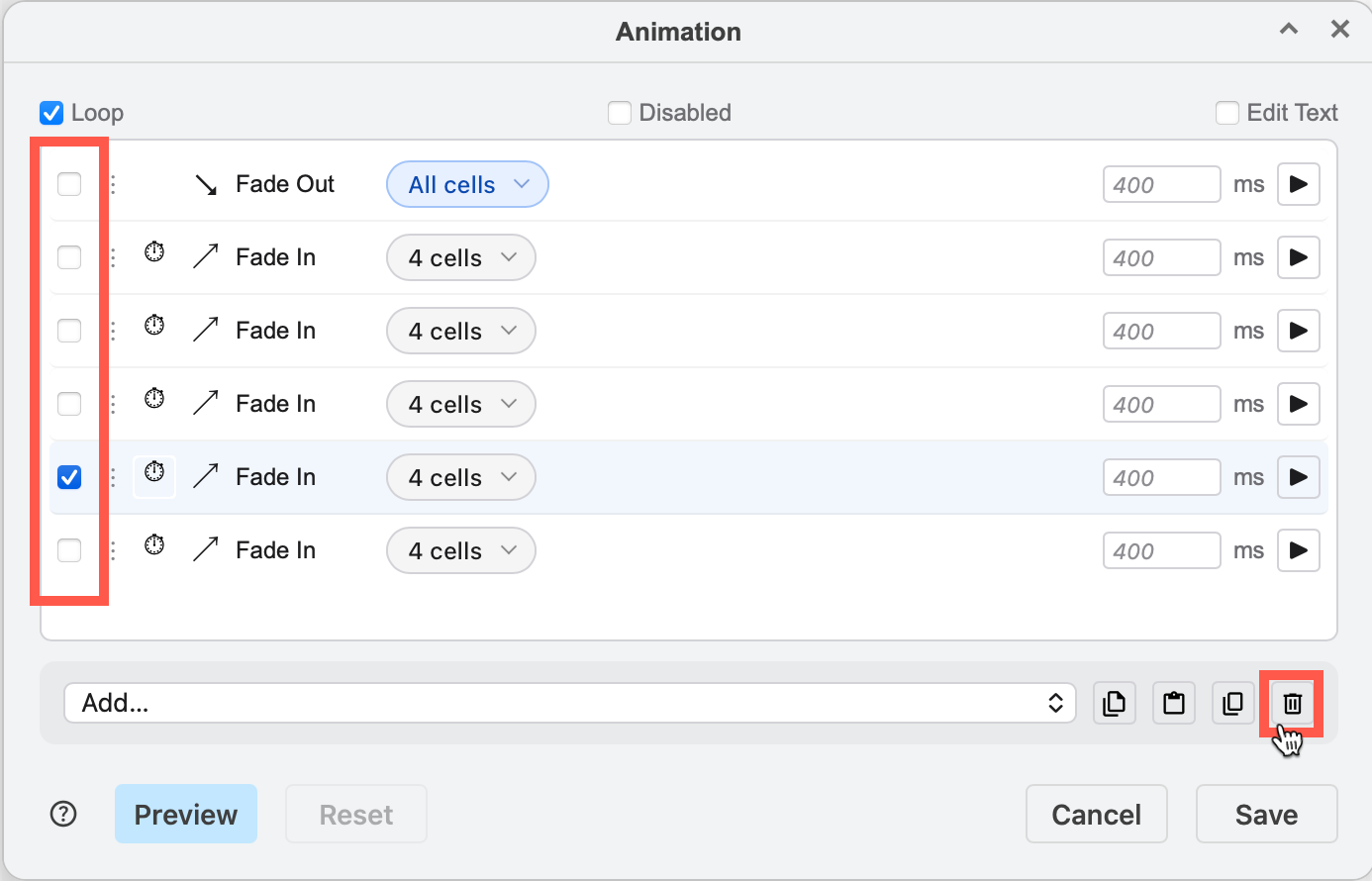
Copy animation sequences
You can copy animation sequences from another diagram page or from a custom links. Open the Action or Animation editor dialog of the source page animation or custom link and click Copy. Close the dialog, then open the target page's Animation dialog via File > Page Setup and click Paste, then Save the animation sequence.
Page animation settings
Loop or play once: By default page animations will loop - the sequence will start again when the last action step completes. Deselect the Loop checkbox in the Animation dialog to play the animation once only.
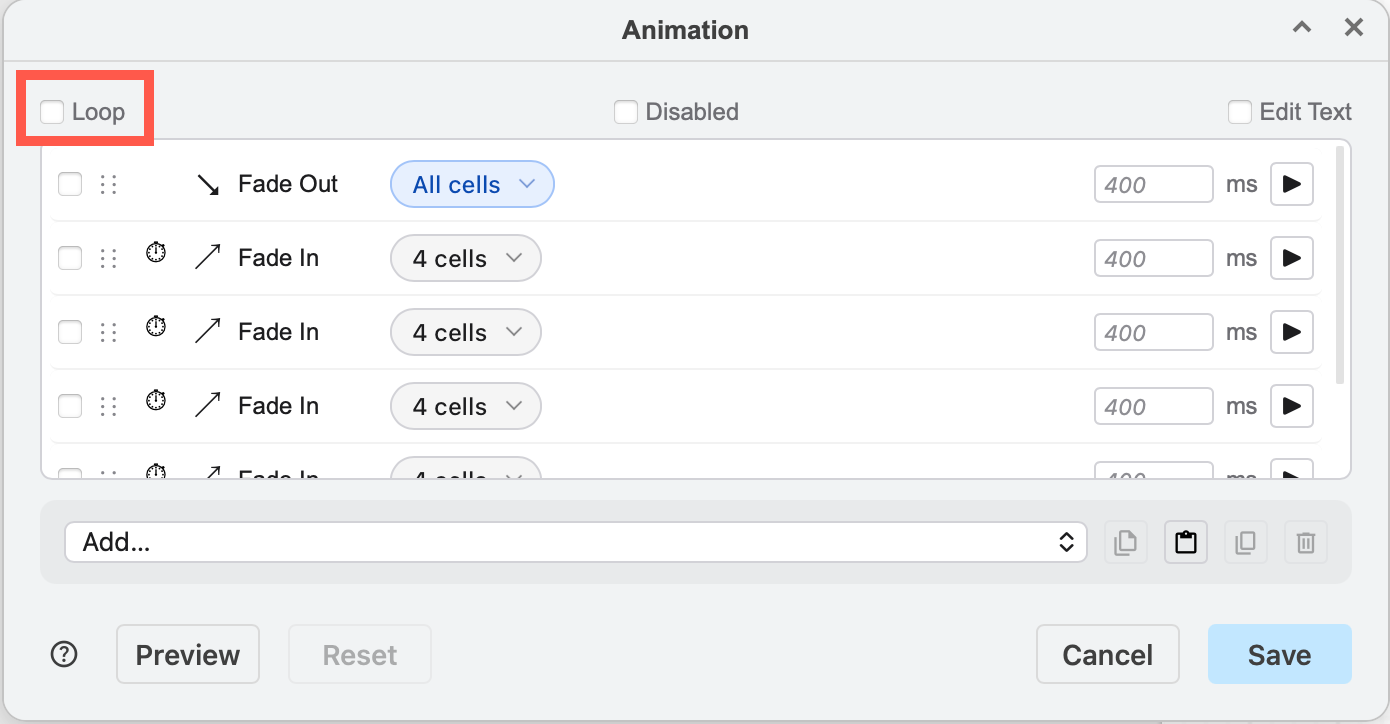
Disable page animations: Click on the Disable checkbox to stop all animations playing on this page whenever the diagram is opened in the lightbox viewer or presentation mode. Note, you can still edit the animation actions when they are disabled and greyed out.
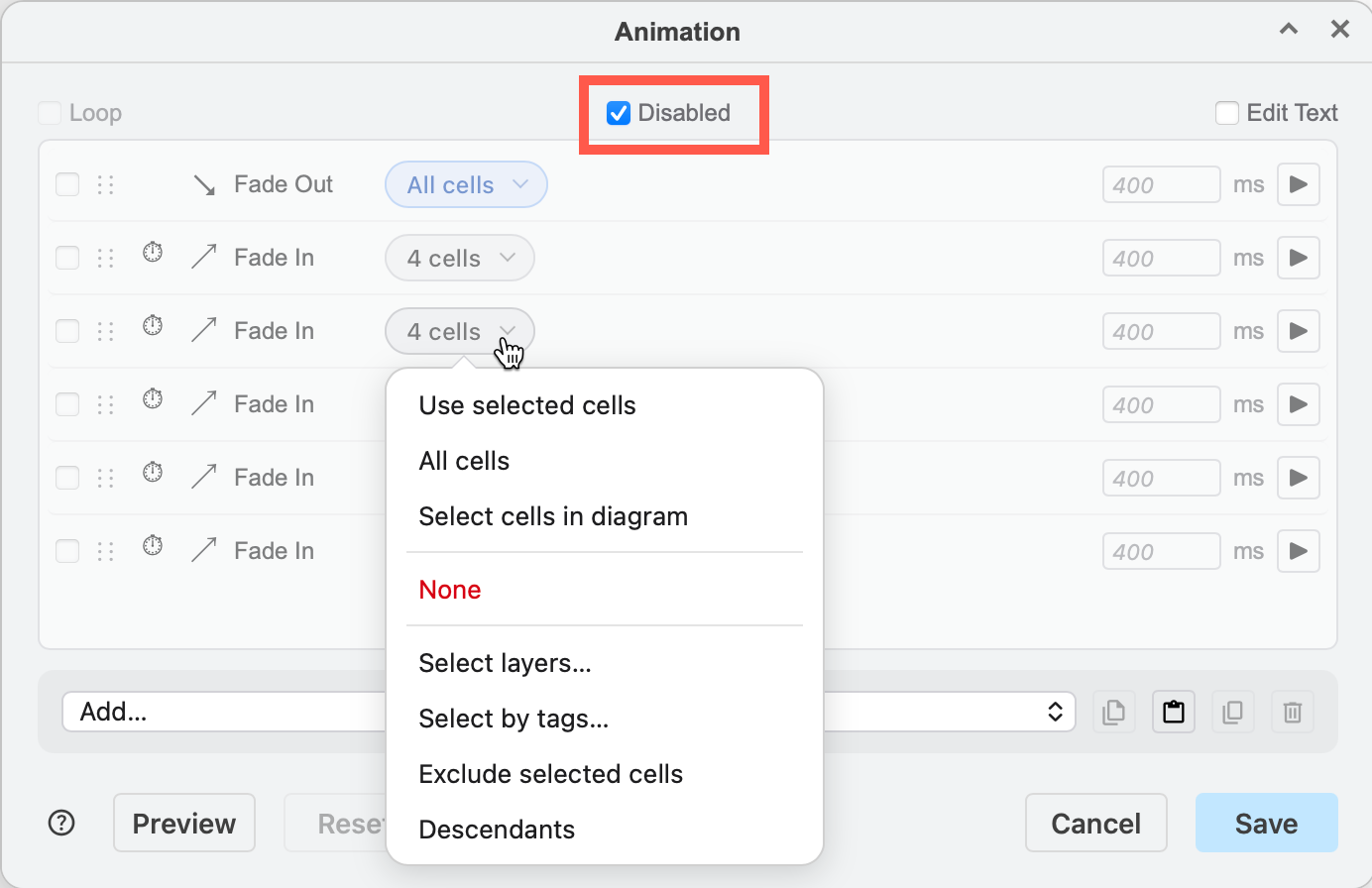
Advanced - Edit the JSON text
You can directly edit the JSON text string that describes the page animation. Select the Edit Text checkbox to switch to the JSON text editor. Change you make to this JSON description will be reflected in the dialog when you deselect the Edit Text checkbox and return to the visual editor.
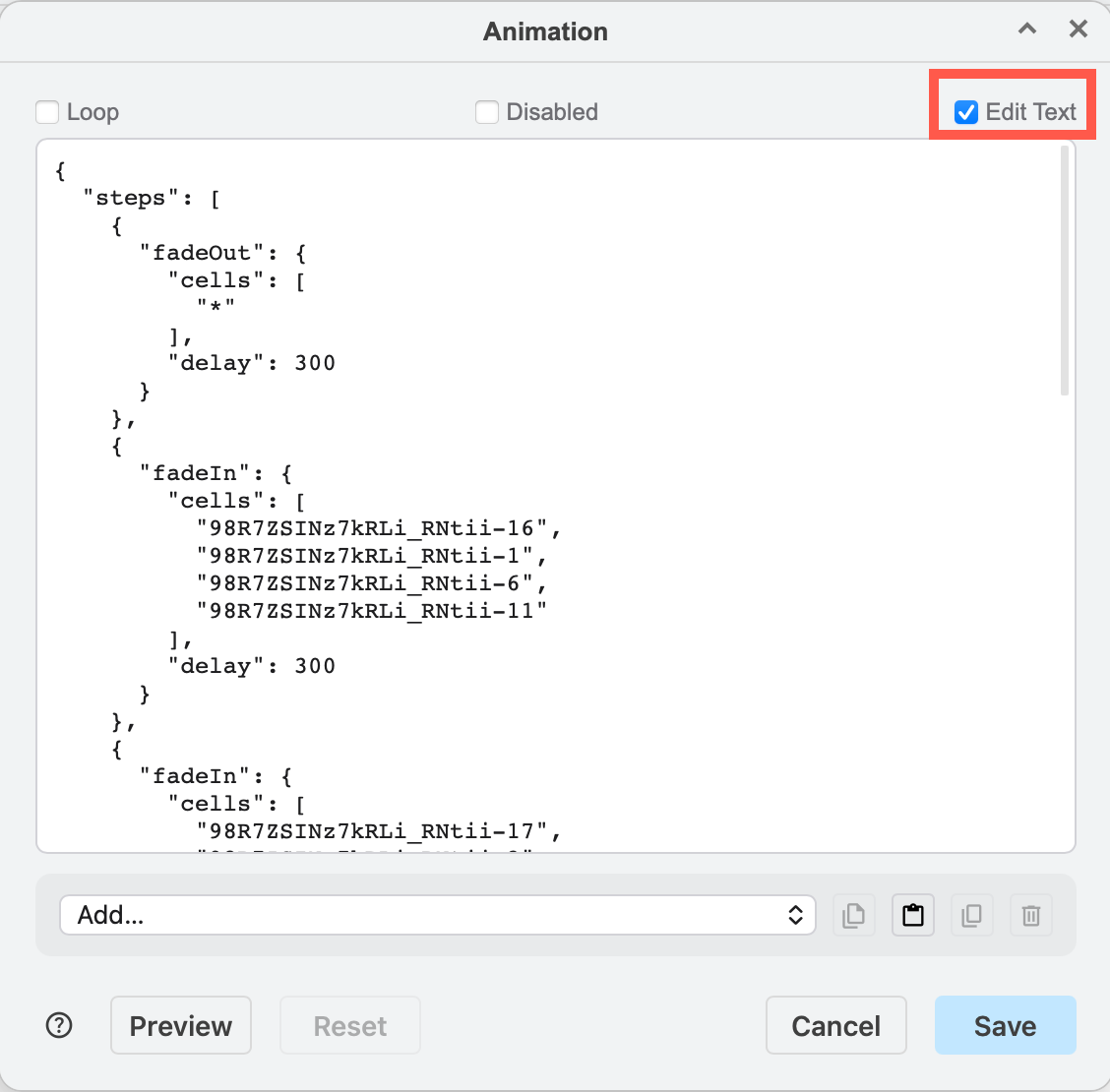
Find a cell ID
Each animation action is applied to a cell ID. Each shape, connector, group, layer, diagram page and tag has its own unique cell ID.
Shape/connector/group: Right-click on a cell and select Edit Data, or select the cell and press Ctrl+M or Cmd+M.
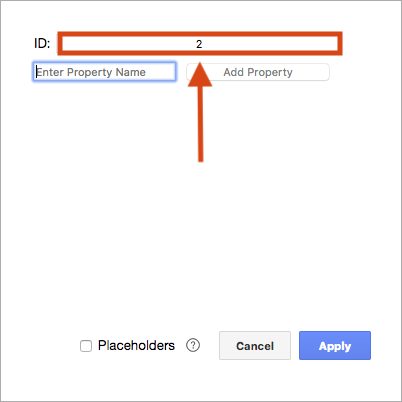
Layer: Open the Layers dialog (View > Layers), select the layer then select Current Layer > Edit Data from the menu (three horizontal lines). The layer's cell ID is in the top of the dialog.
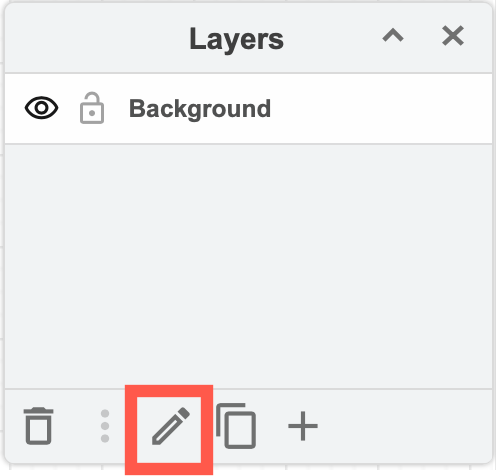
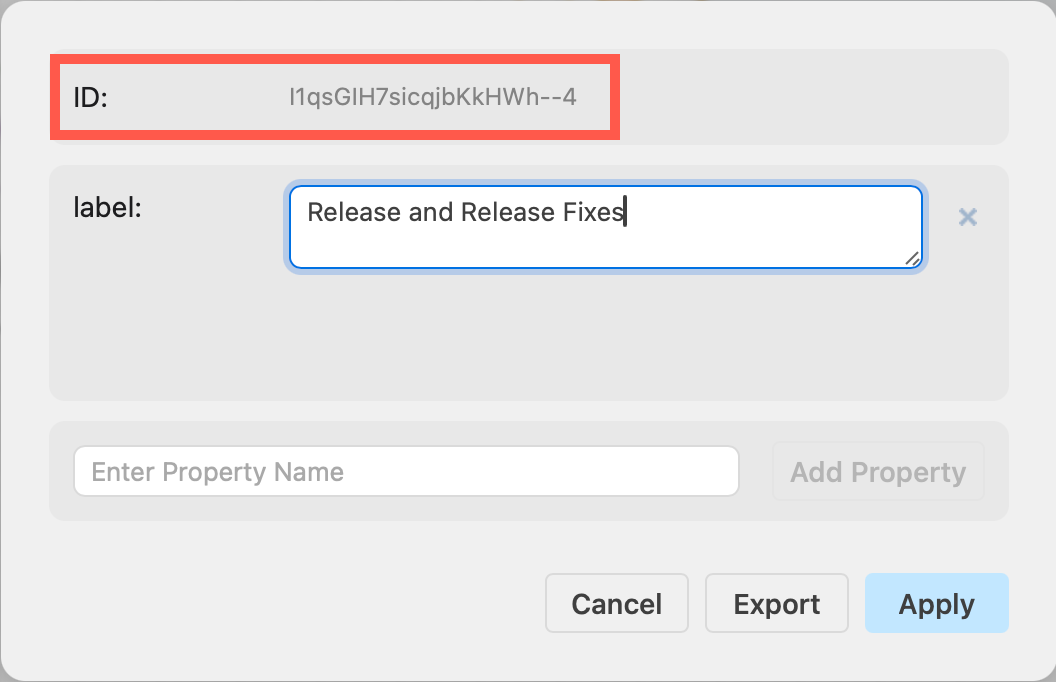
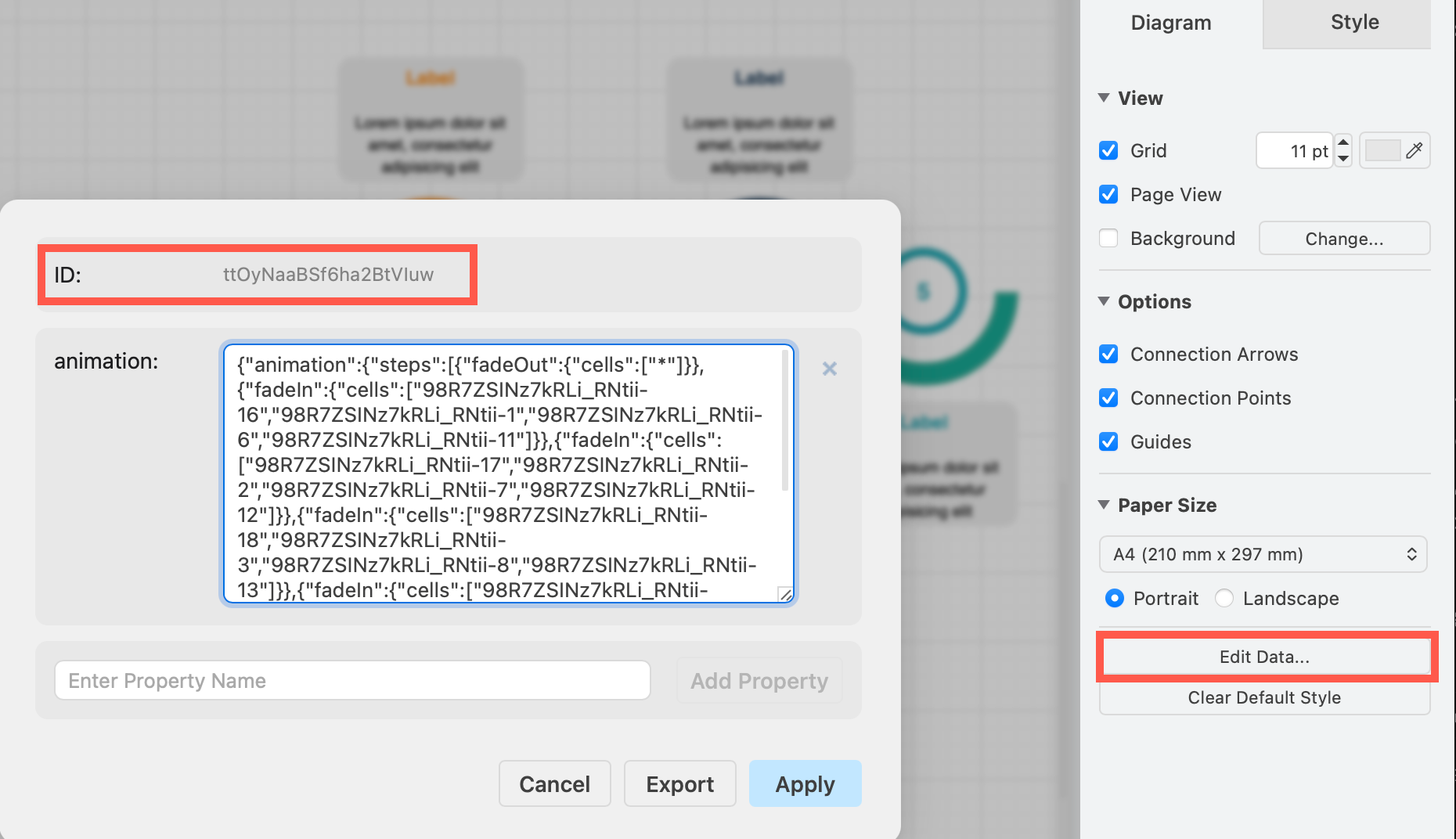
Page: Make sure nothing is selected, then select Edit Data from the Diagram tab of the format panel, or press Ctrl+M / Cmd+M. If the diagram page has any animations, you'll see these defined in the page data. The page cell ID is in the top of the dialog.
Related
See all of the different animation effects you can apply to actions, and how to use them on custom links to create interactive diagrams.