Change the order of layers and their shapes
Drag and drop layers in the list to change where their objects sit in the z-order of your diagram.
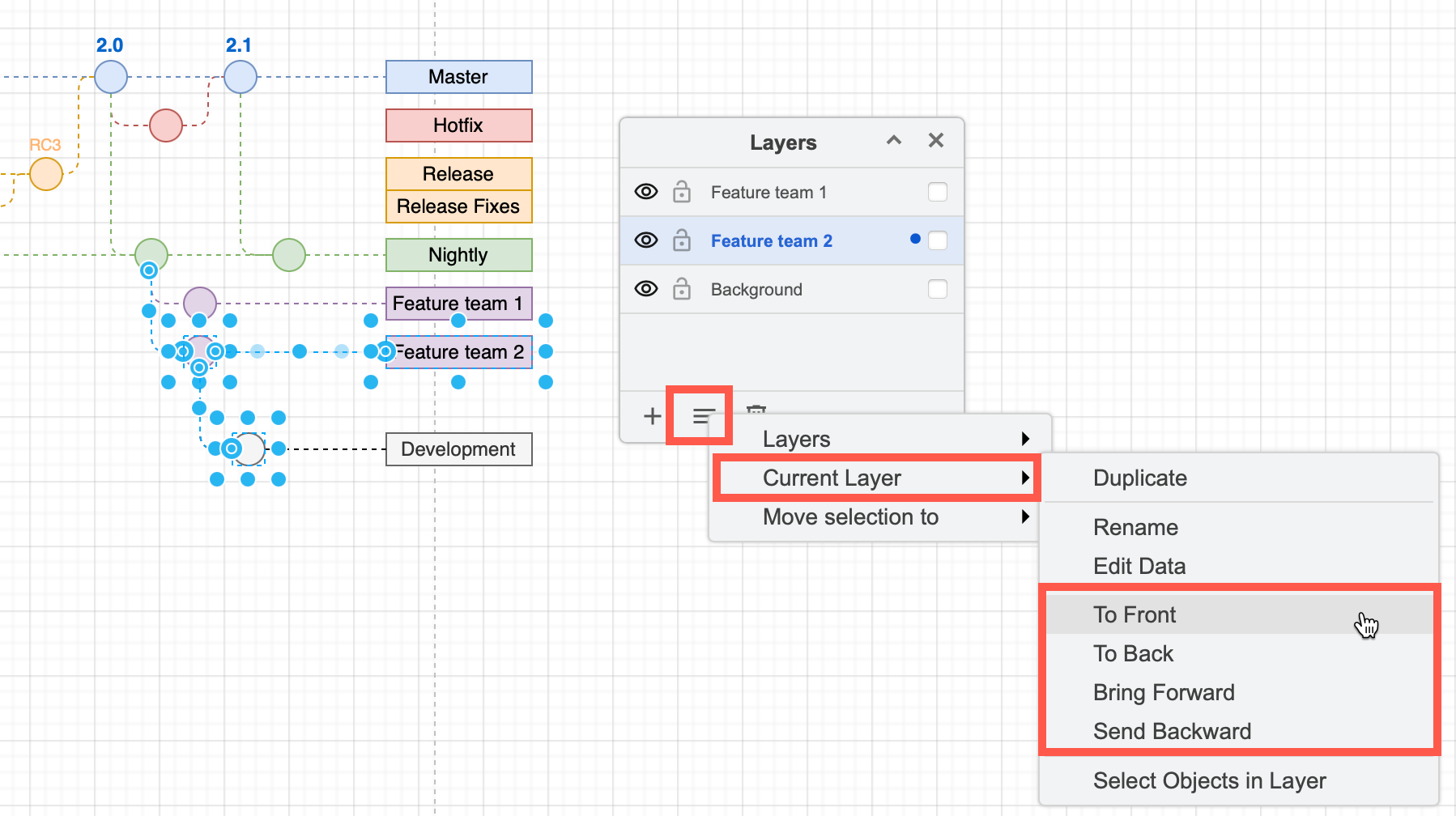
Alternatively, select the layer, and in the Layers dialog menu, select Current Layer then move it forwards or backwards in the layers list.
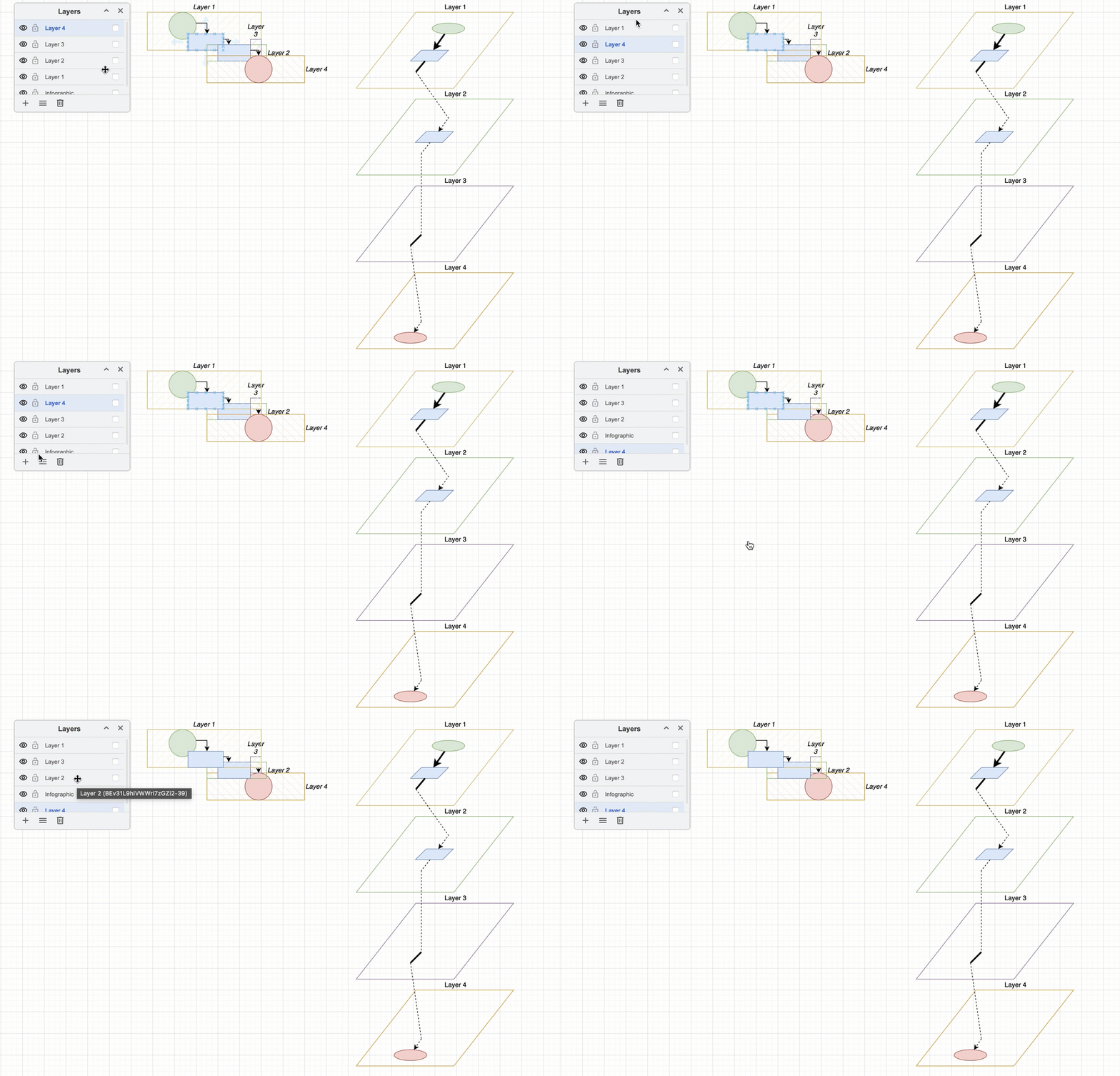
Diagram depth - z-order and layers
Each layer has its own z-order. When you select a shape inside a layer and send it to the back via the Arrange tab or the right click context menu, that shape will go to the back of its layer. Any layers further down the Layers dialog are still behind that shape.
The animation in the example above shows what happens to overlapping shapes when you re-order the layers.
Change the order of shapes on layers
- Use the Arrange tab in the format panel or the right-click context menu to move shapes and connectors forwards or backwards.