Rename layers
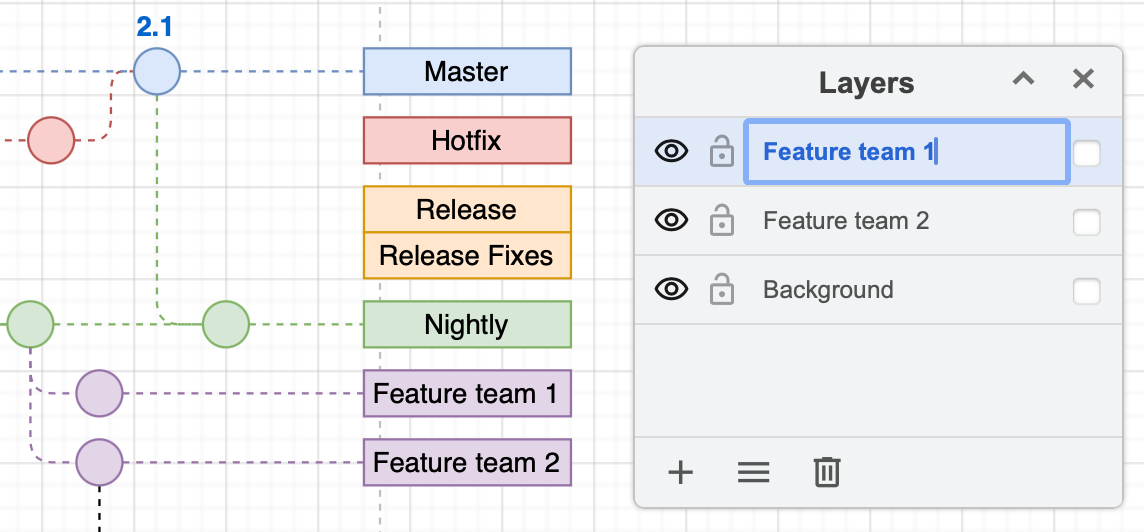
When you add a new layer, it will be given a default name in the Layers dialog. Start typing immediately to change its name to something meaningful.
Double click on any layer to edit its new name at any time, or open the Layers menu and select Current Layer > Rename.
Rename a layer via its metadata
Layers have metadata just like shapes have metadata. This metadata allows advanced functionality within your diagram with placeholders and interactive custom links.
You can also change a layer's name via the Edit Data dialog.
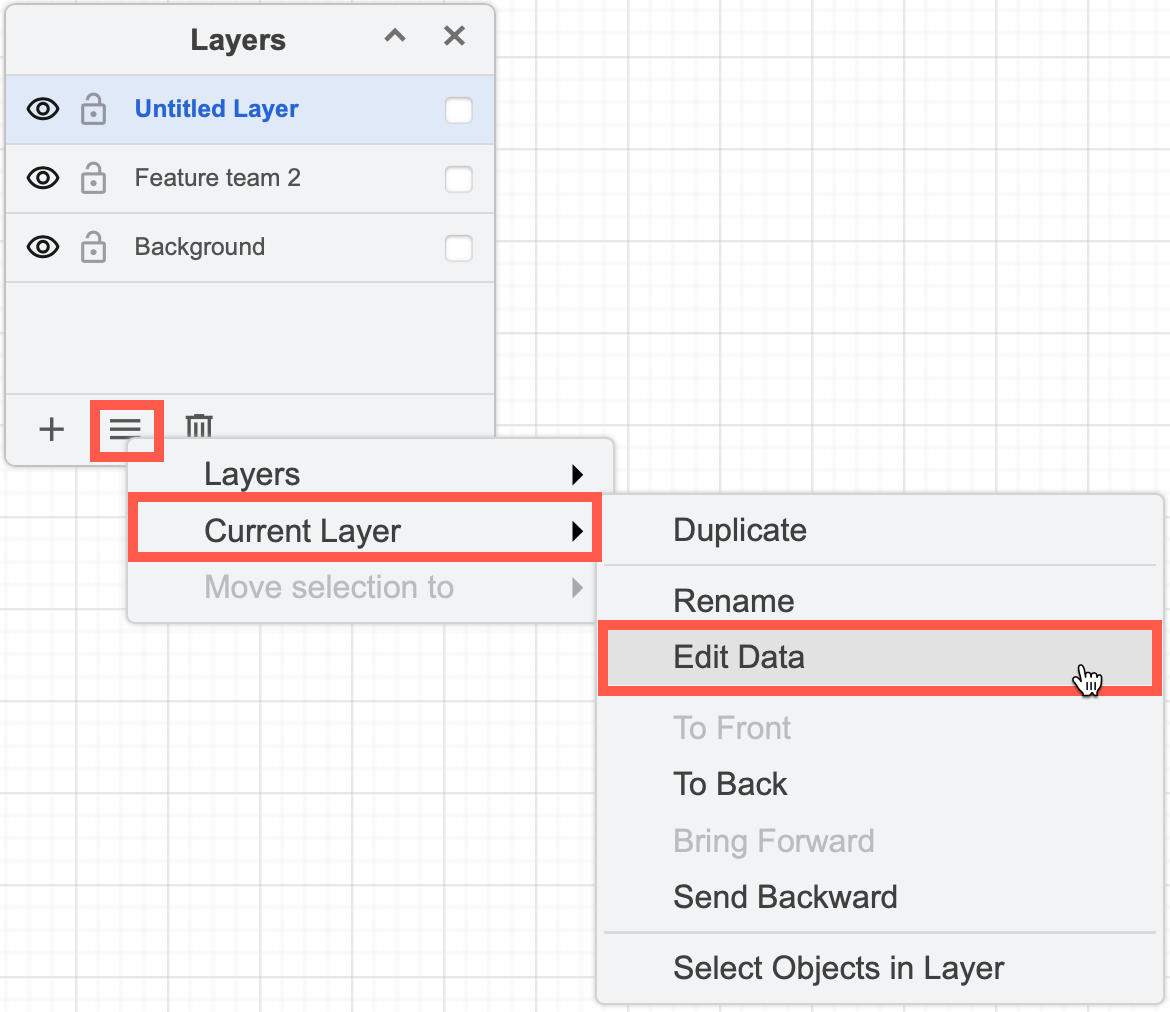
- Select a layer, then click on the Layers menu (three horizontal bars) and select Current Layer > Edit Data.
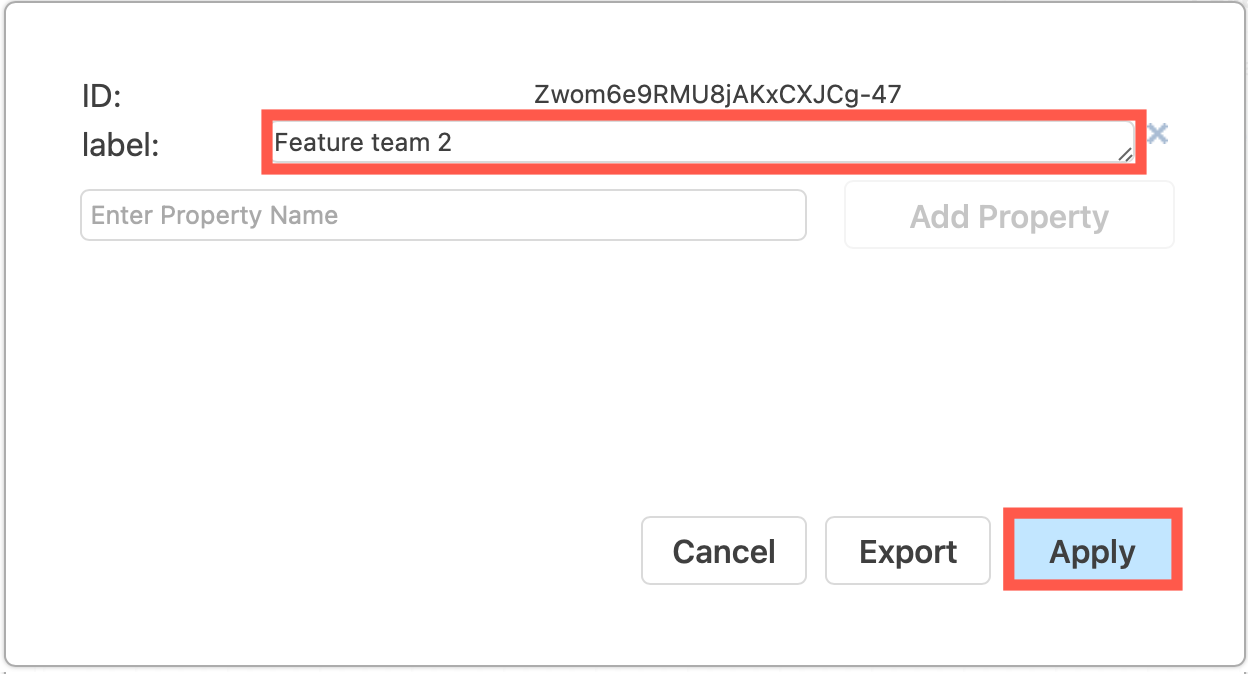
- Change the text in the Label field and click Apply to change the layer's name.