How layers work in draw.io
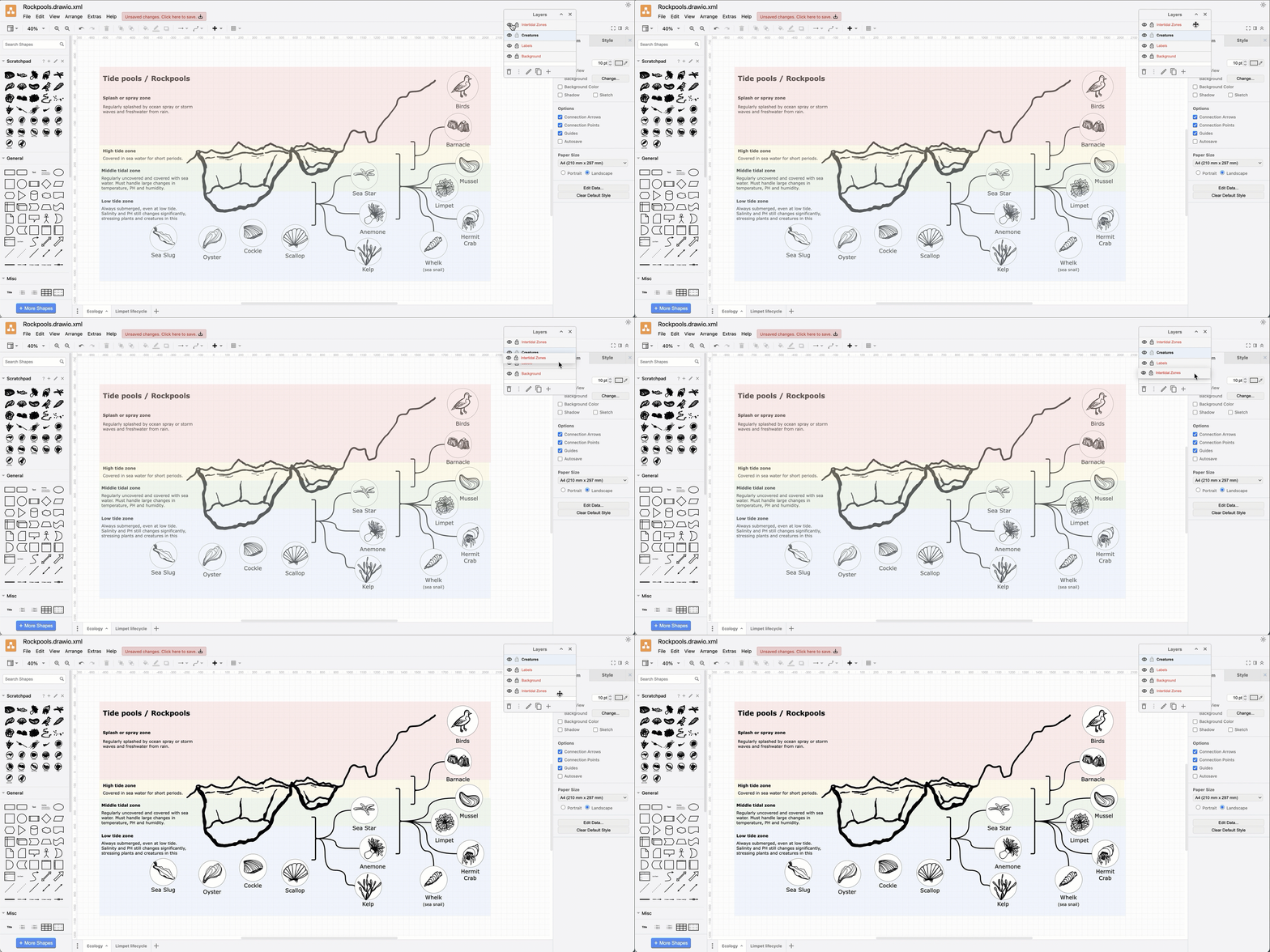
In draw.io diagrams, layers add contextual information and organise elements of the diagram. You can even make a diagram interactive with layers and custom links.
Layers in art, photo and diagram software all work a little differently. In draw.io, unlike in the more artistic drawing tools, you can select diagram objects on different layers and move them together on the drawing canvas - these objects stay in their own layers.
Unlike in many drawing applications, connectors in draw.io 'live' on one layer, but can attach to target and source shapes that 'live' on different layers.
How a draw.io diagram is organised
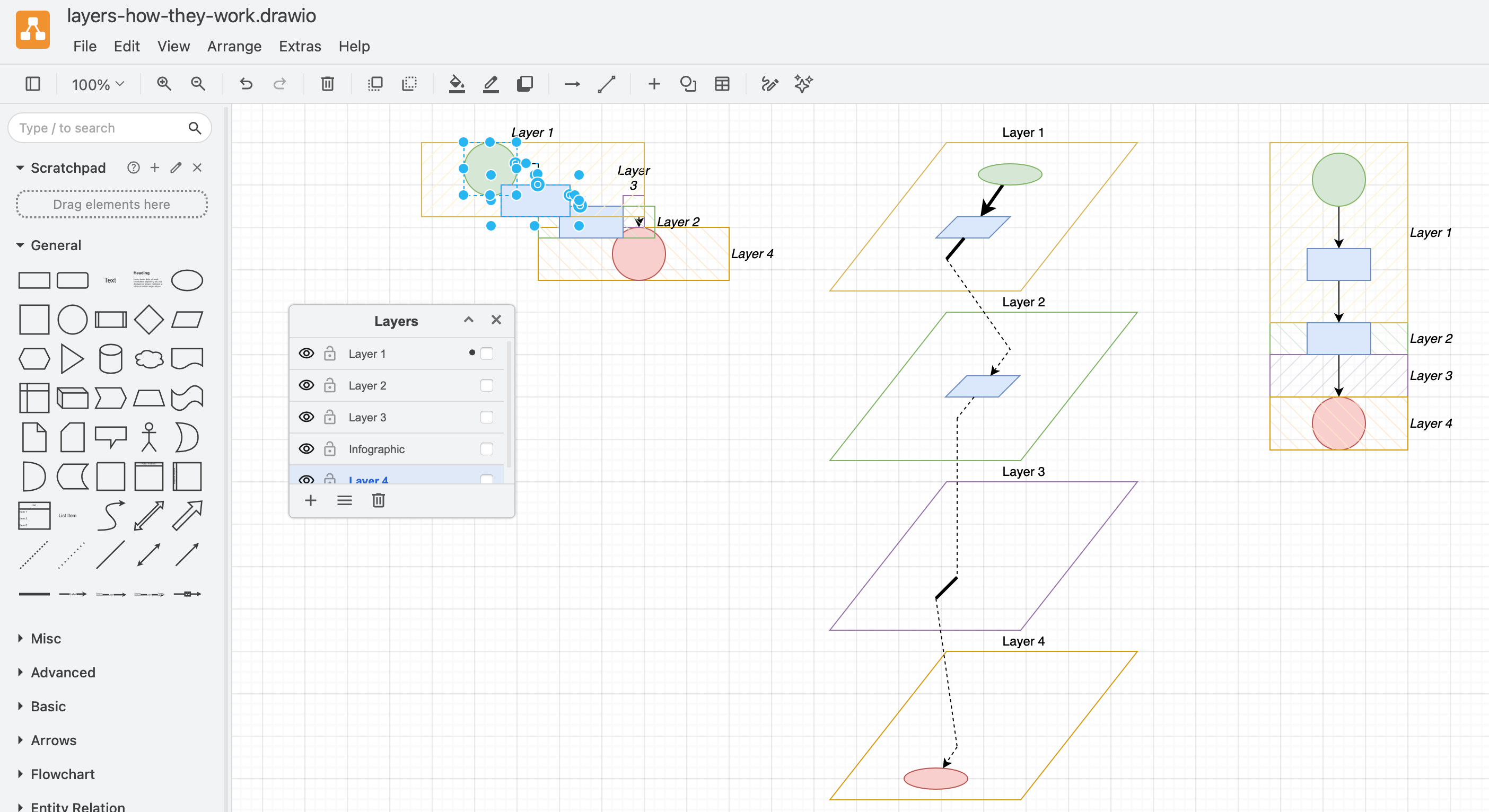
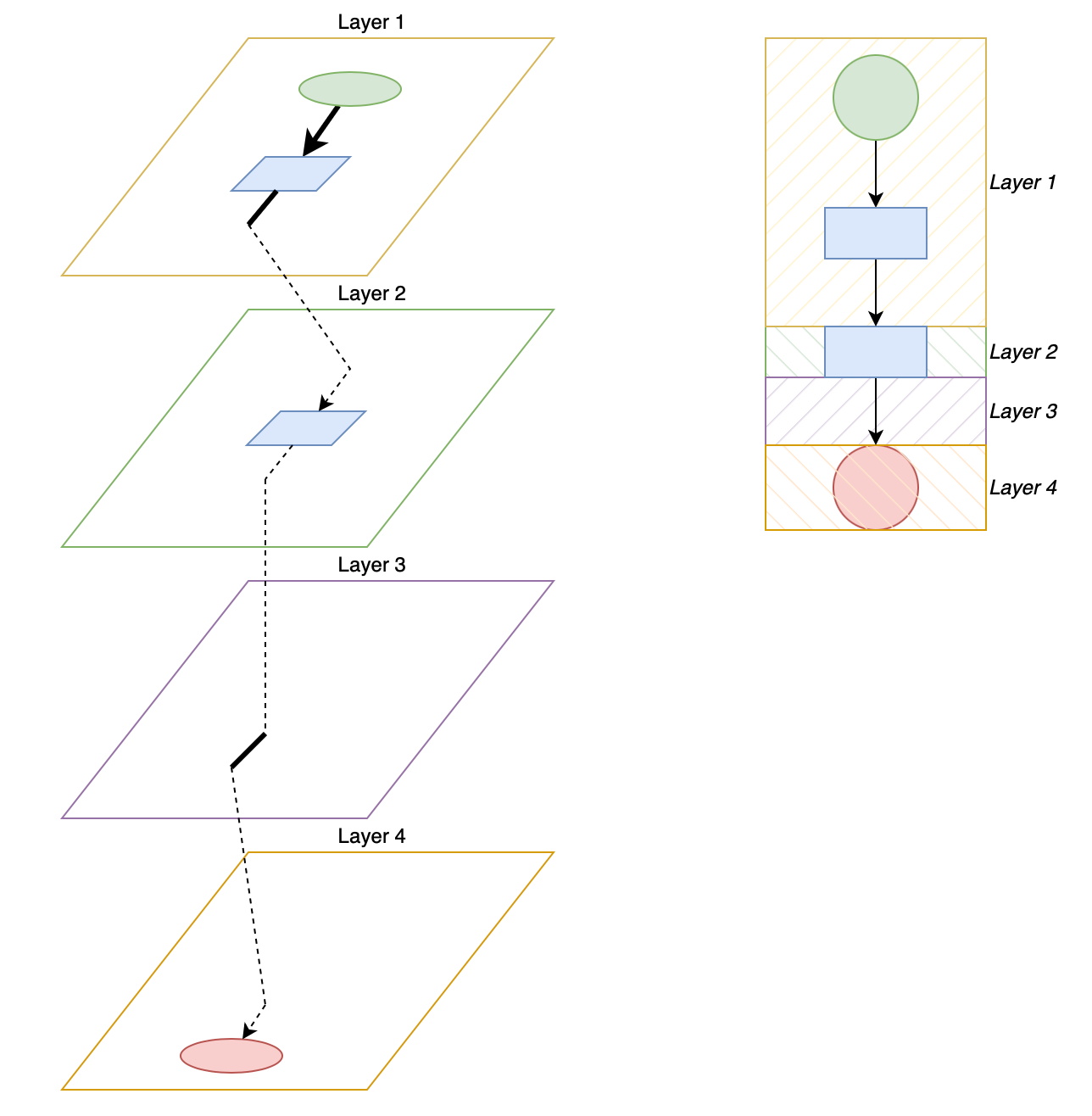
Each object in a diagram - text, shape and connector - 'lives' on a single layer. Connectors live on one layer but also can link to source and target shapes on different layers.
For example, although the flowchart on the right looks flat, but it is divided into four layers, as visualised on the left. The connector in Layer 3 has a source in Layer 2 and a target in Layer 4.
Open this example
The diagram inside a .drawio file is structured into cells in a tree-like structure. The diagram itself is the topmost single cell, the layers in a diagram form the next level of cells, then each element on a layer is a cell nested within its layer cell.
"cell":Root
└── Layer 1
    ├── Rectangle (cell)
    ├── Connector (cell)
    └── Container/group (cell)
        ├── Circle (member of the container)
        └── Text (member of the container)
└── Layer 2
    └── ...
Container shape objects live inside their containers, not directly in a layer
When you have a container shape or group of shapes, this is also a cell - every child object in that group or container is contained within that cell, which, with all its child elements lives only on one layer.
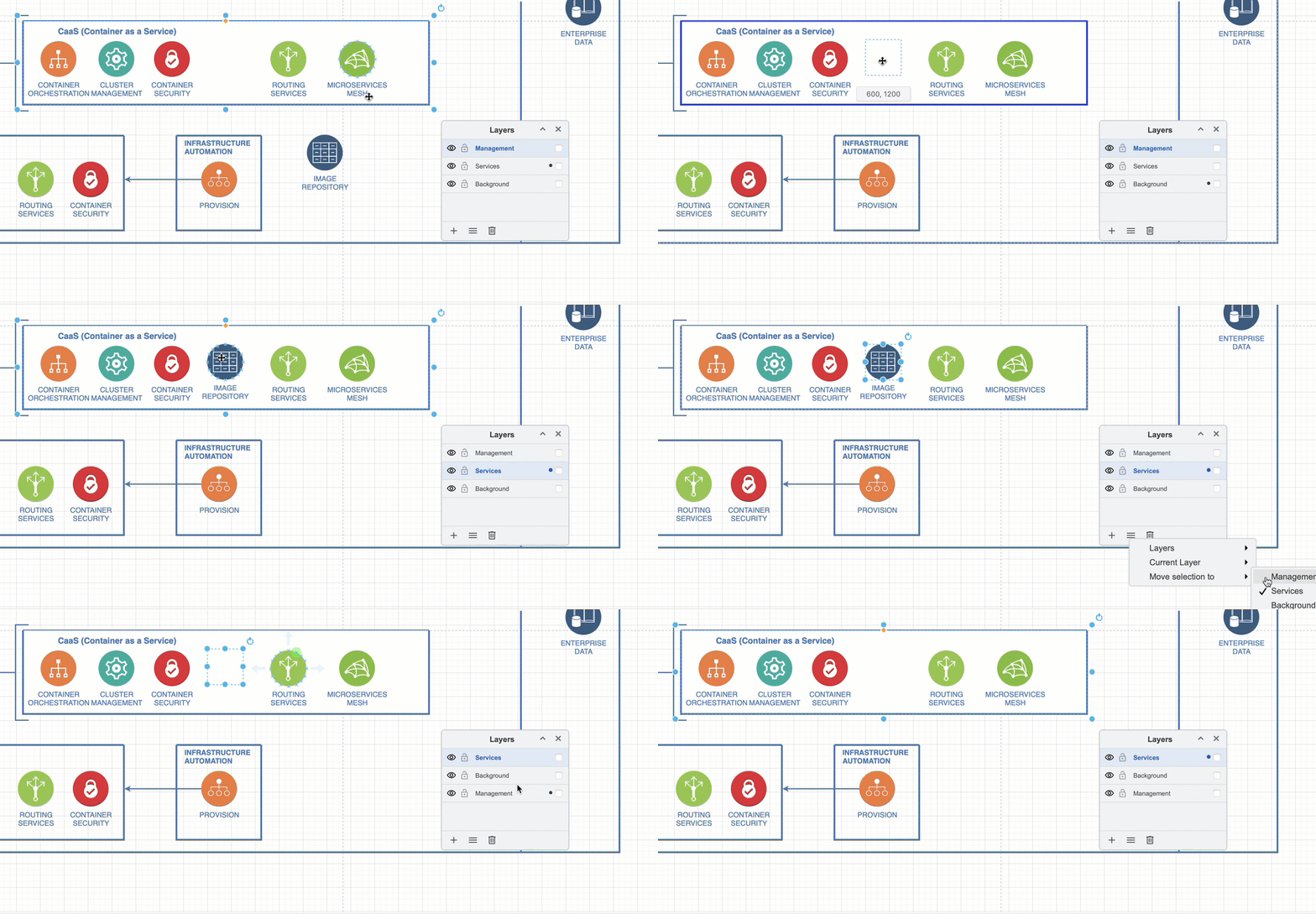
Therefore, assigning an element that was inside a container shape or group of shapes to a different layer will also remove that element from the container/group.
For example, moving the Image Repository shape from the Background layer into the CaaS container shape adds it to the Service layer. Then reassigning the Image Repository shape to the Management layer automatically removes it from the CaaS container shape.
Open this example
How to use layers in technical diagrams
Once you know how to use layers in draw.io, you can do more with your technical diagrams.
Make a draw.io diagram interactive with custom links.
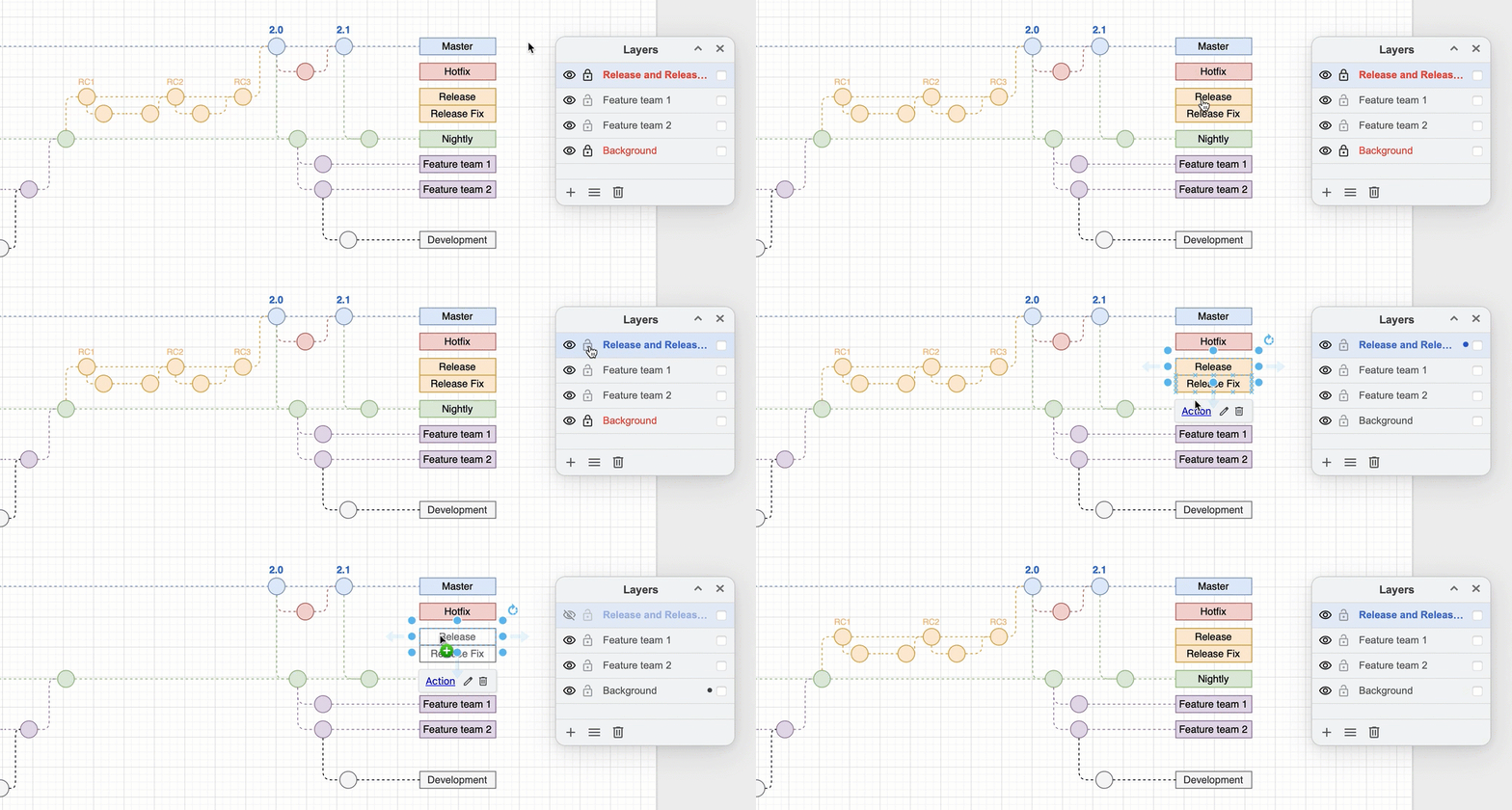
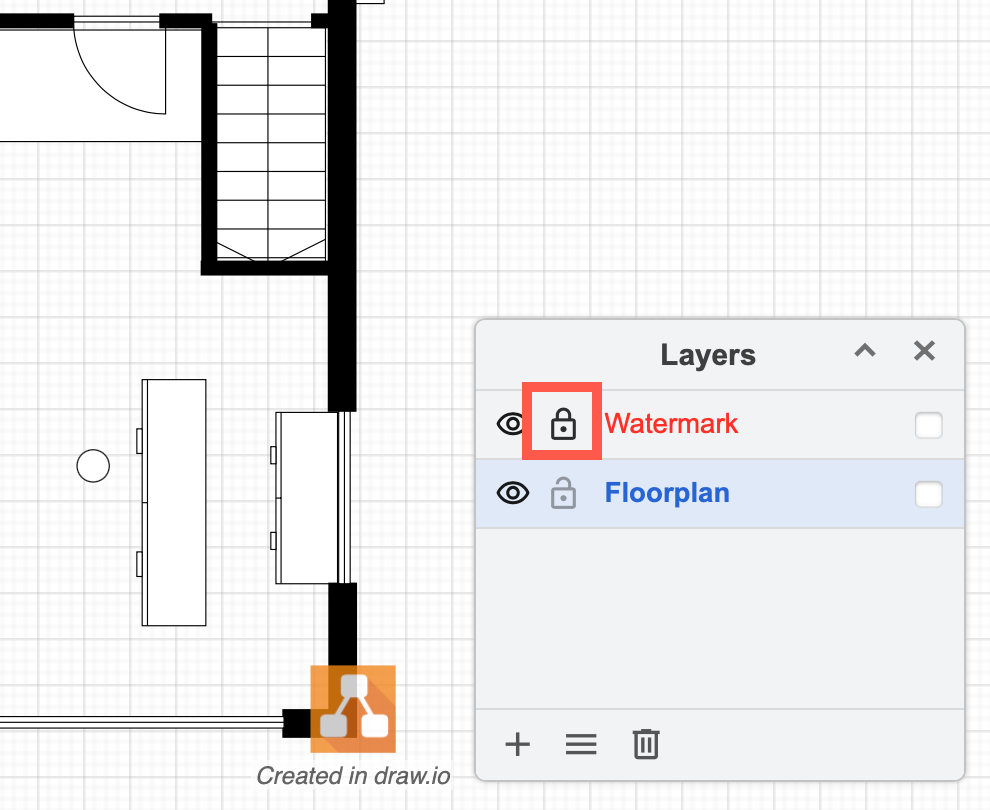
Place watermarks on locked layers over or under diagrams for branding, draft or approval notifications.
Hide and show layers to simplify complex diagrams and highlight important or omit irrelevant details - useful in training material and educational infographics.