Copy custom links and cell metadata
There are two ways you can copy custom links in draw.io.
Copy just the custom action list
Copy the actions inside a custom link to another shape, connector or group.
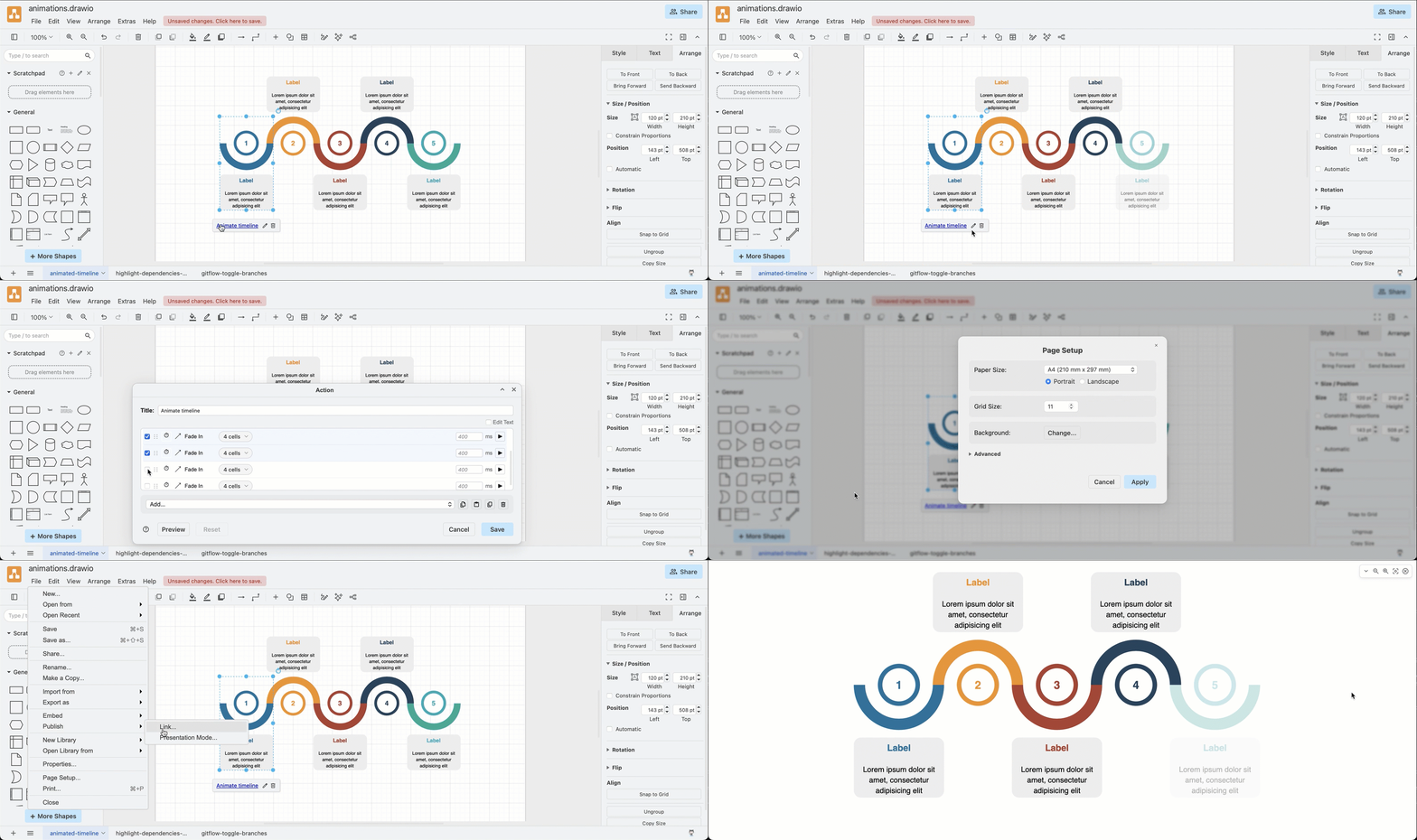
- Right click on the source shape, connector or group with the custom link you want to copy and select Edit Link from the context menu.
- Click on the Copy button inside the Custom Action dialog for the source cell, then close this dialog.
- Right click on the target cell, select Edit Link and open its custom action dialog. Click on Paste to add the actions.
The Title of the custom link is not copied to the target cell when you just copy the action list following the steps above.
Copy all cell metadata
If you want to copy a custom link to multiple shapes, connectors or groups, it may be faster to copy the shape data.
Note: If your source cell also has other metadata, such as tooltips, tags or placeholders, these will also be copied along with the custom link.
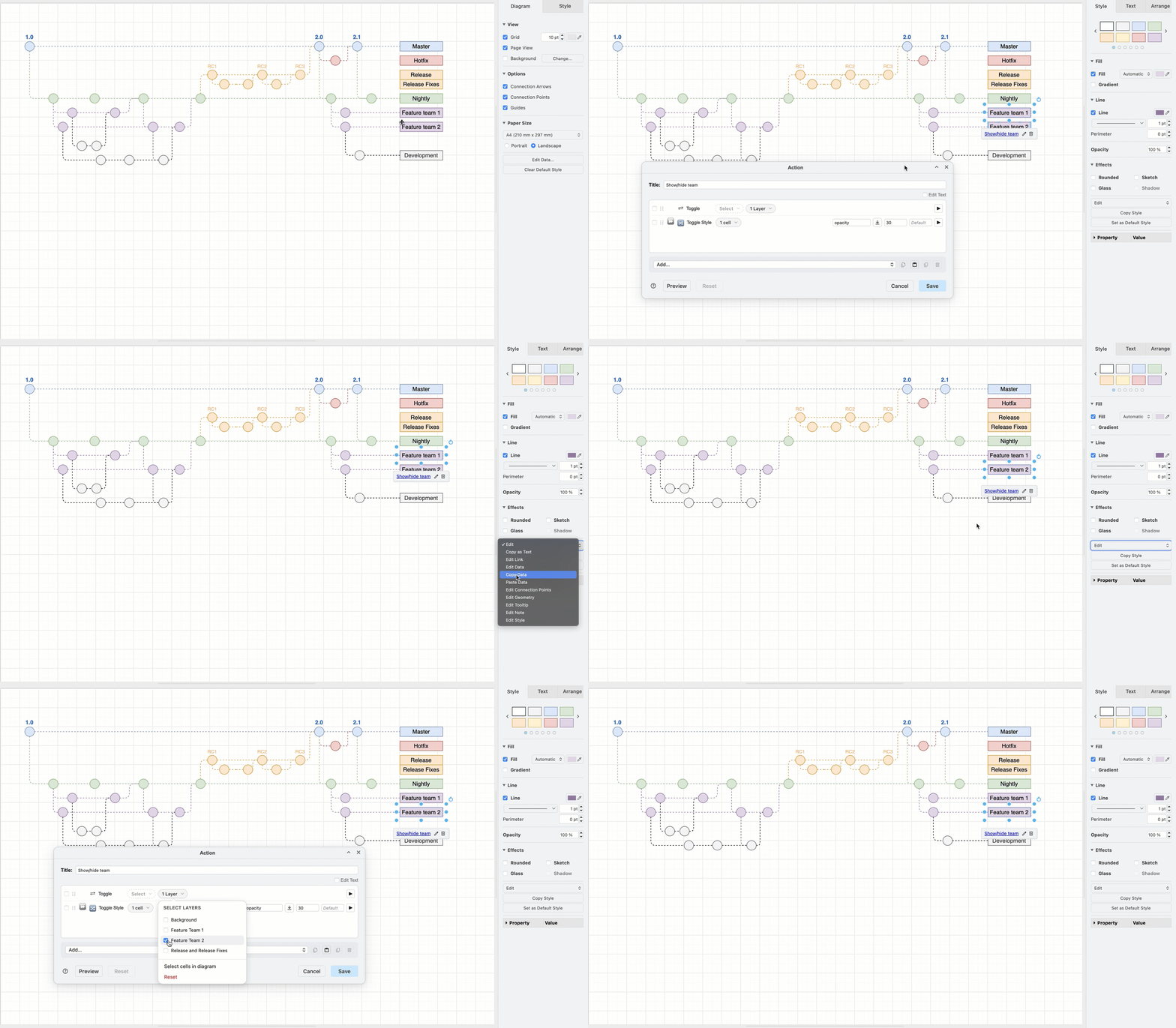
- Select the source shape, connector or group and in the Style tab of the format panel, select Edit > Copy Data.
- Select all of the target cells you want to add the custom link to, and in the Style tab of the format panel, select Edit > Paste Data.
This will copy the custom link and its actions to all the selected target cells, including the custom link's Title.
Related
Learn more about custom links and see the full list of animations and custom actions you can include in a custom link.
Follow this tutorial to learn how to use custom links with layers to make an interactive diagram.