Describe a page with alt text
Alt text describes a page for people who can't see the diagram. Screen readers read this text instead of the labels of the shapes and connectors, when the diagram page is opened in the lightbox biewer. Each page of a diagram can have its own alt text.
How to write good alt text
Explain the diagram shows, rather than describe how it looks. For example, "Order process: order, payment and shipping of the goods" explains a three-step flowchart, unlike "Three blue rectangles".
Add alt text to a page
- Select File > Page Setup from the menu.
- Click Advanced. and describe the diagram that is on that page in the Alt Text field.
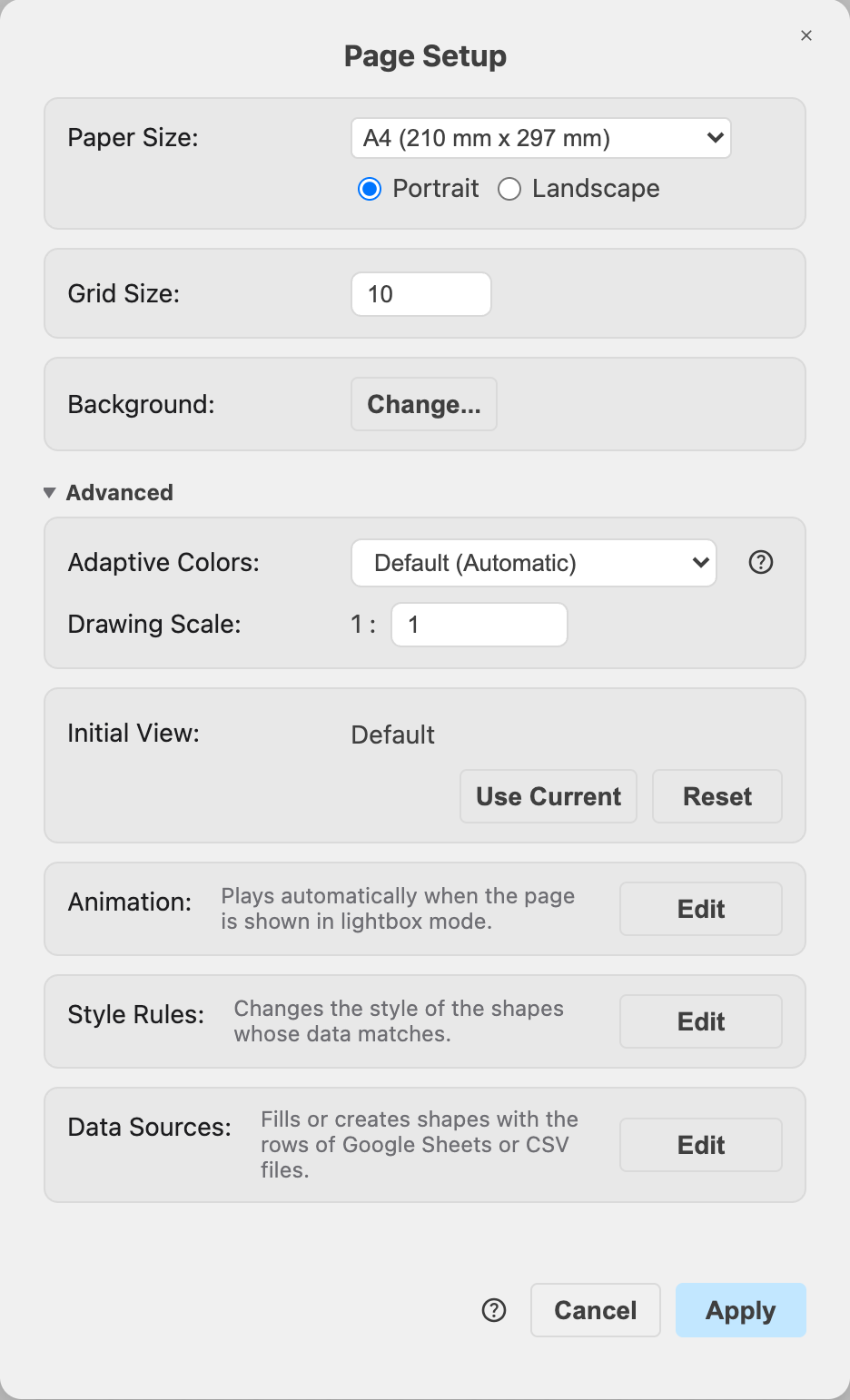
- Click Apply.
The alt text will be saved in the diagram data of the current page.
Remove the alt text from a page
- Select File > Page Setup from the menu.
- Expand Advanced then delete the text in the Alt Text field and click Apply.
Where alt text is used
Viewer and lightbox: A diagram page will be named after the alt text of the page, so that where it is shown rather than edited, for example in the lightbox viewer, the alt text will be read aloud by screen readers.
SVG export: An SVG image of the page includes the alt text as its title.
Mermaid diagrams: When draw.io creates a new diagram from Mermaid source, for example in an app that embeds draw.io, the accessibility title and description of the Mermaid source become the alt text of the page. .
PNG and PDF exports don't include the alt text. When you add an image of your diagram to a document or a web page, add the alt text manually to the image in the HTML or markdown description.
Related
- Change the settings of a page in Page Setup
- See how to use draw.io with a screen reader
- Export a diagram to an SVG image