Organise pages in page groups
Use page groups to keep the pages of a diagram with many pages in order. Each page group has a group tab in front of its pages, and all of the pages in that page group are underlined. Collapse a group to hide its pages, and expand it to show them again.
In the example below, the first page - Home - is not in a group. The Architecture page group contains three diagram pages: Overview, Components, and Deployment. The Database page group is currently collapsed. and a single diagram page (Notes) is not in a page group.

Page groups are indicated with a horizontal grey bar below the group or page name, and the current page is highlighted in blue.
When you select a page or a page group, a menu arrow appears to the right of its name.
Enable and disable page groups
By default, page groups are not enabled.
- Click the page icon in the toolbar to open a menu, or the Pages menu icon (three horizontal bars) to the left of the page tabs.
- Select Page Groups.
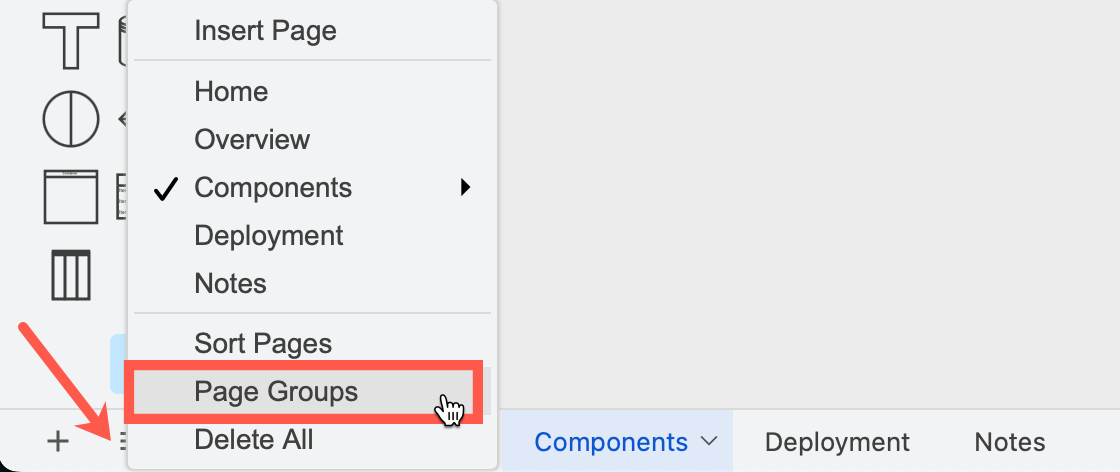
Pages are saved in their groups in the diagram data, so everyone who opens the diagram file will see these groups.
Disable page groups: To turn page groups off again, select Page Groups from the menu again. All of the pages in the diagram will leave their groups and their page tabs will be visible below the drawing canvas.
Notes:
- Pages remember their groups so when you enable page groups again, they will be grouped again.
- draw.io apps and integrations that don't support page groups show all pages at the bottom of the drawing canvas.
Work with page groups via a page
Click on + to add a new page to a diagram. This will add the page at the end of all diagram pages, and not to any existing page group.
Right-click on a page to open its menu to duplicate, move, delete, and rename the diagram page and change its page group.

Add a new group via a page
- Right-click on a page to open its menu and select Group > New.
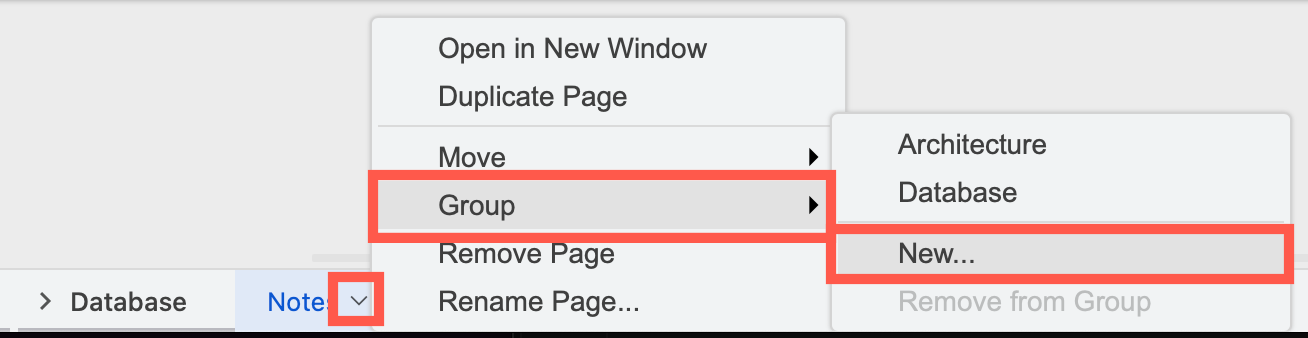
- Enter the name of the group, then click Create.
The page will be moved into the new page group, and a group tab will be added in front. A grey underline shows the page now belongs in that page group.
Move a page into an existing group
- Right-click on a page to open its menu.
- Select Group then choose the page group you want to add it to.
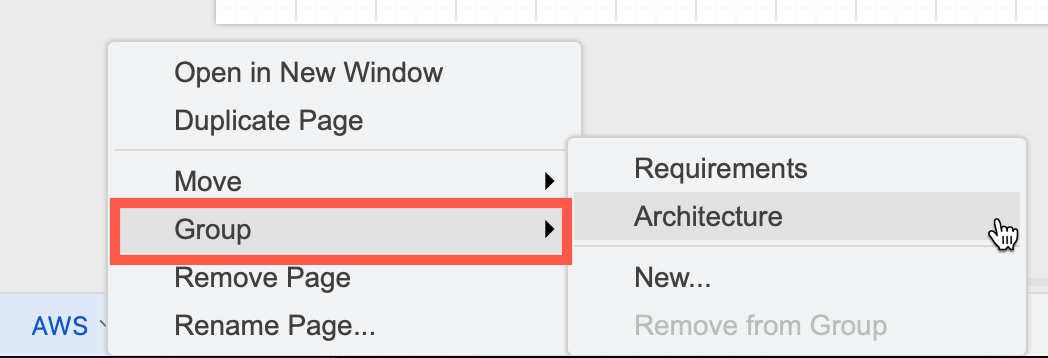
The page will be moved to the end of that group.
Note: This menu option will not be shown unless Page Groups has been enabled in the pages menu.
Remove a page from a group
- Right-click on the page tab to open its menu.
- Select Group > Remove from Group.
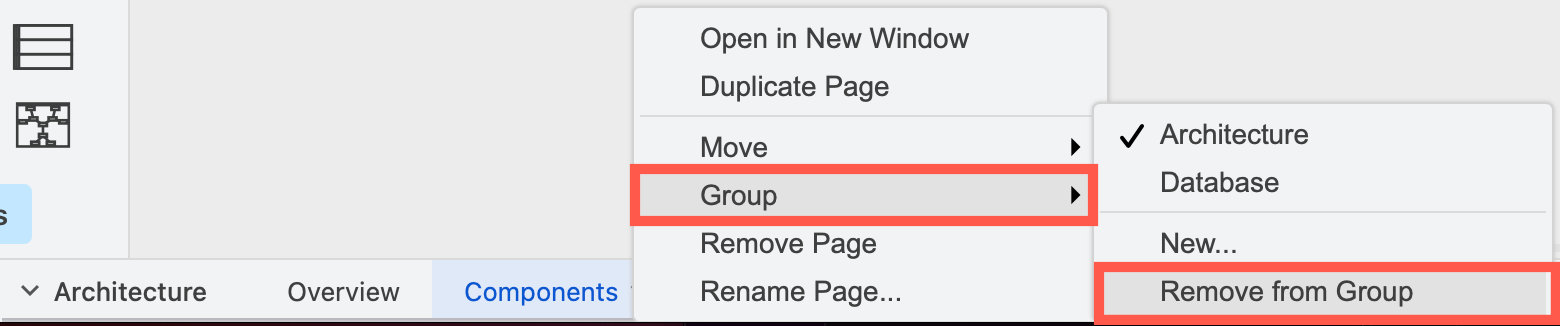
The page will be moved to the right of all the other pages of its group. If it was the first page of its group it will be moved to immediately before the group.
Alternatively, drag the page out of its group. This can be difficult if there are only page groups, as dropping the page to the right of a page group will automatically add it to the group. It is easier to move pages out of a group via the menu.
Work with page groups
- Right-click on the group, or hover over the group and click the arrow to the right to open its menu.

- Select from the following options.
- Collapse or Expand to hide or show the pages within the group.
- Insert Page to add a new diagram page at the end of the group.
- Rename to change the name of the group. Enter the new name, then click Rename.
- Ungroup to remove the group - the pages will stay where they are in the page order, but no longer be grouped.
Collapse and expand a group
Click on the group tab to collapse the group. Click on it again to expand the group.
If you have selected a page within a group, and then collapse that group, your current page will still be visible and highlighted in blue, but the group's other pages will be hidden.

Reorder pages and groups
- Drag a page tab to a new position. The page joins the group of the tab on its left. Drop it right after a group tab to make it the first page of that group.
- Drag a group tab to move the group with all of its pages. A group is dropped before or after another group, never inside it.
Tip: Select Sort Pages from the pages menu to sort the pages alphabetically inside each page group. The page groups are not sorted.
Note: When you collaborate on a diagram, co-editors will not see the page groups enabled or disabled until they re-open the diagram in the editor.
Related
Add multiple pages to your diagrams: add, duplicate, rename, reorder and delete pages.
Change the settings of a page in Page Setup.
Add a custom link to a shape to go to another page of your diagram.
Add an animation to the page that runs automatically when it is published to presentation mode or opened in the lightbox viewer.