Editable diagrams from text

When you insert a diagram from a text description via Arrange > Insert > Advanced > From Text, it is now placed inside a layout container. The text stays attached to the layout container, so you can re-edit it at any time and update the diagram.
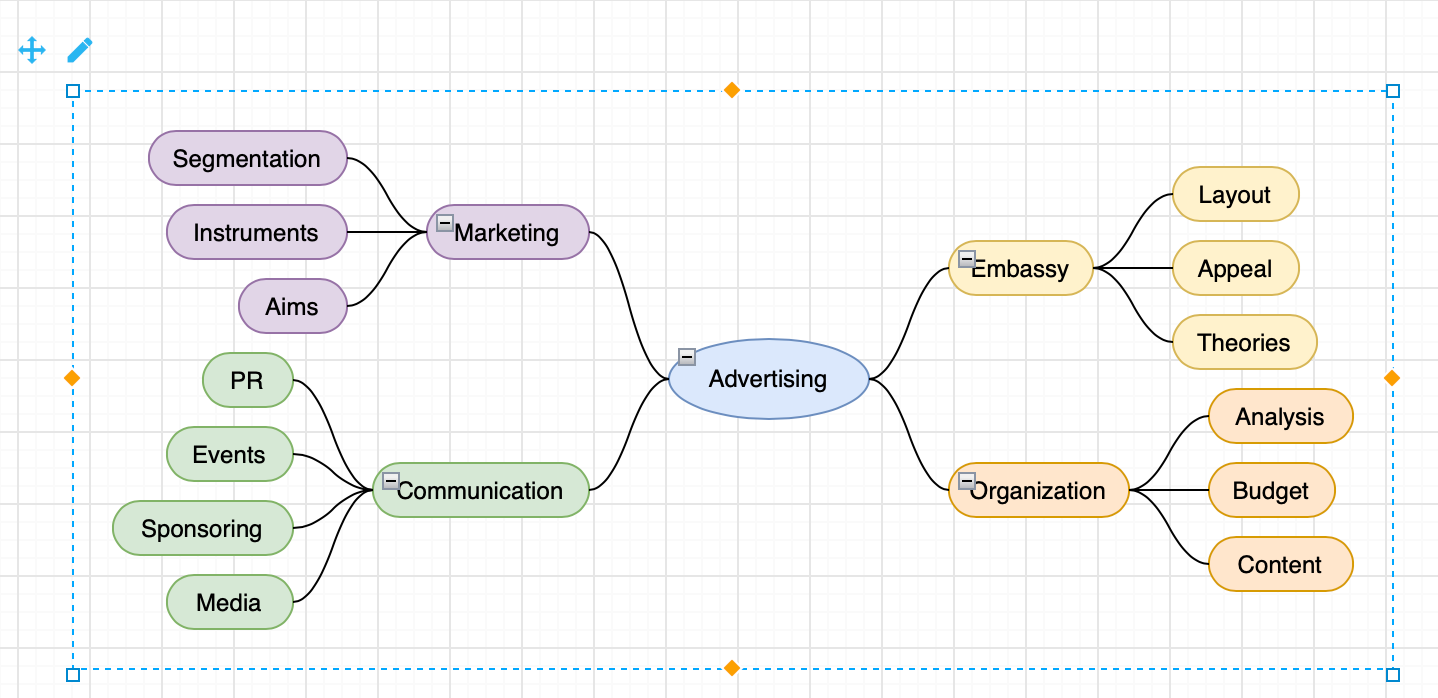
Insert an editable diagram from text
- Select Arrange > Insert > Advanced > From Text from the menu. Alternatively, click the
+icon in the toolbar, then select Advanced > From Text.
- Choose the type of diagram from the drop-down list at the bottom of the dialog.
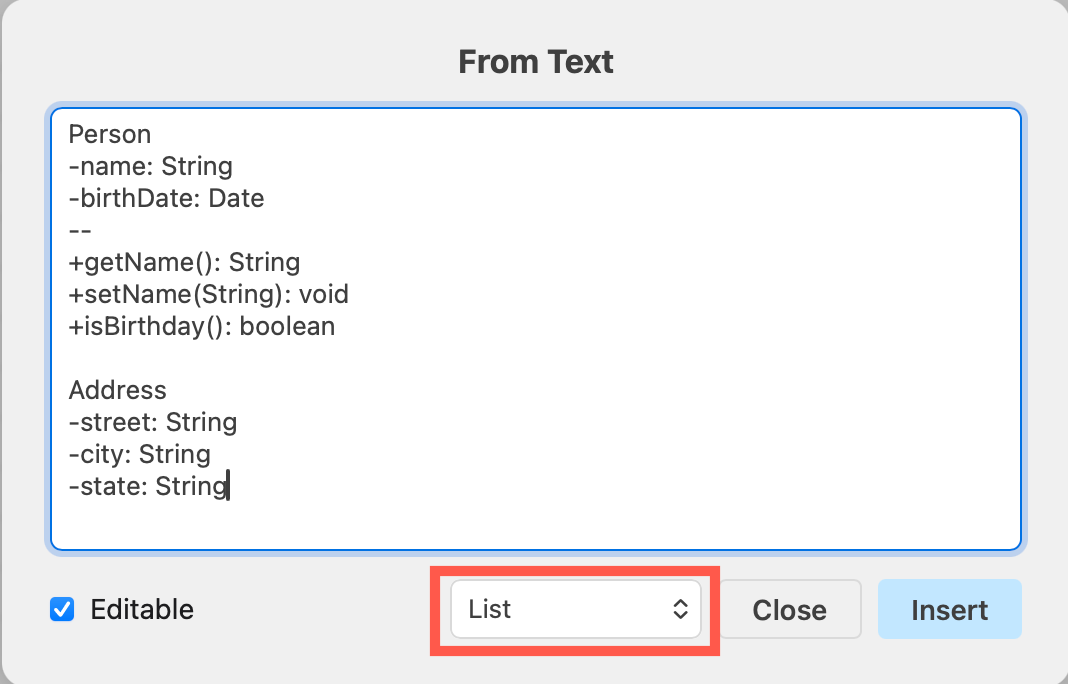
- Different types of diagrams have different formatting. Follow the formatting of the example text and replace it with your own text description, then click Insert.
The diagram will be drawn, automatically laid out, and added to the drawing canvas in a transparent layout container.
Edit the text or the diagram
Click the pencil icon in the top left of the layout container to re-edit the text.
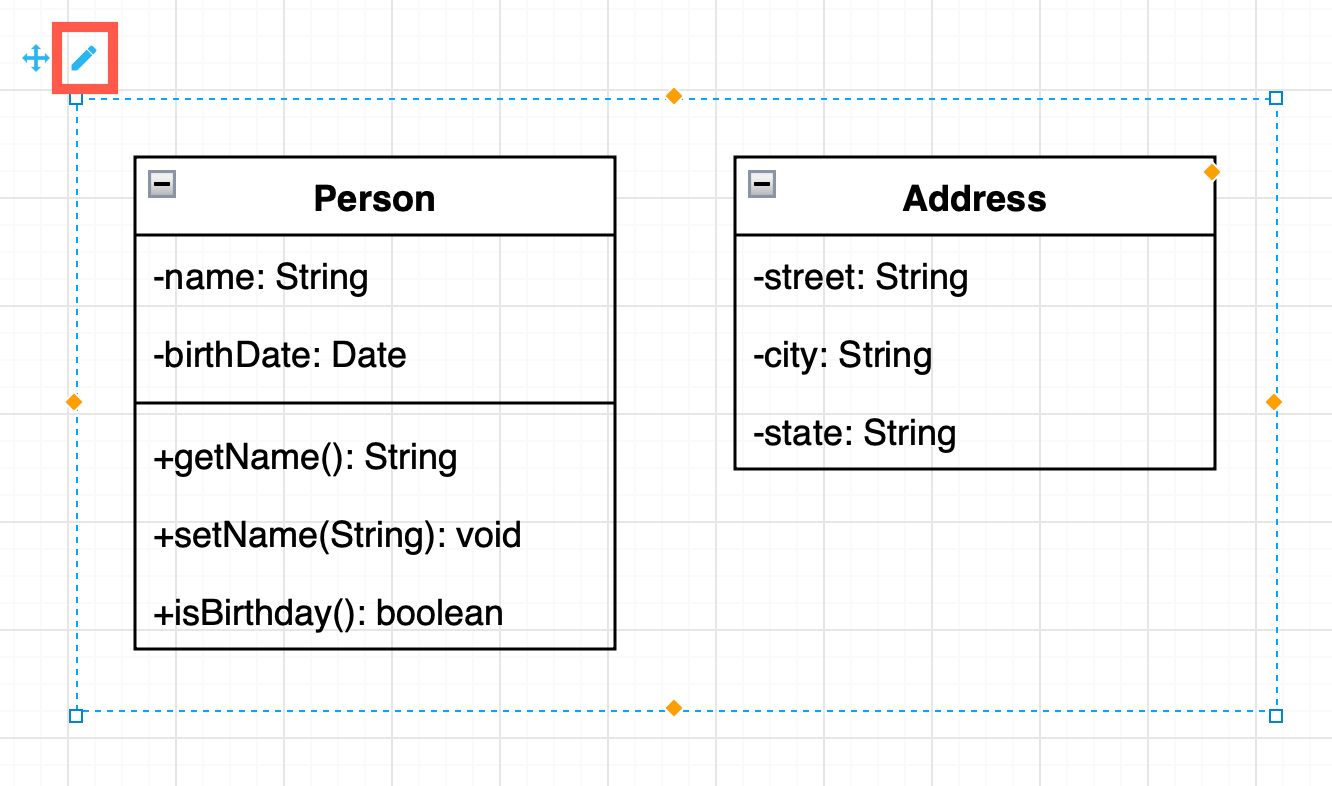
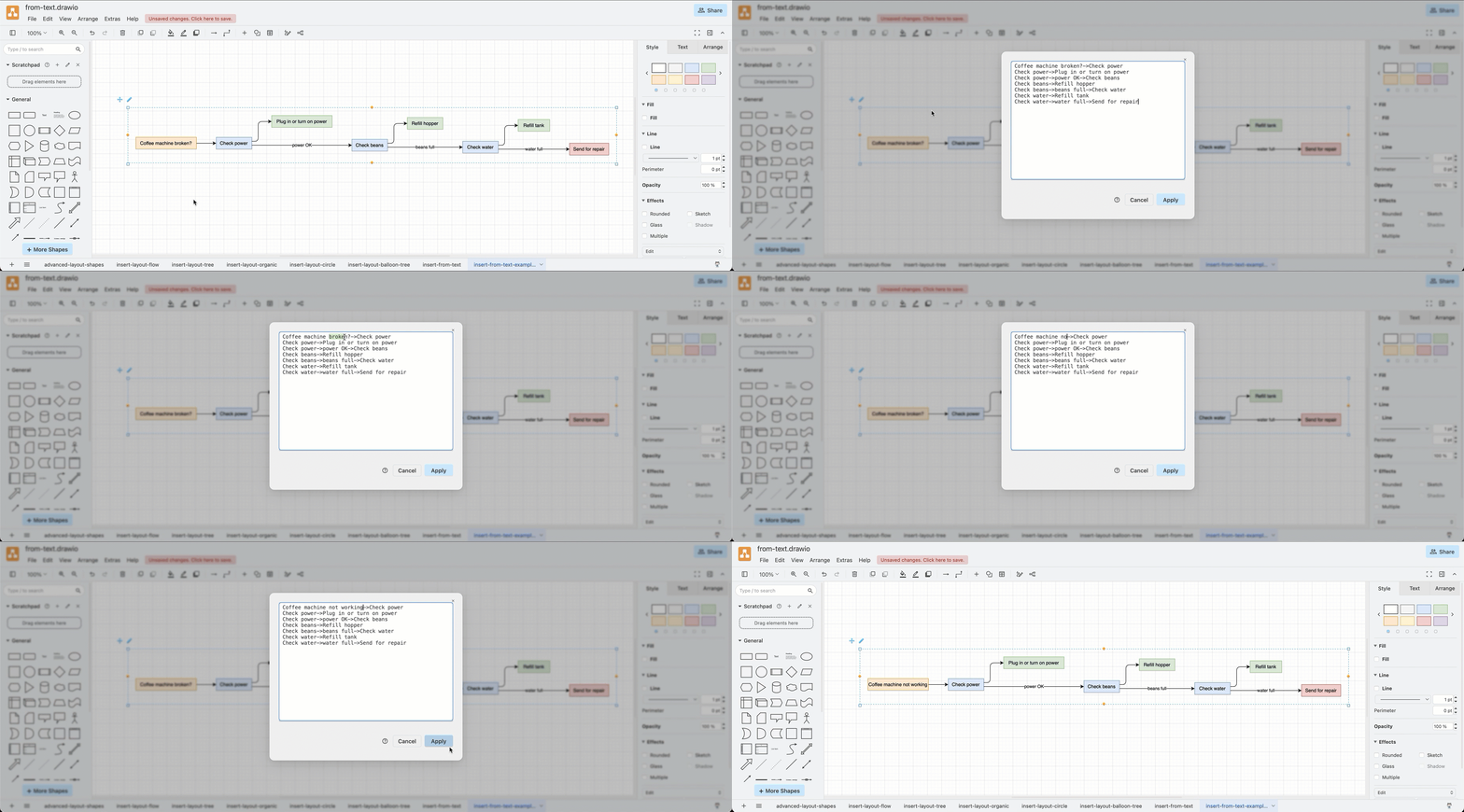
- Change a line to change the label of its shape. The shape keeps its style and size.
- Add a line to add a shape with the style of its siblings.
- Delete a line to delete its shape and its connectors.
Edit the diagram shapes directly: When you add and connect new shapes inside the layout container, for example, adding more lines to an entity, or when you change the labels of the existing shapes, the text description of the diagram will be updated to reflect your changes.
Apply styles inside the layout container: Style elements inside the layout container as you would style shapes, connectors and text normally in draw.io. When you next edit the text and update the diagram, these styles are kept.
When you add an indented child to the text of any of the tree diagrams or a mindmap, the new children will take their style from their parent.
Style the layout container itself just as you would style a shape on the drawing canvas. By default, the layout container is transparent with no outline.
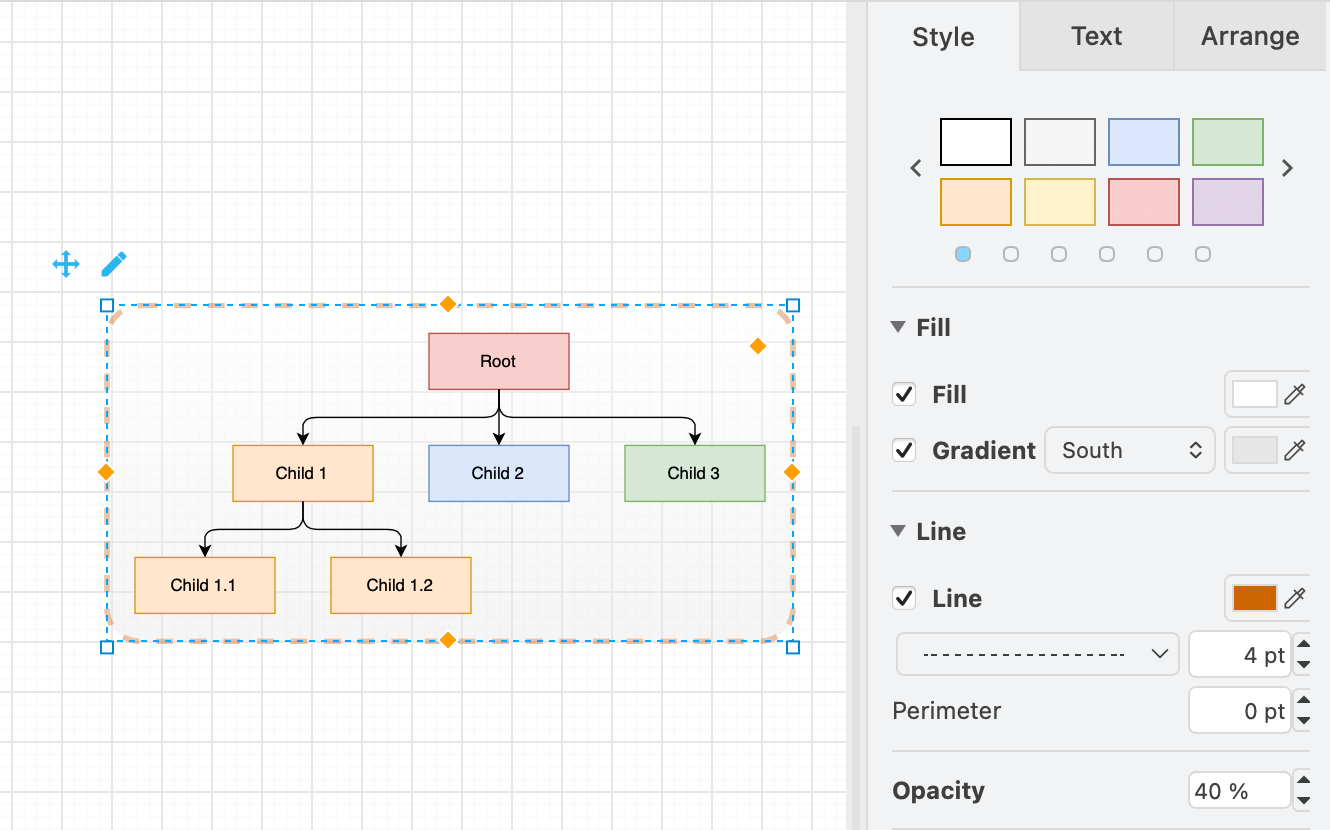
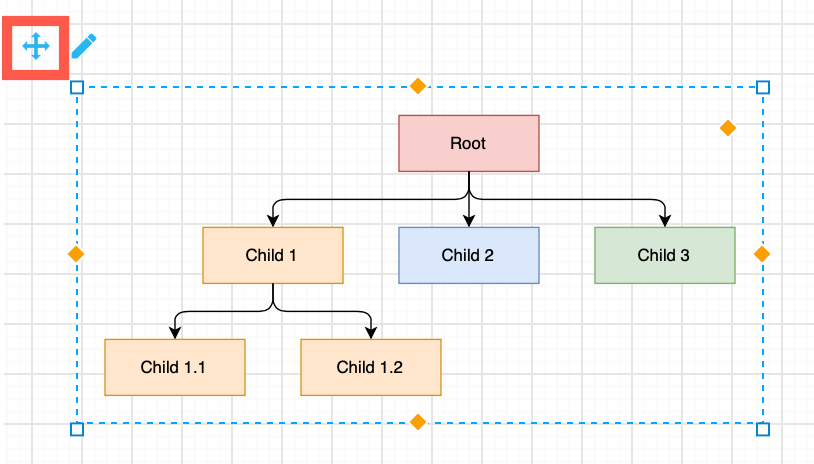
Move the layout container on the drawing canvas: Drag the arrows in the top left or the frame of the layout container to move the diagram on the drawing canvas. Click a blank space inside the layout container to deselect it. You can then drag a selection box around the shapes inside it.
What diagrams can you describe as text?
You can create lists for entity relationship diagrams, flowcharts and directed graphs with an arrow between each pair of nodes, as well as vertical, horizontal, radial and balloon trees, and mindmaps from indented outlines.
For example, the horizontal flowchart below is described in text as:
Coffee machine not working->Check power
Check power->Plug in or turn on power
Check power->power OK->Check beans
Check beans->Refill hopper
Check beans->beans full->Check water
Check water->Refill tank
Check water->water full->Send for repair

See more examples that were inserted from text in the user manual.
Insert a diagram from text without a layout container
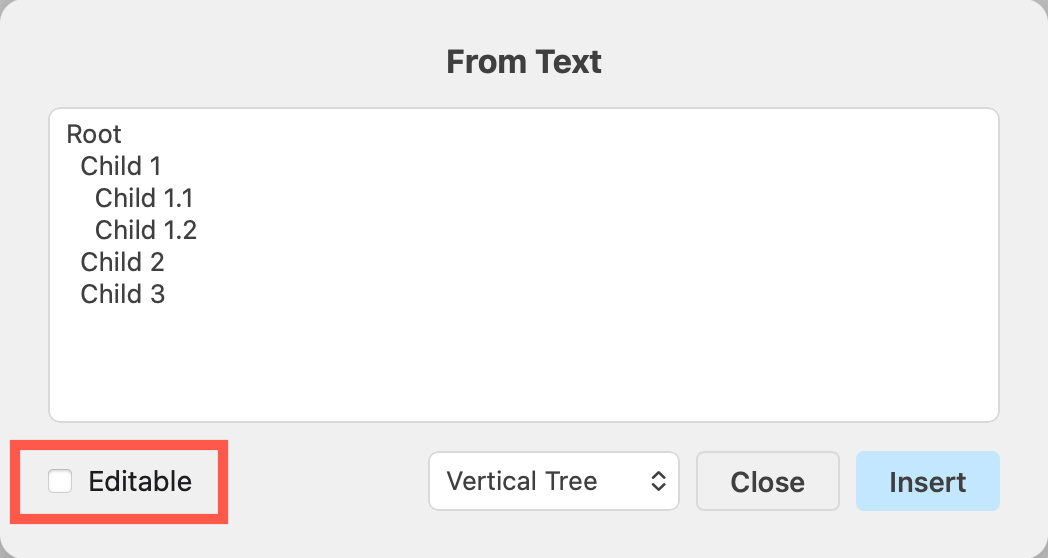
To use the older non-editable style, deselect the Editable checkbox in the From Text dialog before you insert the diagram.
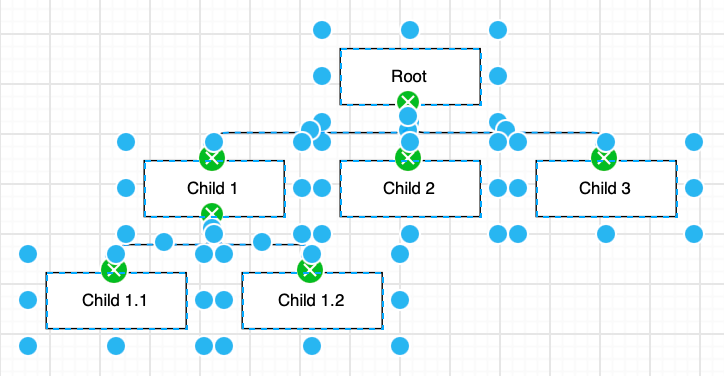
The shapes and connectors for your diagram will be placed directly on the drawing canvas. Choose this option when you want a diagram you can edit and rearrange freely without needing to conform to a particular diagram type.
Convert older diagrams inserted from text: Older diagrams that were inserted from text can't be automatically converted to the new layout containers, because their text was not saved in the diagram data. To make one editable, describe it in text again and insert it as a new diagram in a layout container, then delete the old diagram.
Do more with diagrams from text
Apply a different layout: Select the layout container, then select Arrange > Layout and choose a different layout. The shapes will be rearranged and the layout container will be automatically resized to fit.
Generate the text for a diagram with AI: Ask your preferred LLM tool for an indented outline or a list of connections, then paste it into the From Text dialog. To skip the copy and paste step, install the draw.io connector in your AI tool so it can generate editable diagrams for you directly.
Related
- Insert and re-edit Mermaid diagrams and PlantUML diagrams.
- Insert SQL code to generate entity lists for an entity relationship diagram.
- See all of the different elements you can insert into your diagram.