Configure default adaptive colours
You can configure adaptive colours in draw.io so that the editor matches your system or browser in dark mode, but the drawing canvas and diagram will always appear in light mode. To do this, set the default Adaptive Colors in the draw.io editor configuration to None.
- Select Extras > Configuration from the menu.
- Scroll down to the Appearance settings in the Editor tab.
- Choose your preferred setting from the Adaptive Colors drop down list (auto, simple or none), then click Apply.
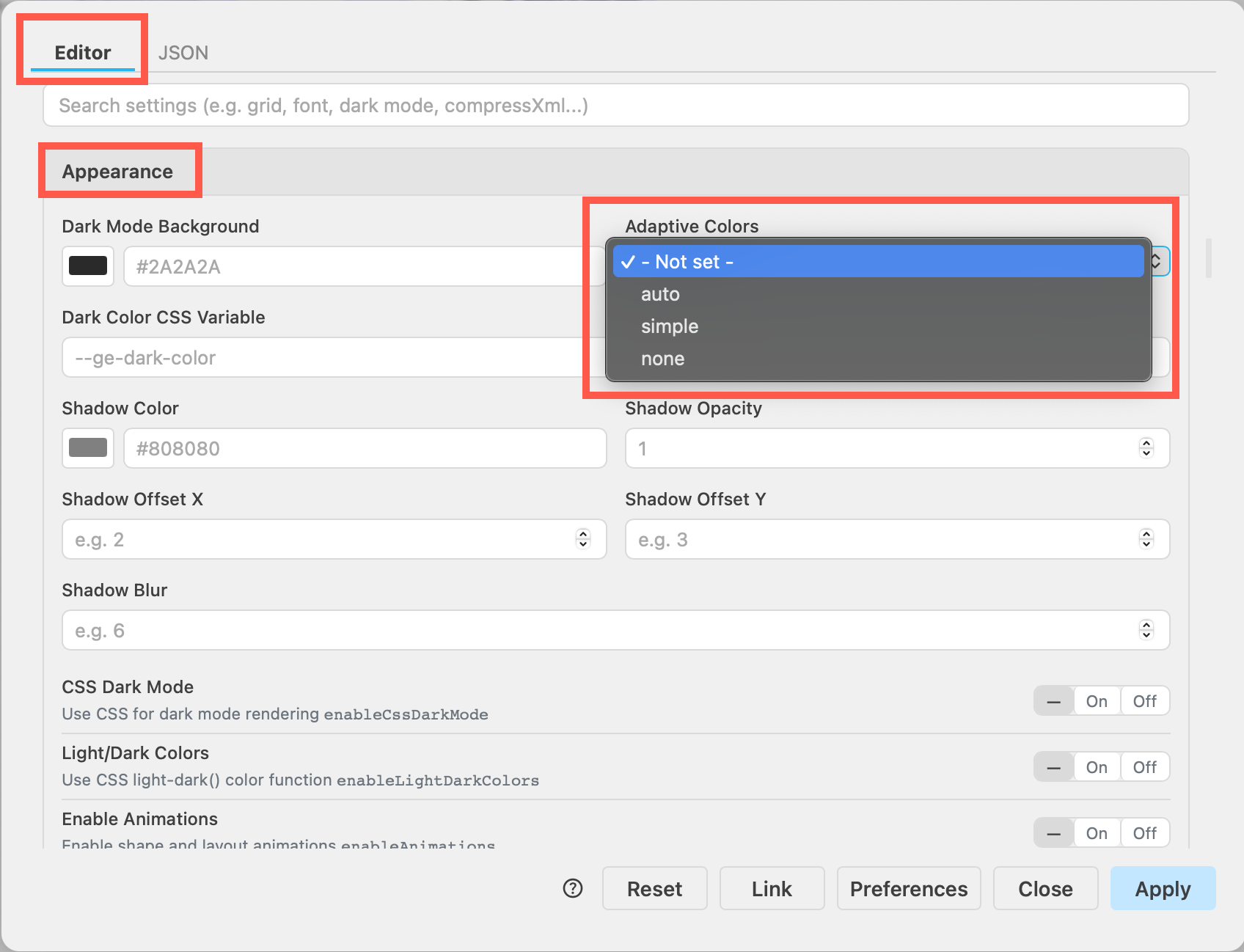
Set adaptive colors in the JSON configuration
You can also set adaptive colours in JSON configuration commands via the JSON tab in the editor configuration.
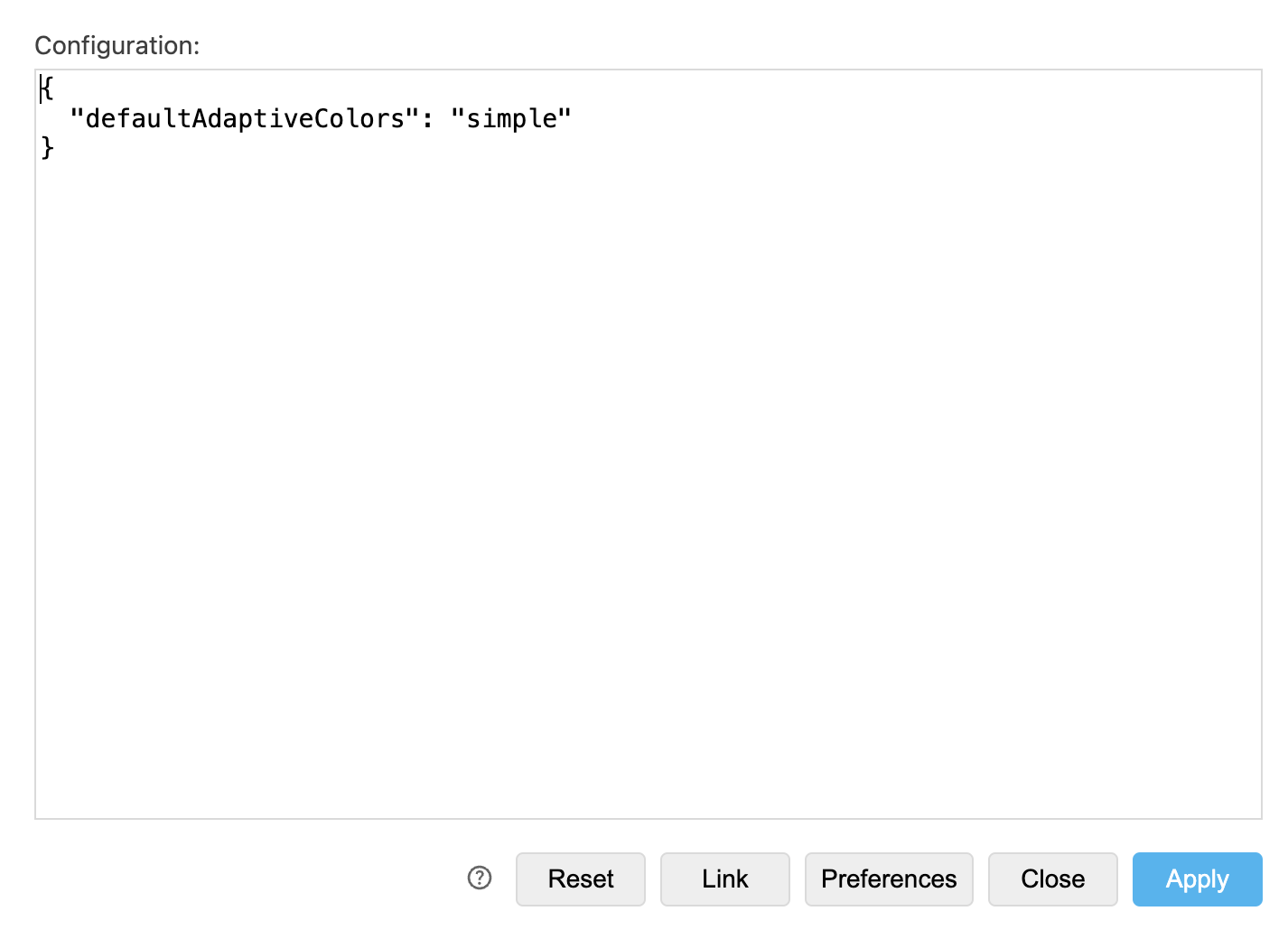
- Select Extras > Configuration, then select the JSON tab.
Enter either
auto,simple, ornoneas the value fordefaultAdaptiveColorsin the configuration, then click Apply
{
  "defaultAdaptiveColors": "simple"
}
Reload the browser tab to load your configuration with a different default.