Arrange shapes in a balloon tree
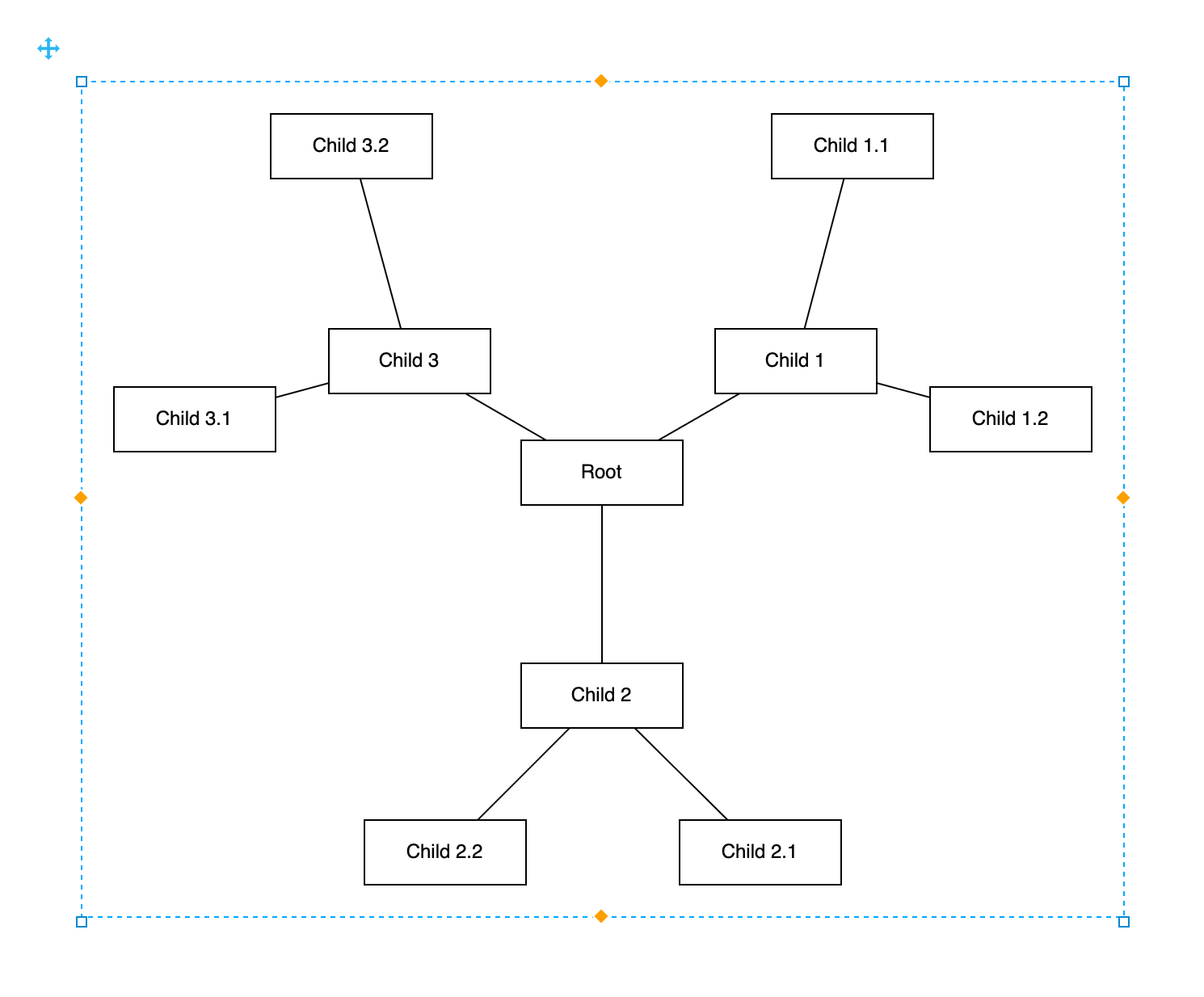
The balloon tree layout automaticall arranges the child shapes in a ring or an arc around each parent shape. The root shape is in the centre. Child shapes are placed so they are in an arc towards the outer edge of the diagram away from their parent.
Use this layout for a mindmap when you have a few main topics which have many sub-topics, for example a classification, a topic map, or a network with hubs. Each topic stays in the middle of its sub-topics, so you can see at a glance which shapes belong together.
This layout differs from the radial tree layout placing all shapes at the same distance from the root on one ring around the root shape.
Apply the balloon tree layout
- Select a group to arrange only the shapes inside it, or click on an empty part of the drawing canvas to arrange all shapes on the page.
- Select Arrange > Layout > Balloon Tree.
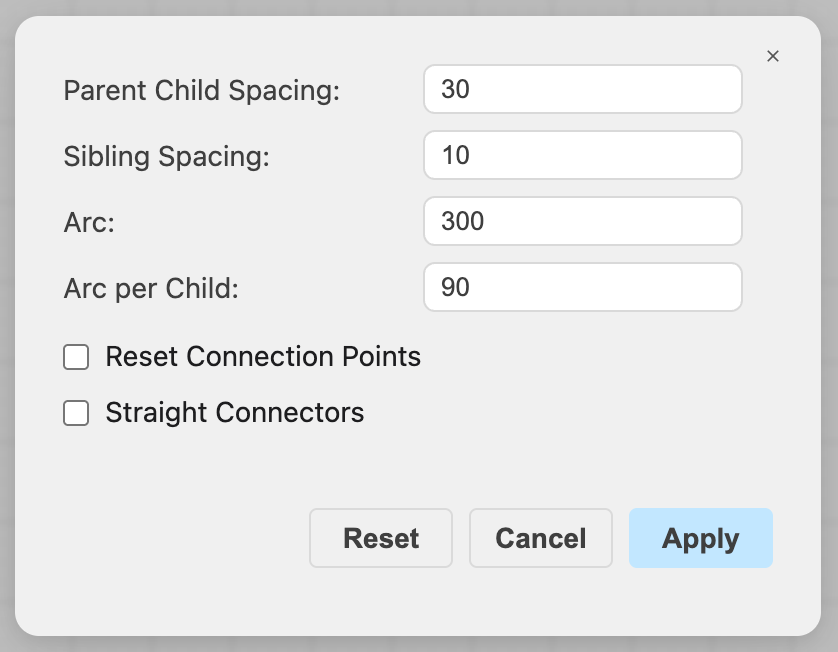
- Change the options in the dialog if needed, then click Apply.
The shapes will be rearranged. The top left corner of the diagram stays where it was. The shapes in a selected group are placed inside the group, and the group is resized to fit them.
The balloon tree layout will replace an existing layout of a layout container if it was selected.
The layout options dialog remembers the options that you applied most recently. Click Reset to return to the default options.
Balloon tree layout options
Parent Child Spacing (default 30) — the gap in pixels between a shape and the child shapes around it.
Sibling Spacing (default 10) — the gap in pixels between the groups of shapes that share a parent shape.
Arc (default 300) — the angle in degrees of the arc for the child shapes of a shape that has a parent. The gap in the arc faces the parent shape. The child shapes of the root are spaced evenly around it.
Arc per Child (default 90) — the largest angle in degrees for each child shape in that arc. A shape with only a few child shapes keeps them on the side away from its parent shape.
Reset Connection Points — the connectors between the shapes lose their fixed connection points and end on the outline of the shapes. Use this when you apply the layout to a diagram whose connectors were attached to fixed points.
Straight Connectors — the connectors between the shapes become straight lines, like straight in the Waypoints list of the Style tab.
The layout always removes connector waypoints between the shapes. None of the common layout options apply to this layout.
Insert a balloon tree layout container
Select Arrange > Insert > Layout > Balloon Tree, or drag the Balloon Tree Layout shape from the Advanced shape library onto the drawing canvas. A layout container with a small balloon tree will be added to the drawing canvas.
Hover over a shape in the container and click any of the blue arrows to add a child shape to it. The direction of the arrow doesn't matter: the layout places the new shape in the arc around its parent shape. The new connectors are straight lines without arrows.
To change the options of the container, select it and click Edit Layout in the Arrange tab of the format panel.
To change the shapes of a tree, balloon tree or mindmap container as text, see how to insert and edit a diagram as text.
Shape placement in balloon trees
Defining a root shape: A shape with no connectors targeting it to it is a root shape. Connectors point from a parent (source) shape to its child (target) shapes.
Ordering the child shapes: Child shapes keep their order around their parent shape. To change this order, drag a child shape between two of its siblings. The layout will rearrange its siblings to fit.
Placing several balloon trees: Shapes that aren't connected to each other, and multiple balloon trees, are placed next to each other from left to right on the drawing canvas.
Preventing changes with locked shapes: Shapes that are locked or can't be moved keep their position.