Arrange shapes as a mindmap
The mindmap layout places the central idea in the middle, its topics to the right and to the left of it, and the sub-topics of each topic in a column further out. Each topic is placed in a band of its own, so the branches never overlap.
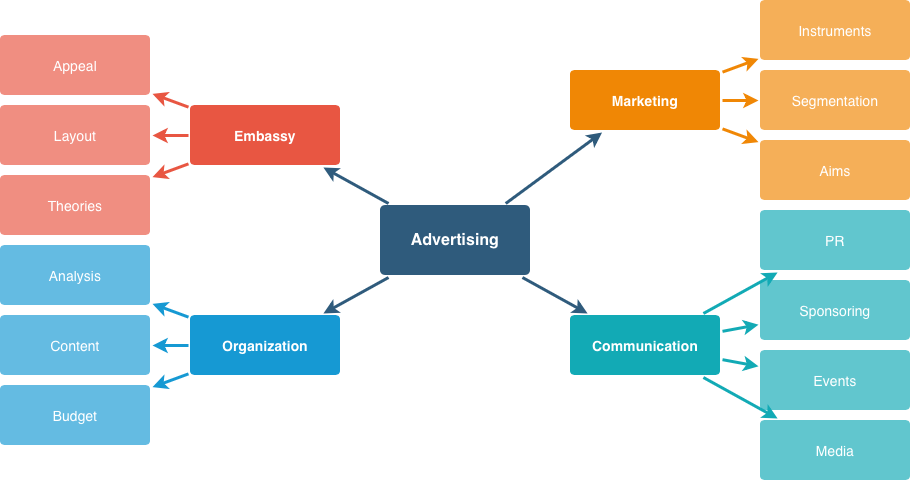
Apply the mindmap layout
- Select a group to arrange only the shapes inside it, or click on an empty part of the drawing canvas to arrange all shapes on the page.
- Select Arrange > Layout > Mindmap.
- Change the options in the dialog if needed, then click Apply.
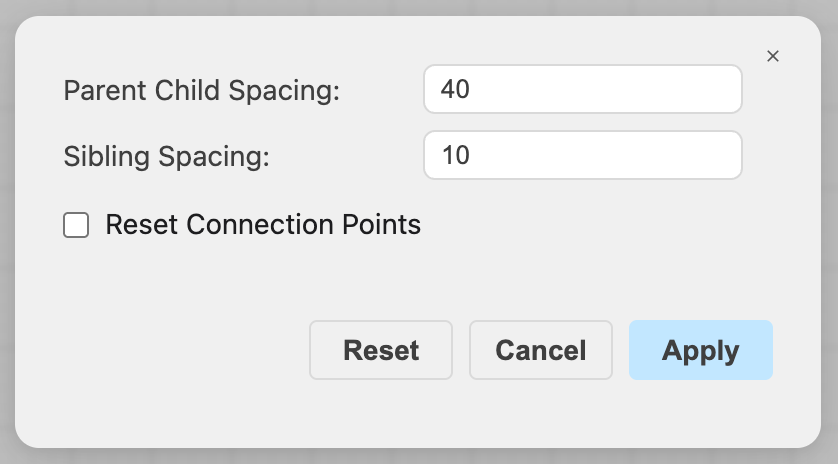
The shapes will be rearranged. The top left corner of the diagram stays where it was. If a layout container is selected, the mindmap becomes the layout of the container.
Mindmap layout options
Parent Child Spacing (default 40) — the horizontal gap in pixels between a shape and its child shapes.
Sibling Spacing (default 10) — the vertical gap in pixels between the branches of shapes that share a parent shape.
Reset Connection Points — the connectors between the shapes lose their fixed connection points and end on the outline of the shapes.
The dialog remembers the options that you applied last. Click Reset to show the default options.
Insert a mindmap
Select Arrange > Insert > Layout > Mindmap, or drag the Mindmap shape from the Advanced shape library onto the drawing canvas. The mindmap rearranges itself whenever you add, delete, move or resize a topic.
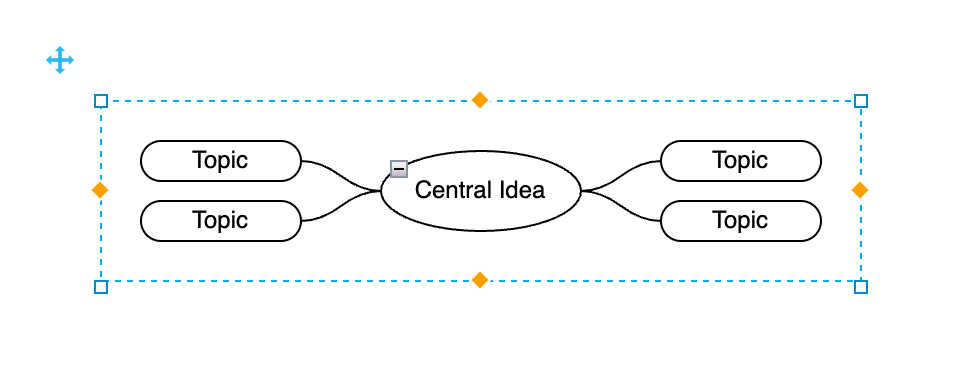
Hover over a topic and click a blue arrow to add a topic:
- Click an arrow that points away from the central idea to add a child topic.
- Click the arrow above or below a topic to add a sibling topic.
- Click the arrow that points toward the central idea to insert a topic between the topic and its parent.
- Click an arrow of the central idea to add a topic on that side.
To type the whole mindmap as text instead, select Arrange > Insert > Advanced > From Text. See how to insert and edit a diagram in text.
How the topics are placed
Sides: Topics stay on the side of the central idea where they are. To move a topic and its sub-topics to the other side, drag the topic there. A new topic that is above or below the central idea will be added to the side with less content.
Order: Topics keep their order from top to bottom. To change the order, drag a topic between two of its siblings.
Locked shapes: Topics that are locked or can't be moved keep their position.