Supported embedded formats
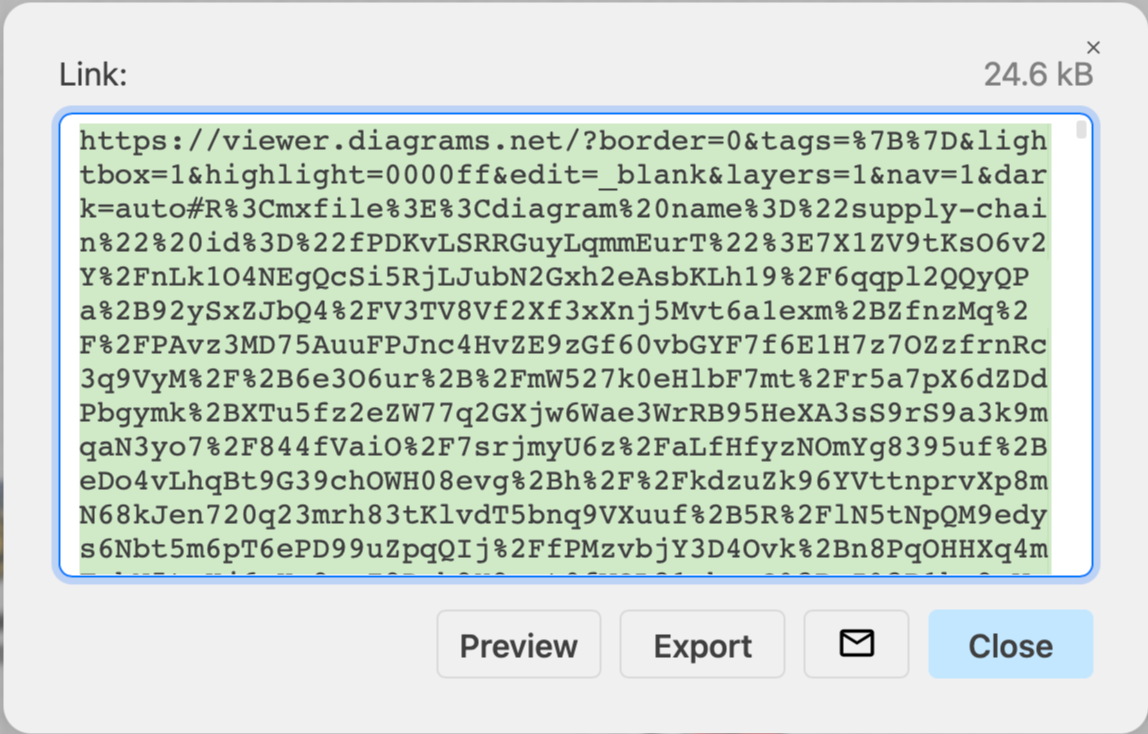
When you choose to embed instead of export your diagram, draw.io saves the markup to an embed.html file. Open this file in a text editor, then copy and paste the markup into your web page, or into an application that supports embedded images or HTML.
Note: In versions older than 30.1, the embed markup was displayed in a dialog to copy from, instead of being saved to a file.
Embedded image
-
Select File > Embed > Image.
-
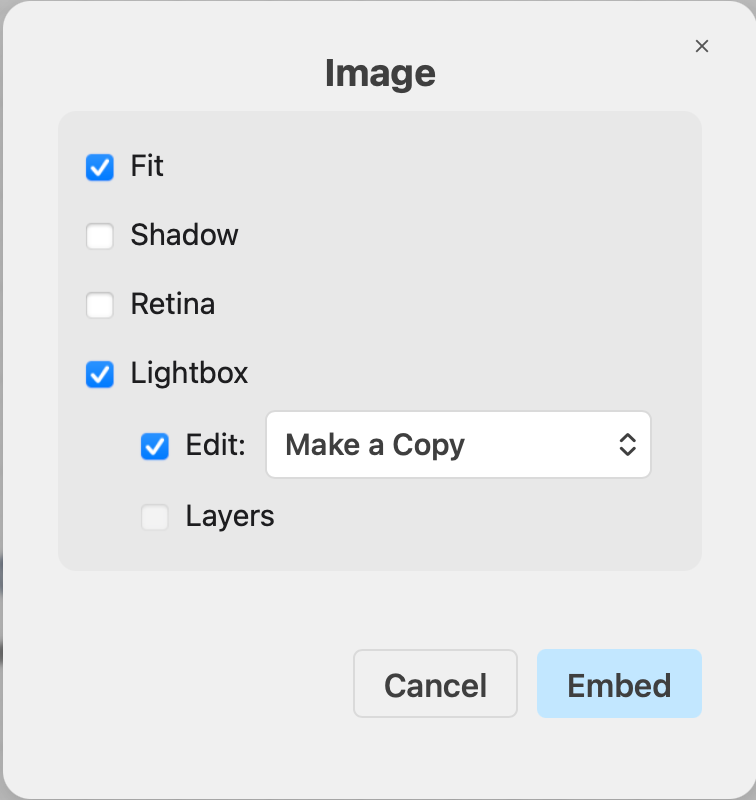
Select the options for the embedded image:
- Fit: Adds
max-width:100%to the image so it scales with the container. - Shadow: Adds a drop shadow to the shapes. Note: the shadow is rendered into the image itself, not added by CSS.
- Retina: Renders the image at 2× resolution for sharp display on high-DPI (retina) screens, which roughly doubles the file size.
- Lightbox: Opens the diagram in a lightbox when a viewer clicks on it.
- Fit: Adds
-
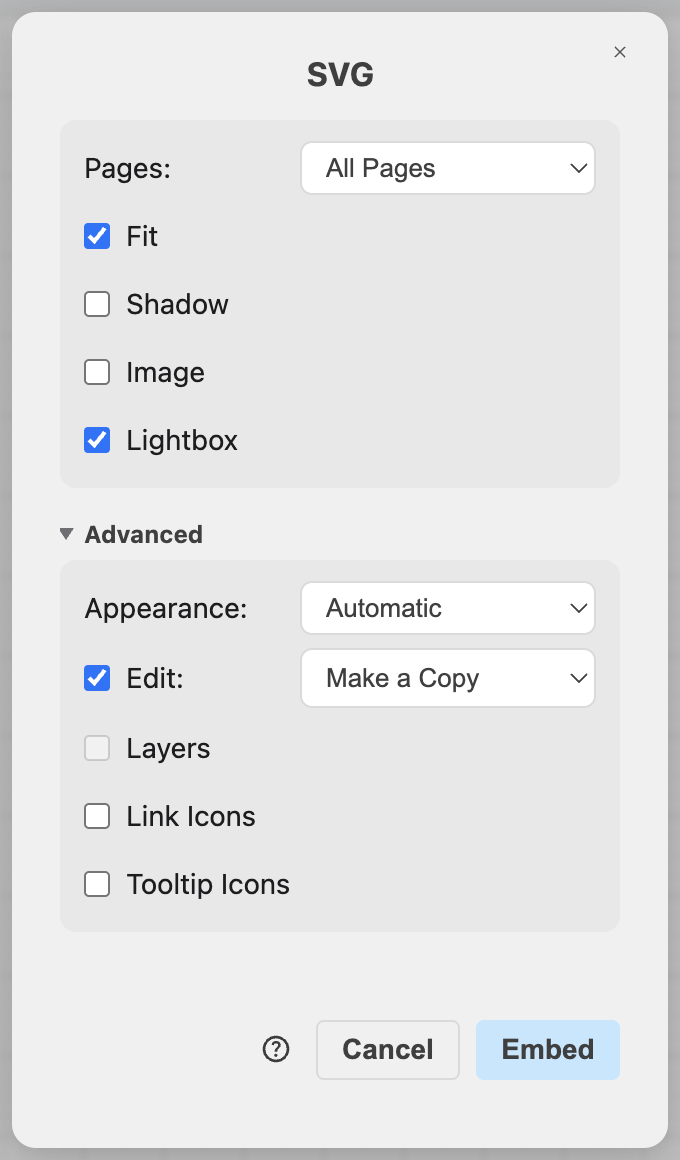
Expand the Advanced section for more options:
- Edit: Determines the behaviour when a viewer clicks on the Edit button in the lightbox. By default, draw.io will make a copy of the diagram.
- Layers: Specifies whether individual layers can be shown or hidden in the lightbox.
- Link Icons: Shows an icon in the lightbox on shapes that have a link.
- Tooltip Icons: Shows an icon in the lightbox on shapes that have a tooltip.
Note: The Edit, Layers and icon options only apply when Lightbox is enabled.
-
Click Embed and select the location to save the
embed.htmlfile. -
Open the saved file in a text editor, then copy and paste the image markup into your web page or application.
The image markup contains all of the image data, so your diagram is not hosted anywhere.
Embedded SVG
Select File > Embed > SVG, select the options for the embedded SVG, then click Embed to save the SVG markup, with the diagram data encoded within it, to an embed.html file.
Embedded HTML or iFrame
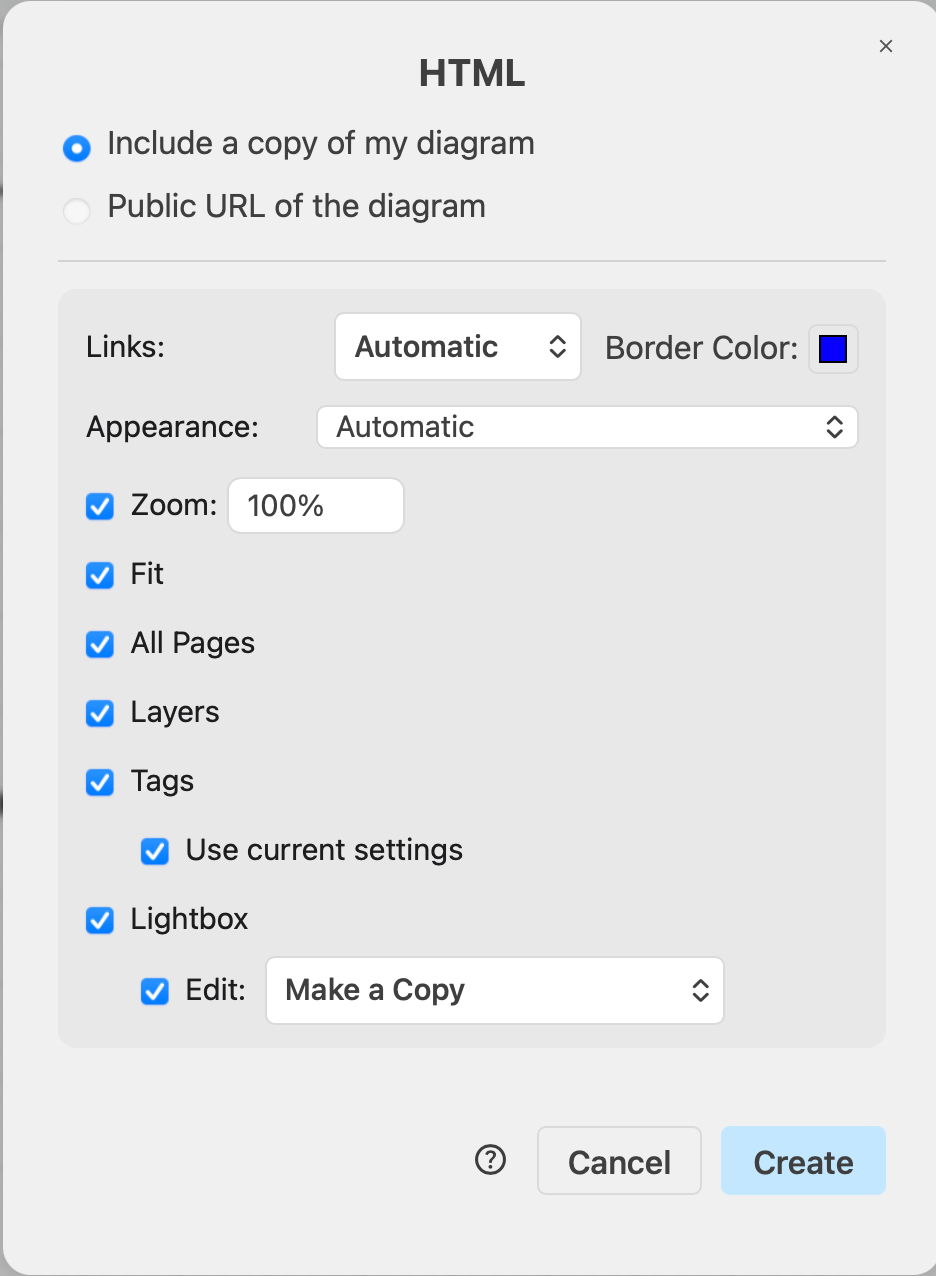
You can embed HTML with the draw.io viewer displaying your diagram into your web page.
Select File > Embed > HTML, change the options as needed, then click Create to save the HTML code to an embed.html file.
Embed a diagram in Microsoft Office
Install the draw.io apps for Microsoft Office applications, including Word, PowerPoint and Excel, to be able to embed diagrams in your documents.
See how to use the draw.io apps with Microsoft Office
Embed a diagram in Notion
- Select File > Embed > Notion, change the options as needed, then click Create.
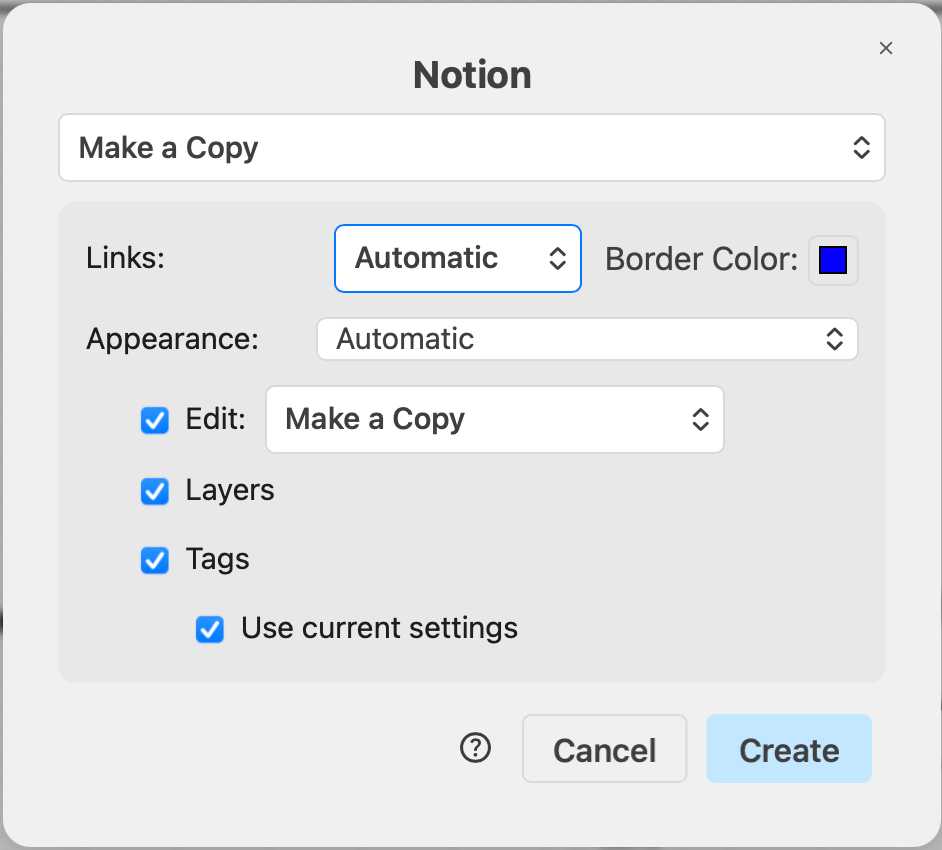
You can Preview this in a new browser tab, or Export this code to a text file. Copy and paste the code into your Notion page.