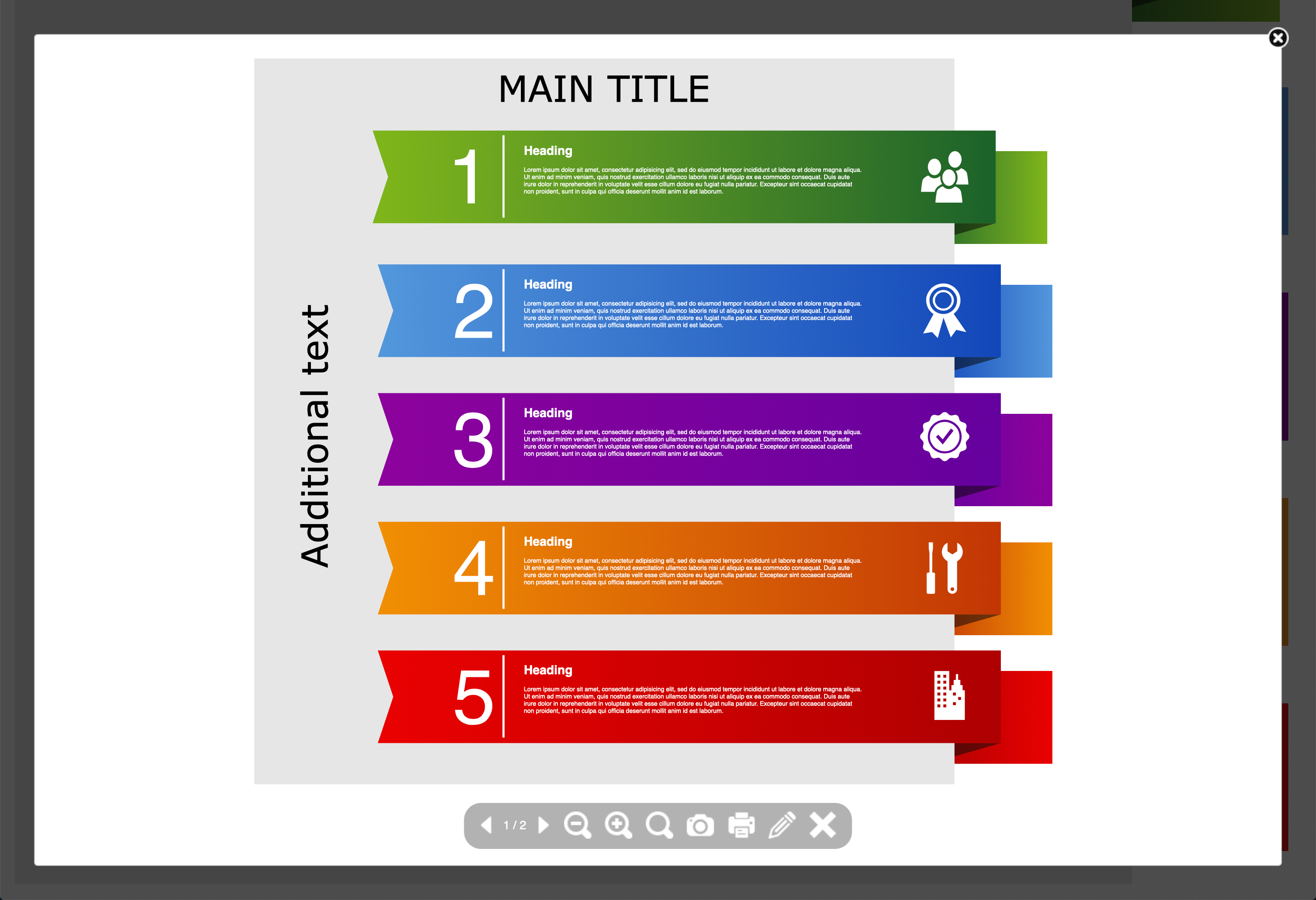
Export a diagram to HTML
You can embed a diagram in a web page or in any online platform that can render HTML. While some third-party integrations can embed diagrams more efficiently (in WordPress, for example), embedding a diagram as HTML may be a good option. You can also share these HTML diagram files with others.
Note: Diagrams exported to HTML files/code are rendered in the draw.io viewer by calling a JavaScript hosted on the draw.io server. You'll need a working internet connection for the diagrams to be displayed properly.
Export a diagram as HTML
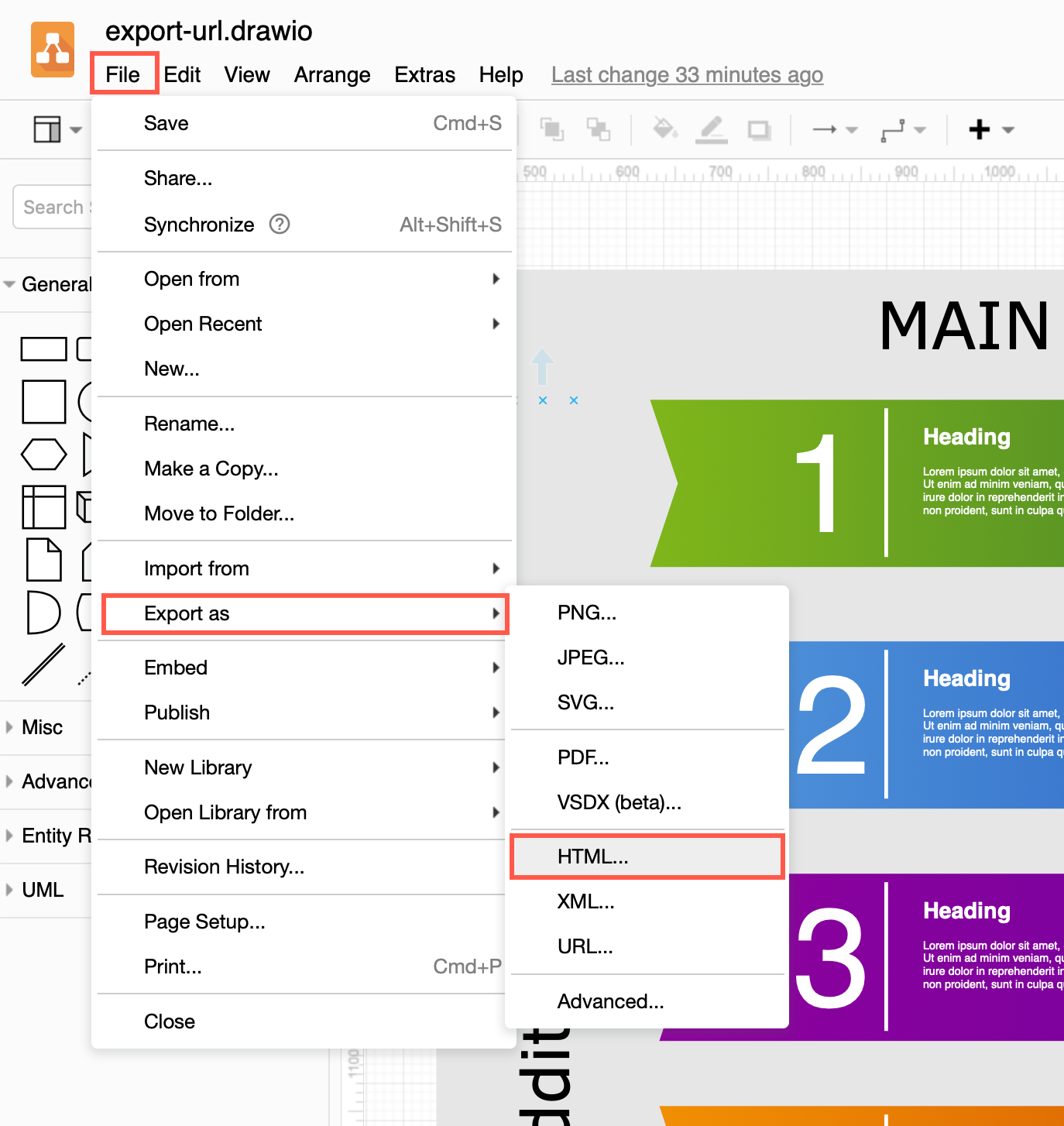
- Click File > Export as > HTML.
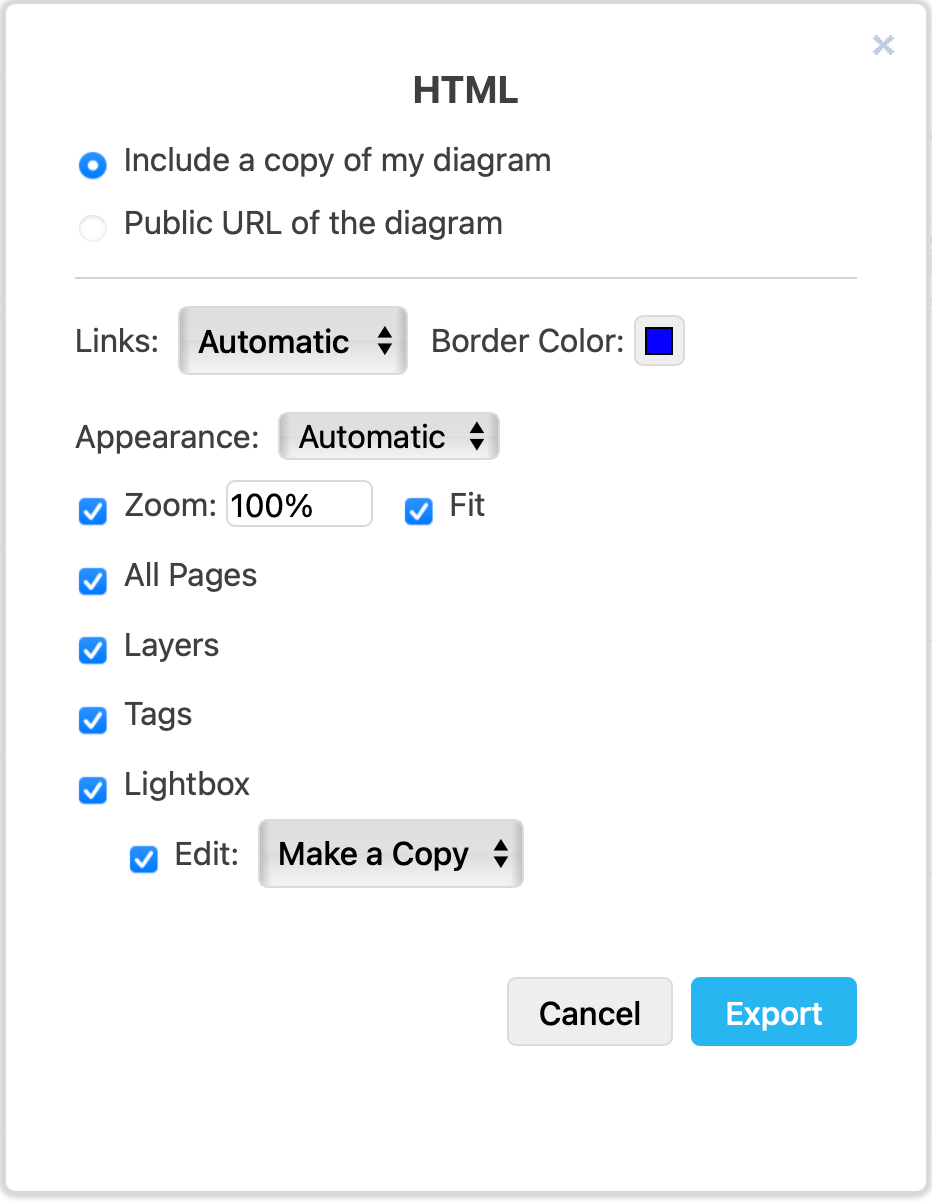
- Change the export settings to suit your requirements, then click Export.
- You can include the Public URL of the diagram instead of the default Include a copy of my diagram in the HTML if you are using Google Drive to store your diagram. If your diagram is stored elsewhere, this radio button will not be selectable.
- By default Links will open following the viewer's browser preferences. Select a different behaviour if you want links to always open in a new tab or a new browser window. If you want, set a different Border Colour to display links.
- If you want to force your diagram to appear in dark mode on a dark background, select the Dark Appearance.
- Choose the Zoom factor and Fit to change how your diagram is displayed in the viewer.
- Deselect All Pages if you only want to include the current page of your diagram.
- Deselect Lightbox if you want your exported diagram to open directly in the editor rather than the lightbox viewer.
Advanced - Deselect the Layers and/or Tags checkboxes if you don't want viewers to interact with the layers in your diagram. By default, Use Current Settings will hide currently hidden tags.
- Enable Link Icons and Tooltip Icons to add small icons to shapes or groups that have links and tooltips in their metadata.
- Choose how the editor should open the diagram on Edit - Make a Copy is the default, but if your diagram is publicly shared and stored on Google Drive, this can allow others to collaboratively edit the original file.
- You will be prompted to save a HTML file containing your diagram. Choose where you want to save the file.
You can now share the HTML file which contains your diagram, open it in a web browser or even look at the HTML source code (this looks very similar to the link generated when you export your diagram to a URL).
When someone views the HTML version of your diagram, they can click on the diagram and will be able to step through pages, hide or display diagram layers and open the diagram in the lightbox viewer and editor, unless you have deselected these options before exporting.