Why text in exported SVG images may not display correctly
When you look at a diagram exported to an SVG image in IE or some SVG editors, the text may not display correctly.
Simple explanation: The exported SVG is only designed to be displayed in web pages, we didn't design the output to be editable in SVG editors. The warning that Text is not SVG - cannot display isn't actual SVG, so SVG editors cannot display it.
Technical explanation: The draw.io editor uses foreign objects (foreignObject) in the SVG data to allow complex HTML labels on shapes.
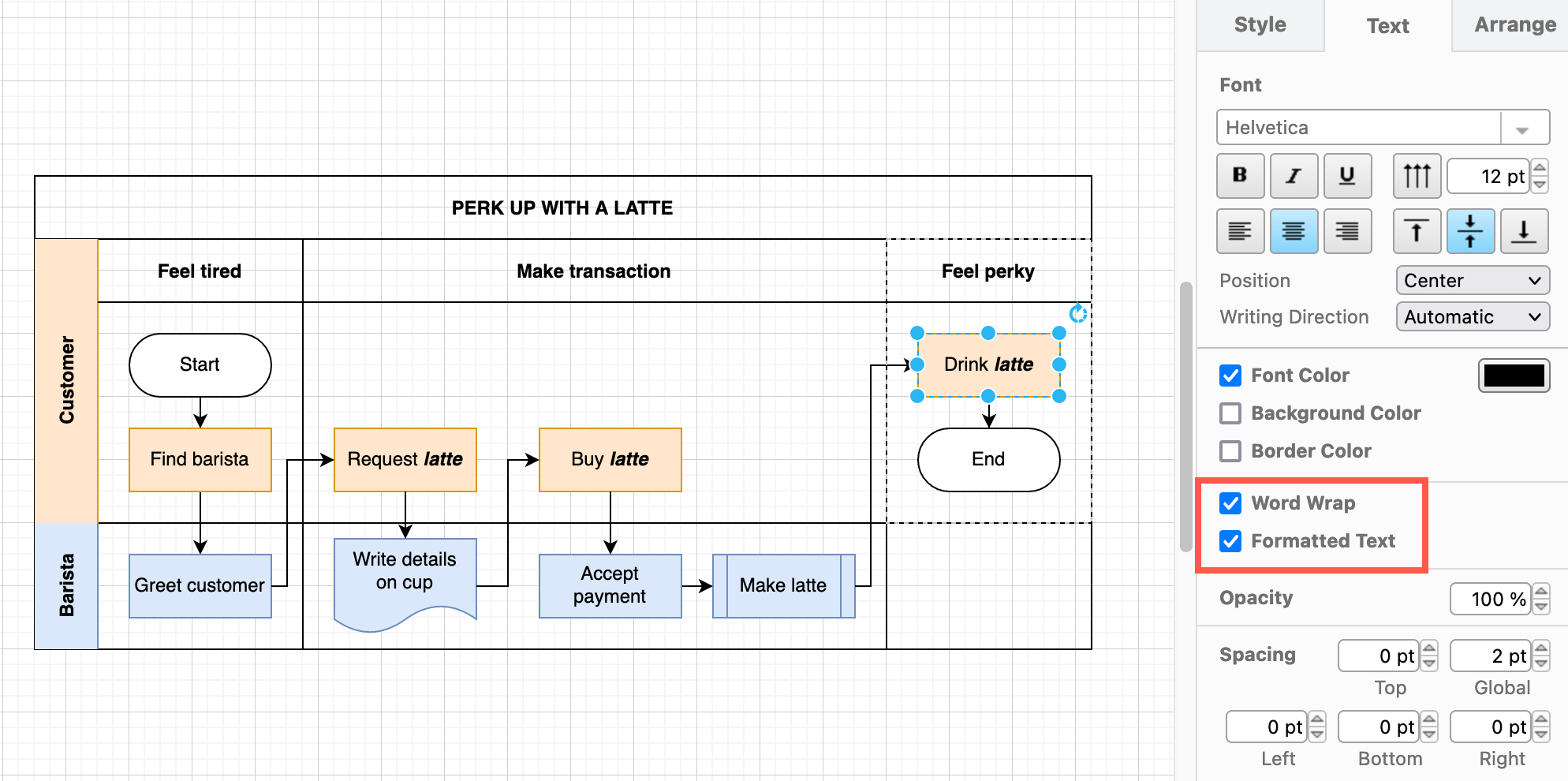
For example, in the following diagram, some of the shapes have bold and italic words in the label text with Formatted Text enabled in the Advanced section of the Text tab in the format panel.
Convert labels to SVG
Convert individual labels from HTML foreignObject elements to native SVG text.
- Select the shape(s) and connector(s) whose labels you want to convert.
- In the Advanced section of the Text tab of the format panel, enable the Convert Labels to SVG checkbox.
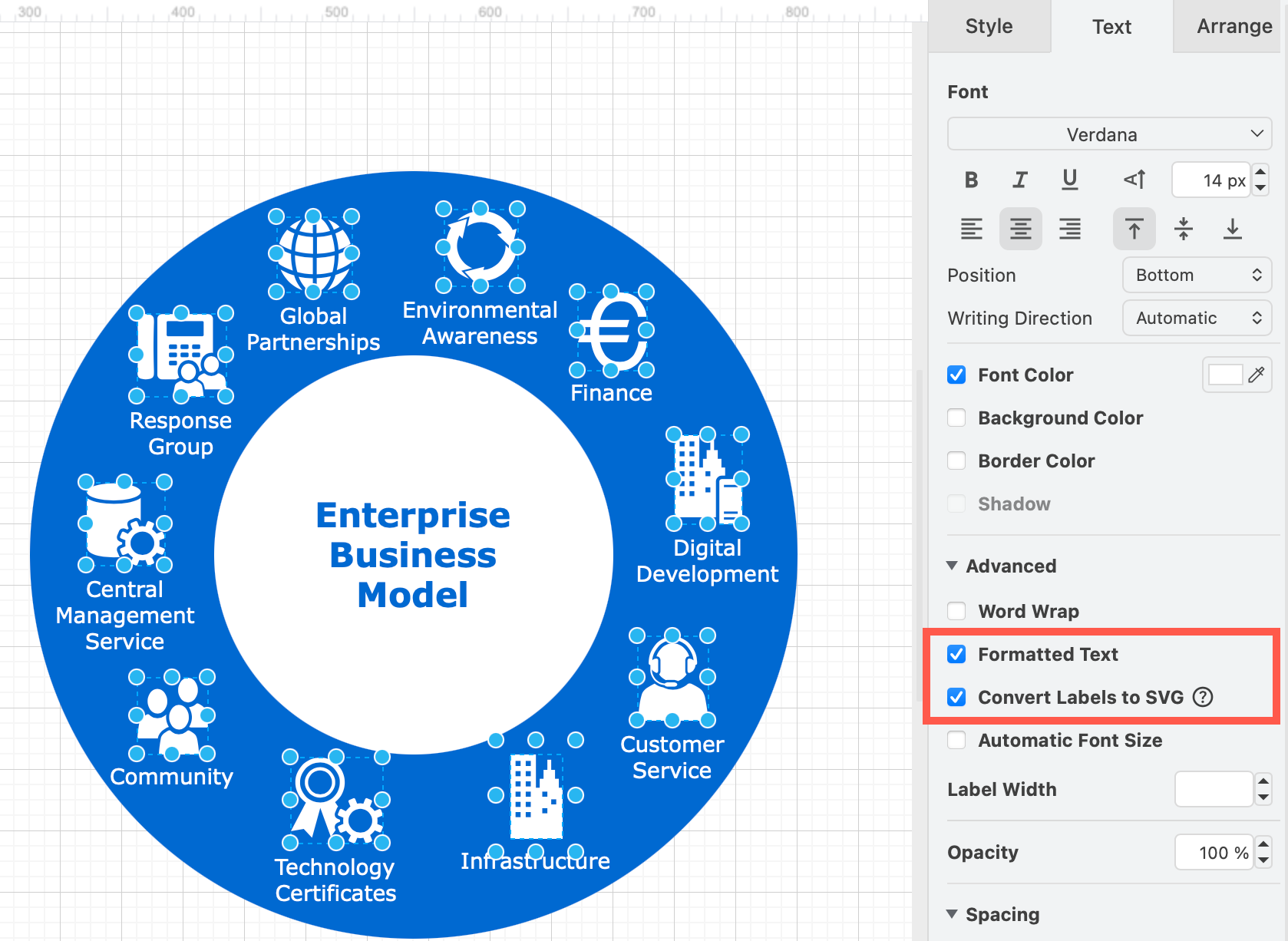
This sets the convertToSvg style property on the selected cells, which will render them as native SVG <text> elements instead of foreignObject. This is compatible with SVG editors and platforms that don't support foreign objects.
Note: The Convert to SVG option is only available for formatted text labels that use supported HTML tags (headings, paragraphs, bold, italic, etc.). Labels containing tables, lists, links, or elements with background colours are not supported and the checkbox will be disabled.
See Convert labels to SVG for more details.
Export to SVG with text settings
When you export a diagram as an SVG image (File > Export as > SVG), enable Embed Fonts to include fonts in the exported SVG file in case the viewer doesn't have the font installed.
You can also export your diagram to a PDF file, and then import that PDF into a tool like Inkscape to ensure SVG labels are used.
Disable formatted text and word wrap
- Right click on a blank area of the drawing canvas, then choose Select All from the context menu.
- Expand the Advanced section of the Text tab in the format panel and uncheck the Word Wrap and Formatted Text.
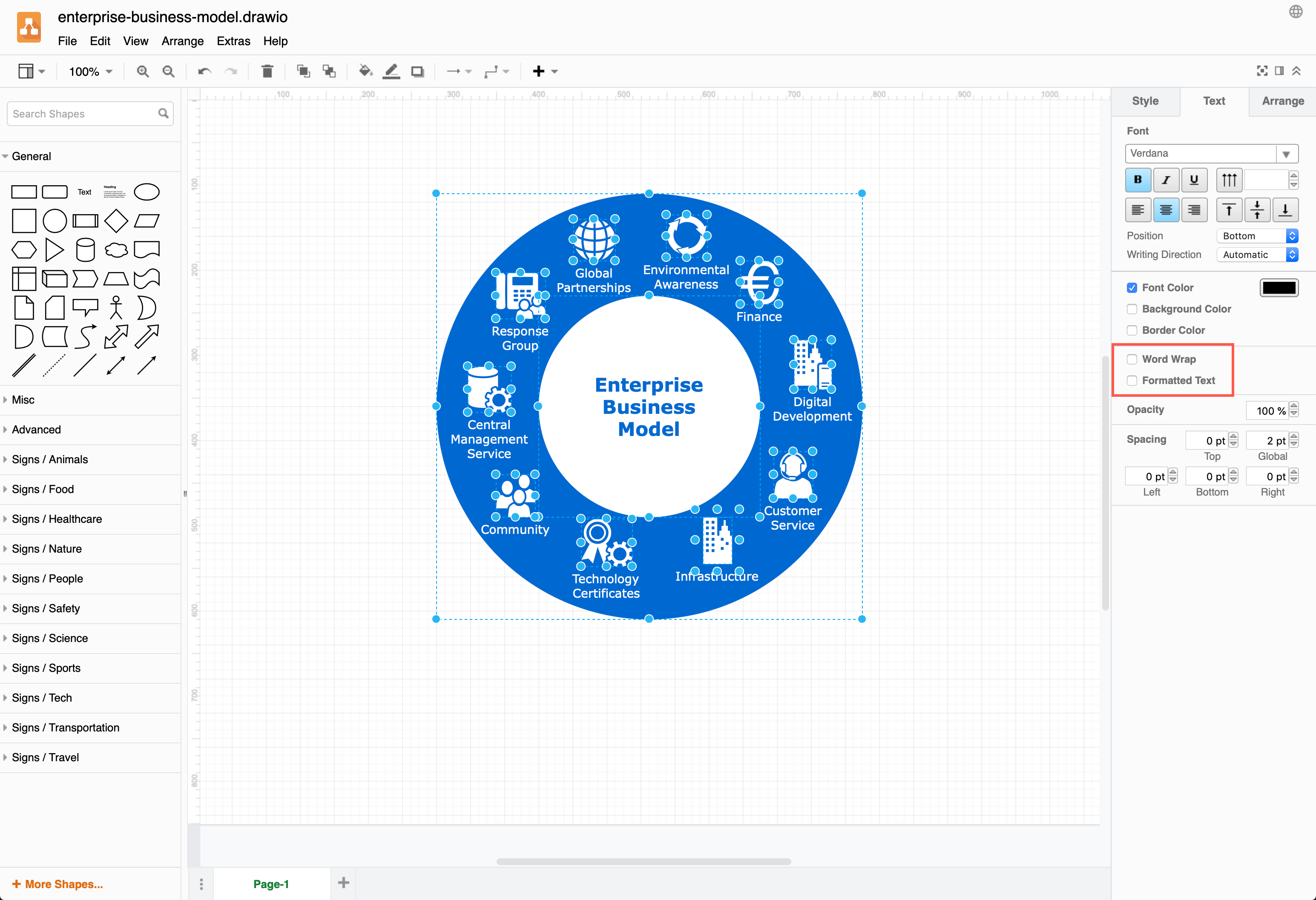
Note: When you disable these formatting options, you can still style the label text as a whole, but you cannot apply different formatting to parts of the label. When you disable word wrap you may have to add manual line breaks to match the previous output.
Disable complex HTML labels by default
So that the output doesn't contain foreign objects, open the draw.io editor with complex HTML labels disabled in the editor configuration.
Alternatively, configure the editor via the menu (Settings > Configueation or Extras > Configuration) with the JSON command below, and reload the browser tab.
"simpleLabels": true
All modern browsers including Chrome, Firefox, Safari and Microsoft Edge support foreign objects.
Suppress SVG text warning on export
An exported SVG with complex HTML labels will not display all of those labels when the SVG image file is viewed in most SVG editors (such as Inkscape and Illustrator), as well as some online services such as Wordpress. Instead, a short version of the label and a warning Text is not SVG - cannot display will be included in the file. This warning can be suppressed by using the svg-warning=0 URL parameter.