Add a table shape
Use the table tool in the toolbar to add a table to your diagram as you would in Microsoft Word or Google Docs.
- With nothing selected in your diagram, click on the Table tool in the toolbar.
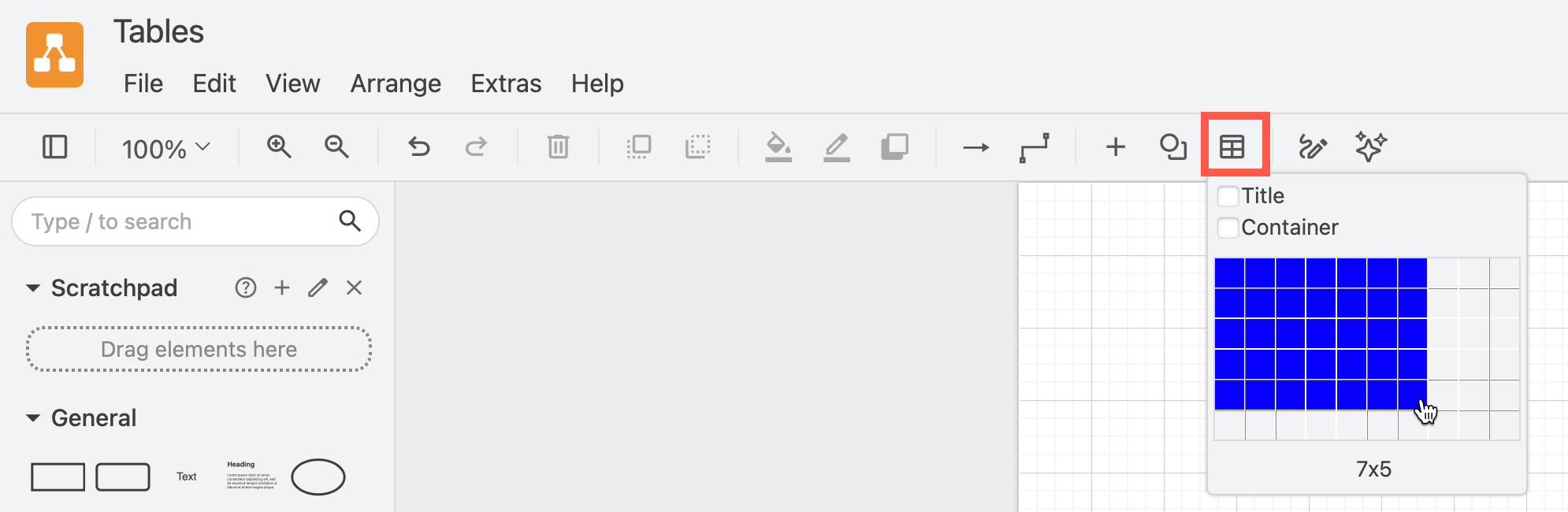
- Hover over the squares until the number of rows and columns you want are highlighted, then click to insert a table on the drawing canvas. You can add more rows and columns later.
Add a table title when you insert a table
Enable the Title checkbox before you drag to add a table to the drawing canvas.
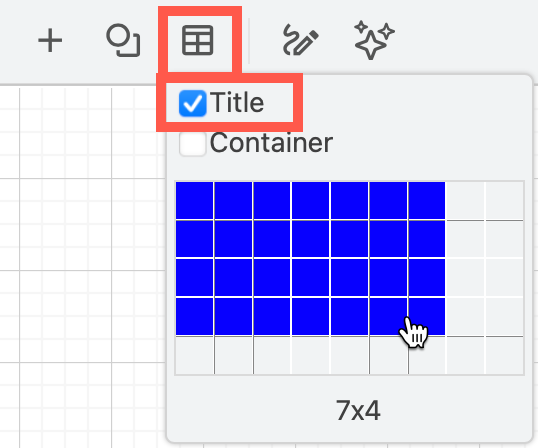
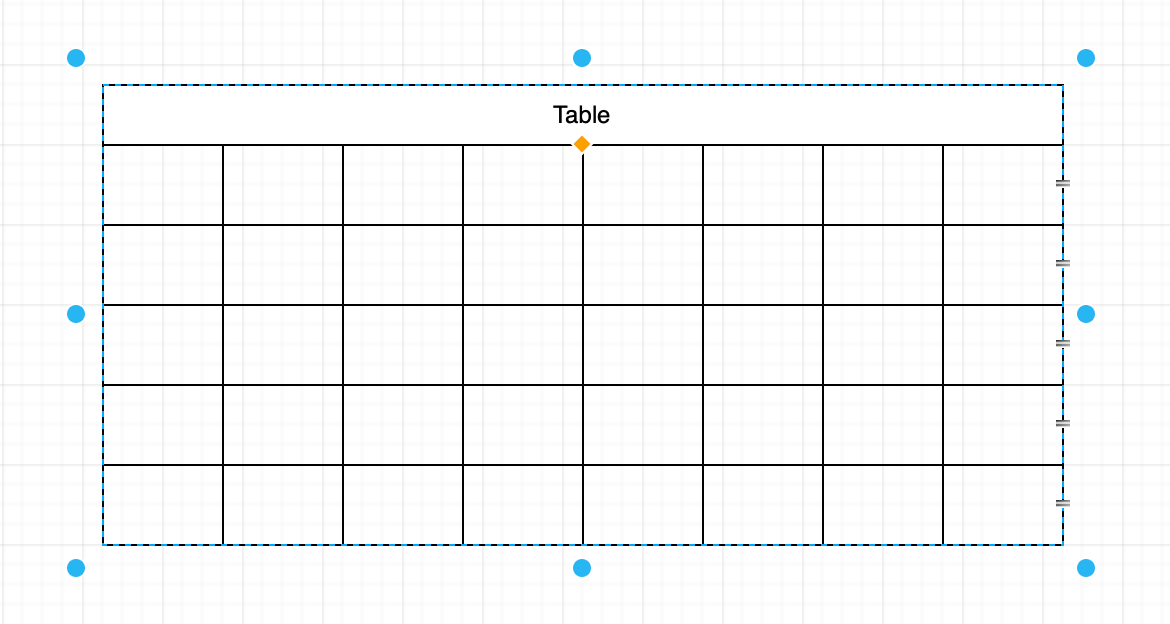
Alternatively, hold down Shift and click on the Table tool in the toolbar. Then Hover over the squares until the number of rows and columns you want are highlighted, then click to insert a table on the drawing canvas. This will automatically add a title row that spans all of the columns.
Related
- See more keyboard shortcuts to use with table shapes.
- Learn about the different types of diagrams that use table and container table shapes.