Change the diagram editor grid
Use the editor grid in draw.io to help you align shapes and connectors. Neither the grid nor the dotted line for the page edge are included (by default) when you print or export your diagram to an image - they are only there to help you align shapes and connectors as you draw your diagram.
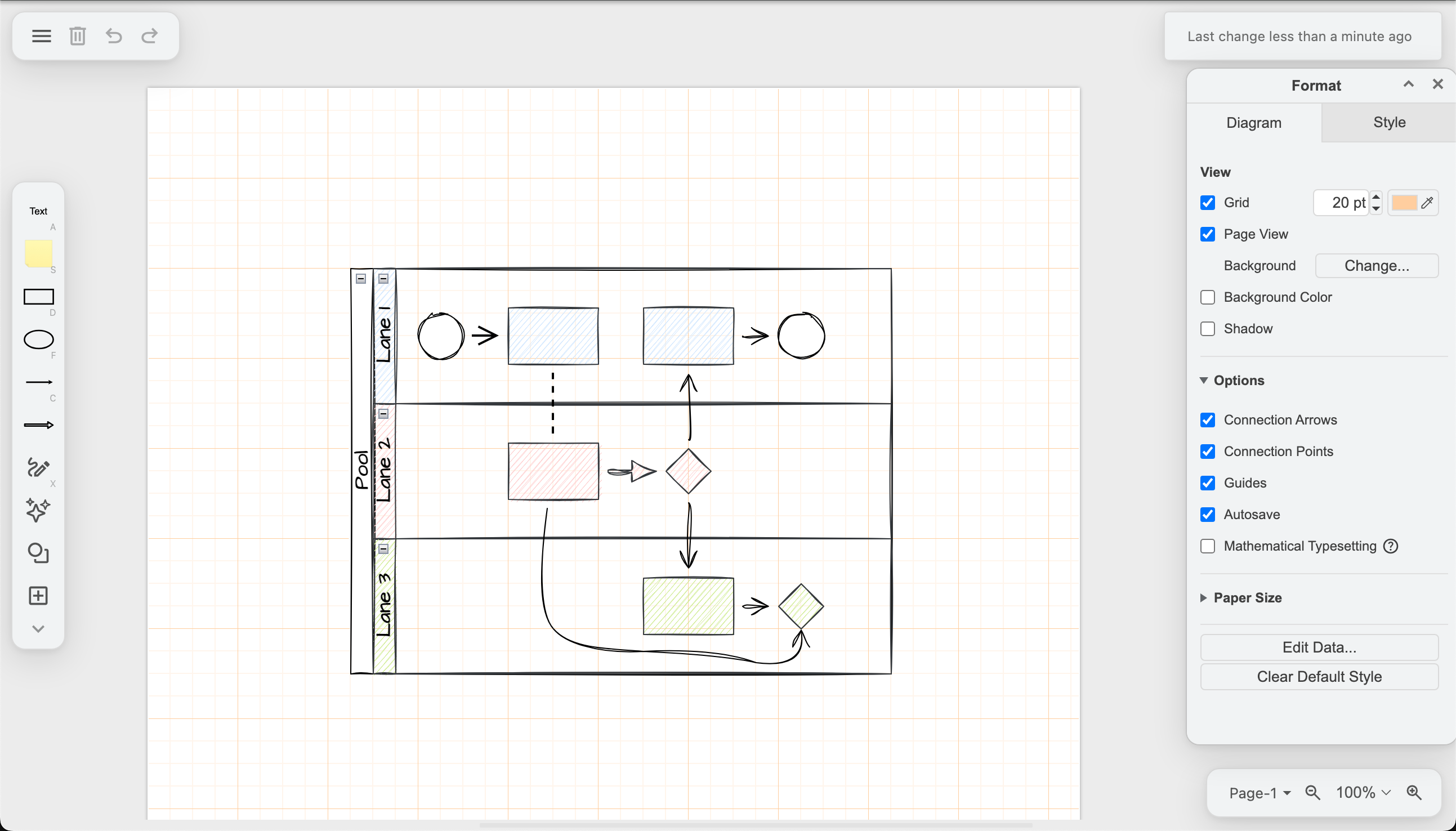
The default editor grid on the drawing canvas is set to 10pts, and is a light grey. When you have page view enabled, the page edges are shown as a grey dotted line over the grid.
You can change the drawing canvas (editor) grid size and colour, hide or show the grid, enable guides for alignment and spacing, and toggle the page view on or off.
Tip: To use the editor grid without page border indications, disable Page View.
Change the grid on the drawing canvas in draw.io
To see the Diagram tab in the format panel, make sure nothing is selected in your diagram.
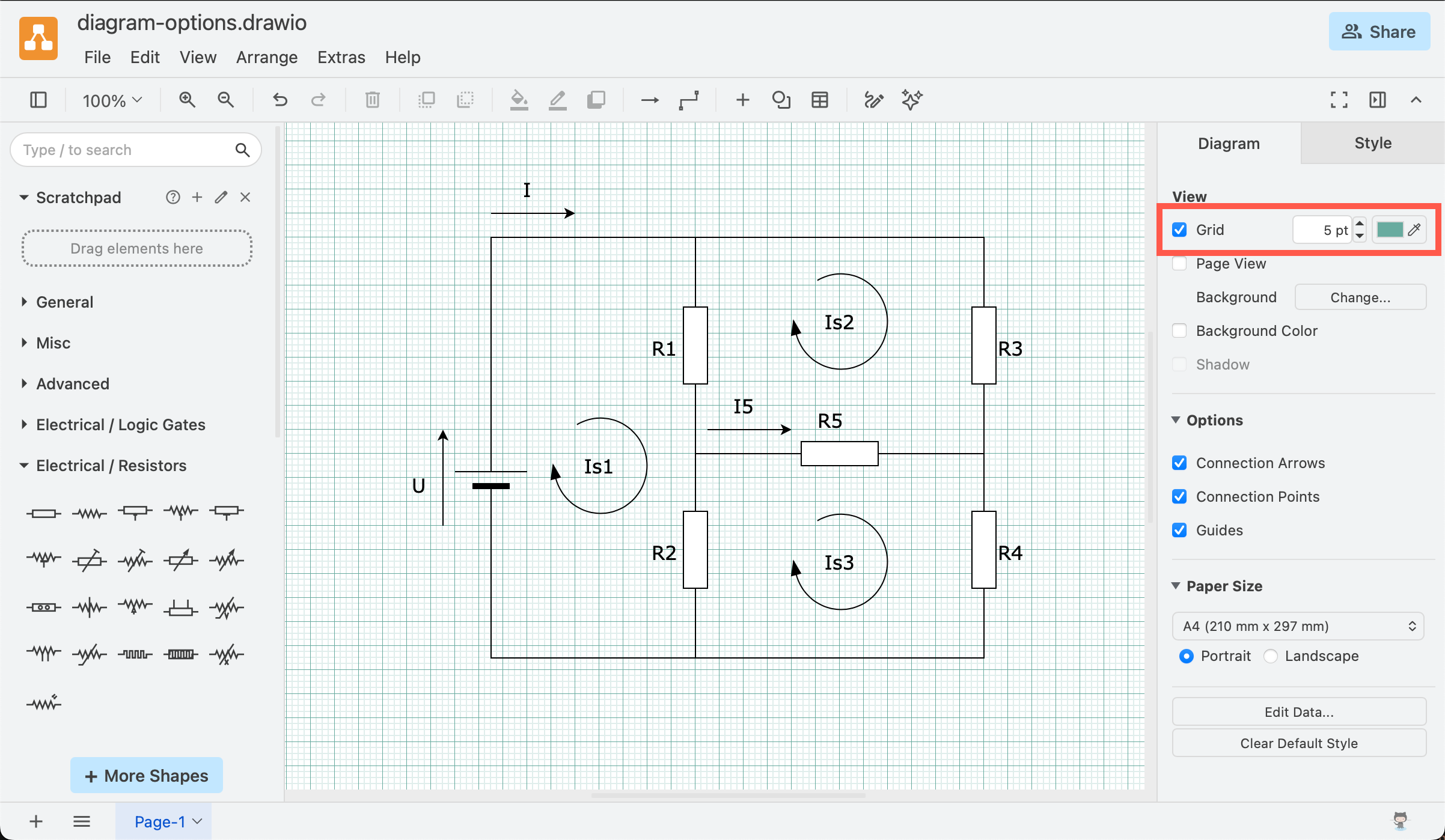
Show/hide the grid
Click on the Grid checkbox in the Diagram tab to display or hide the editor grid. By default, the whiteboard-like Sketch editor theme does not display a grid to make it feel more natural.
Use a different colour for the grid
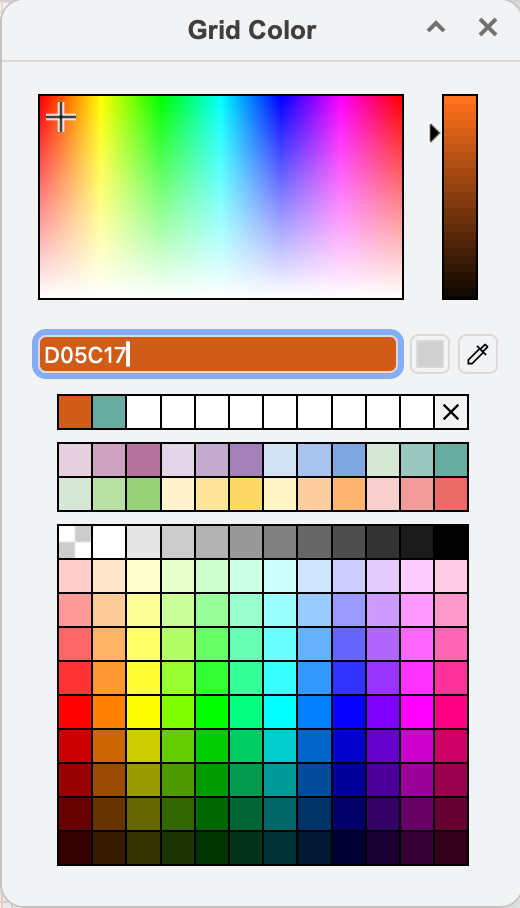
Click on the colour button next to the Grid size field in the Diagram tab, then select a new colour from the palette, or enter a colour's hex code (without a #), and click Apply.
Increase or decrease the size of the grid
Change the value in the Grid text field in the Diagram tab, or use the up and down arrows to set a new grid size.
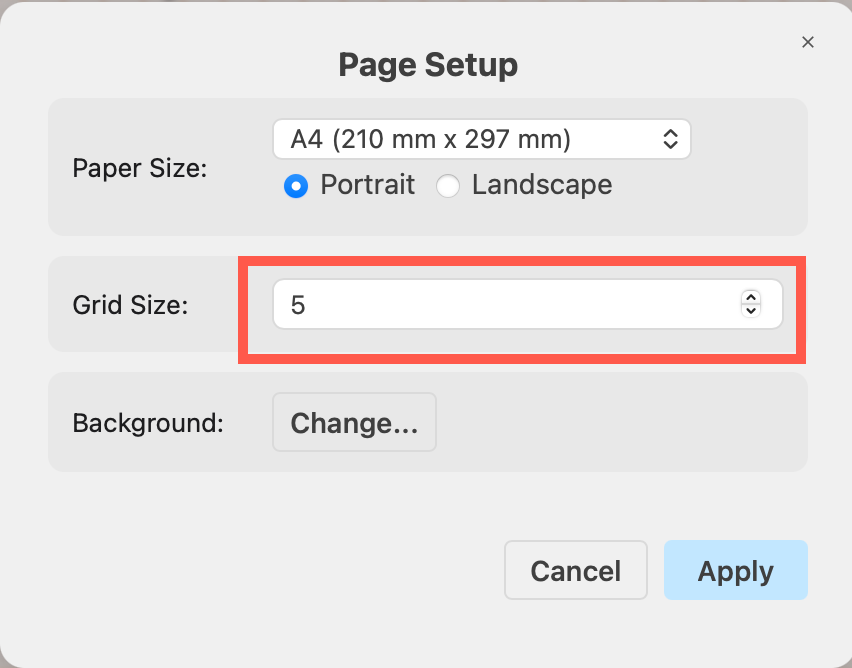
Alternatively, click File > Page Setup and change the Grid Size.
Tip: If you prefer to work with exact values instead of the grid, select View > Rulers in the menu to see or hide rulers around the top and left of the editor.