Enable or disable page view
By default, a new diagram will use the page view - the grid stops where the edge of your selected paper size ends.
If your diagram expands across multiple pages, a light dashed line will appear on the grid to indicate the page borders, as if you would print the diagram at 100% zoom.
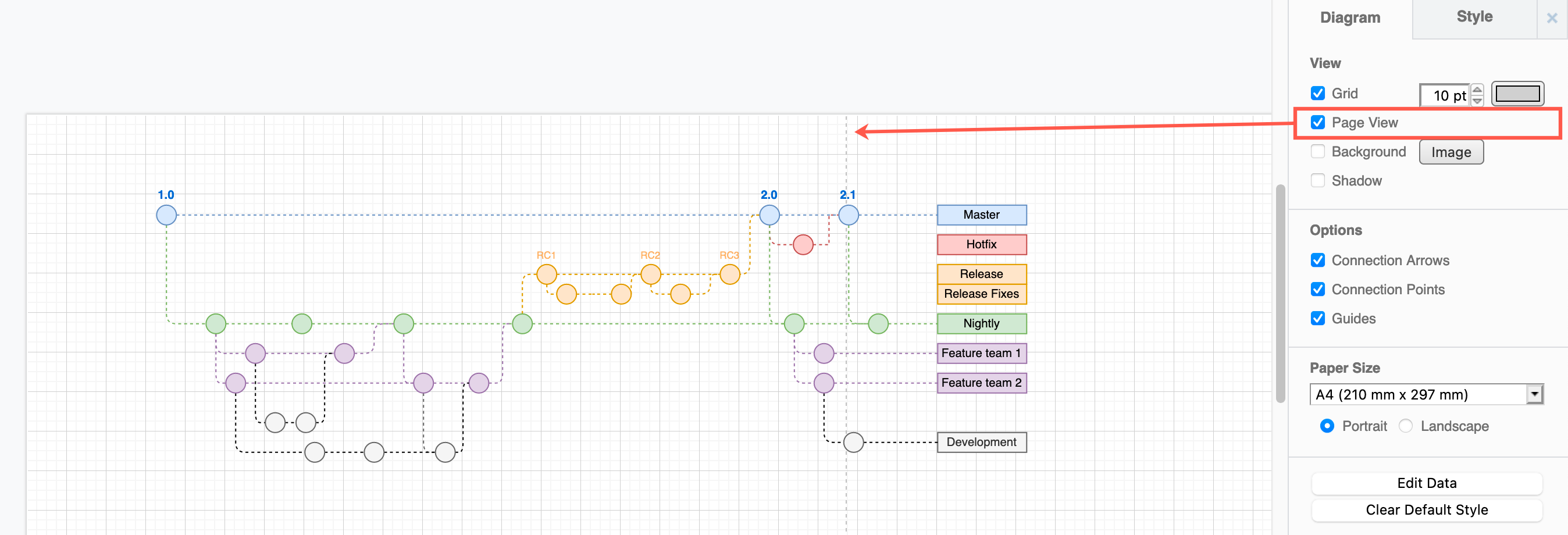
Note: This dashed line and the editor grid isn't printed with your diagram - they are just guidelines to help you align and resize shapes and connectors.
You can hide or display this page view in the editor - your diagram will still print across pages as normal when you hide it.
- Make sure nothing is selected in your diagram so you can see the Diagram tab in the format panel.
- Click to deselect the checkbox next to Page View to expand the grid to fill the entire drawing canvas.
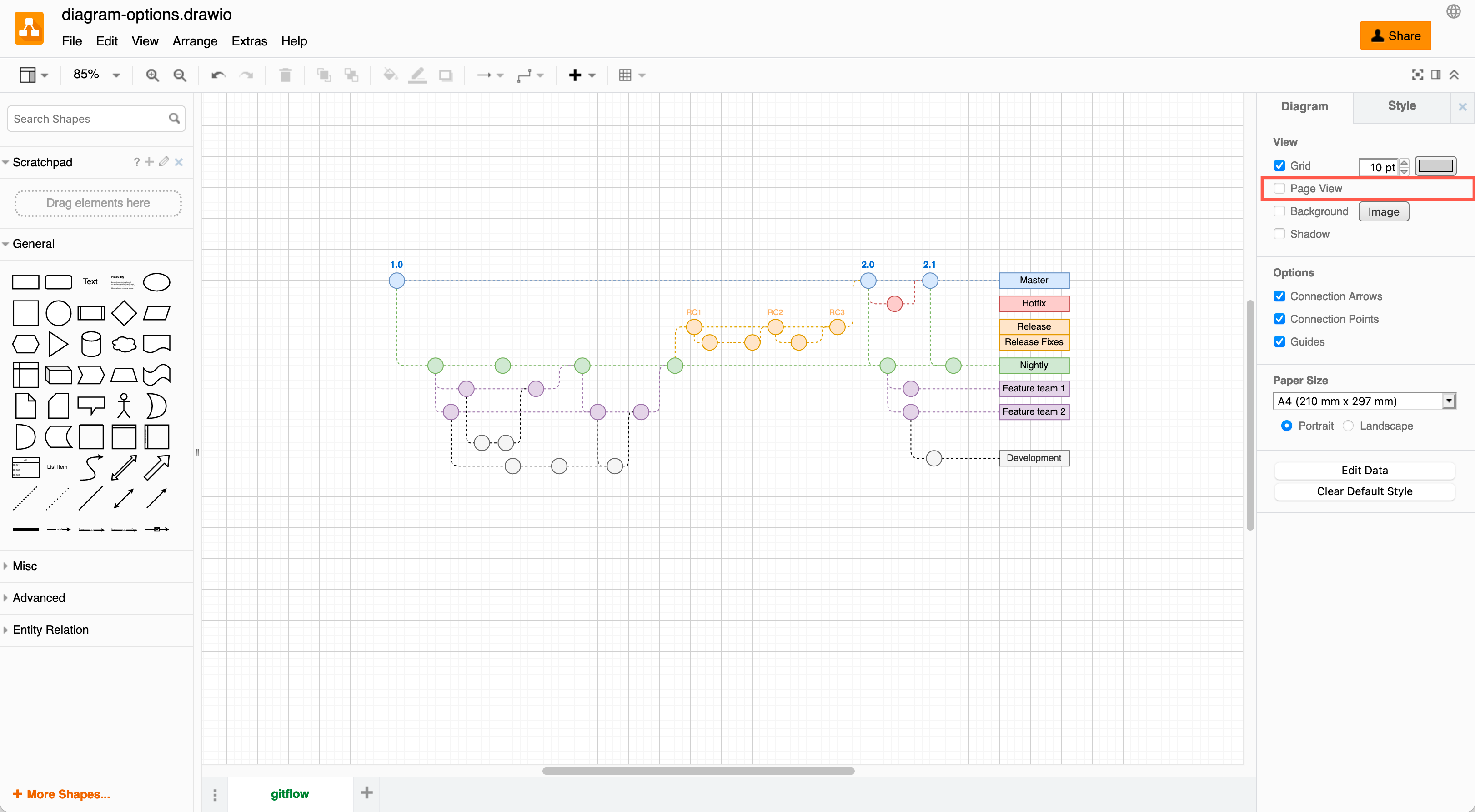
- Click again to re-enable Page View.
Note: Your diagram may still print across multiple pages.
When page view is disabled, the page edge lines are only hidden and the grid expands to fill the drawing canvas - your diagram is not centred or shrunk to fit one page. See how to set a different page size or orientation or print and fit a diagram to a page