The shapes panel in draw.io
The shapes panel is typically on the left of the drawing canvas, and provides access to the large collection of built-in shapes in draw.io.
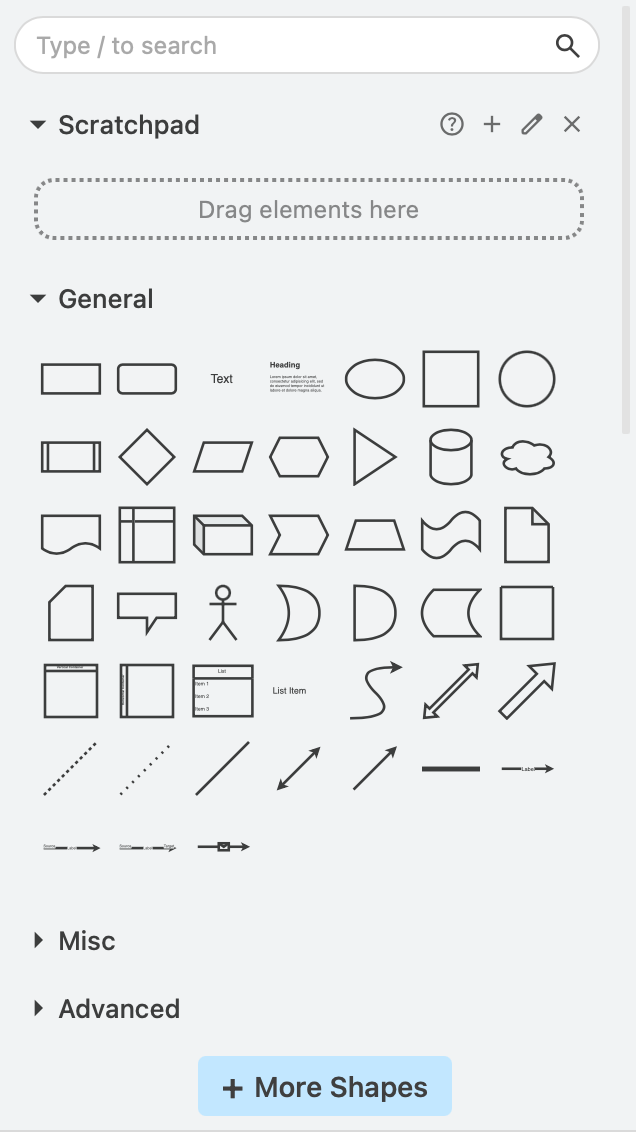
Some of the simpler editor themes may hide the shapes panel. Press the Ctrl + Shift + K keyboard shortcut in any editor theme to show or hide the Shapes panel.
Search
To search for shapes - even in shape libraries that are not currently open - enter the shape name in the search field. This will search for shape that have names that match as well as those with alternate names that match.
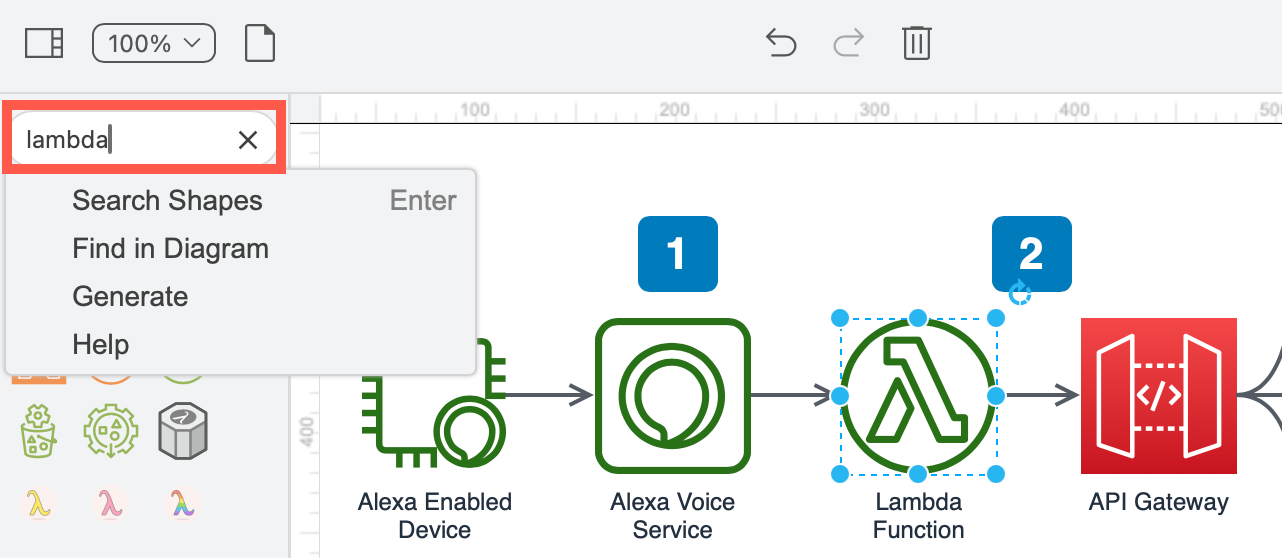
Tip: This search omnibox is more powerful than just finding shapes. Search for help about or enable/disable features and dialogs, quickly describe your diagram and generate a template, and more.
Scratchpad
This temporary shape library can hold your favourite shapes, or even entire sections of your diagram so you can quickly drop copies back onto the drawing canvas.
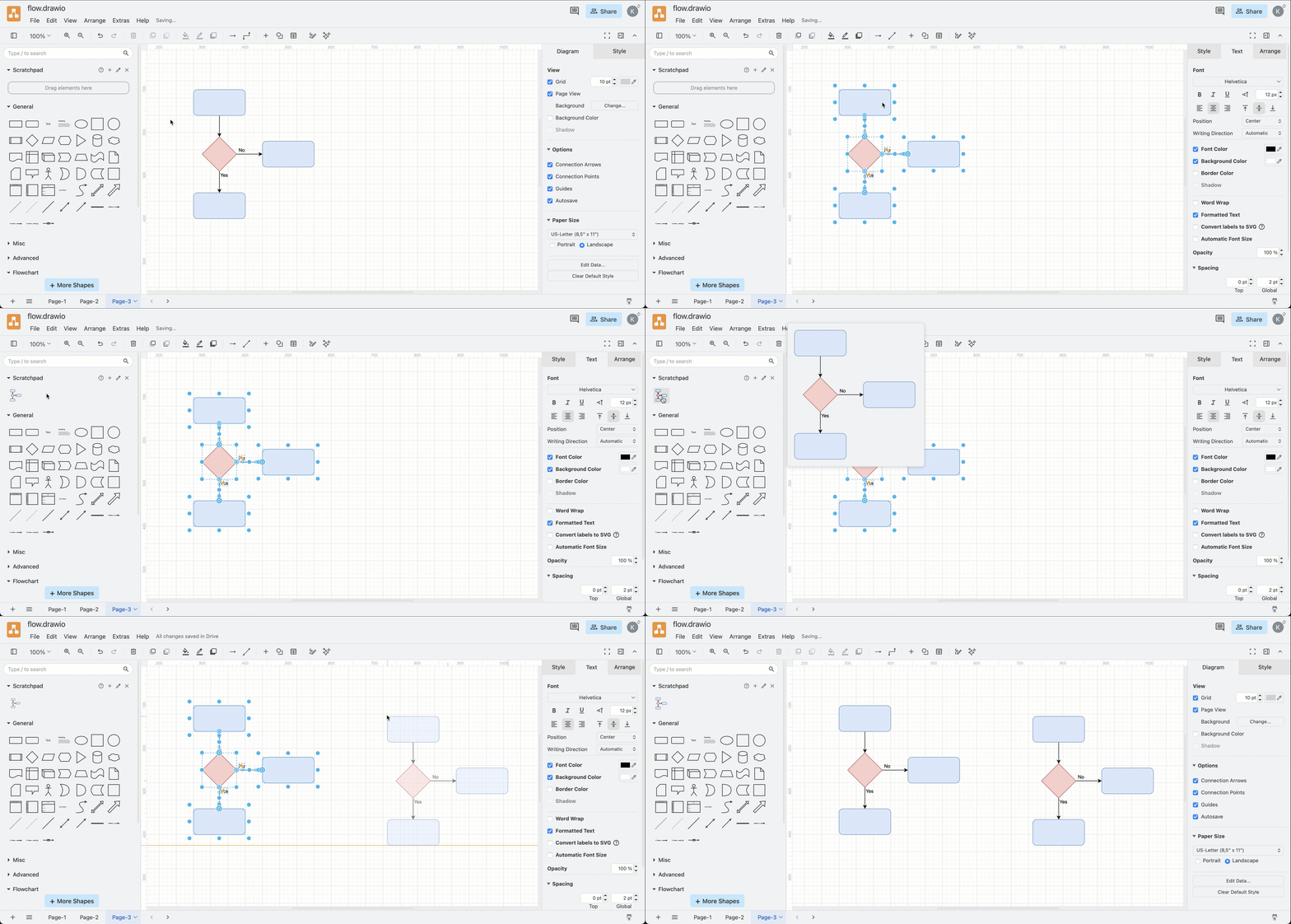
Note: The Scratchpad contents are saved in your browser - if you clear your browser's cookies and browsing data, any shapes stored in the Scratchpad will be deleted. Make sure you export the scratchpad to a custom shape library if you want to keep these shapes.
Learn more about working with the Scratchpad in draw.io
Shape libraries
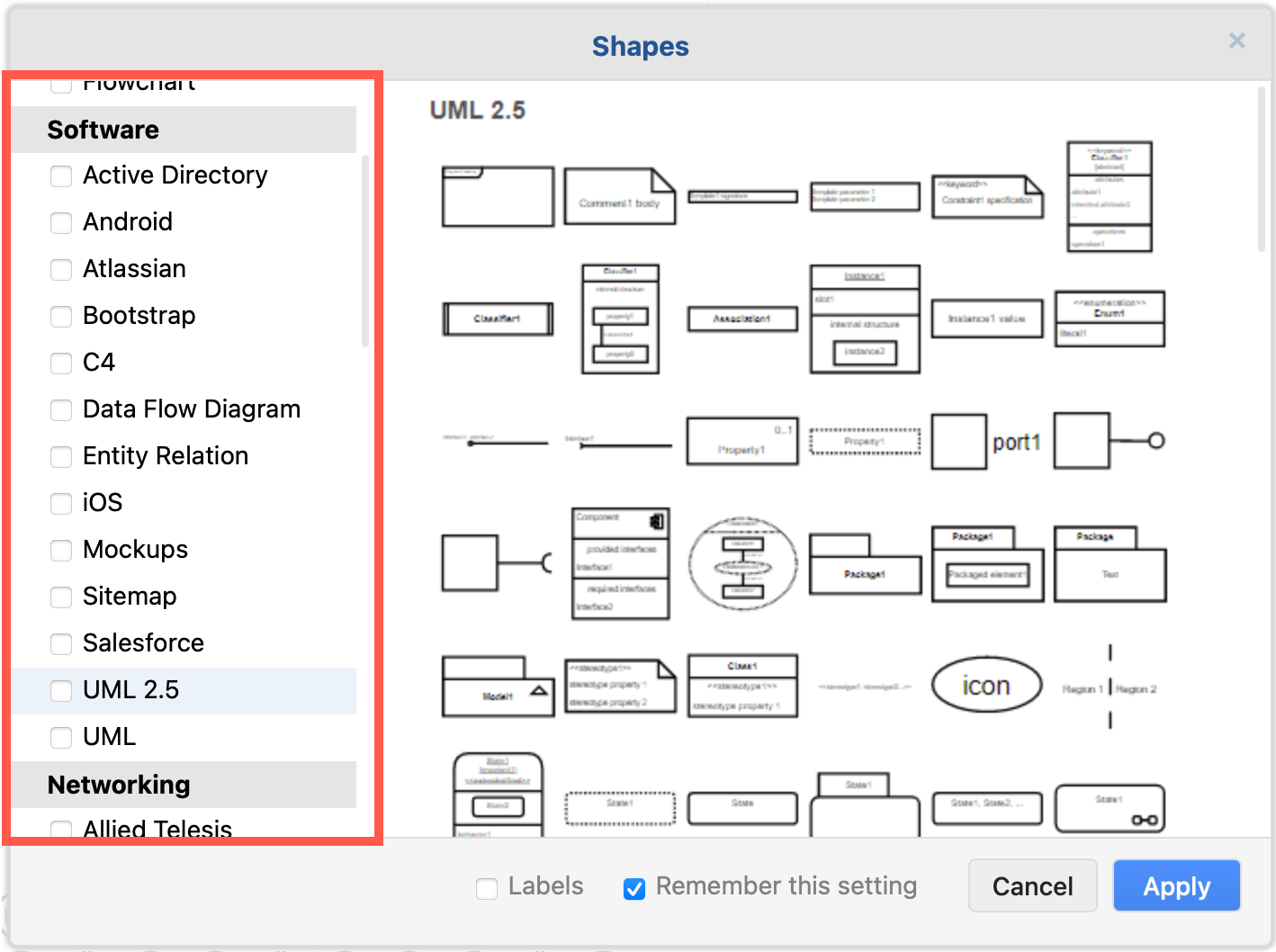
To see and enable/disable the shape libraries, click on More Shapes at the bottom of the shapes panel.
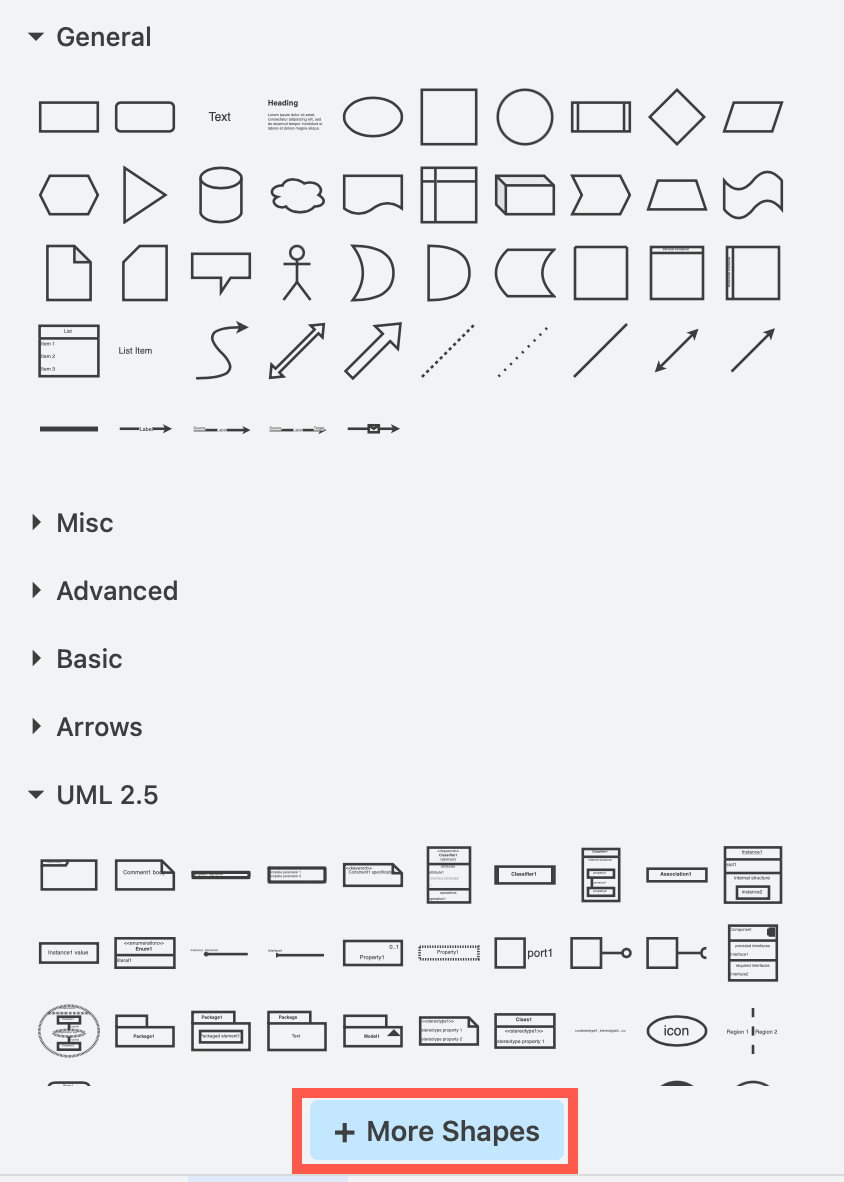
The shape libraries are sorted into categories. Enable or disable shape libraries by clicking the checkbox next to their names.
Enable the shapes panel in the Sketch editor theme
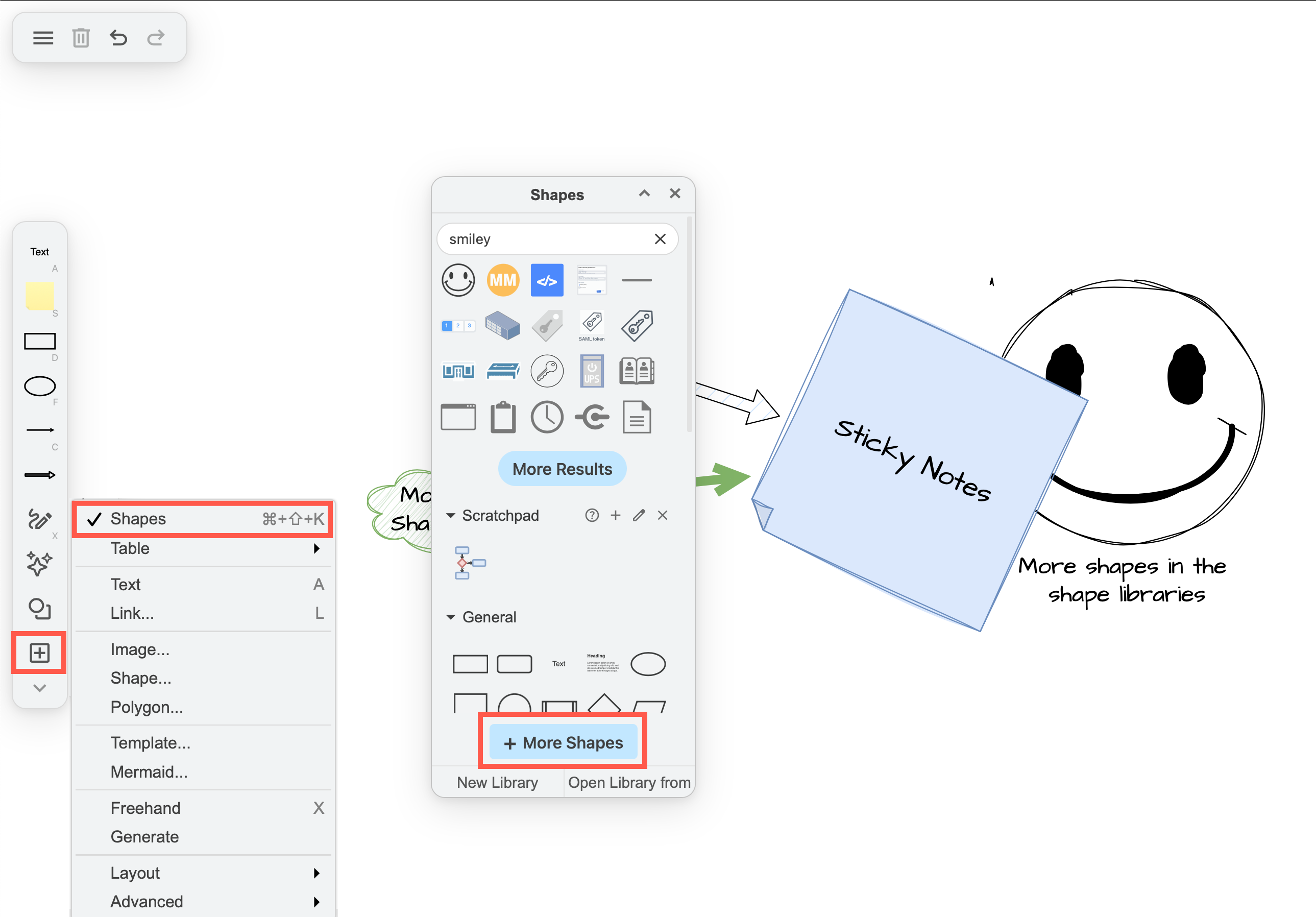
Click on + > Shapes in the toolbar on the left to see the Shapes panel.
Drag the floating panel around the drawing canvas. Click on the arrow in the top right to minimise/maximise the panel.
Click on More Shapes to show or hide specific shape libraries.
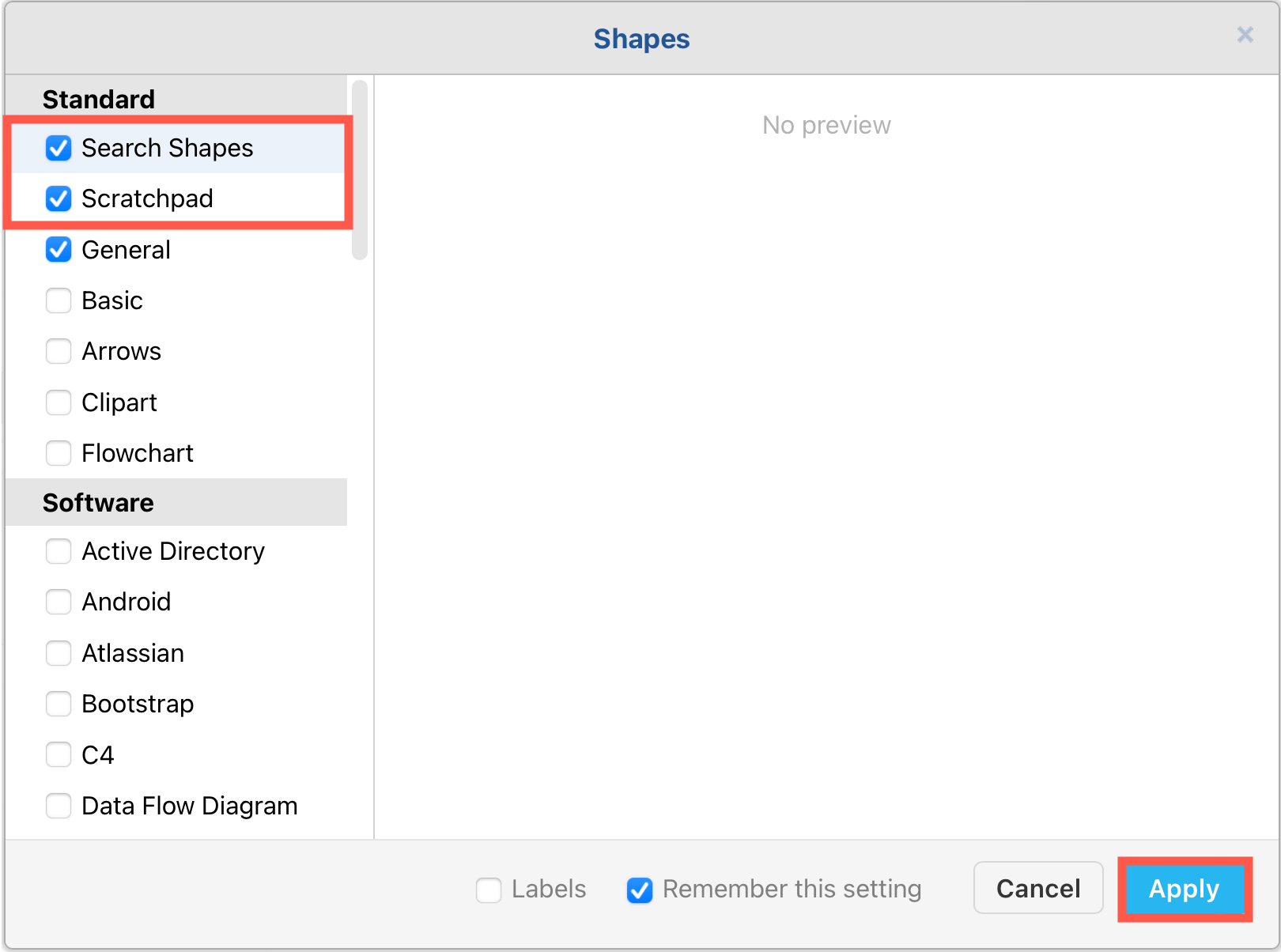
From here you can also enable or disable the search feature and the scratchpad.
See how to use a custom shape library in the Sketch editor theme.