Use the format panel in draw.io
The format panel is typically found on the right side of the drawing canvas in draw.io. When nothing in your diagram is selected, it is used to set diagram page and drawing canvas options. Otherise, it is used to style and arrange the selected shapes, connectors and text.
Display or hide the format panel
Some editor themes may collapse or hide this format panel by default. There are three ways to show/hide this panel.
- Via the toolbar: Click on the Format panel icon on the right to toggle the panel, or on the View icon in the left of the toolbar and enable/disable the Format Panel option in the list.
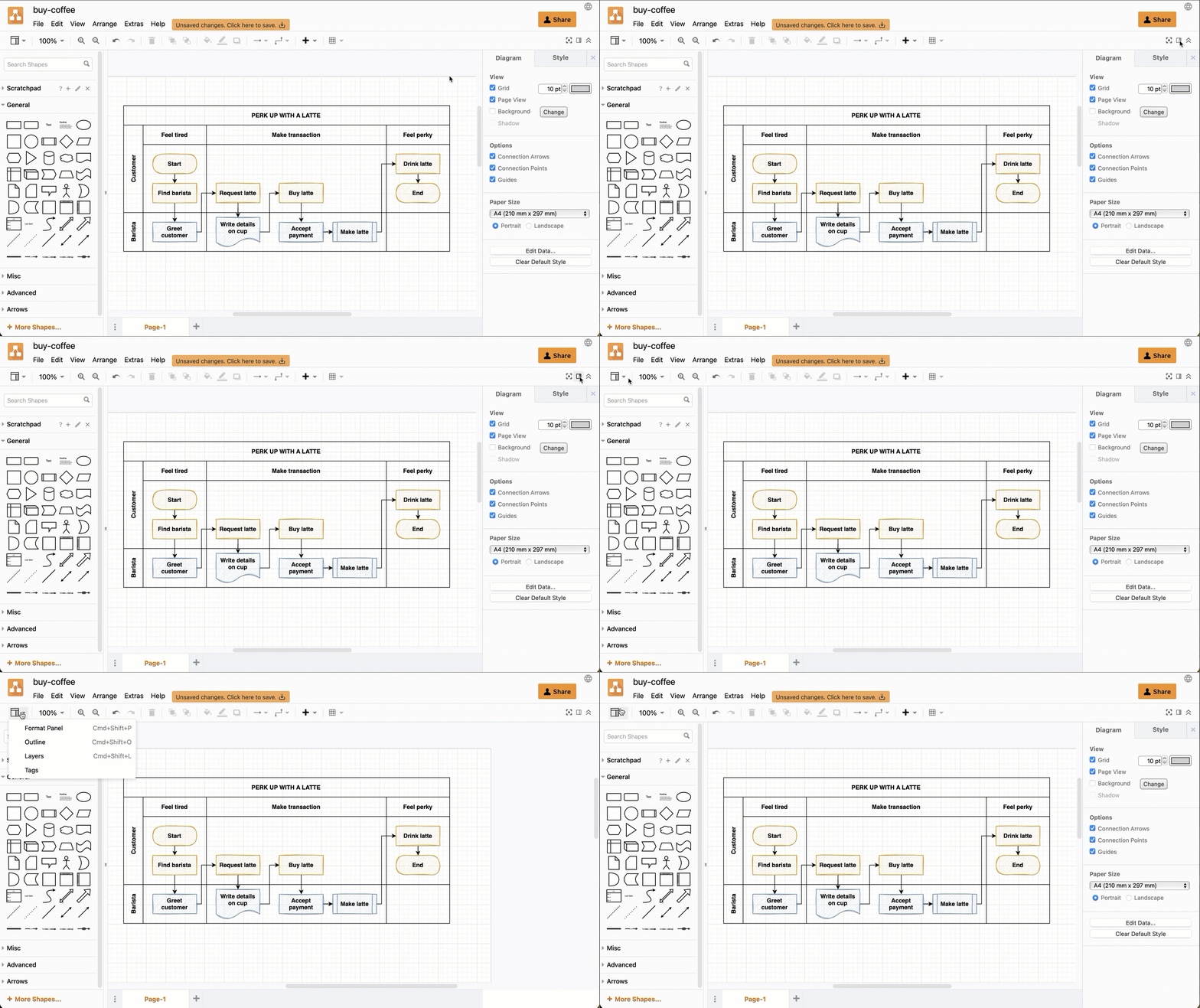
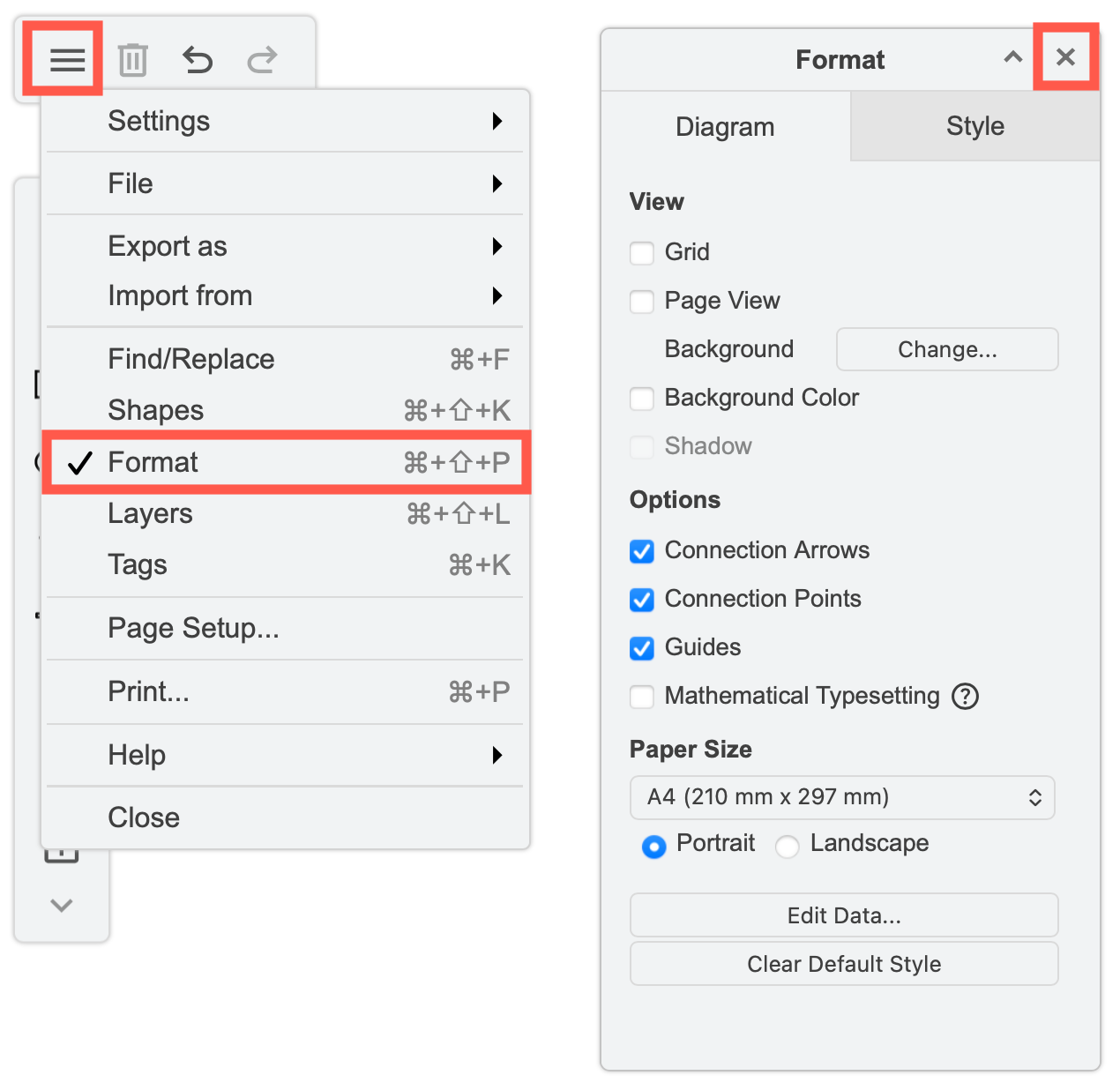
- Via the menu: Select View > Format Panel from the menu in the Classic editor theme, or Format in the Minimal and Sketch editor theme menu.
- With a keyboard shortcut: Press
Ctrl+Shift+Pon Windows, orCmd+Shift+Pon macOS. - Close the panel via the cross in the top right in the Sketch and Minimal editor themes.
Move, resize or minimise the panel
Click on the cross in the top right of the panel to close it, or the arrow to minimise or maximise it when using the Sketch or Minimal editor themes. You can also resize or drag the format to another position.
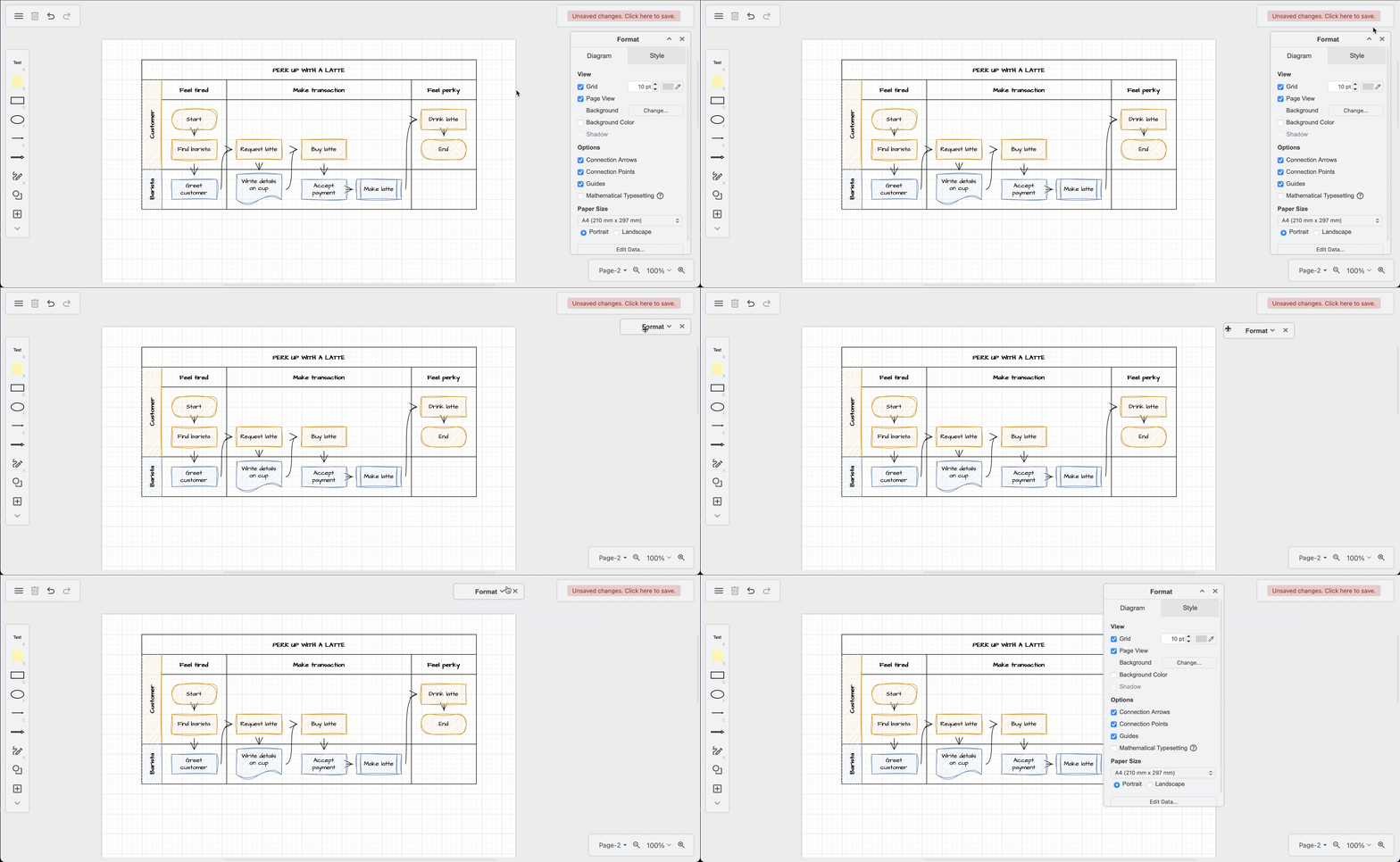
Diagram tab
Set diagram options for this page in a multi-page diagram.
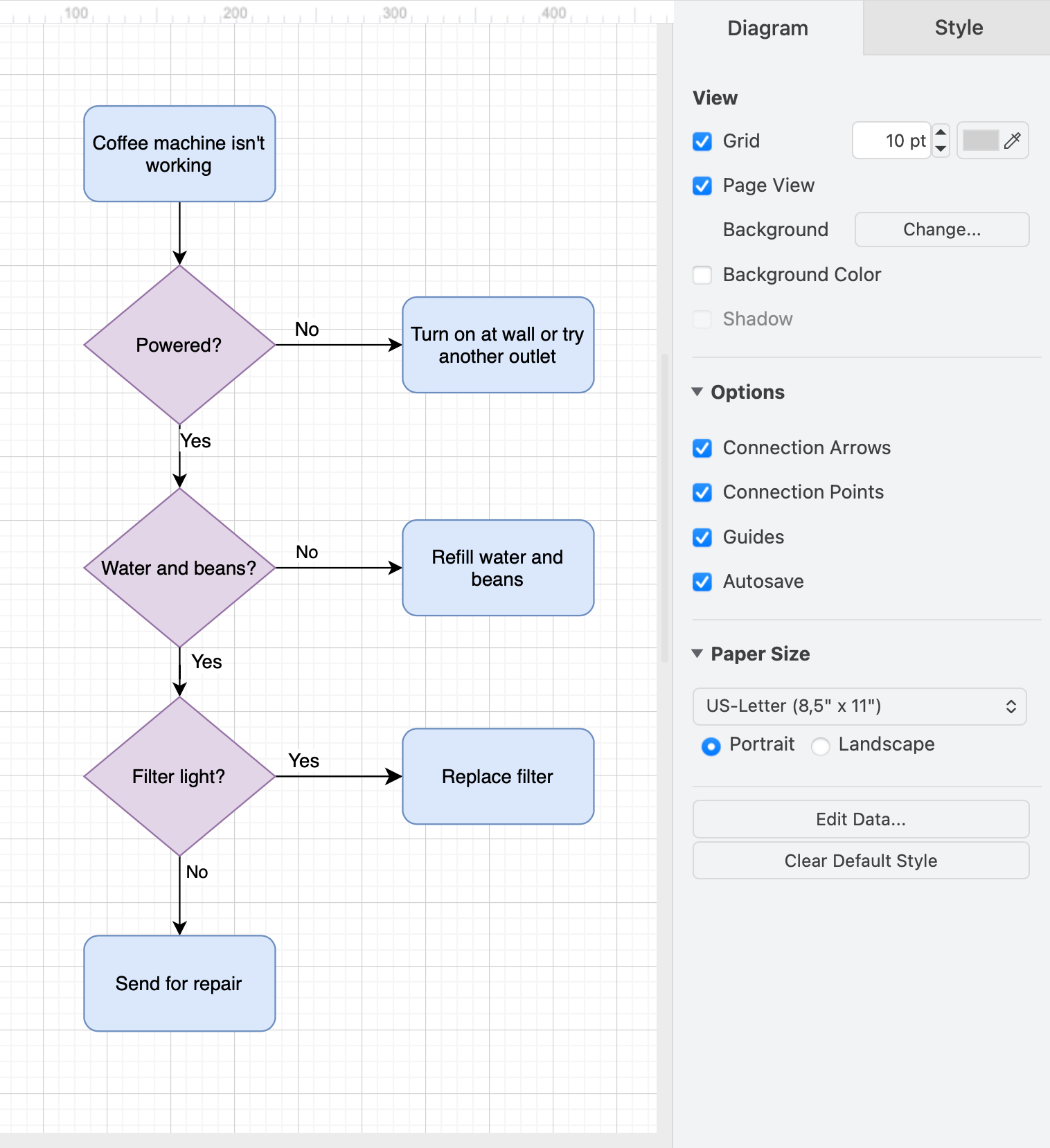
- Change or diasable the editor Grid.
- Switch between Page View and an infinite canvas.
- Set a Background colour or image, or use another diagram page as a background for the current one.
- Add a Shadow to all diagram elements on the diagram page.
- Enable or disable Connection Arrows on connectors.
- Enable or disable Connection Points on shapes.
- Show or hide the blue Guides. These help you align and space shapes on the drawing canvas.
- Enable Autosave once you have selected a location for your diagram file.
- Set the Paper Size, and orientation.
Click on Edit Data to edit the properties of the diagram page. This is important when you are using placeholders to auto-label or colour shapes.
Click on Clear Default Style to reset the default shape and connector styles.
Style tab (diagram page)
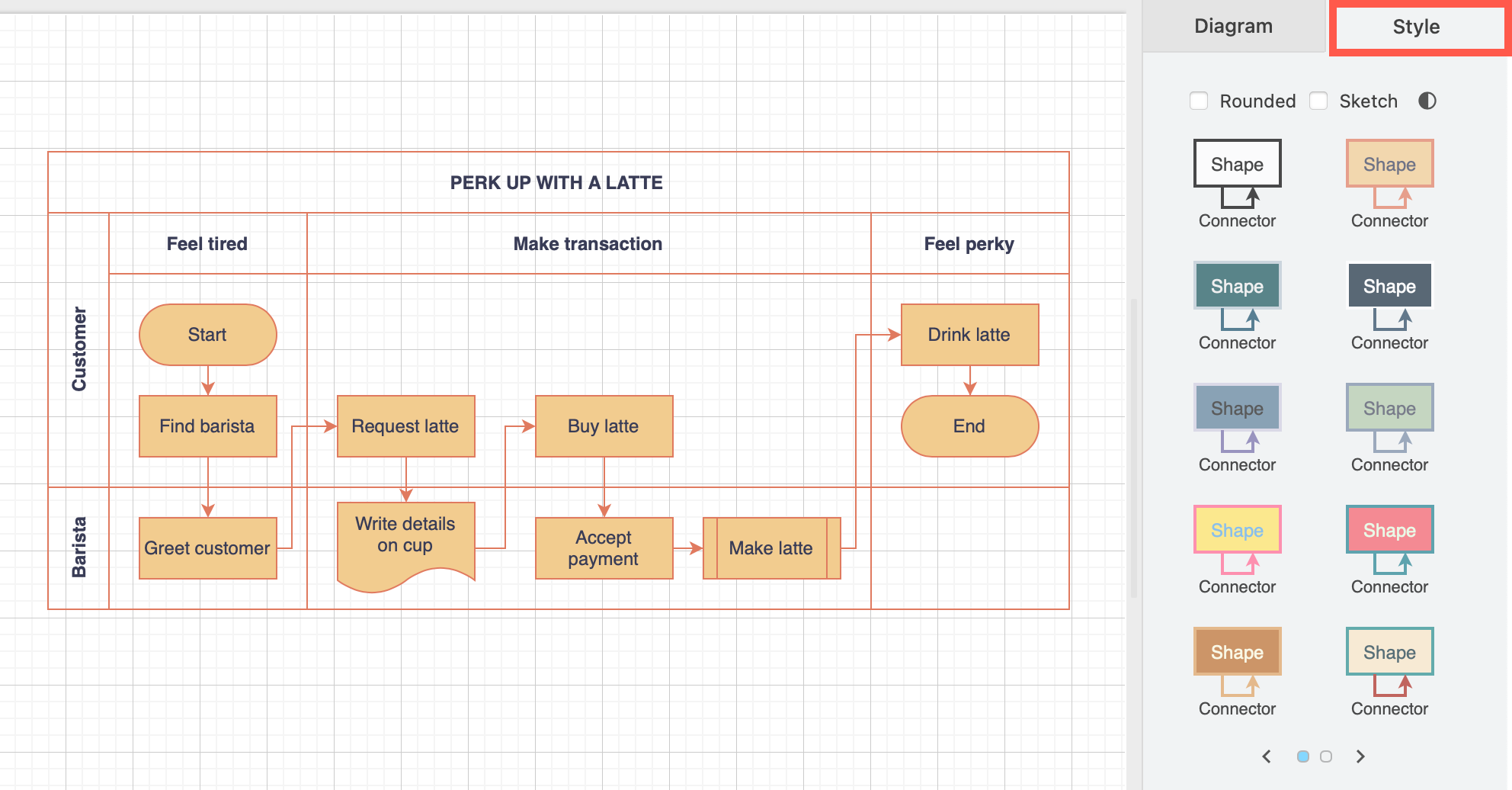
- Round the corners of shapes and connectors.
- Apply the Sketch rough style to all shapes and connectors in your diagram.
- Apply a colour scheme to all shapes, connectors, and text via the Style tab in the format panel.
- Switch between dark and light mode.
Style tab
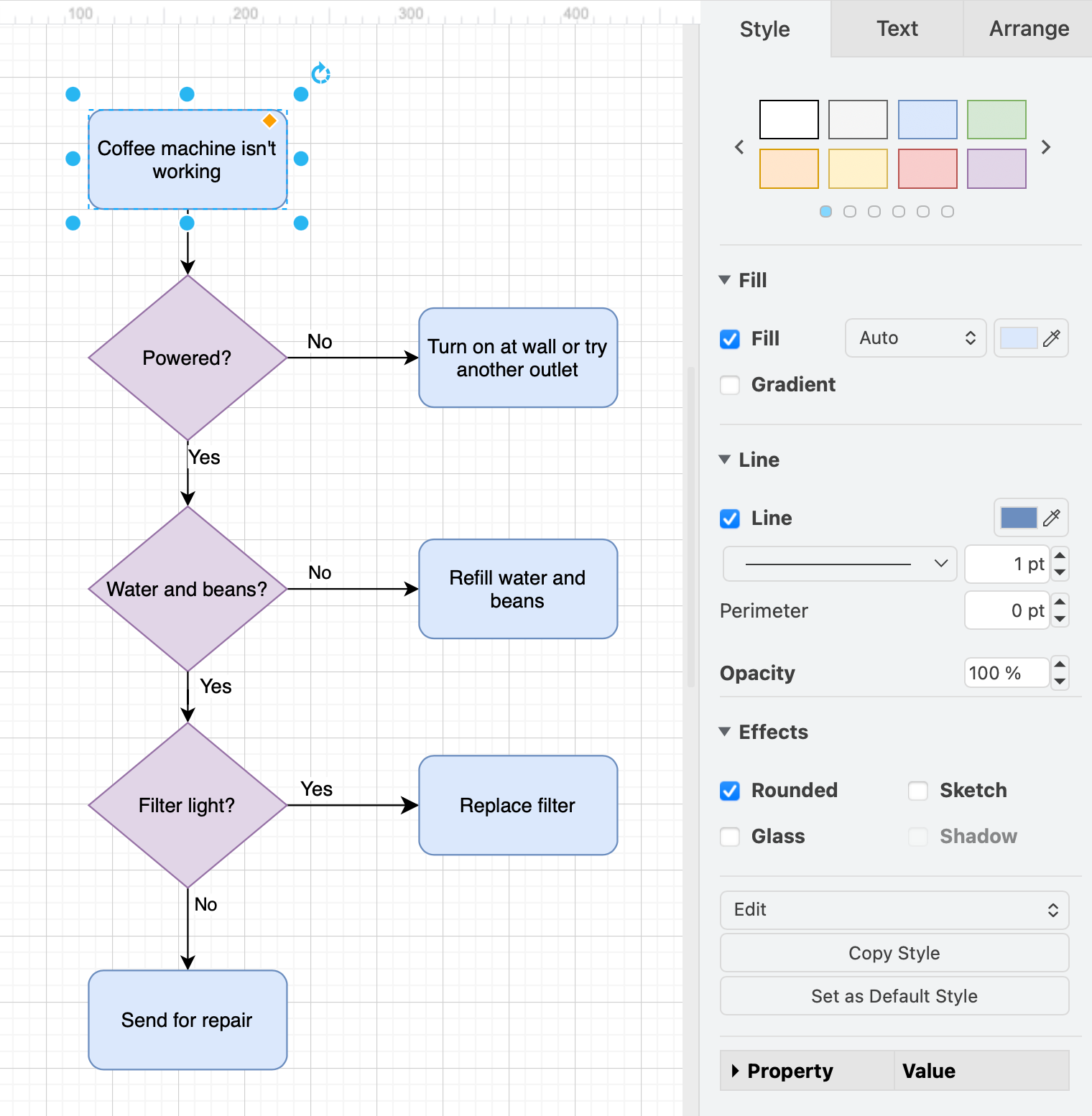
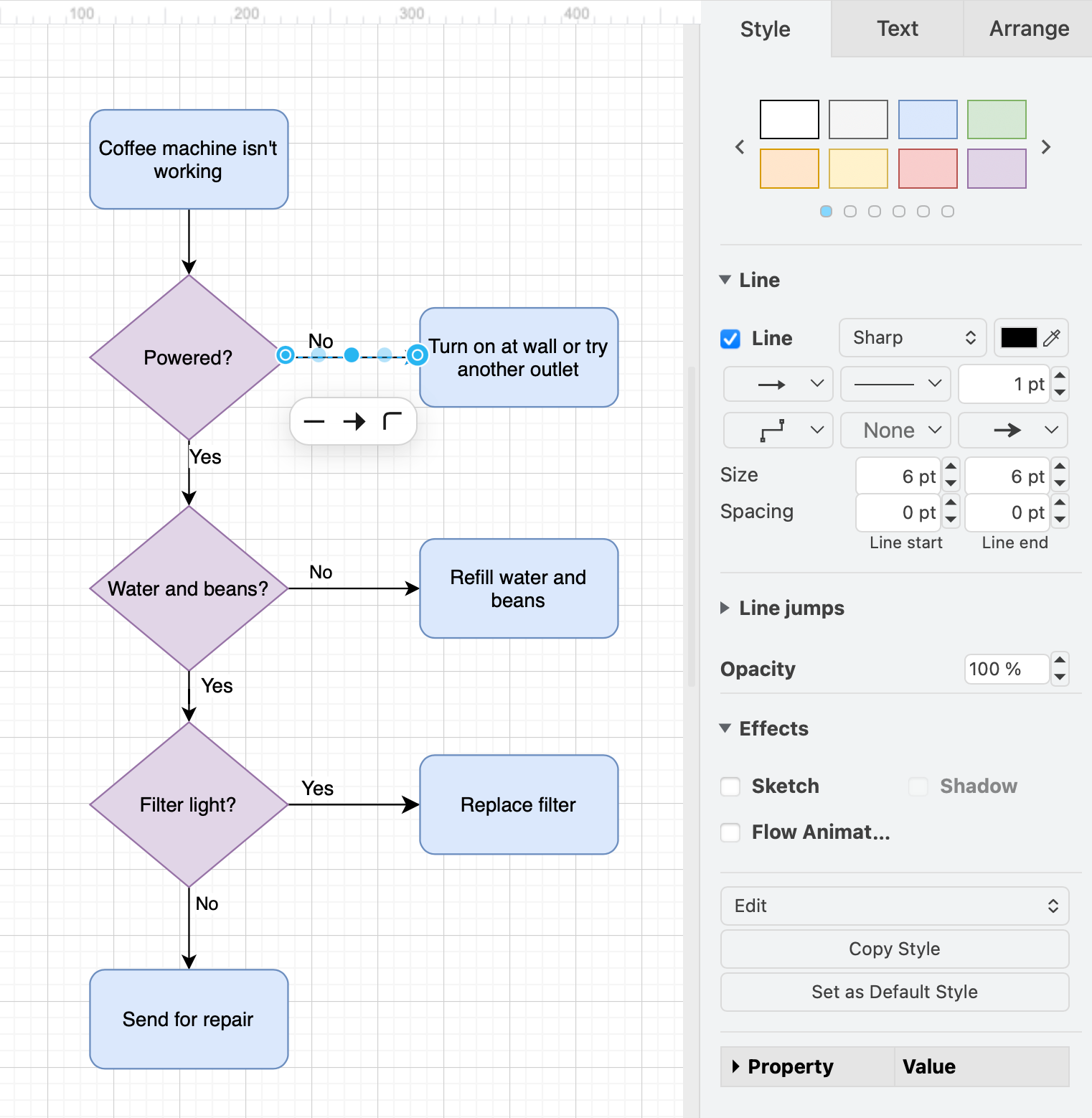
The Style tab is where you add colours and styles, change line thicknesses and edit shape style properties. What you see in this panel will depend on what has been selected - certain styles only apply to shapes, and others only apply to connectors.
Learn more about shape styles and connector styles.
Text tab
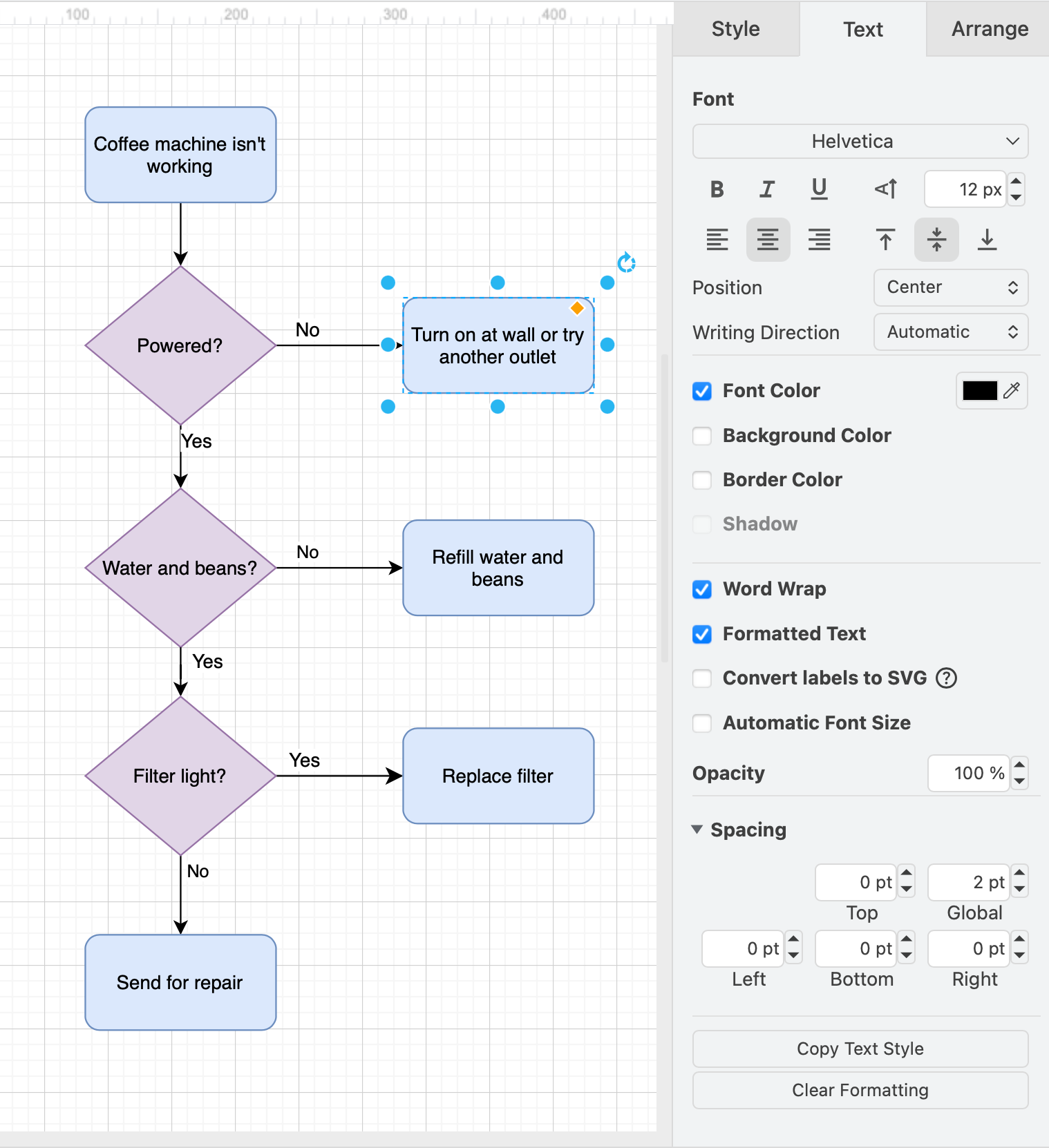
In the Text tab, you can change text styles on the selected diagram elements: update the font, size, position, and writing direction of labels and text shapes.
Arrange tab
The Arrange tab of the format panel contains tools to help you resize, orient and align selected shapes, move selected diagram elements forwards or backwards, group elements, and manipulate tables and swimlane shapes.
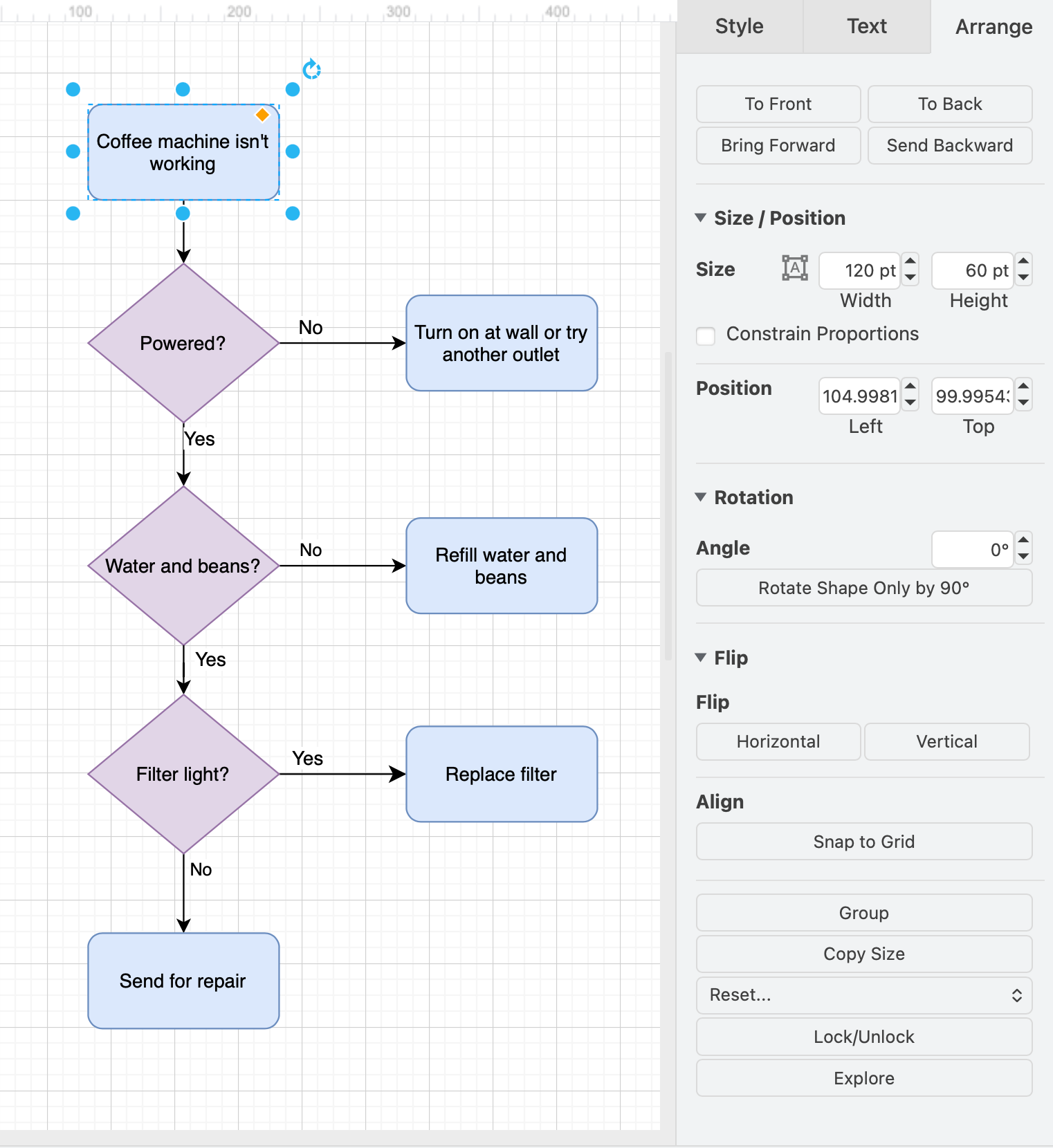
See how to use all the tools in the Arrange tab.