31 posts tagged with "features"

View All Tags

New draw.io features and updates in 2021

· 9 min read

This past year has seen a number of new features and big updates to draw.io, including the online editor, our Confluence and Jira apps, and other integrations for a variety of platforms.

Data security and privacy

As a unique security-first diagramming app, we want to provide you with the best in data privacy and data security.

Building on the data governance and lockdown options we implemented last year, our draw.io branded app for Confluence Cloud and Jira Cloud was the first secure diagramming app to meet Atlassian's rigorous Cloud Fortified standard, making it your most secure choice for diagramming and visualization.

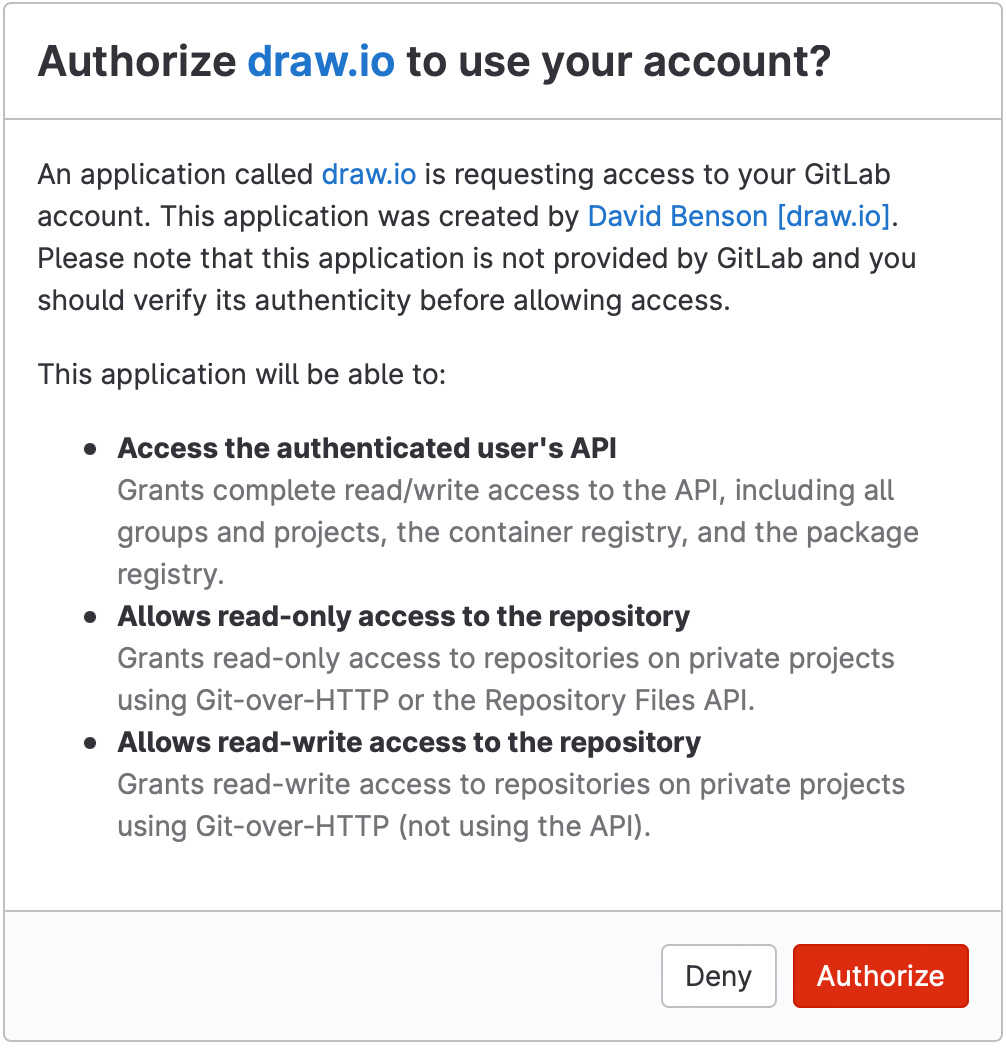
The draw.io App for Github is an alternative authorisation method you can use to limit draw.io's repository access to specific repositories, rather than all of the repositories in your account.

We researched a stricter implementation of our content security policy on the test se.diagrams.net domain. Take up of the domain has been very low, so we will port all the changes we can from that project and then close it down.

New and updated integrations

Several new integrations were released, and existing ones were updated in the past year. New and updated features common across all integrations are described in the following section.

draw.io for Atlassian Confluence and Jira

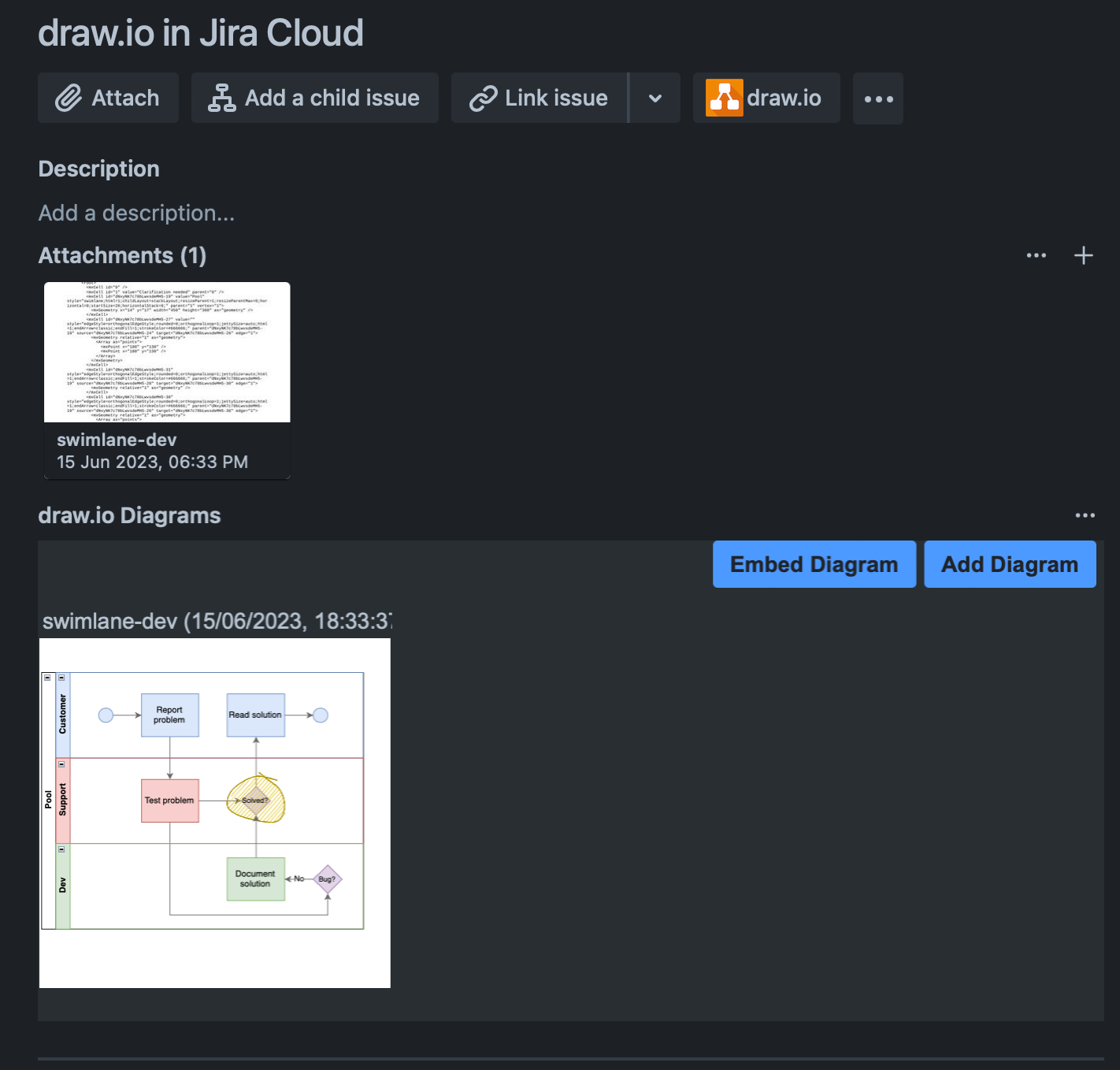
With the draw.io apps for Confluence Cloud and Jira Cloud, you can embed diagrams that are stored in Confluence Cloud in your Jira Cloud issues. Keep all of your visual documentation for systems, processes and software in your Confluence Cloud knowledge base, and reference them in your project tasks in Jira.

The draw.io app is now free in small Confluence Cloud instances (up to 10 users). If you are taking advantage of Atlassian's offer of a free Confluence Cloud instance for your small team, you can now add the draw.io board macro and embed diagrams in Confluence pages without needing to purchase a license.

We've improved the draw.io app's performance within Atlassian host products, updated the authentication to use the new API, and refreshed the Kennedy editor theme. The Gliffy and Lucidchart conversion features received a number of updates and bugfixes throughout the year.

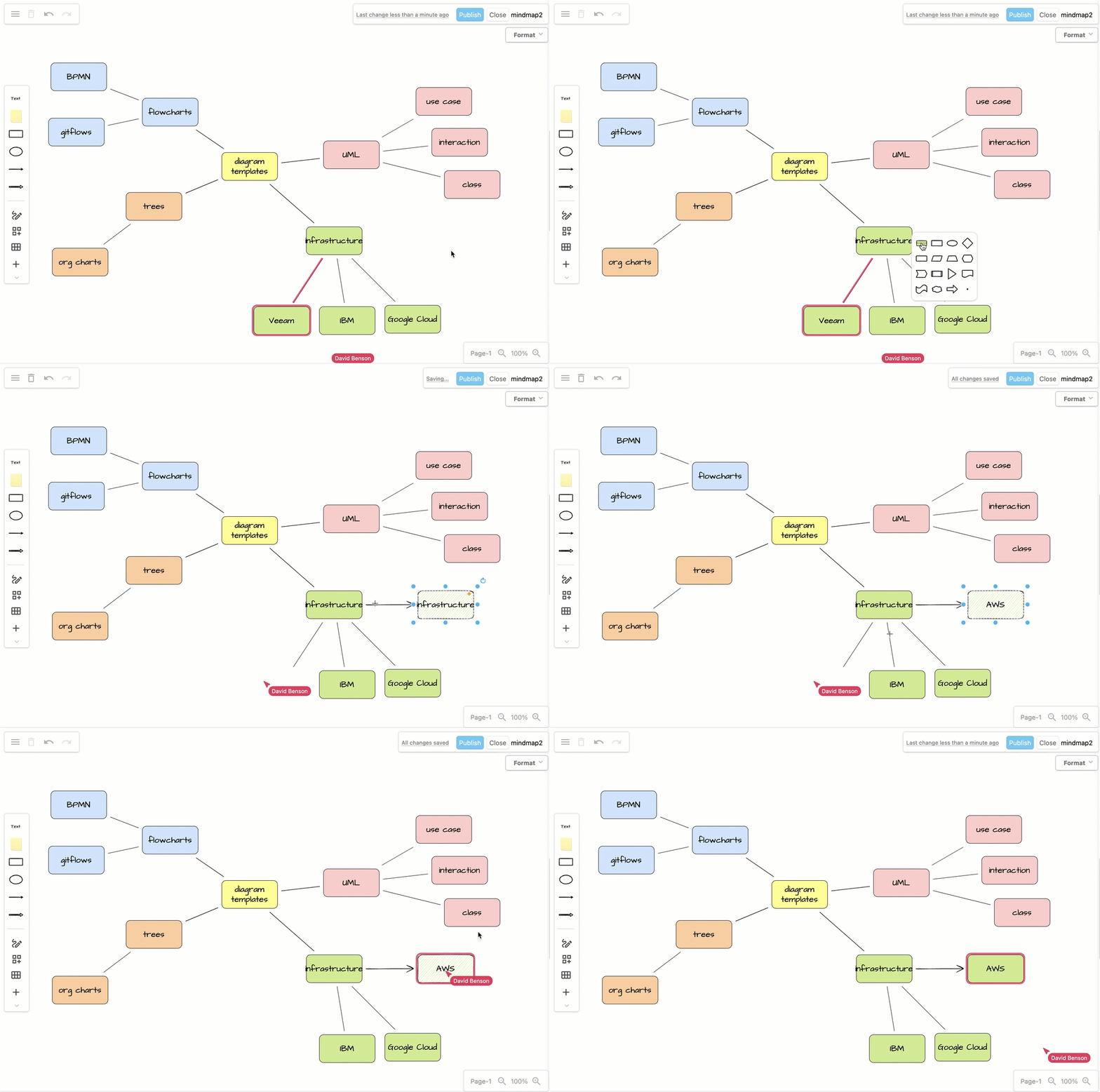
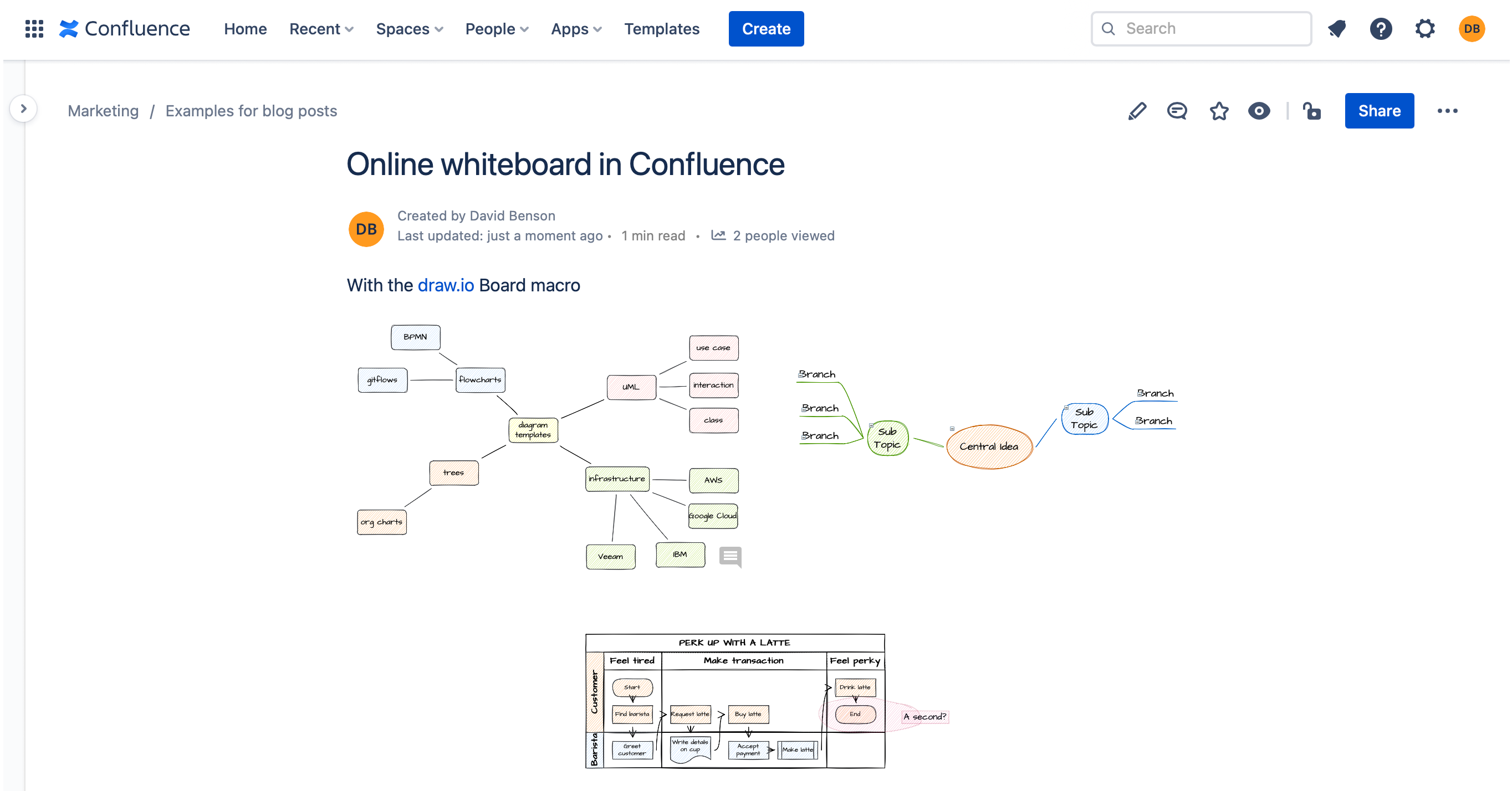
The new draw.io board macro in Atlassian Confluence uses the updated Sketch editor theme by default, providing teams with an easy-to-use digital whiteboard.
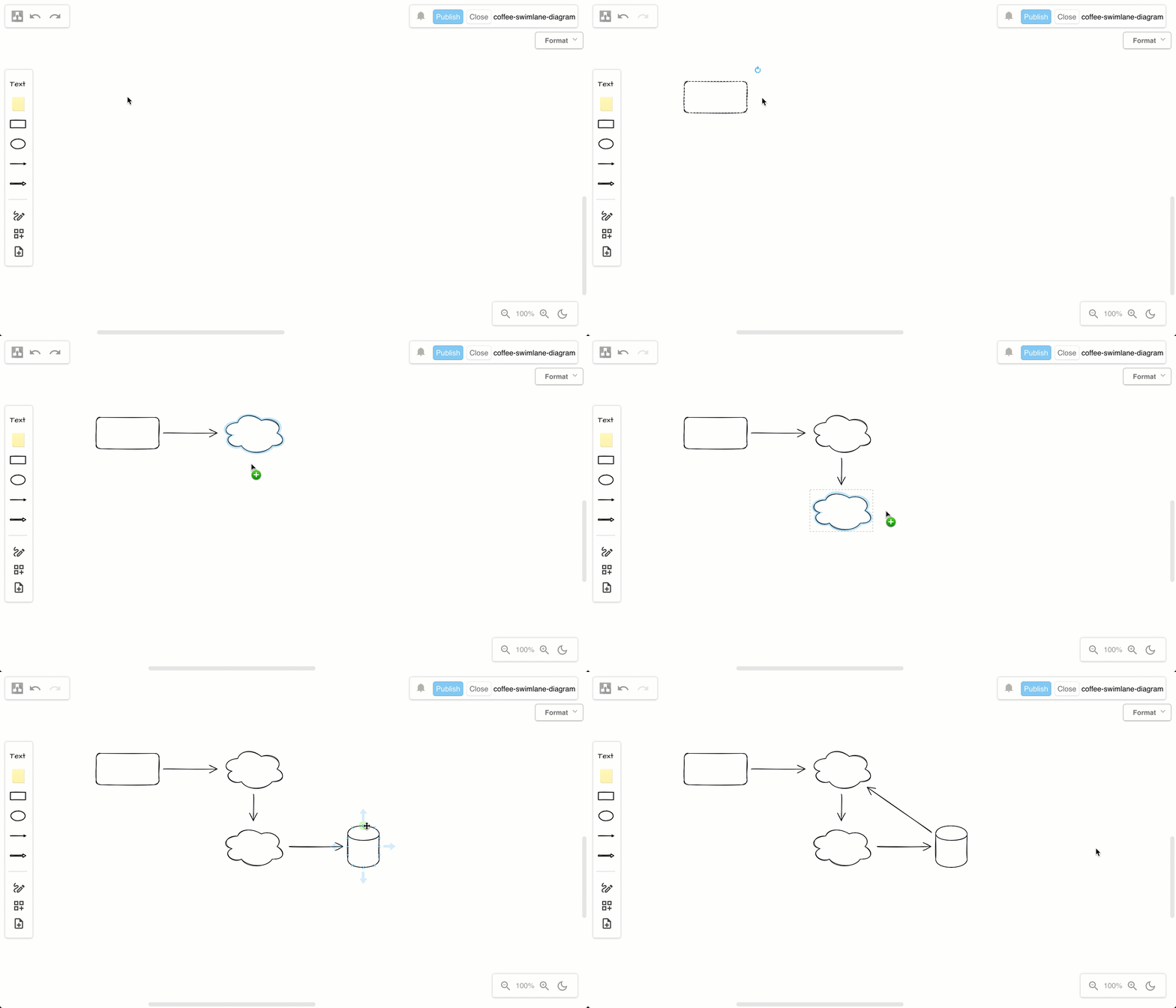
Double click on the drawing canvas to add a shape, or click on a direction arrow, or drag a new connection to a shape in another position in the draw.io editor

draw.io for Google Workspace, Drive and Classroom

Google Classroom continued to be used extensively by schools and training providers. The draw.io app for Google Drive lets you integrate diagrams into Google Classroom assessment tasks and discussions. Diagrams set in assessment tasks can be collaboratively edited, or act like a template with each student getting their own copy.
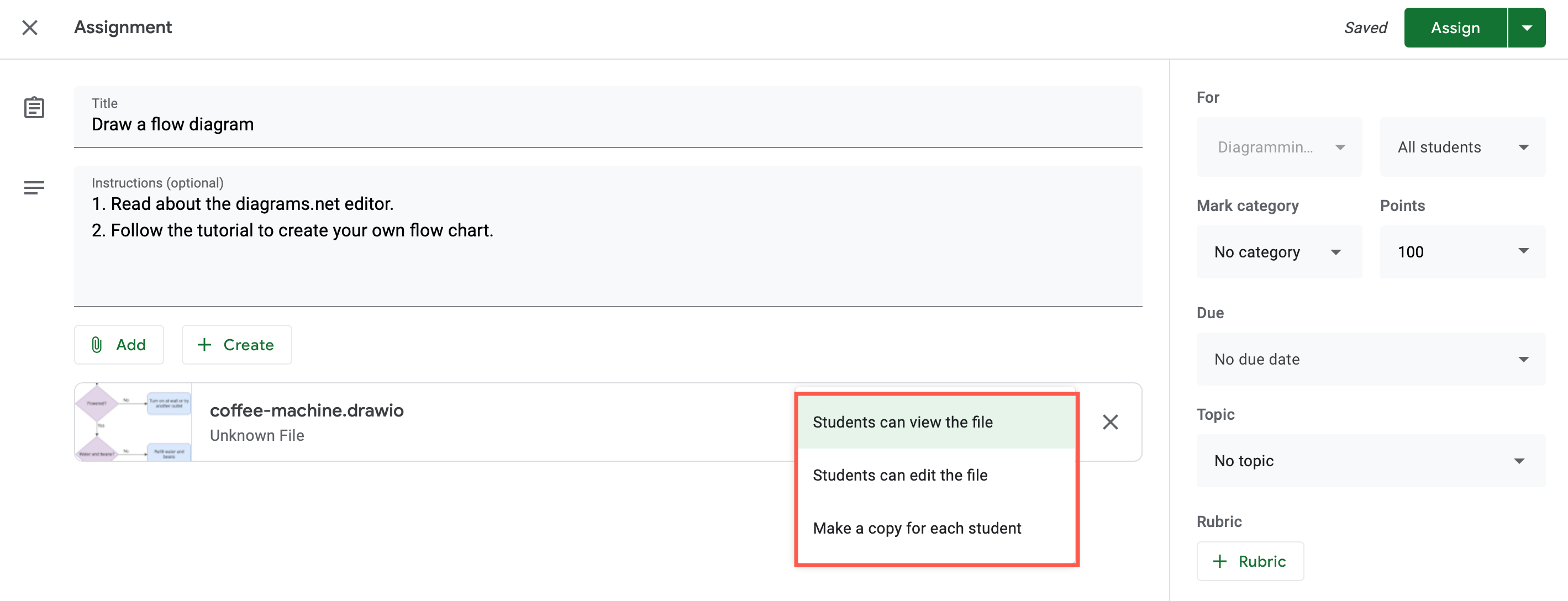
Select whether students can view or edit the diagram file, or if they automatically get their own copy in their Google Drives on diagrams attached to assignments in Google Classroom
Tip: Install the Google Workspace apps for Docs, Sheets and Slides to embed diagrams in your Workspace documents.

draw.io for VSCode and GitHub

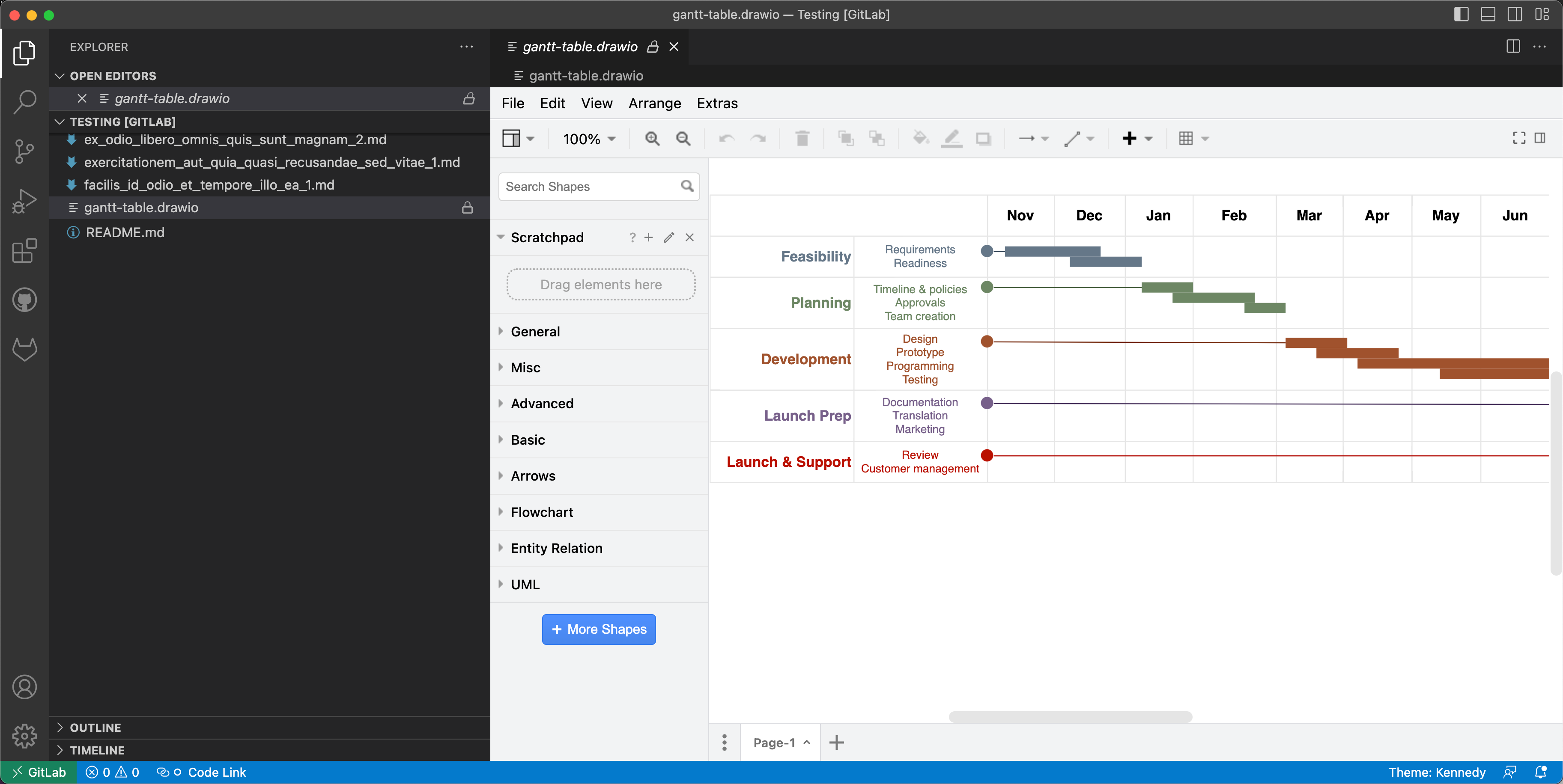
In combination with the third-party draw.io app for VSCode, and the github.dev web-based code editor, you can now edit diagrams stored in GitHub, without needing to change to another tab. You can even compare changes side-by-side on commit.
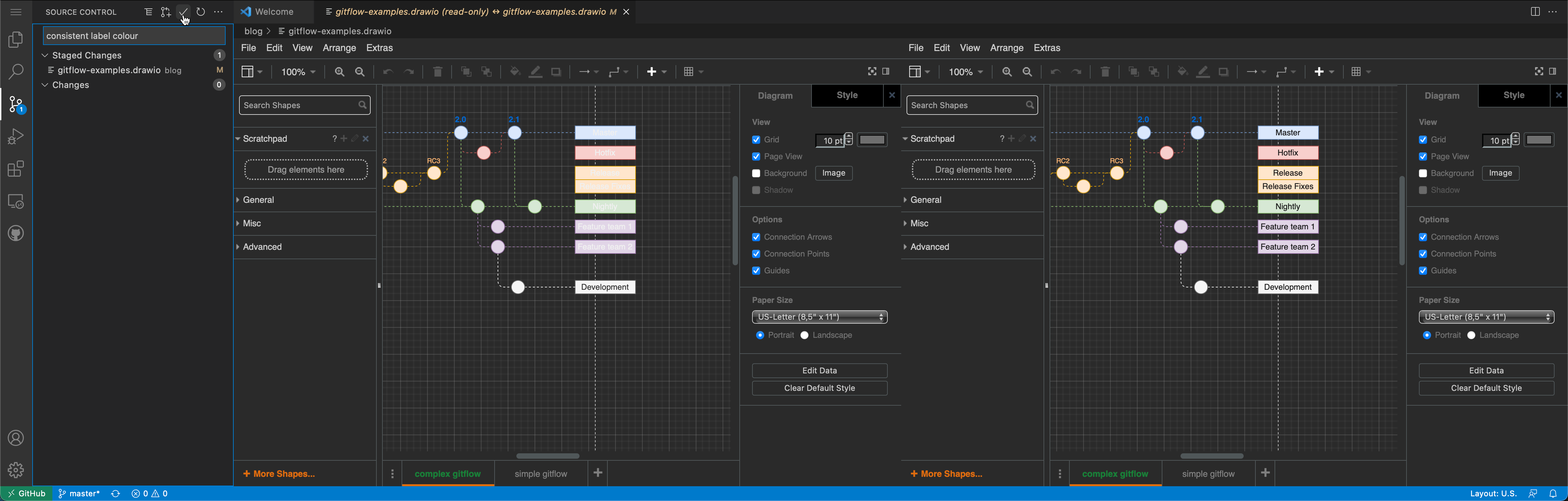
Compare and commit the changes you made to the diagram files in your repository via github.dev

draw.io diagrams in Notion

You can use the draw.io for Notion extension for the Chrome, Opera and Edge web browsers to store your diagram files in your Notion pages. The diagram editor loads inline in your Notion page using the simple Sketch editor theme.
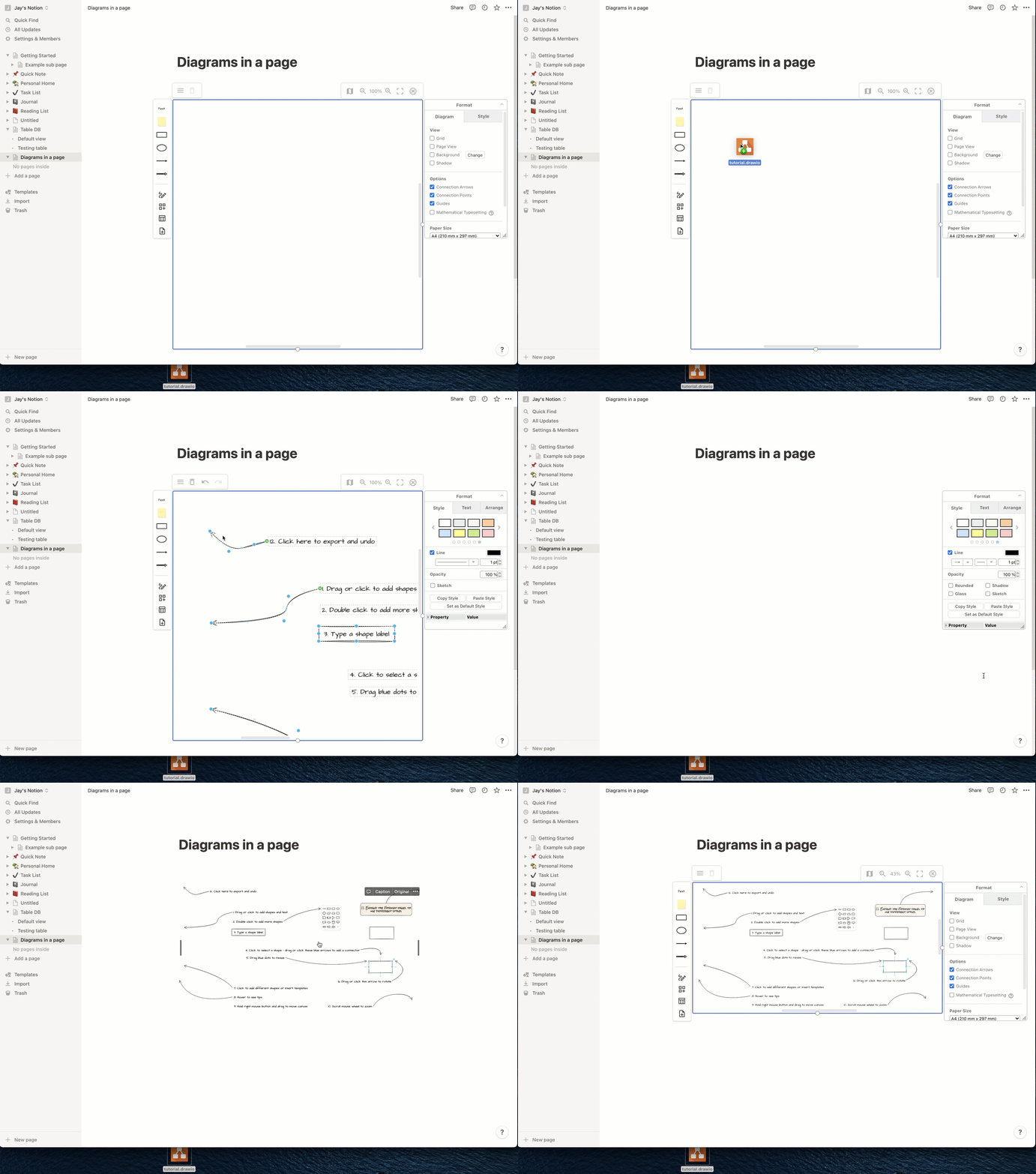
Import an existing diagram into Notion via the menu, or drag and drop the file into the drawing canvas

draw.io for Microsoft Teams

You can now collaborate in real time on diagrams stored in Microsoft One Drive or Sharepoint, directly from your team’s channel with the draw.io app for Microsoft Teams. Install the draw.io app in your Teams channel to add diagrams to conversations or to a Teams tab.
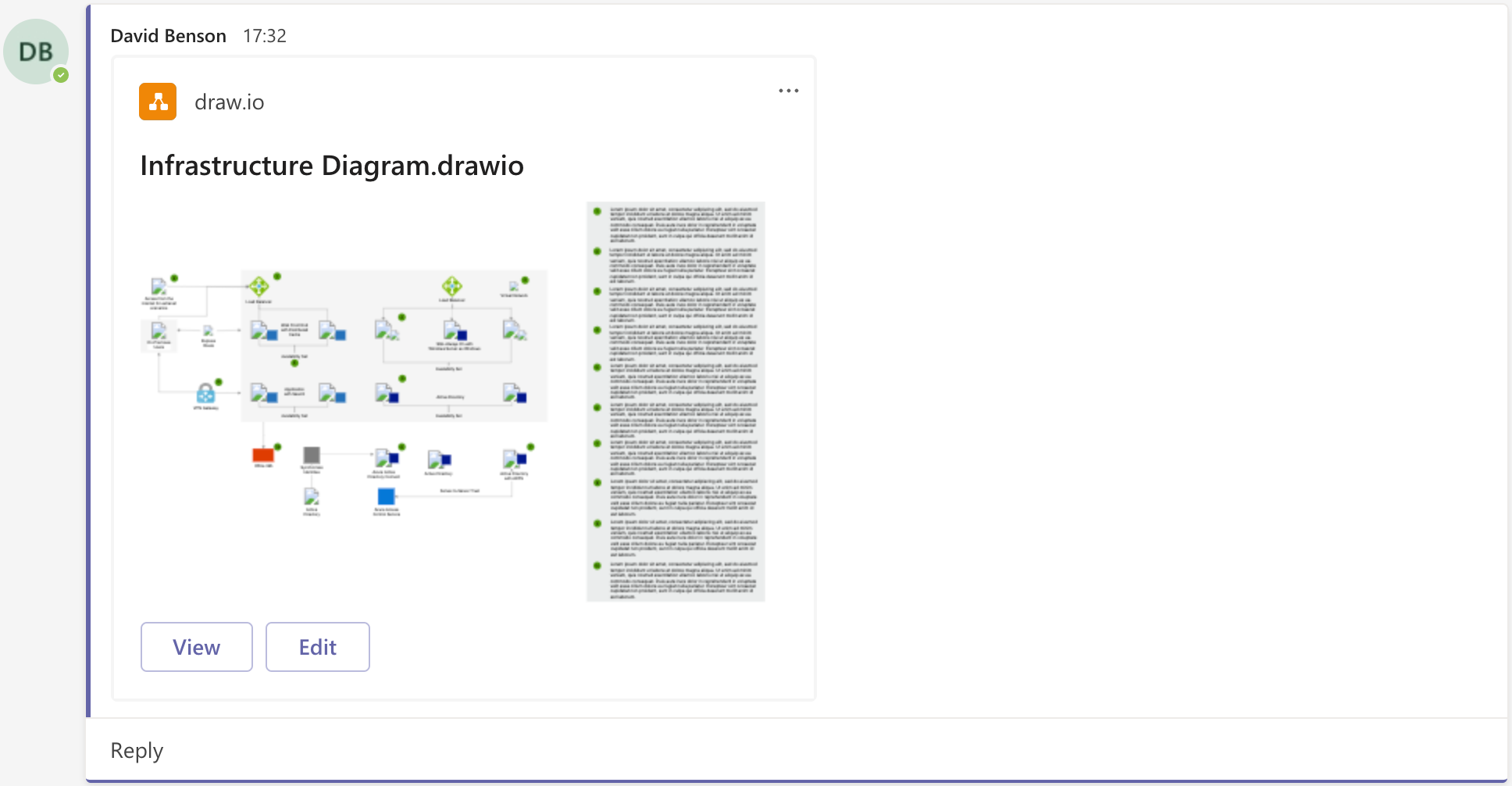
draw.io in Teams: A diagram added to chat will display the first diagram page as a thumbnail

Diagram import and file conversion

The free draw.io Importer extension for the Google Chrome browser lets you convert all of your Lucidchart diagrams to draw.io in a couple of steps. This lets you continue editing all of your diagrams now that Lucidchart has limited Lucidchart EDU, their previously free education plan, to only three editable diagrams.

New features and updates in 2021

The Sketch editor theme, and the right-click context menu received a comprehensive overhaul. The tools and menus were simplified and reorganised to make it feel much more like a whiteboard you can sketch freely on. You can expand or collapse most of the panels, and move them to another location around the drawing canvas.

The freehand drawing tool was updated along with the whiteboard like editor theme.
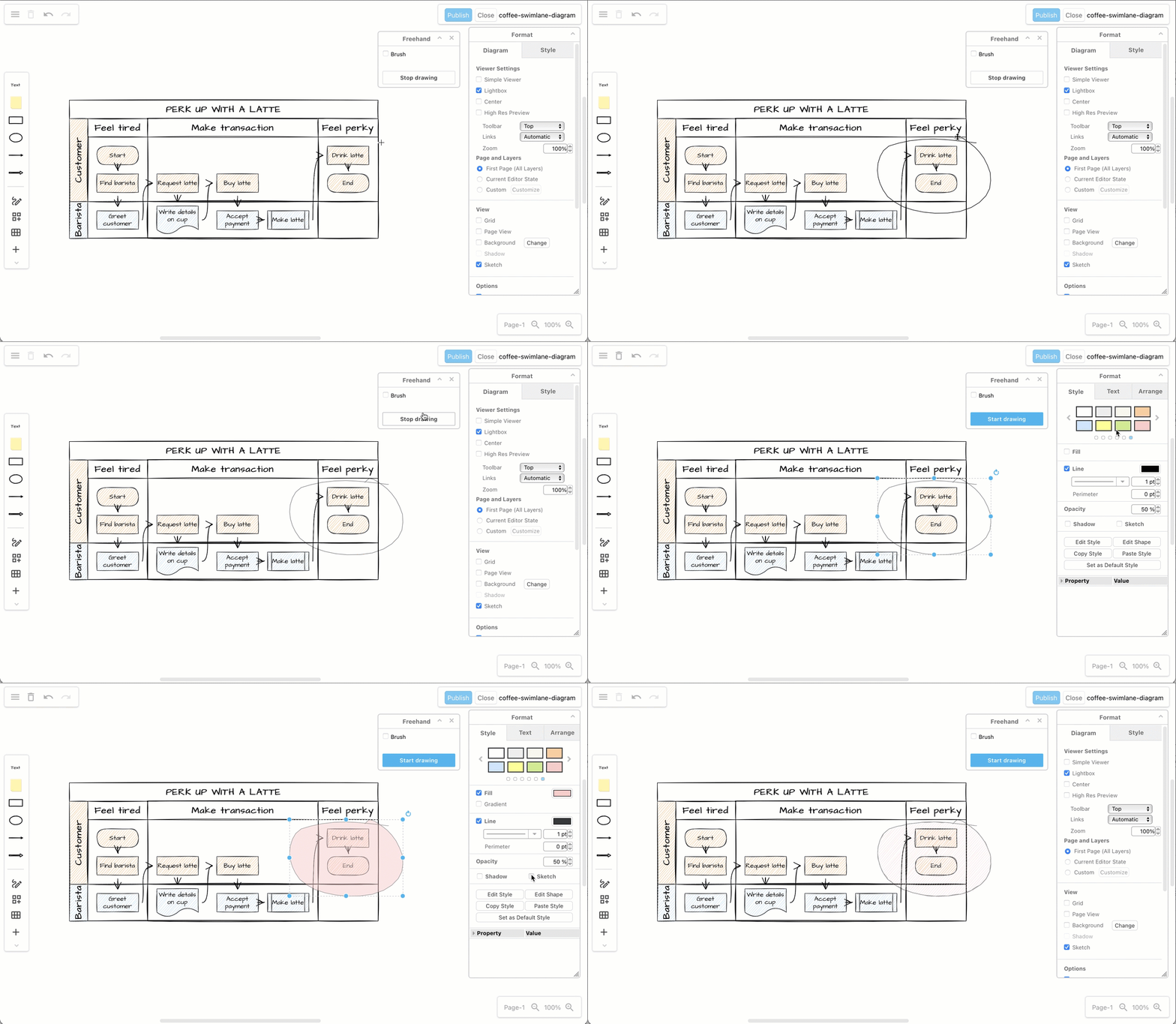
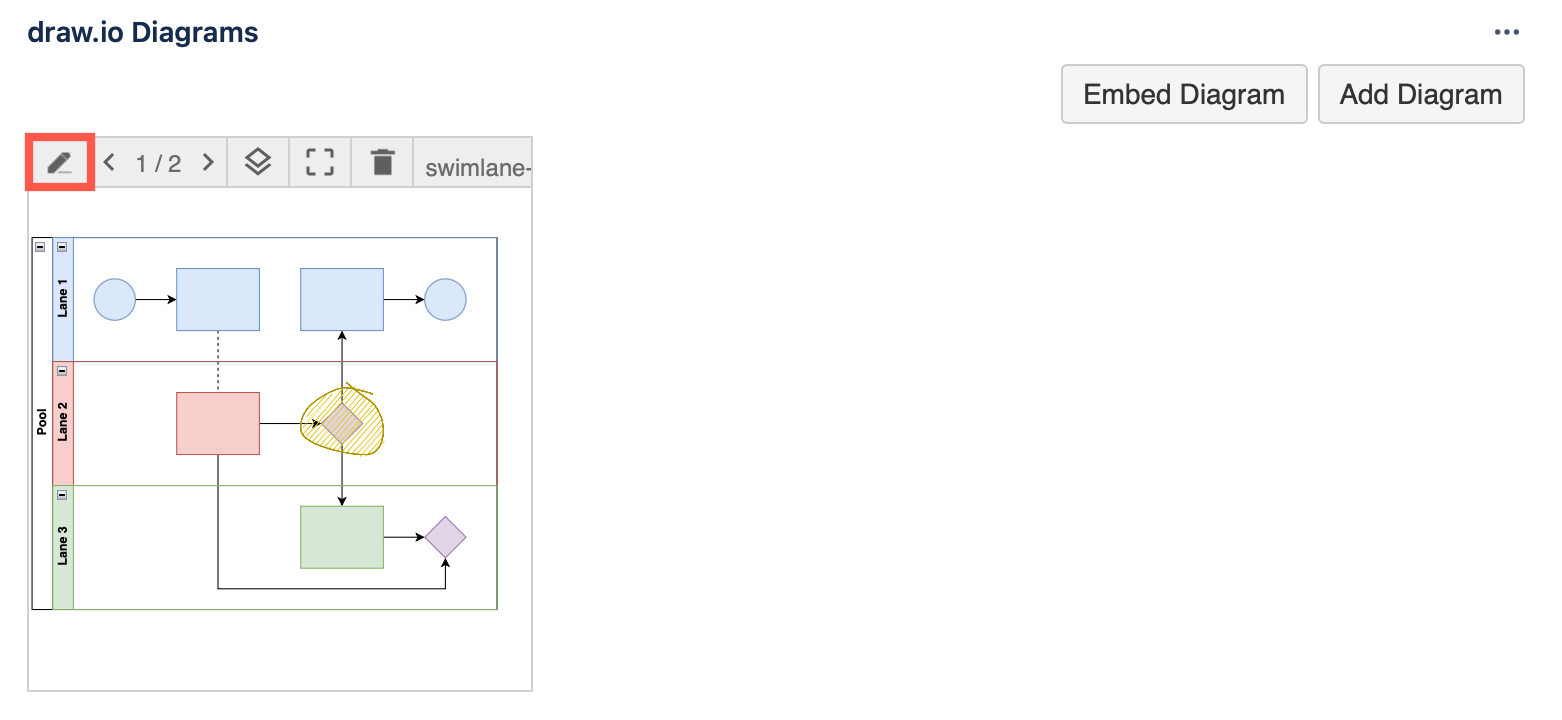
Use the freehand drawing tool in a draw.io Board diagram to markup diagrams or draw shapes with your mouse

You can now search for templates and click on the magnifying glass in the top right of any template to see a larger preview. The draw.io template library was also expanded with more templates and template categories.
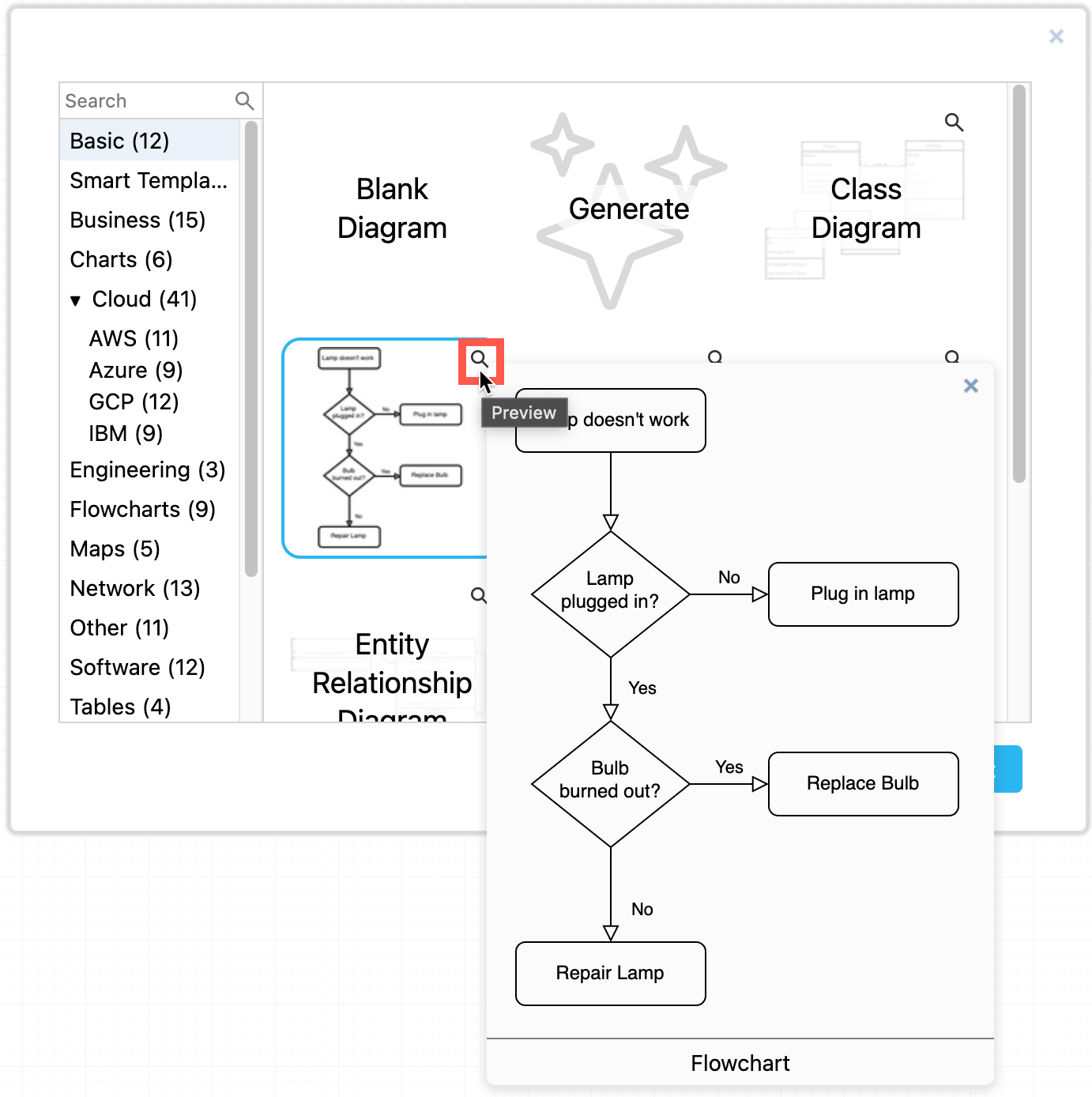
Hover over a template in draw.io to see a larger preview of it

In addition to moving diagram elements to the front or the back of an overlapping stack, you can step shapes and connectors forwards and backwards in the z-order stack using the Bring Forward and Send Backward buttons on the Arrange tab in the format panel.
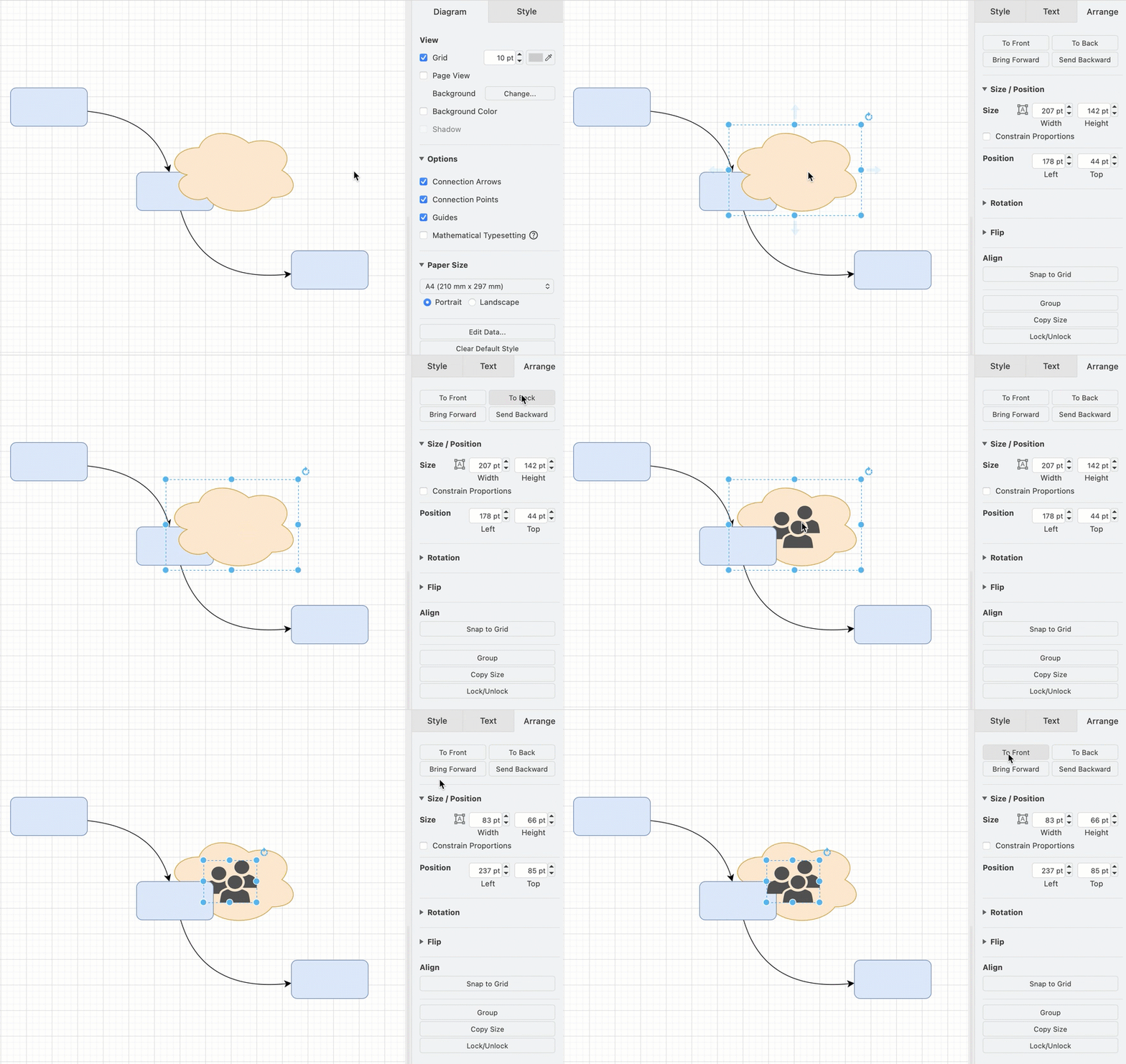
Bring overlapping shapes to the front or send them to the back via the Arrange tab

You can now use a diagram page as a background behind another diagram page. It will be printed along with the diagram, and is ideal for watermarking your diagrams, providing a common layout for mockups, or adding a template for diagram metadata on development documentation.
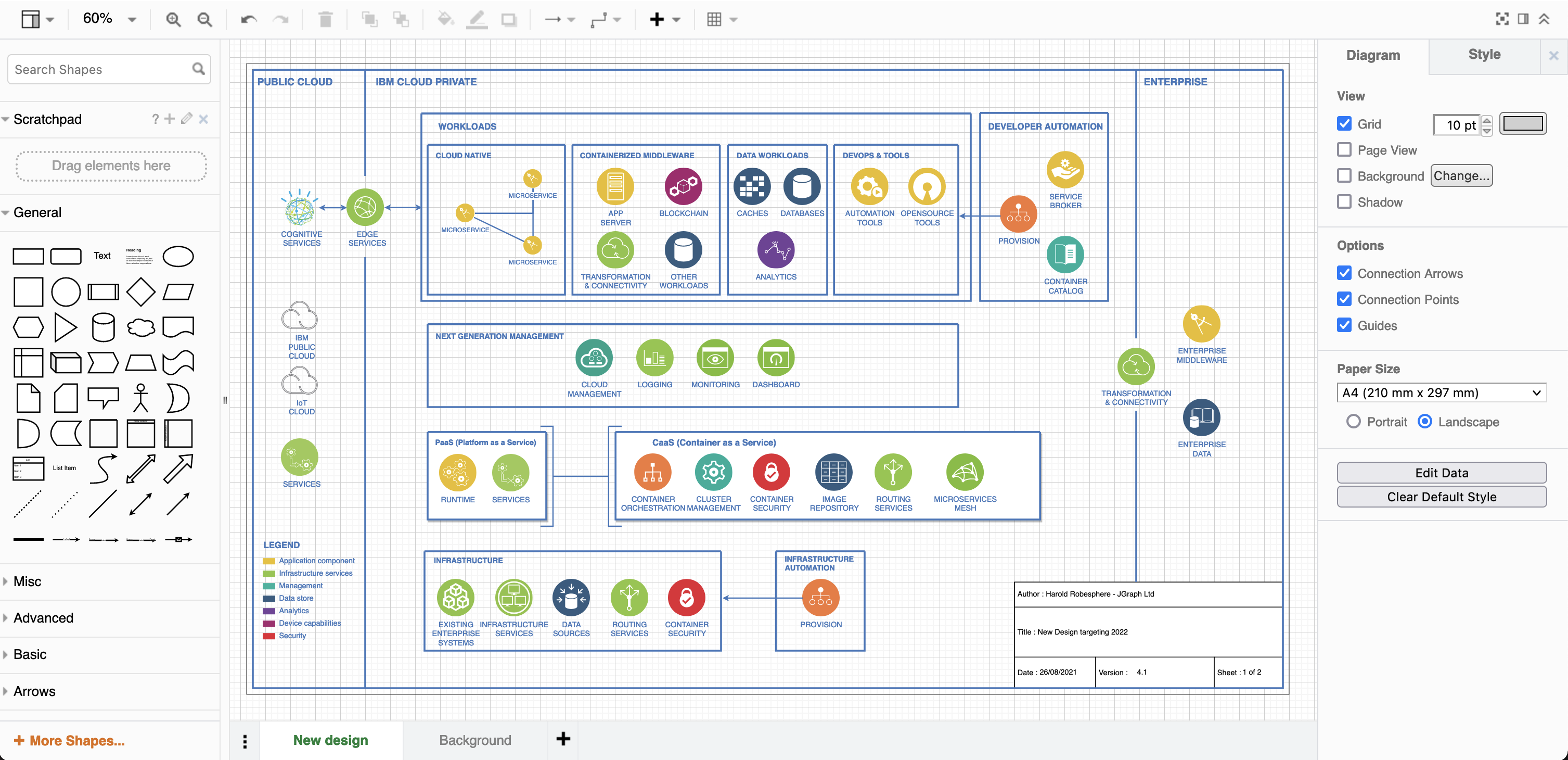
Diagram complete with background

A waypoint shape is now available in the Misc shape library (part of the General collection). You can use the small waypoint shape to join connectors together, replacing overlapping connectors with the same target or source shape neatly and cleanly.
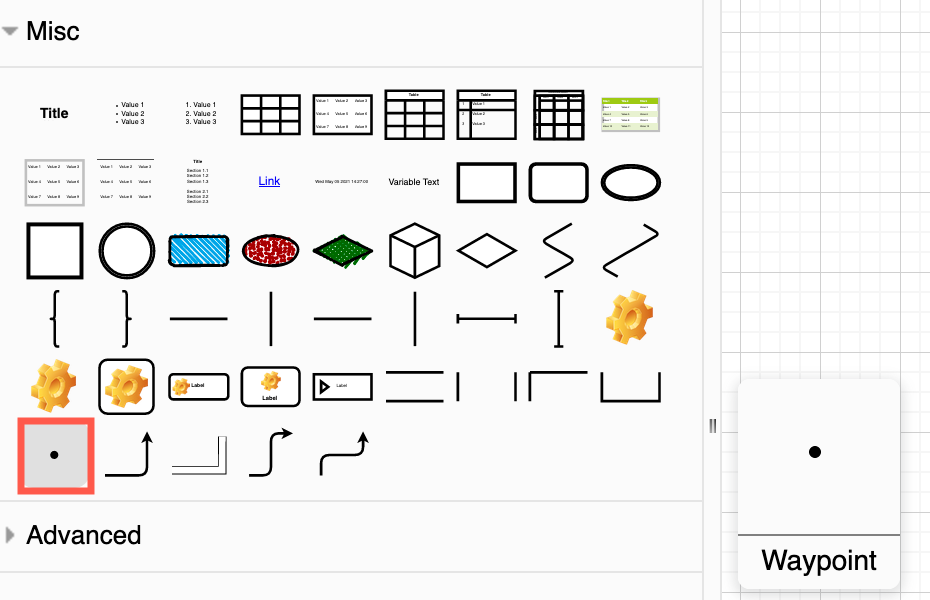
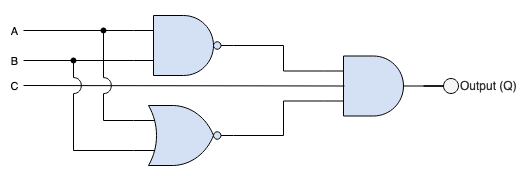
Drag the waypoint shape from the Misc shape library in draw.io Use waypoint shapes in draw.io to show contact points and enable line jumps to see where wires pass each other without connecting

Tags have been brought into the draw.io editor as a core feature and the experimental tags plugin has been retired. Add one or more tags to shapes and connectors to group them without needing to place them on the same layer in your diagram.

Use the Tags dialog (View > Tags) to group, select, hide or display the tagged shapes.
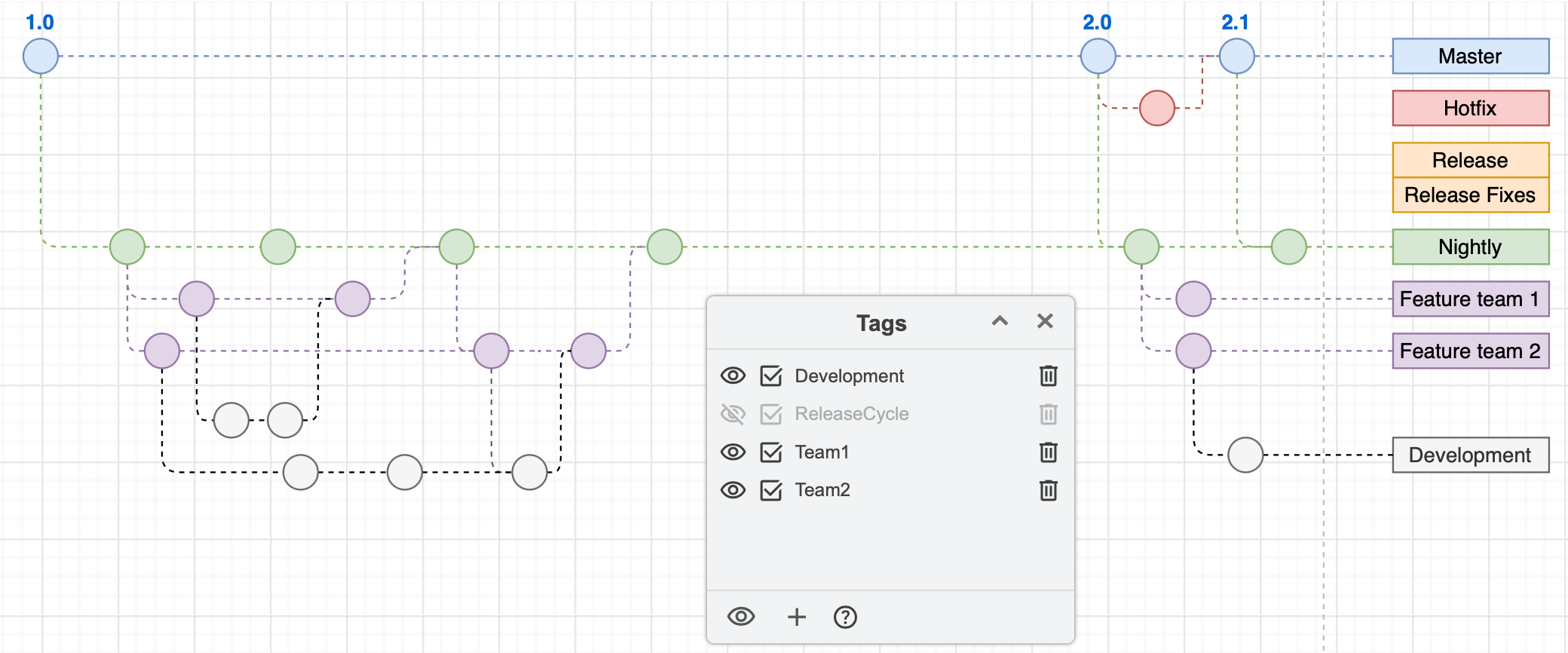
Tags on shapes and connectors in diagrams allow you to quickly select, hide or display related shapes without them needing to be grouped or on a single layer

Several shape libraries saw new or updated stencils, including AWS, C4, GCP, BPMN 2.0, electrical and swimlane shapes.

Many more features have been updated, expanded, and some simplified. Additional interface translations have been completed, and existing translations refreshed - thank you to all of our translators!

And of course, a mountain of bugs have been squashed.

See the changelog in our drawio GitHub repository for full details of all of the releases.

End of support for IE 11

· 3 min read

In line with Microsoft's end of life date of Internet Explorer 11, we will end support for IE 11 on 15th June 2022.

Online draw.io users of app.diagrams.net

Users of draw.io with Confluence and Jira Cloud

Atlassian do not support IE on their cloud products, our removal of support will make no difference.

Users of draw.io with Confluence and Jira Server and Data Center

Atlassian are removing IE 11 support on specific versions of Jira and Confluence on-premise.

  • For Jira, 8.5 is the last supported release EOL 21st October 2021. The first draw.io release that does not support Jira 8.5 will not support IE 11. That will not be before Atlassian's EOL date.
  • For Confluence, 7.4 is the last supported release EOL 18th August 2022. This is beyond the Microsoft EOL date, so support will end for Confluence on-premise on 15th June 2022.

Users of the draw.io codebase

If you deploy your own version of the project from source code, releases up to and including the 15th June 2022 will support IE 11. For any releases after that date you can expect complete failure when using IE 11. Specifically, we may remove IE 11 specific functionality from the codebase to simplify the code.

If you wish to have a IE 11 supported deployment, deploy the last release prior to this date and do not update it.

Alternatives

You can open, edit and save diagrams created with IE 11 using the desktop application. Windows releases include a no-installation build for those without admin rights on their Windows machines.
Note that we will not support IE mode in Microsoft Edge.

Diagramming in a free Confluence Cloud instance

· 7 min read

draw.io and the draw.io branded Atlassian integrations are the leading solution for web based sketching and diagramming functionality. The article describes the draw.io integration for Confluence that we, draw.io Ltd., build, deliver and maintain alongside the online version of our editor at app.diagrams.net, our draw.io desktop application.

Confluence Cloud is a popular tool for team productivity suitable for both small and large organisations. Atlassian provides customers with free instances, as long as the instance has ten users or fewer, and you can diagram in these instances with our draw.io Confluence Cloud integration.
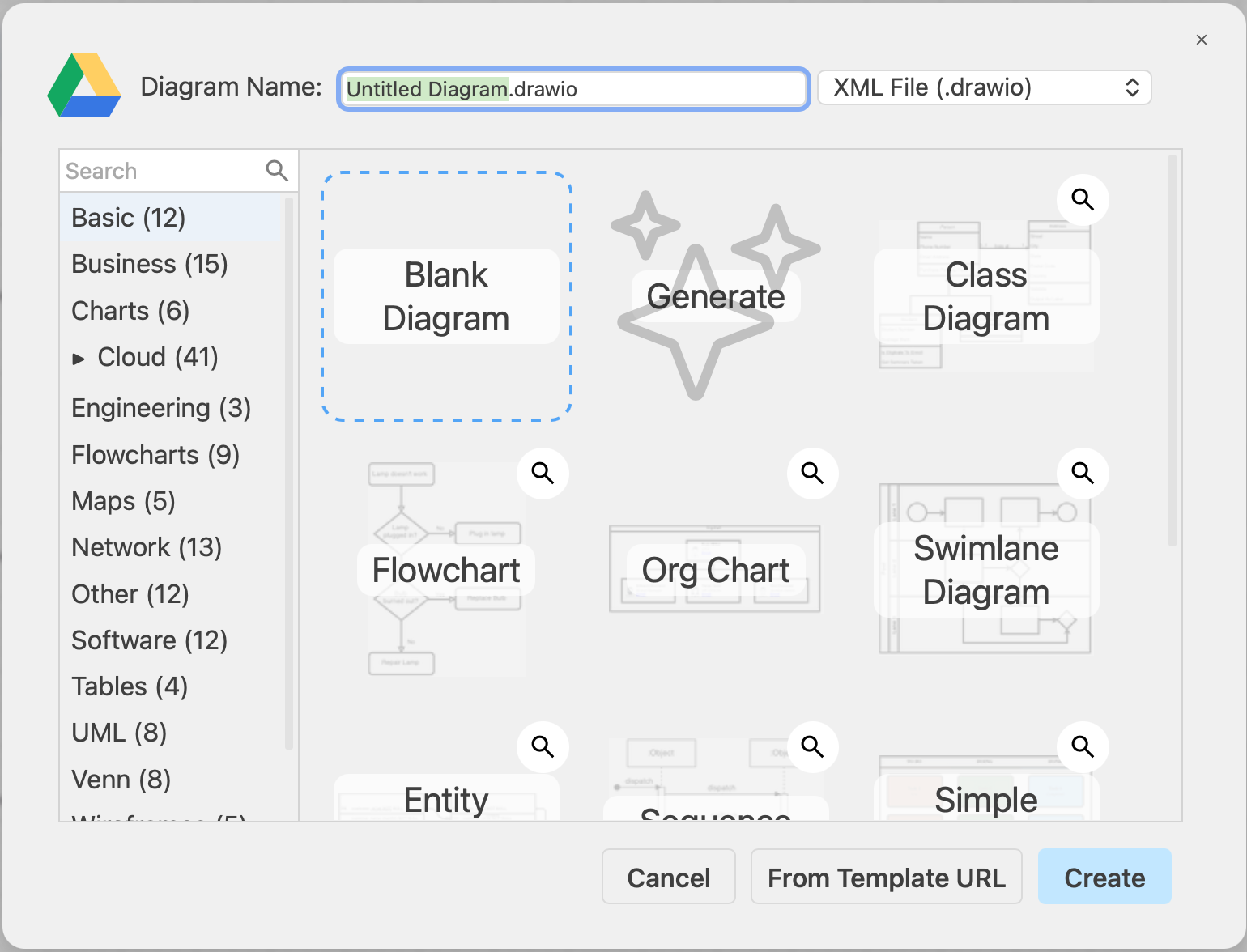
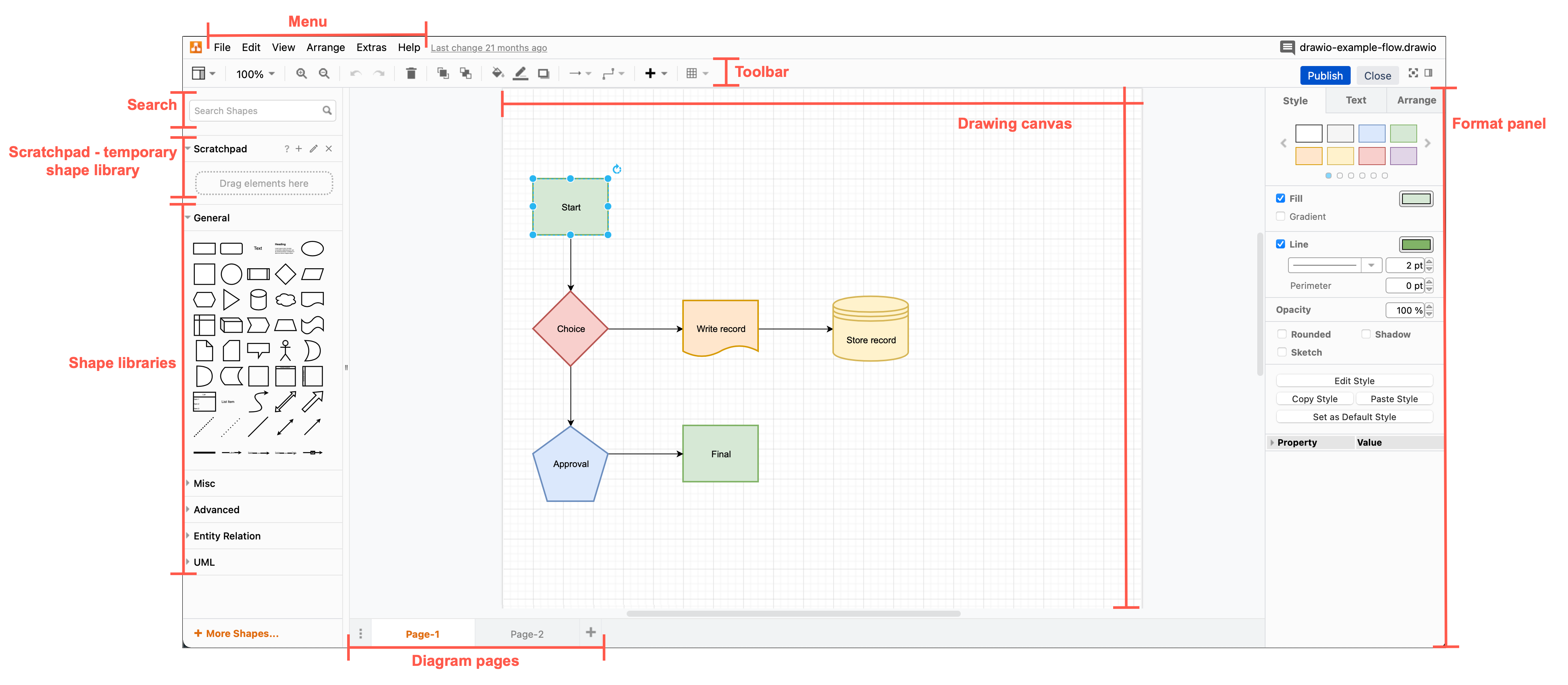
Diagram freely

With the draw.io app installed in your free Confluence Cloud instance, you and your small team can draw a wide range of diagrams:

The draw.io diagram editor is easy to use and powerful. The draw.io app in Confluence Cloud is also secure and private - Your data stays in the browser while you are editing a diagram and is stored only in your Confluence Cloud instance when you use the draw.io app.

  • Attach unlimited diagrams to pages with the draw.io macros.
  • Use and connect shapes from an extensive collection of shape libraries.
  • Style shapes, connectors and text labels.
  • Draw freehand shapes and create custom shapes.
  • Use a template from the template library to start diagramming quickly.
  • Switch to various editor styles, including a simpler draw.io Board macro, ideal for brainstorming.
    Use the freehand drawing tool in a draw.io Board diagram to markup diagrams or draw shapes with your mouse

Install draw.io in a free Confluence Cloud instance

  1. Set up a new Confluence Cloud instance, choosing the Free tier of up to 10 users on Atlassian's Confluence Cloud pricing page.
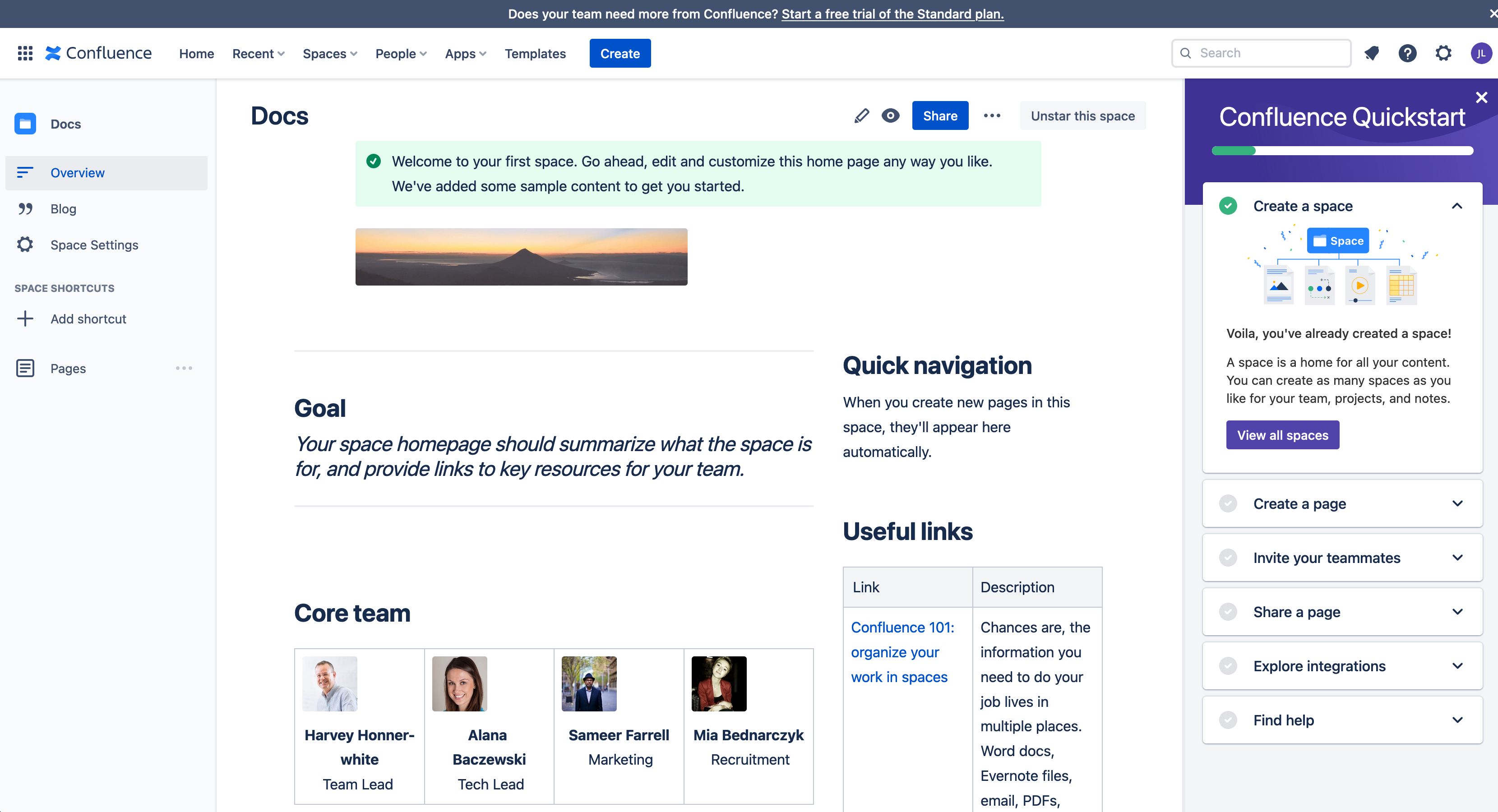
  2. Step through the installation and setup until you see the space landing page and Confluence Quickstart tutorial.
    Confluence Cloud will step you through the setup of a new instance and space

Install the draw.io app for Confluence Cloud

  1. Click on the gear icon in the top right, next to your user initials to open the Confluence Cloud administration settings.
  2. Under the Atlassian Marketplace section, click on Find new apps. Search for draw.io and click on it to see details about the draw.io app for Confluence Cloud.
    Alternatively, go to the draw.io app on the Atlassian Marketplace website.
    Install the draw.io app in your Confluence Cloud instance
  3. Install the draw.io app in your Confluence Cloud instance. Note: If you have a team of users larger than 10, start a free trial - when the license expires, you'll still be able to create all types of diagrams, but some advanced features are limited to the licensed version in larger Confluence Cloud instances.

draw.io as an online whiteboard

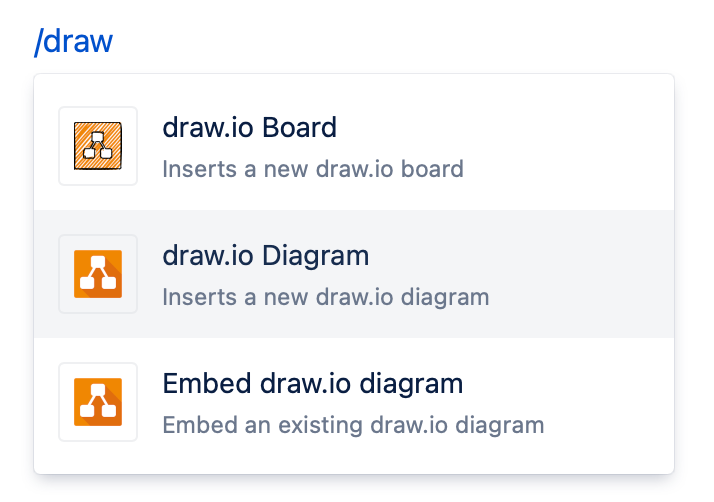
  1. Edit a Confluence page, type /draw.io and insert the draw.io Board macro. The simple whiteboard-like editor will open.
  2. Save your diagram and page so that your remote team members can collaborate on the draw.io Board drawing with you.

Learn more about using draw.io as an online whiteboard in Confluence
With the draw.io Board macro, you have a fully featured online whiteboard inside Confluence Cloud

Learn the draw.io diagram editor

  1. Edit a Confluence page, then type /draw.io and insert the draw.io Diagram macro. This will open the draw.io editor.
    Add the draw.io Diagram macro to insert a diagram into Confluence Cloud
  2. Select the Blank Diagram template, enter a filename for your diagram, and click Create.
    Choose a diagram template when you create a new diagram in draw.io
  3. Get to know the layout of the diagram editor: the shape and format panels, the toolbar, menus and drawing canvas. The default layout is the same as at app.diagrams.net.
    The draw.io editor, its tools and panels
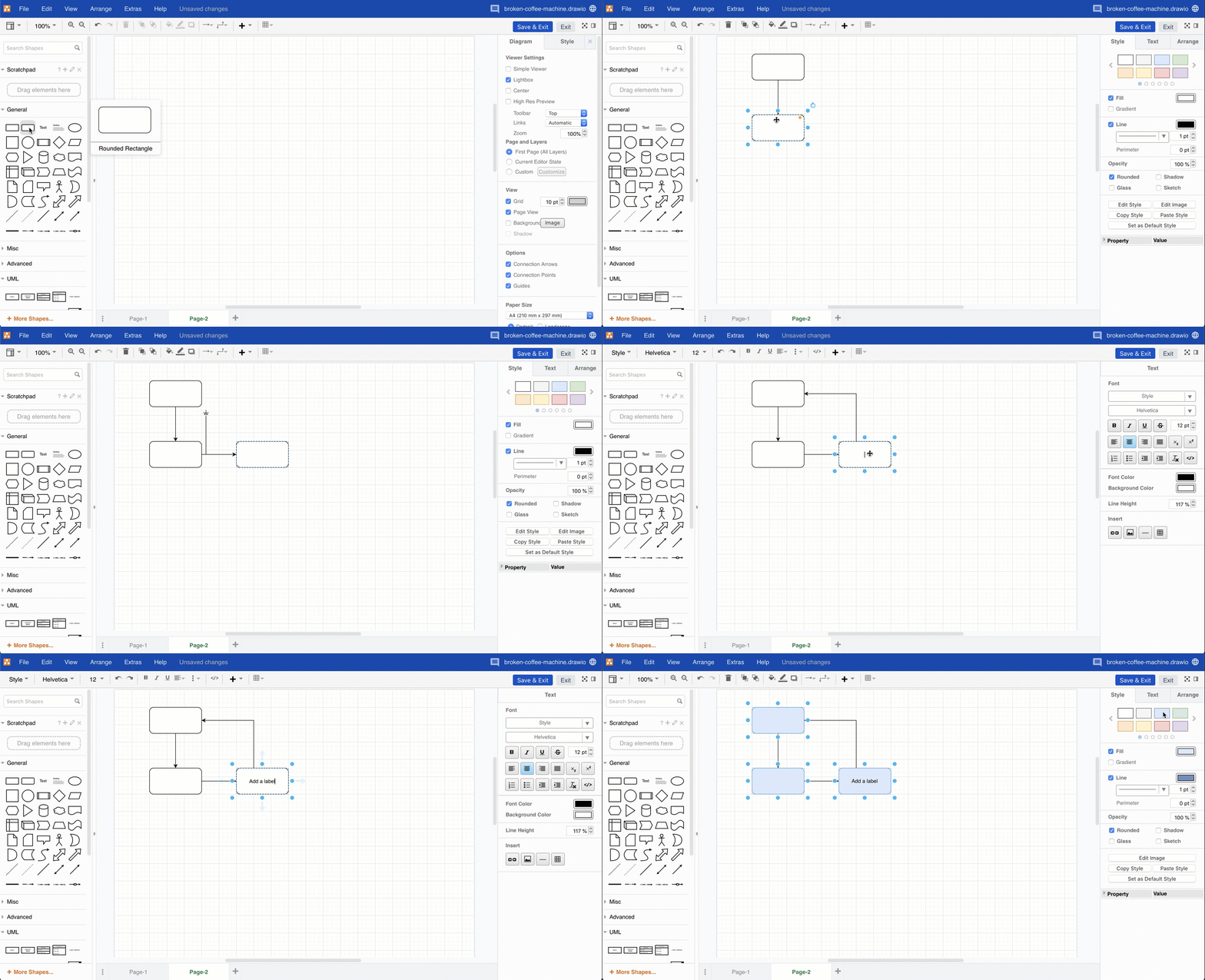
  4. Step through the tutorial to draw a basic flowchart in the draw.io editor.
    • add and connect shapes using the shape libraries on the left
    • add labels to the shapes and connectors on the drawing canvas
    • style your diagram using the tools in the format panel on the right.
      Create your diagram from shapes, connectors and text, and add styles
  5. Instead of exporting your diagram, click Publish to save your new diagram, or Save & Exit to save an existing diagram, then publish your Confluence page.

License draw.io for larger teams

The price of the draw.io app is very affordable in Confluence Cloud. See the tier-price comparison when migrating from Confluence Server to Confluence Cloud with draw.io.

If you have started a free trial in your team of more than 10 users and let the license expire, you will need to purchase draw.io to continue diagramming in your instance.

Licensing the draw.io app for your larger Confluence Cloud instance allows you to receive product support and use all of draw.io's features, including those listed below.

  • Import and export .vsdx files.
  • Drag and drop diagram files into the editor.
  • Add multiple pages to a diagram.
  • Export to PDF files and print diagrams.
  • Use math typesetting.
  • Set up and use custom shape libraries.
  • Customise the draw.io editor and set global corporate styles with JSON configuration options.
  • Use the search feature to find shapes.
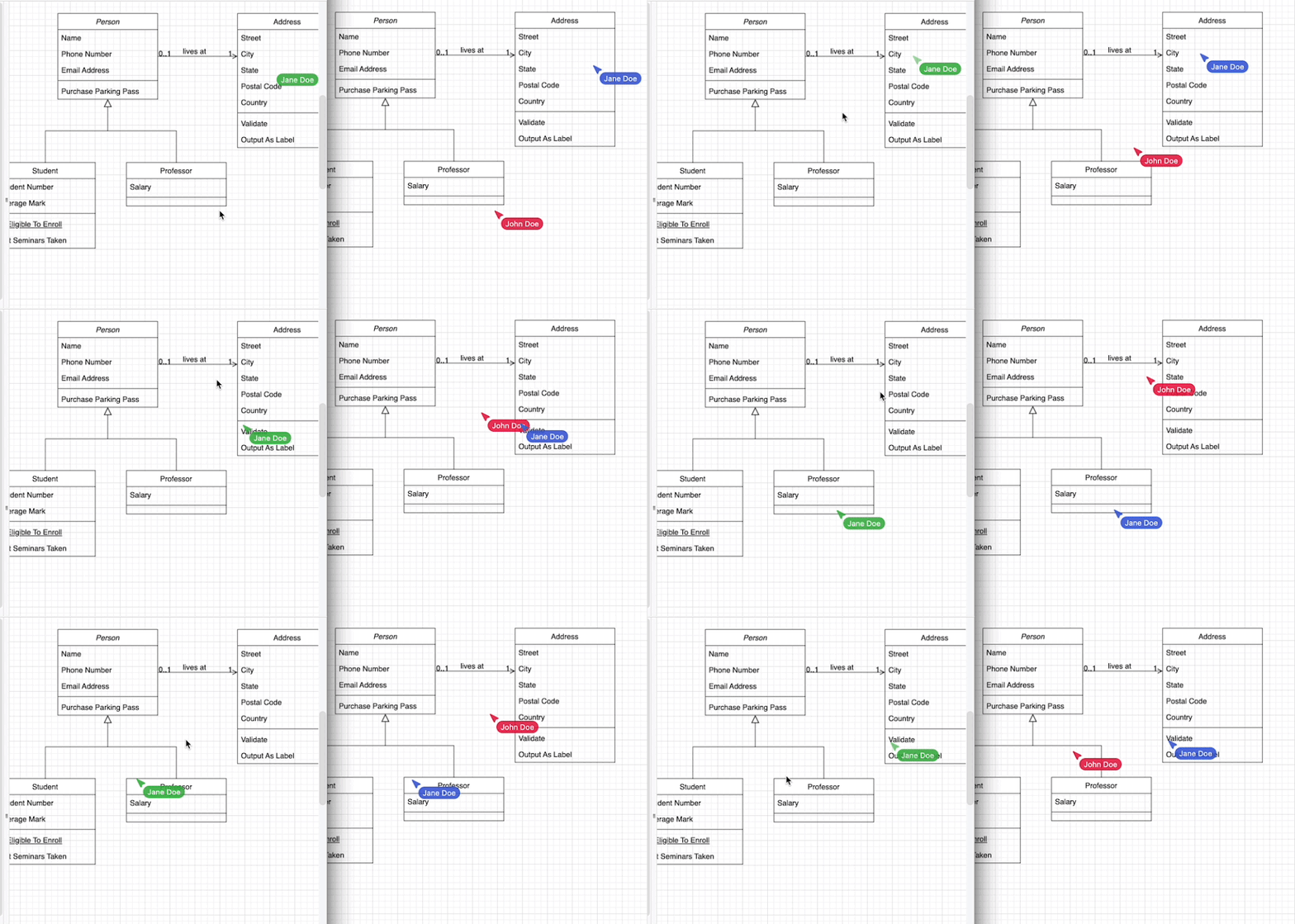
  • Use the collaborative editing functionality to simultaneously edit a diagram with your teammates.
  • Work with the diagram file's revision history.
  • Display an older version of the diagram when viewing a page.
  • Import Mermaid code to automatically create a diagram.
  • Import CSV data with formatting options to automatically create a diagram.
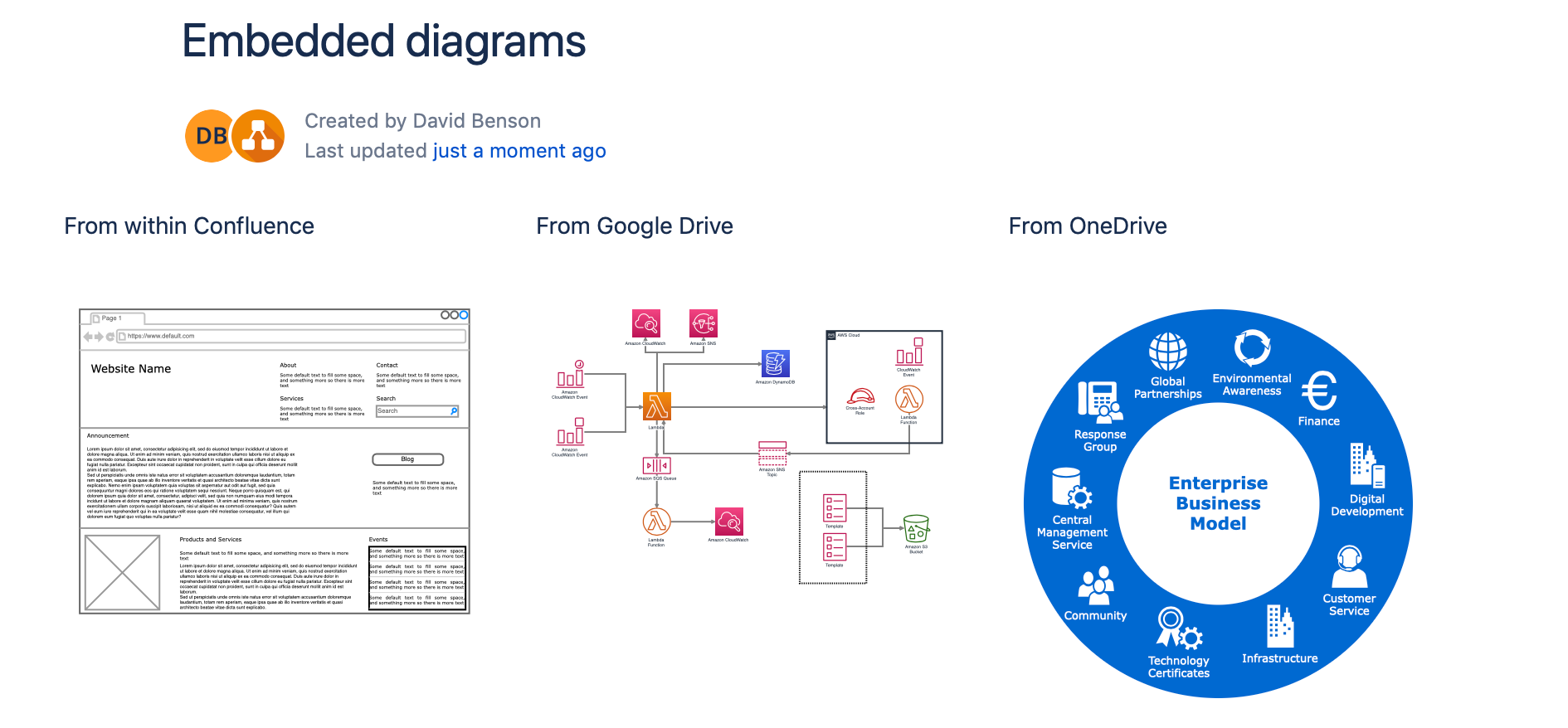
  • Embed diagrams from cloud storage platforms (Google Drive and Microsoft OneDrive).
    Embedded diagrams in draw.io for Confluence Cloud

Small teams with up to 10 Confluence Cloud users can use all of the features of the draw.io app for free.

New draw.io Board macro for whiteboard-style diagrams in Confluence Cloud

· 7 min read

Embed whiteboard-style diagrams in Confluence Cloud pages with the new draw.io Board macro. The Board macro is a new feature for our integration with Confluence Cloud, delivered as part of our draw.io brand.

When you add or edit a diagram using the draw.io Board macro, it uses the Sketch editor theme, with the rough sketch shape and connector styles set as the default global style. The diagram editor has a a white non-paginated background and no grid lines so it feels more like a whiteboard.

A discussion thread on the GitHub draw.io project is open if you have any questions or suggestions.

Add the draw.io Board macro to a Confluence Cloud page

  1. Edit the page and type /draw to see a list of macros you can embed.
  2. Select the draw.io Board macro from the list to open the diagram editor.
    Add the draw.io Board macro to a Confluence Cloud page

Diagram in Confluence Cloud using the draw.io Board macro

The draw.io Board macro uses a simplified editor theme, where the diagramming tools are reduced to the essentials. The panels you are used to seeing in draw.io are minimised to make it feel more like a whiteboard.

You can display panels and use the menus at any time to use the full functionality of the draw.io editor in the draw.io Board macro.

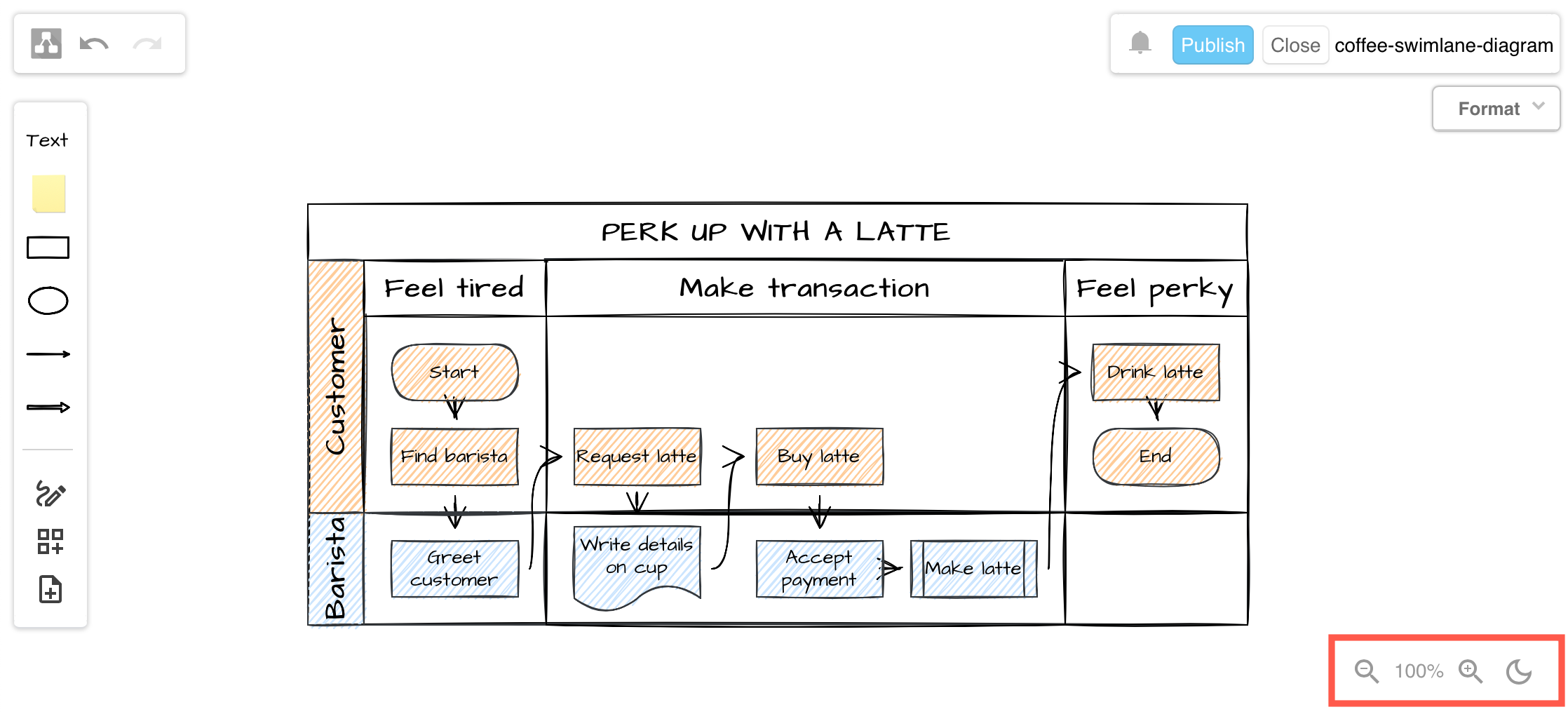
Zoom: To zoom in and out, click on the magnifying glass tools in the bottom right. Click on the number in the center to reset the zoom to 100%.

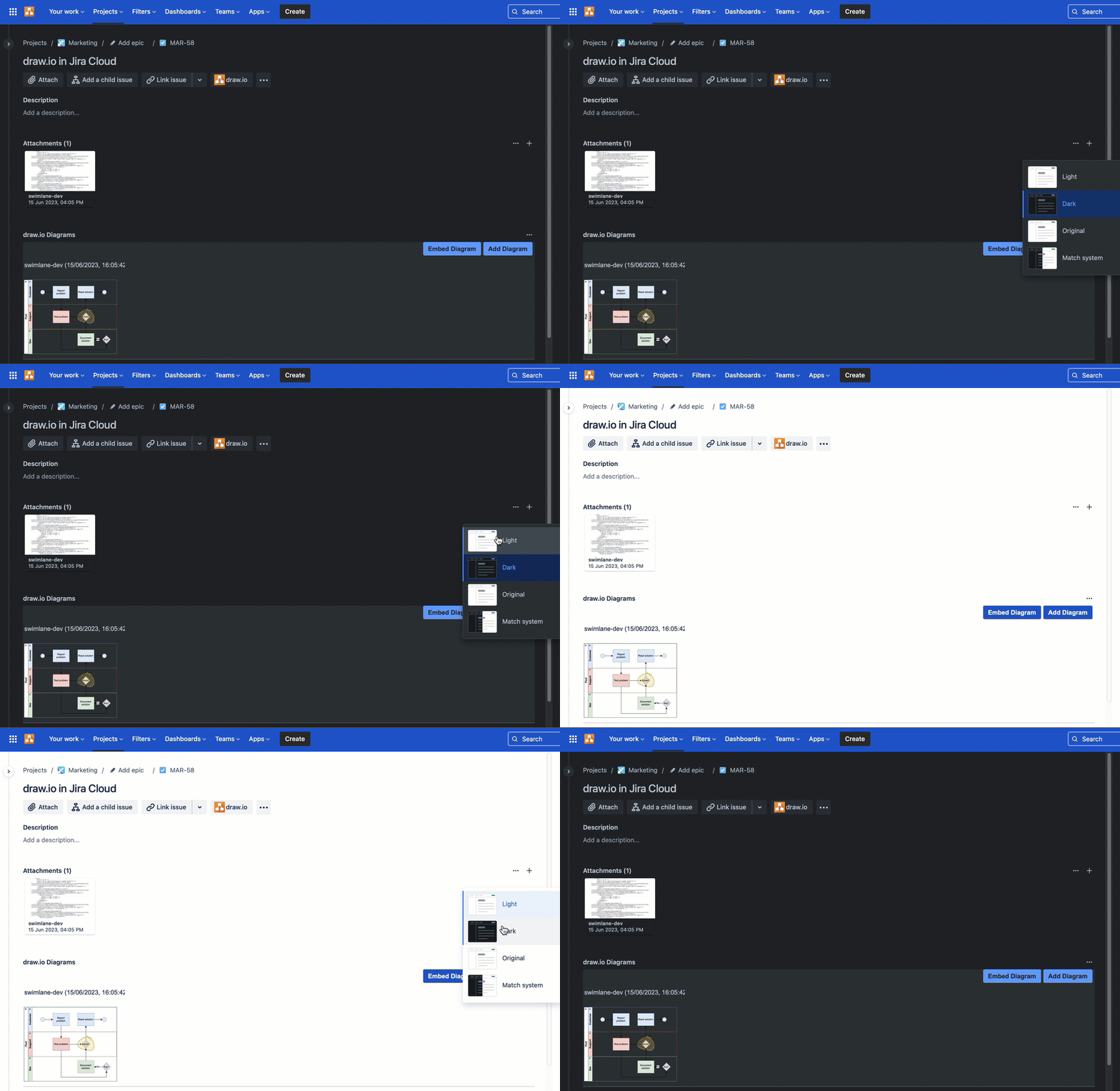
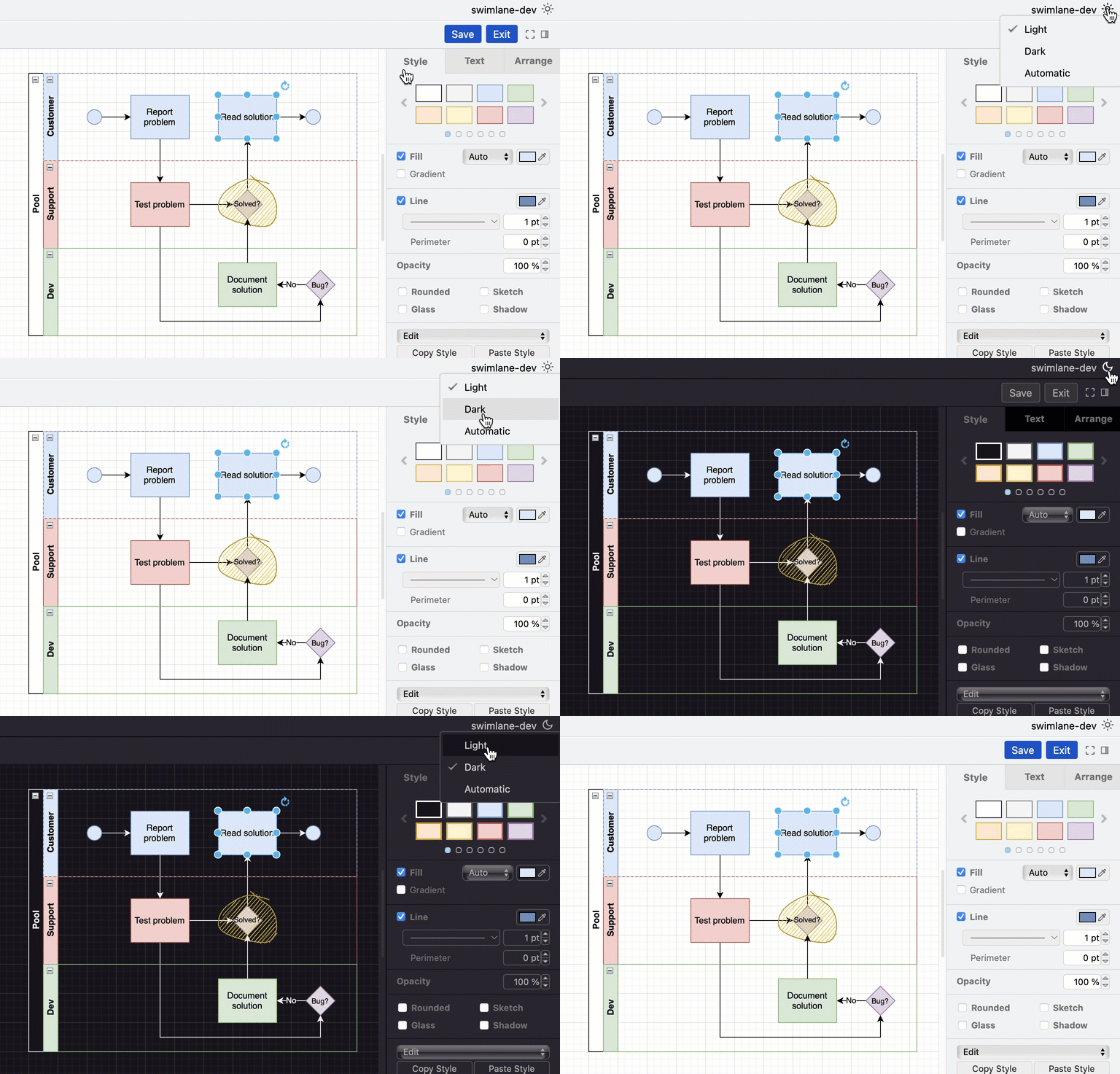
Dark mode: To switch between the default light theme and a dark theme (dark background and interface), click on the moon/sun tool in the bottom right.
Zoom in and out and switch the editor into a dark mode with the tools in the bottom right in a draw.io Board diagram

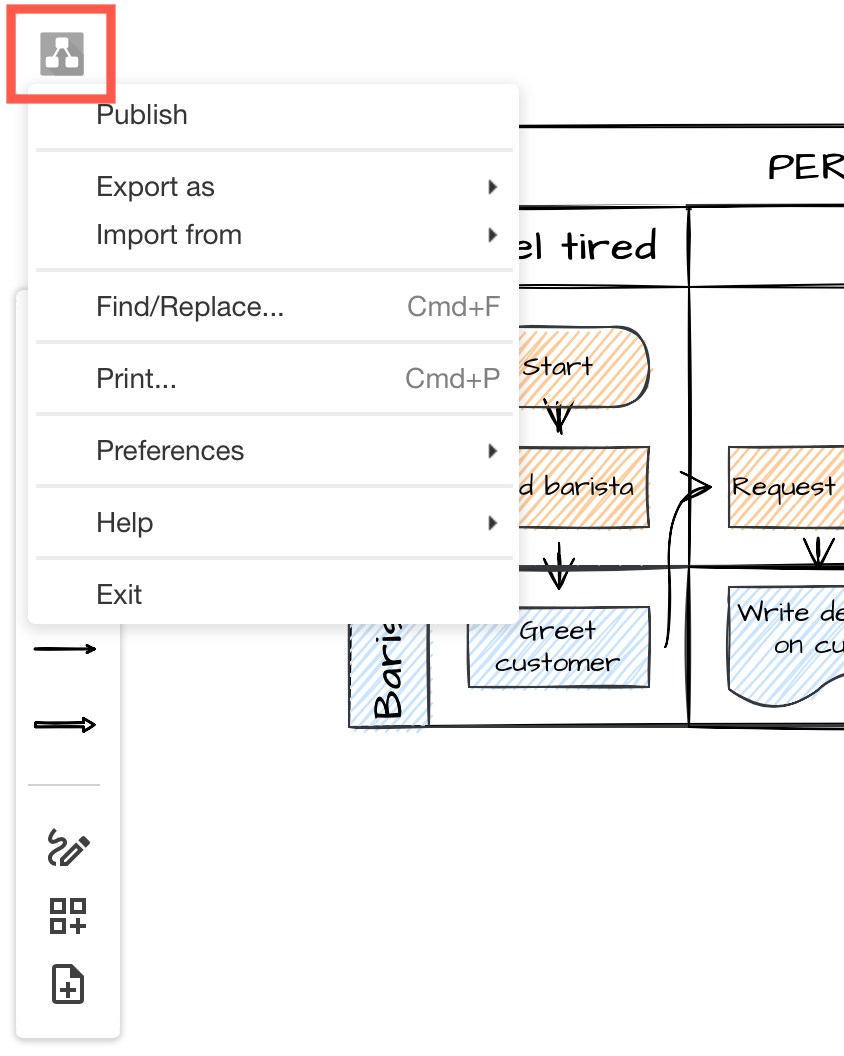
Open the menu in the draw.io Board macro

Click on the draw.io logo in the top left to open the menu.
Click on the draw.io logo to open the menu when using the draw.io Board macro

Undo and redo: Click on the undo and redo arrows next to the menu icon to undo and redo the most recent changes. These will not be shown unless you have edited the diagram.

Work with shapes in the draw.io Board macro

Add shapes: Double click on a blank space on the drawing canvas and select a shape.
Double click on the drawing canvas to add a shape, or click on a direction arrow, or drag a new connection to a shape in another position in the draw.io editor

Connect shapes: Hover over shapes to see direction arrows.

  • Click on the direction arrow to add a new shape in that direction.
  • Click and drag a new connector from the source shape and drop it on another shape to connect them.

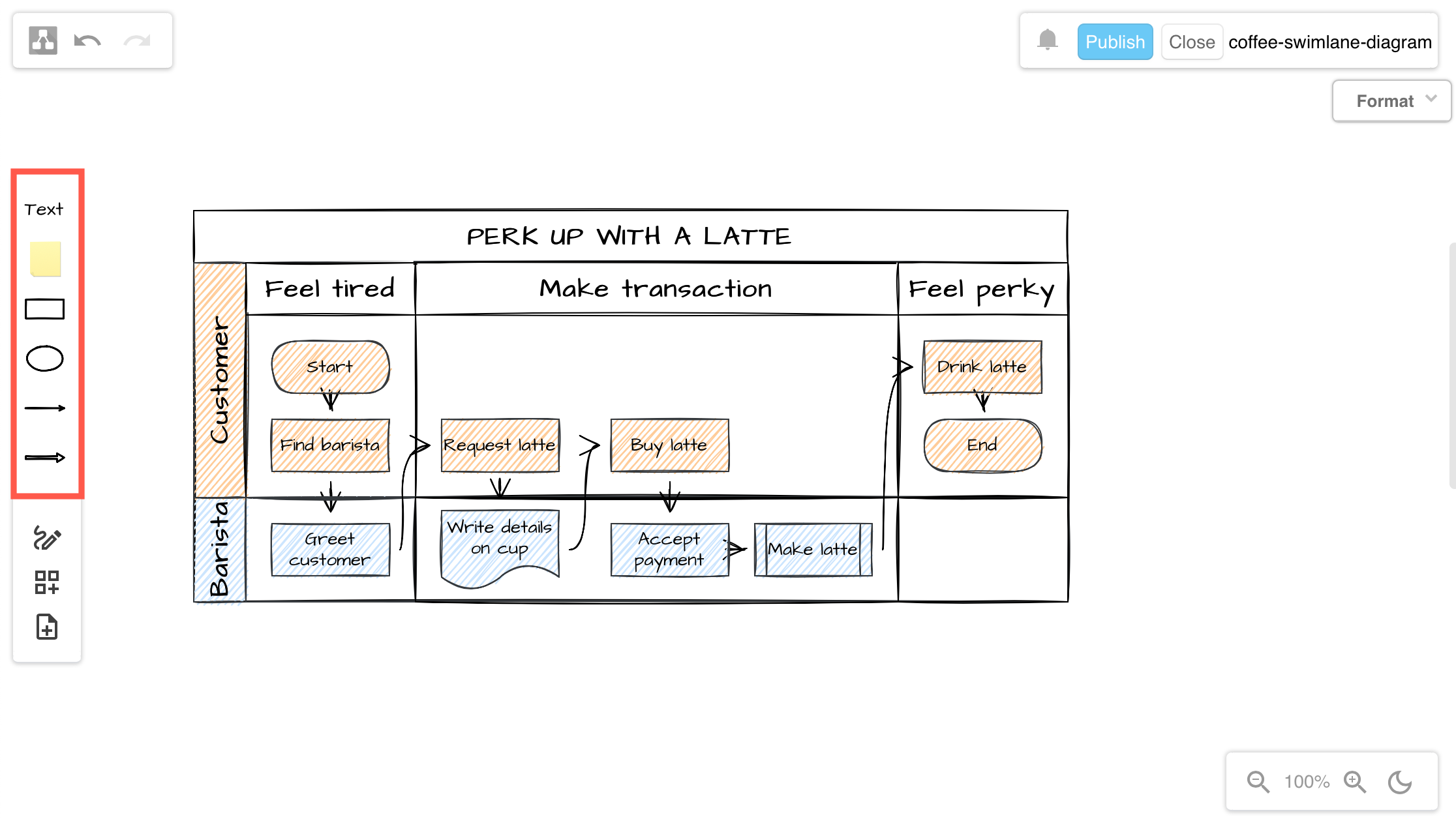
Alternatively, click on or drag the text, sticky notes, basic shapes and connectors in the top half of the toolbar on the left to add them to the drawing canvas.
Click on the shapes or drag them from the toolbar onto the drawing canvas

Use shape libraries in the draw.io Board macro

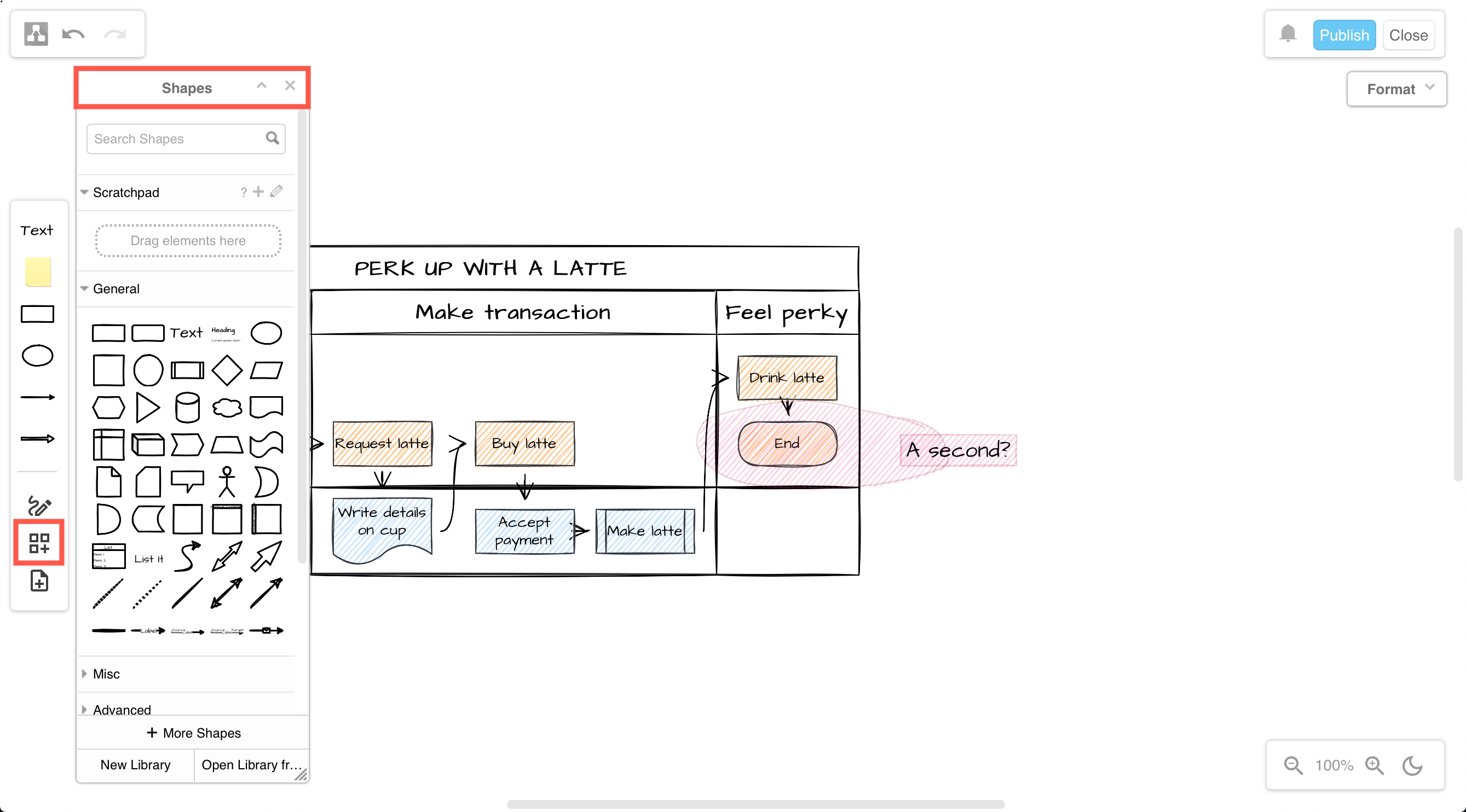
To see the shape libraries and use a greater variety of shapes, click on Shapes in the toolbar to open the Shapes panel.

  • Search for shapes by entering a search term and press enter.
  • Drag shapes or groups of shapes from the drawing canvas to the scratchpad.
  • Enable more shape libraries: Click on More Shapes toward the bottom of the shape library, select the shape library, then click Apply.
    Click on the Shapes tool to open the Shapes panel and access all the shapes in the shape library

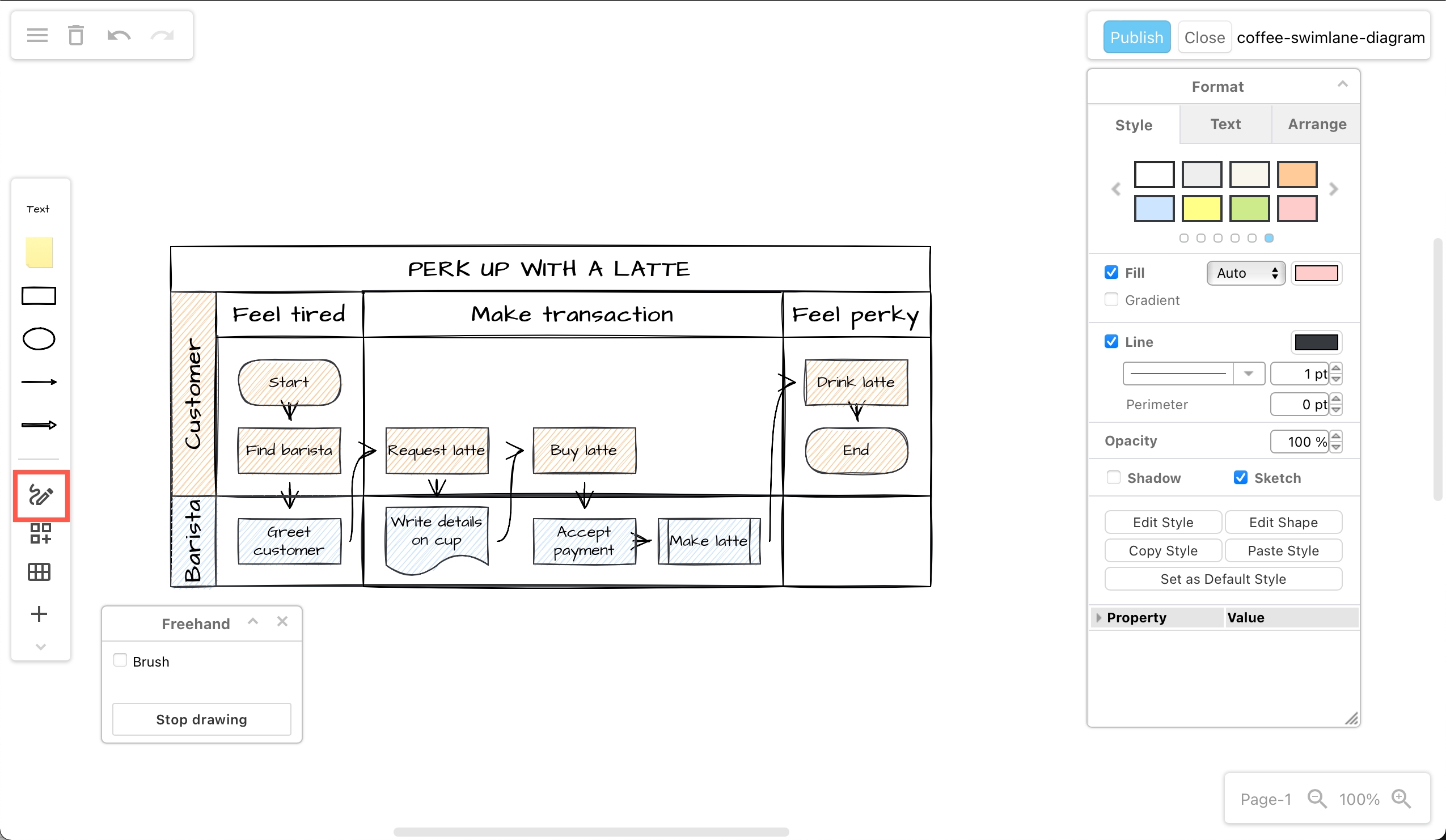
Draw a freehand shape in the draw.io Board macro

You can draw images with a transparent background with your mouse.

  1. Click on the Freehand tool in the toolbar.
    Click on the shapes or drag them from the toolbar onto the drawing canvas
  2. Click Start Drawing in the Freehand panel.
  3. Click and hold to draw a freehand line on the drawing canvas. You can add multiple separate lines in your freehand drawing.
  4. Click Stop Drawing when you are finished, to save it as an image with a transparent background.
    Use the freehand drawing tool in a draw.io Board diagram to markup diagrams or draw shapes with your mouse

Learn more about drawing and styling freehand shapes

Tip: Use the Style tools in the format panel on the right to change your freehand shape's style, just as you would a shape from the shape libraries.

Style shapes in the draw.io Board macro

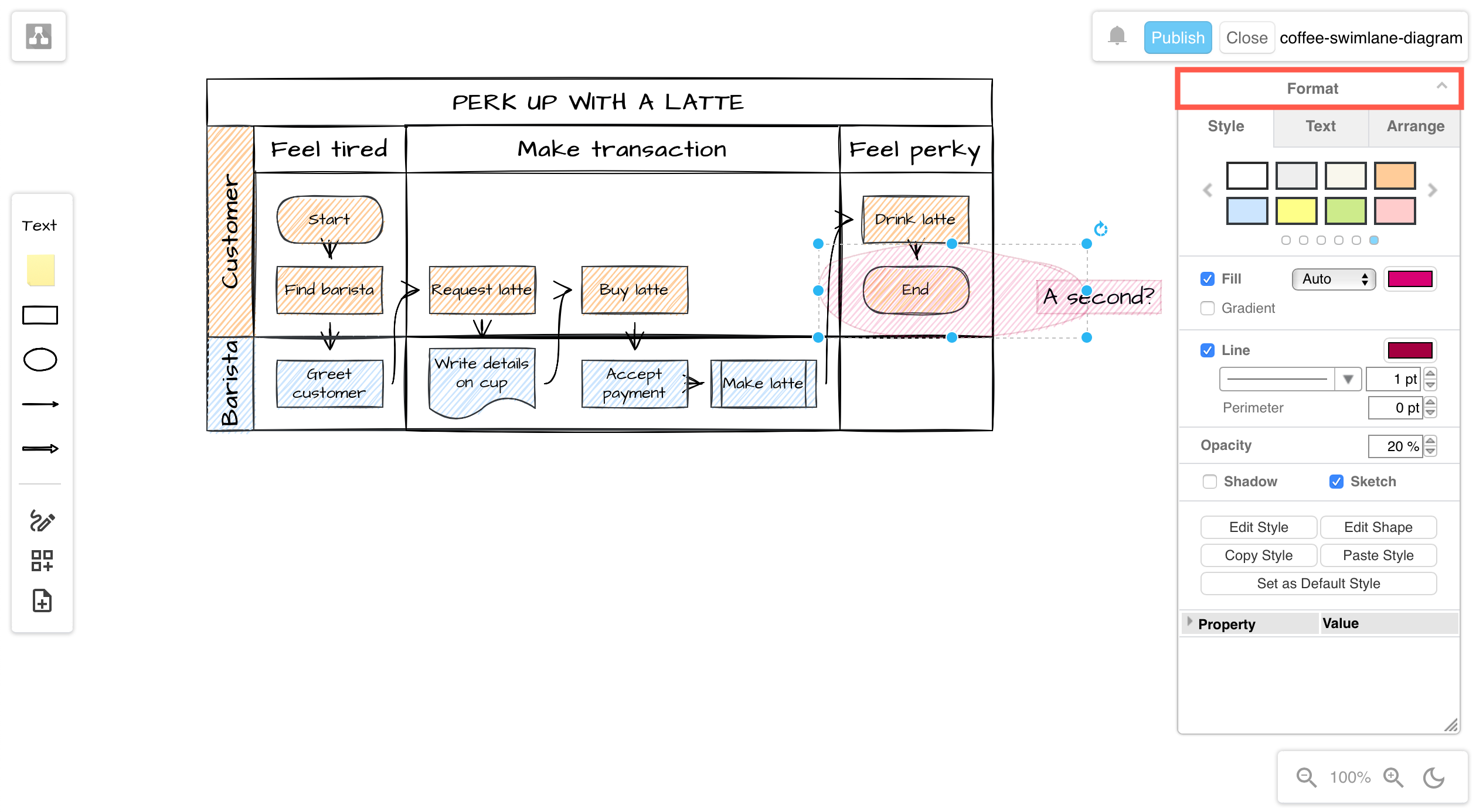
To access the format panel, click on the minimised heading. The tools and options that are available in the format panel will depend on what you have selected in your diagram.
Click on the Format panel's title to open it and style shapes, text and connectors in a draw.io Board diagram

Insert a template in the draw.io Board macro

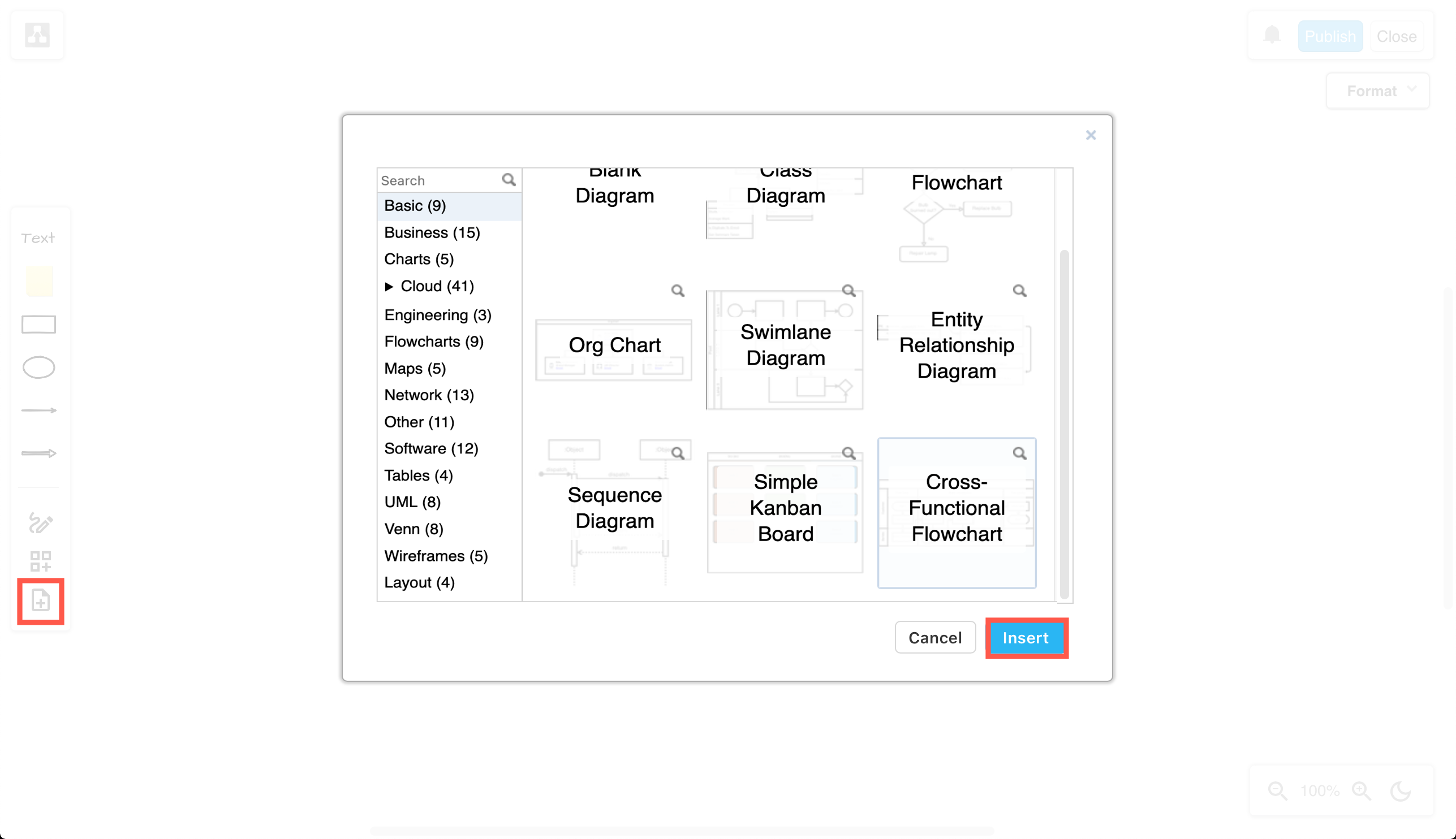
Click on the Template tool to select and use a diagram template from the template library. Click on the magnifying glass in the top right of a template to see a larger preview of it.
Select a diagram template and click Insert to add it to the drawing canvas in a draw.io Board diagram in Confluence Cloud

Save the draw.io Board to Confluence Cloud

  1. Click Publish in the top right to save your diagram.
  2. Enter a filename if it is a new diagram, and click Save.
    Publish your diagram to save it and return to the Confluence Cloud page editor

You will return to the Confluence page and see a preview of your diagram in the draw.io Board macro.

Finally, publish your Confluence page.

Change the draw.io Board macro viewer settings

There are two methods to change how your diagram appears to viewers:

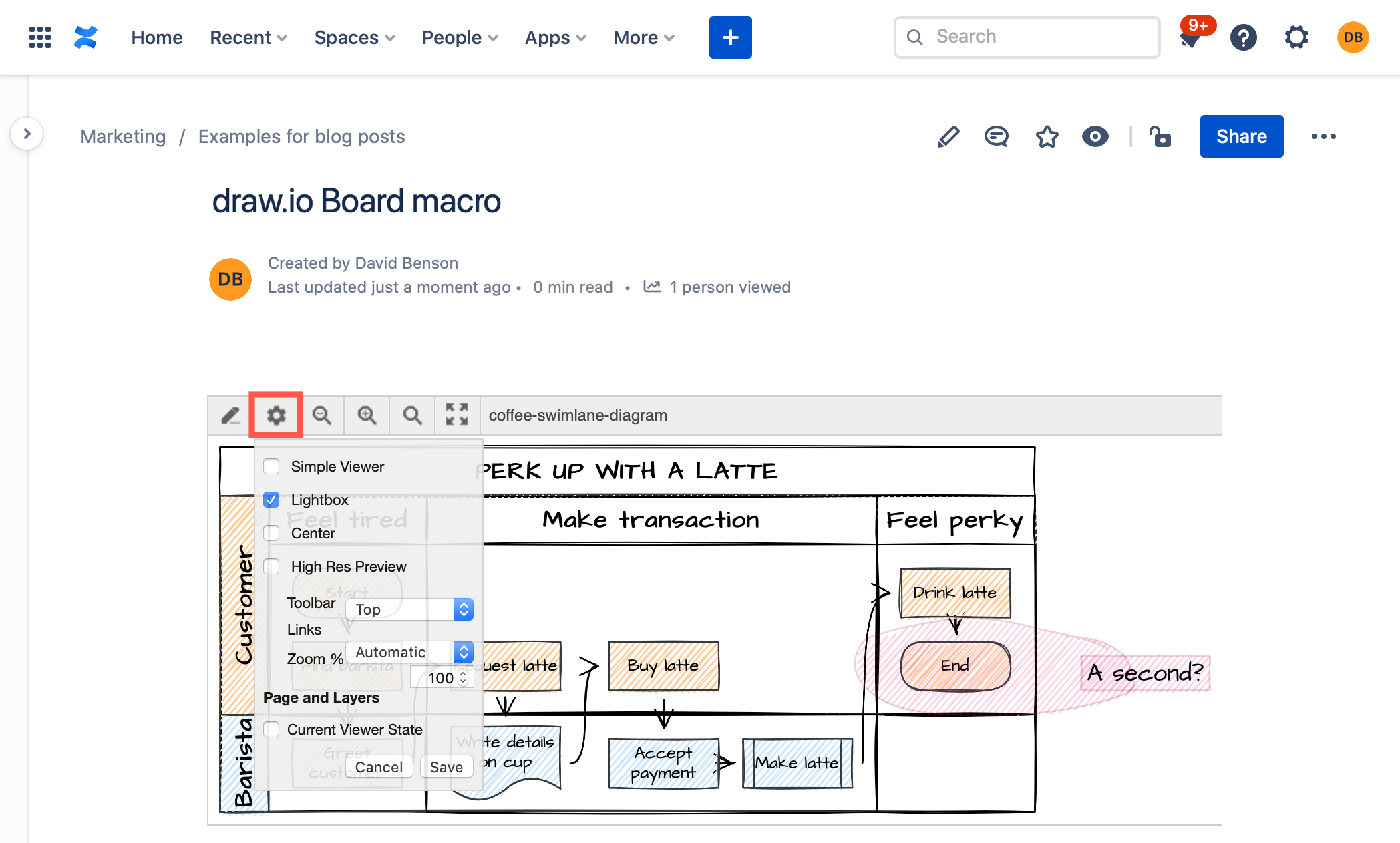
When viewing the Confluence page, hover over the diagram, click on the gear icon in the toolbar, change the viewer settings then click Save.
Set the viewer options to change how your diagram appears on the Confluence page
Note: If the diagram uses the Simple Viewer, you will not see the toolbar

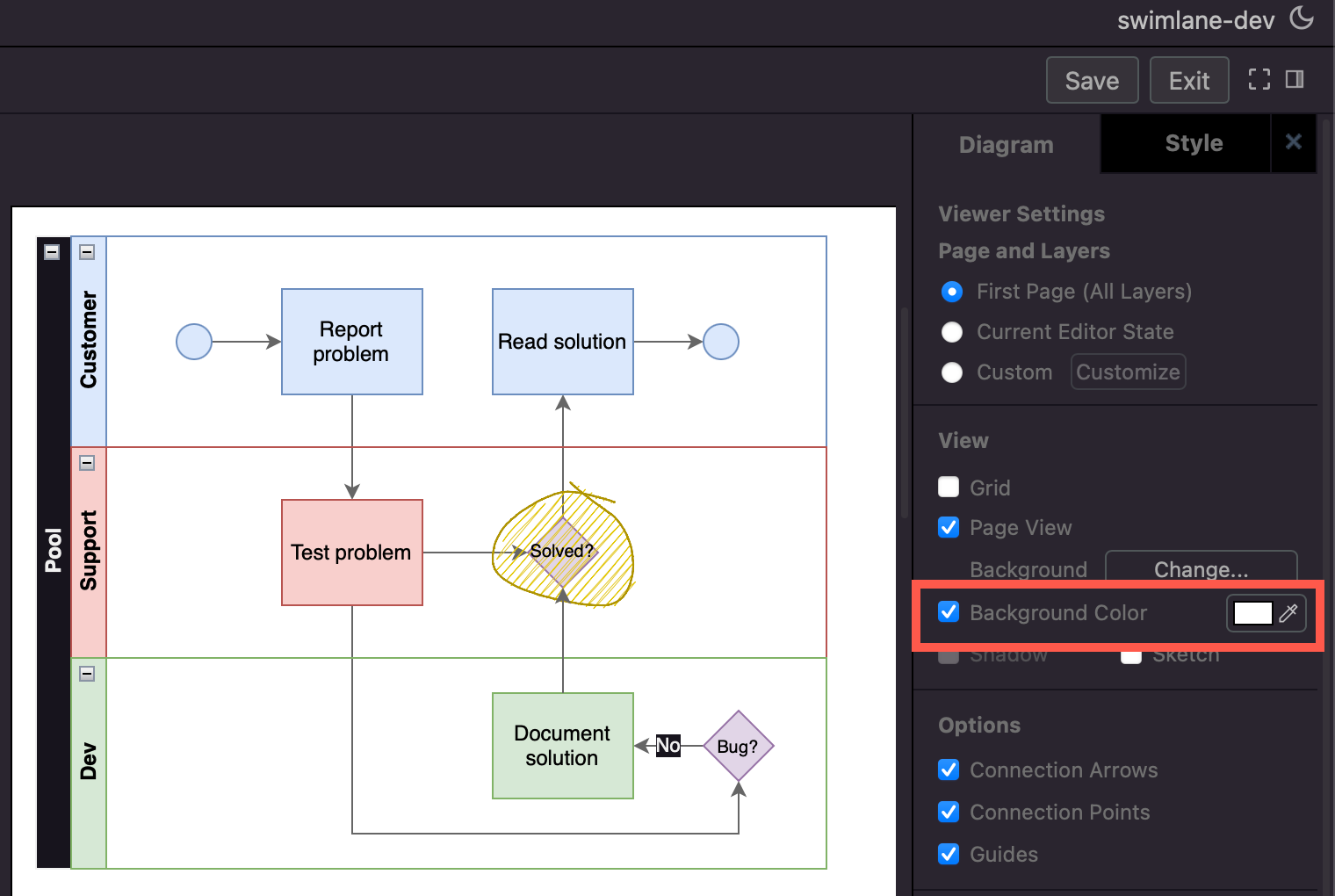
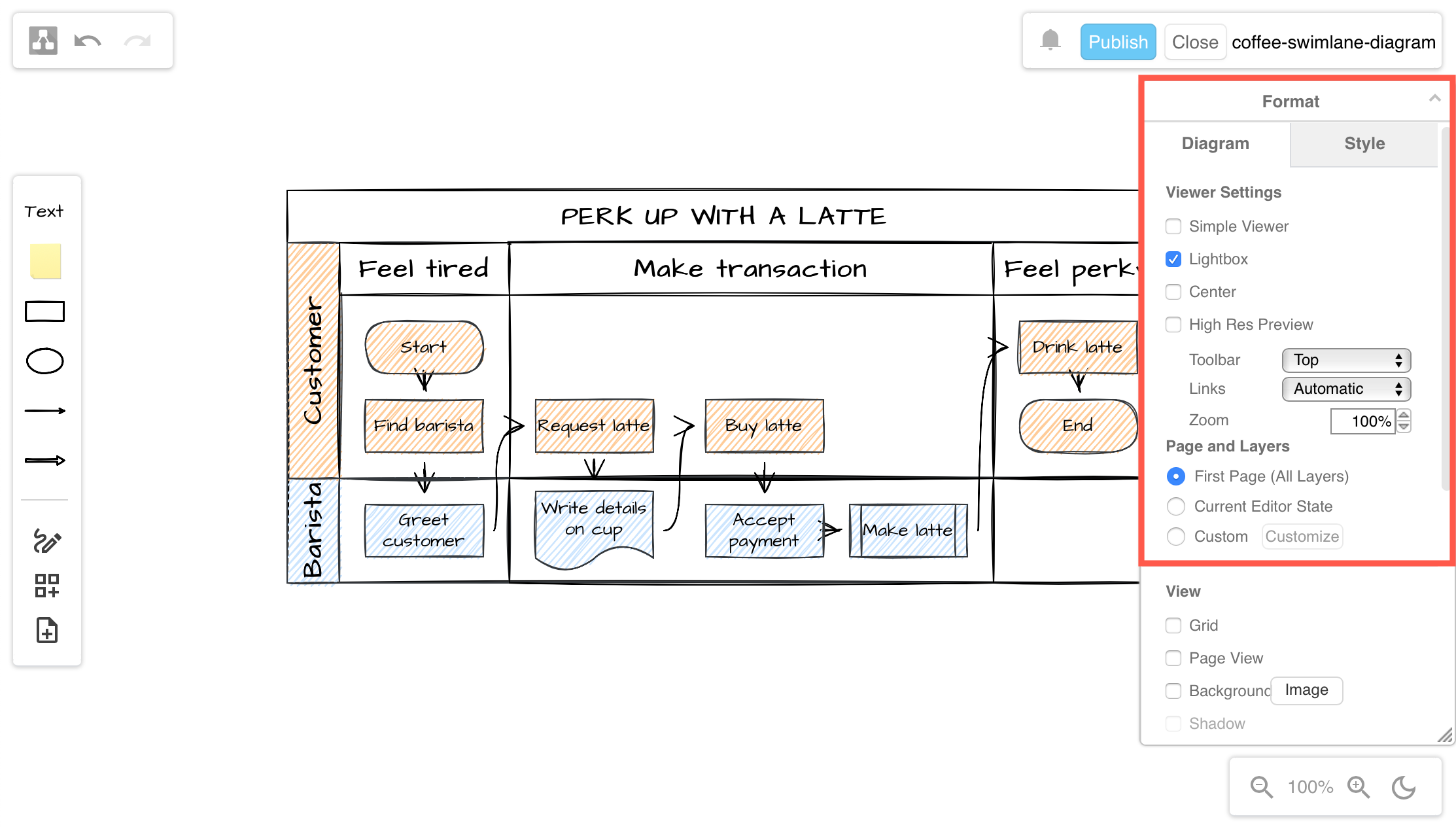
Alternatively, from within the draw.io diagram editor, make sure nothing in your diagram is selected, then open the Format panel. The Viewer options are available at the top of the Diagram tab of the format panel.
Set the viewer options within the draw.io Board editor to change how your diagram appears on the Confluence page

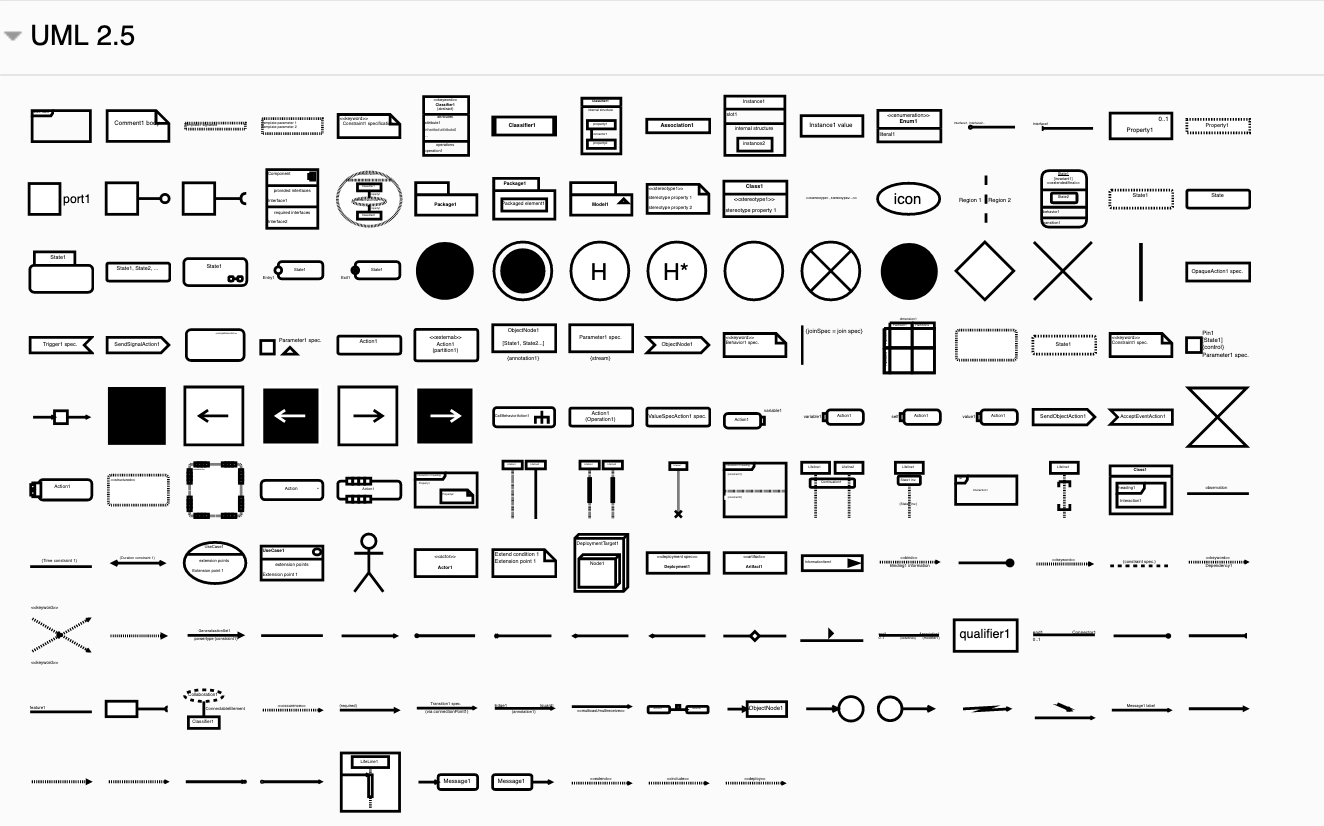
UML 2.5 shape library with updated shapes

· 5 min read

The Unified Modeling Language (UML) is a set of standard symbols and diagram types, commonly used in data modelling, workflow visualisation, and system modelling. UML notation is the defacto industry standard in the fields of software development, IT infrastructure, business systems and other fields. Many languages, such as SysML, SoaML, and a number of architecture frameworks use and extend UML.
Activity diagrams are used to model workflows in various ways

The UML 2.5 specification updated the notation, or the shapes used in diagrams so they could represent a wider range of concepts more clearly. The specification document was extensively rewritten to make it easier to understand.

No new diagram types were added in UML 2.5 - the 14 diagram types that were previously defined in UML 2.0 are extended to cover the additional concepts, with many examples provided in the specification document.

UML diagram types

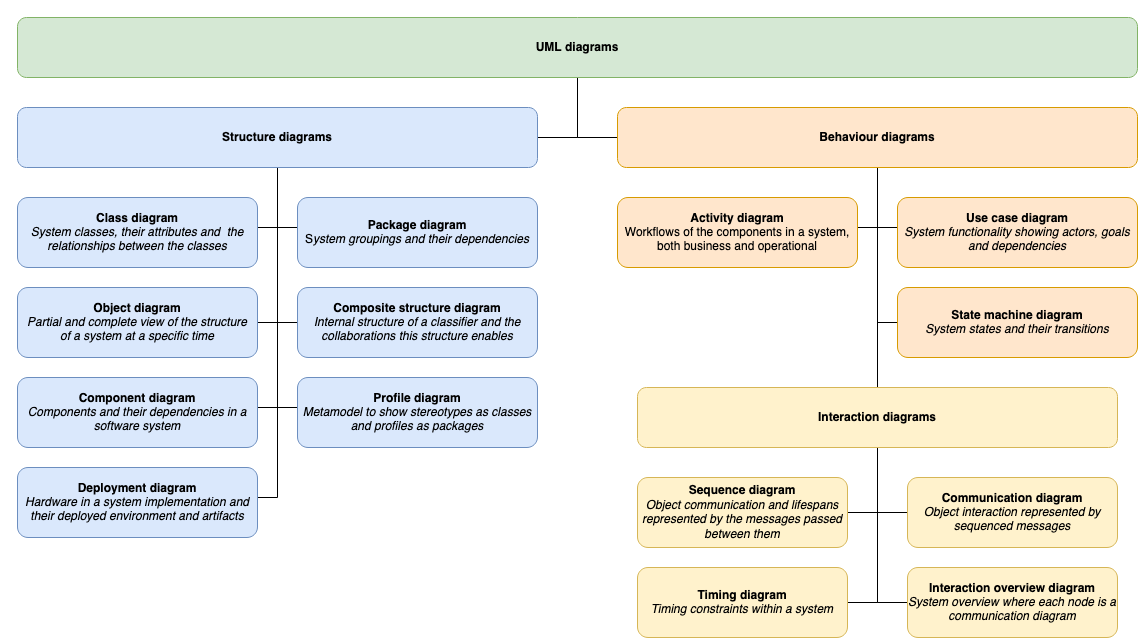
UML diagrams are divided into two categories that provide you with static (structural) and dynamic (behavioural) views of a system.

Diagram types defined in UML 2.5
Open this in our free diagram viewer

Enable the UML 2.5 shape library

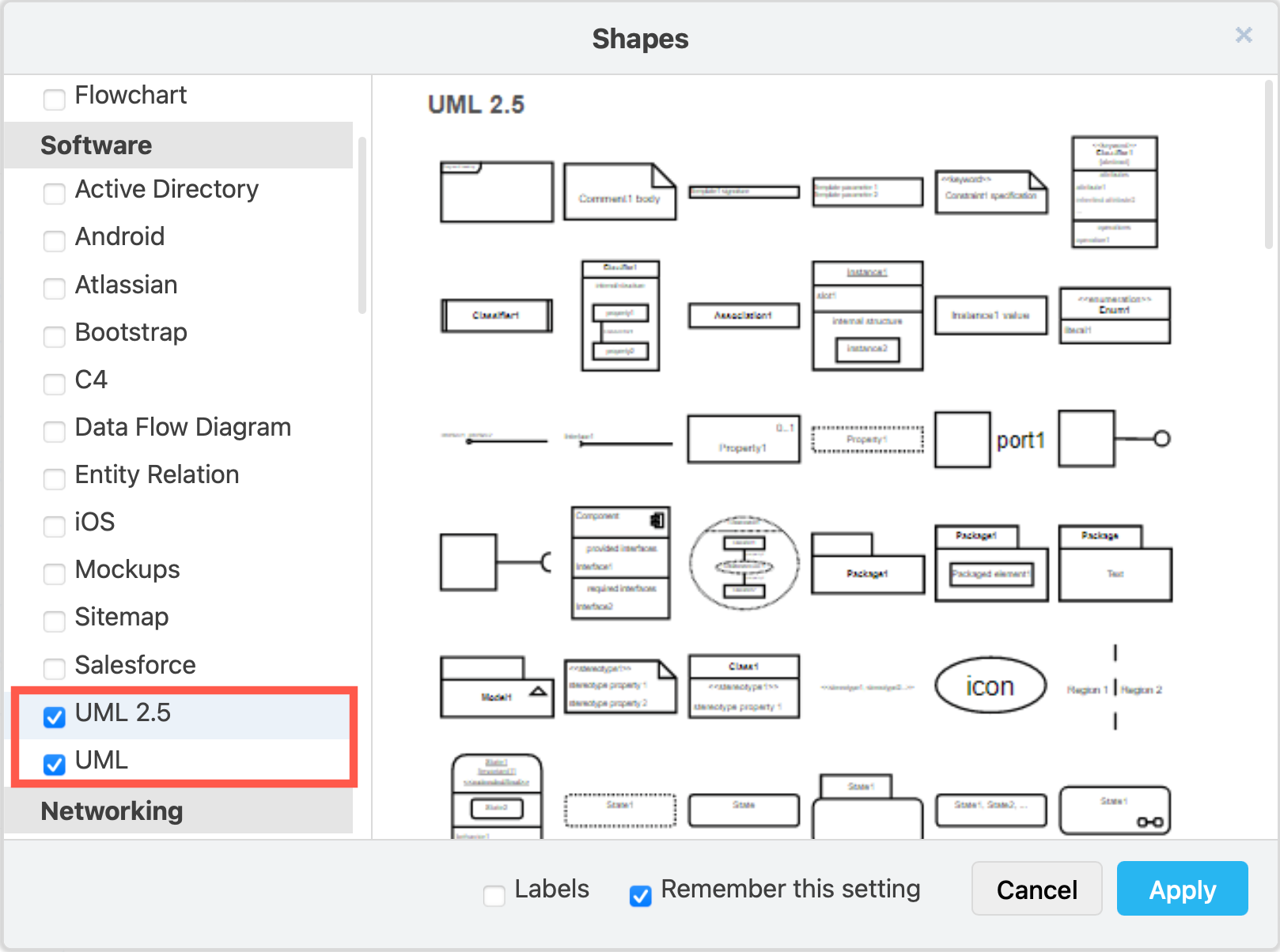
  1. Click on More Shapes at the bottom of the left panel in draw.io, scroll down and click on the checkbox next to the UML 2.5 shape library in the Software section. You may want to also enable the UML shape library. Then click Apply.
    Enable the UML 2.5 shape library, and the older UML library if you wish to use those shapes
  2. The UML 2.5 shape library will appear in the left panel.
    The shapes in the UML 2.5 shape library let you create clearer and more extensive UML diagrams of many types

Using these shapes, and some of the shapes from the General and older UML shape libraries, you can create the full range of UML diagrams.

Example UML diagrams

Click on a diagram below to open in our diagram viewer

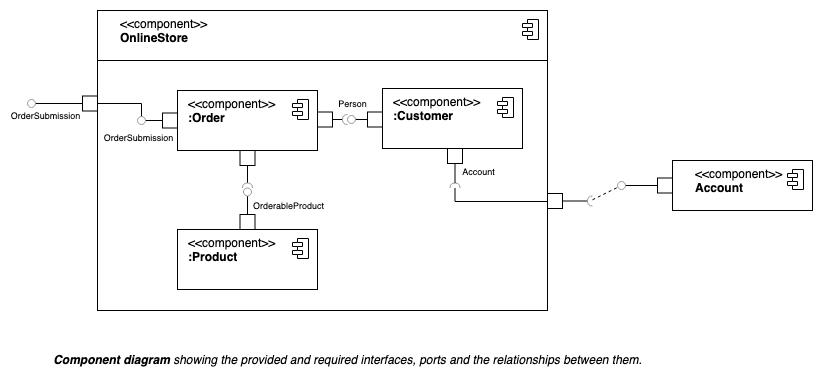
Component diagrams show the dependencies between the logical and physical components of a system with the interfaces that each component requires and provides and their ports.

Component diagrams show the dependencies between the components of a system.

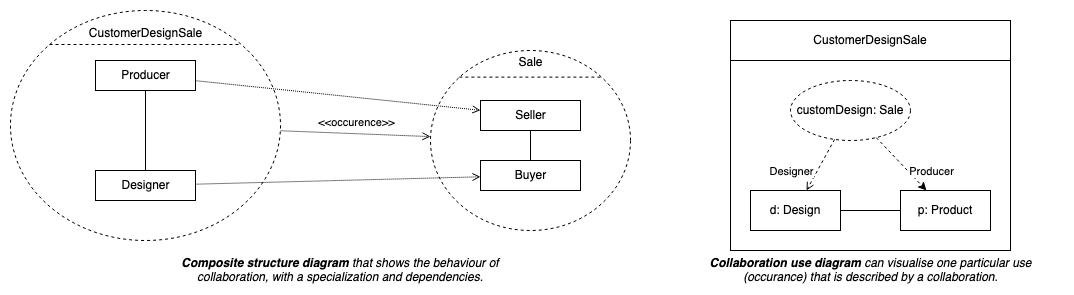
Composite structure diagrams are used to show the internal structure of a classifier, with its properties, parts and relationships, or how a collaboration behaves. You can break down the behaviour of a collaboration into one or more specific situations (occurrences) in a collaboration or collaboration use diagram.

Composite structure diagrams are used to show the internal structure of a classifier

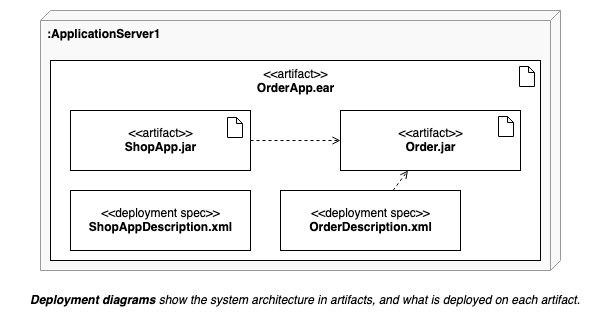
Deployment diagrams shows the system infrastructure and how various software executables and artifacts are deployed on deployment targets.

Deployment diagrams shows the system infrastructure and how various software executables and artifacts are deployed on deployment targets.

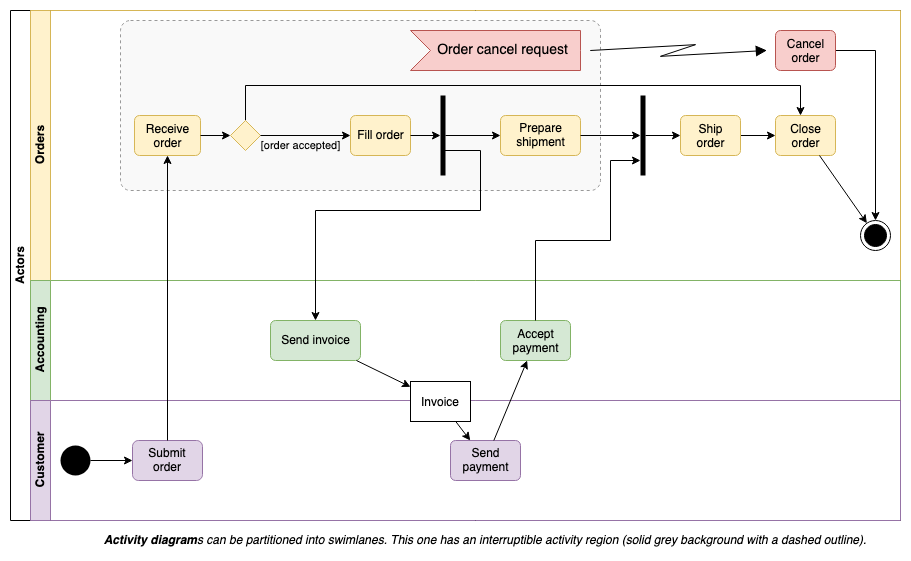
Activity diagrams are used to model workflows in various ways. In this example, the workflow actions are arranged into swimlanes representing the actors, with a section that allows an interrupt (exception) to cancel the order.

Activity diagrams are used to model workflows in various ways

Maths equations in diagrams

· 2 min read

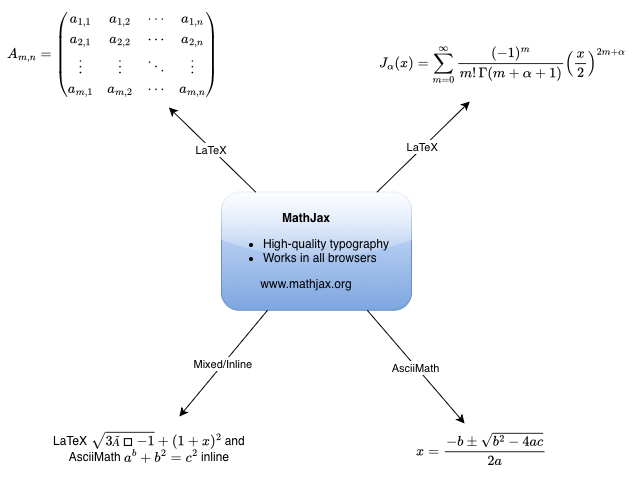
You can add maths equations to your diagrams by enabling mathematical typesetting via the draw.io menu. When you enter an equation into a text shape or label, enabling mathematical typesetting will use MathJax to render your equation. MathJax renders equations neatly and works in all browsers.
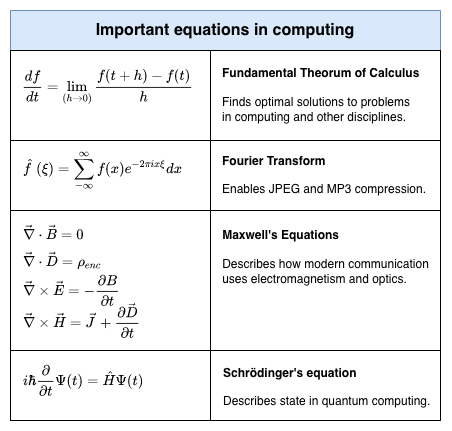
Mathematical typesetting will render equations in text shapes, even when they are in tables

LaTeX and AsciiMath

Input equations using LaTeX or AsciiMath.

  • LaTeX inline: \(\sqrt{3×-1}+(1+x)^2\)
  • AsciiMath inline: `a^b + b^2 = c^2`
  • LaTeX in a block: $$\sqrt{3×-1}+(1+x)^2$$

You can also mix LaTeX and AsciiMath inline in the one text field: LaTeX \(\sqrt{3×-1}+(1+x)^2\\) and AsciiMath `a^b + b^2 = c^2`

Enable mathematical typesetting

Select Extras > Mathematical Typesetting in the draw.io menu to render your equations in MathJax.You can disable it at any time and see the equation's LaTeX or AsciiMath source through the same menu item.

Maths equations in tables

Just like you can add shapes to table cells, you can also add maths equations to table cells and cross-functional tables.

Mathematical typesetting will render equations in text shapes, even when they are in tables
Open these examples in our diagram viewer

See the maths typesetting documentation for changing the maths font, troubleshooting printing or display problems, and more examples.

Go to diagram.new to create a new diagram

· 2 min read

You can now create a new diagram even faster by going to diagram.new or diagrams.new instead of having to remember the full app.diagrams.net address for the online version of draw.io.

.new is the first and only domain that is devoted to helping you get things done fast. Each and every address that ends with .new is an action that lets you create or share content online.

The .new domain helps you create content quickly

Google has set up the .new domain exclusively to help you create and work with content quickly and easily. Several different types of content and actions are available already:

For example:

Instead of remembering the full URL of the websites and services, just enter the type of content you want to create or action you want to do and add .new to the end.

Only trusted apps

As there is a rigorous application process with a well-defined registration and security policy, Google only grants trusted and reliable applications or shortcuts a .new address.

Try it out

Go to diagram.new and create a new diagram.

If you have any questions, please post them to https://groups.google.com/forum/#!forum/drawio. If it's technical, you can open an issue at GitHub.